> ## Documentation Index
> Fetch the complete documentation index at: https://support.i.moneyforward.com/llms.txt
> Use this file to discover all available pages before exploring further.
# Member management
> How to invite, change roles for, and remove members in AI Helpdesk
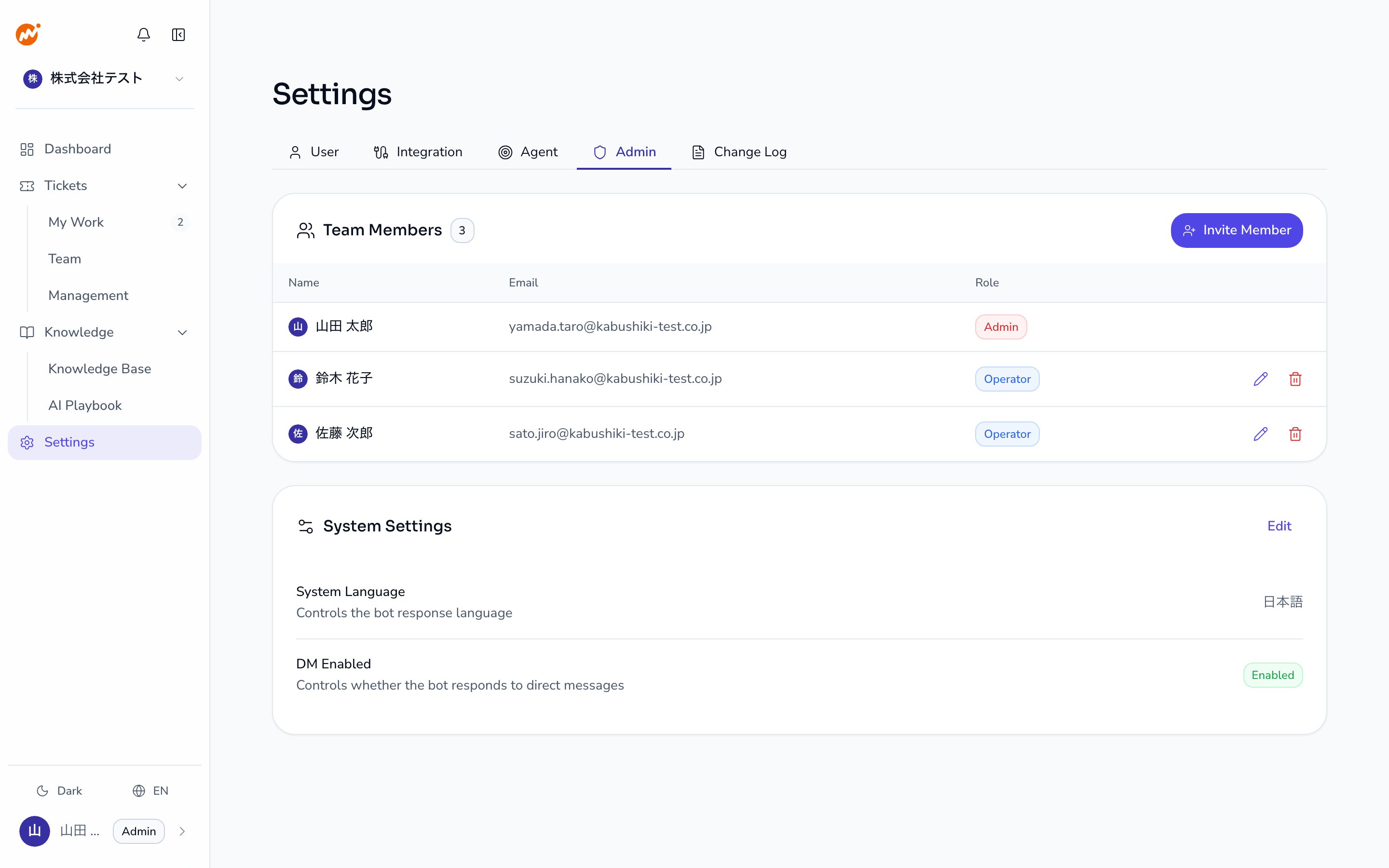
Go to **Settings** > **Admin** > **Team members** to invite, change roles for, and remove members. Only users with the **Admin** role can perform these actions.
 ## Roles
| Role | Permissions |
| ------------ | -------------------------------------------------------------------------- |
| **Admin** | Modify all settings, manage members, handle sessions |
| **Operator** | Handle sessions, view knowledge (cannot modify settings or manage members) |
Roles can be combined. A single member can hold both Admin and Operator roles.
## Inviting members
Click the **Invite member** button in the upper right of the **Team members** section.
## Roles
| Role | Permissions |
| ------------ | -------------------------------------------------------------------------- |
| **Admin** | Modify all settings, manage members, handle sessions |
| **Operator** | Handle sessions, view knowledge (cannot modify settings or manage members) |
Roles can be combined. A single member can hold both Admin and Operator roles.
## Inviting members
Click the **Invite member** button in the upper right of the **Team members** section.
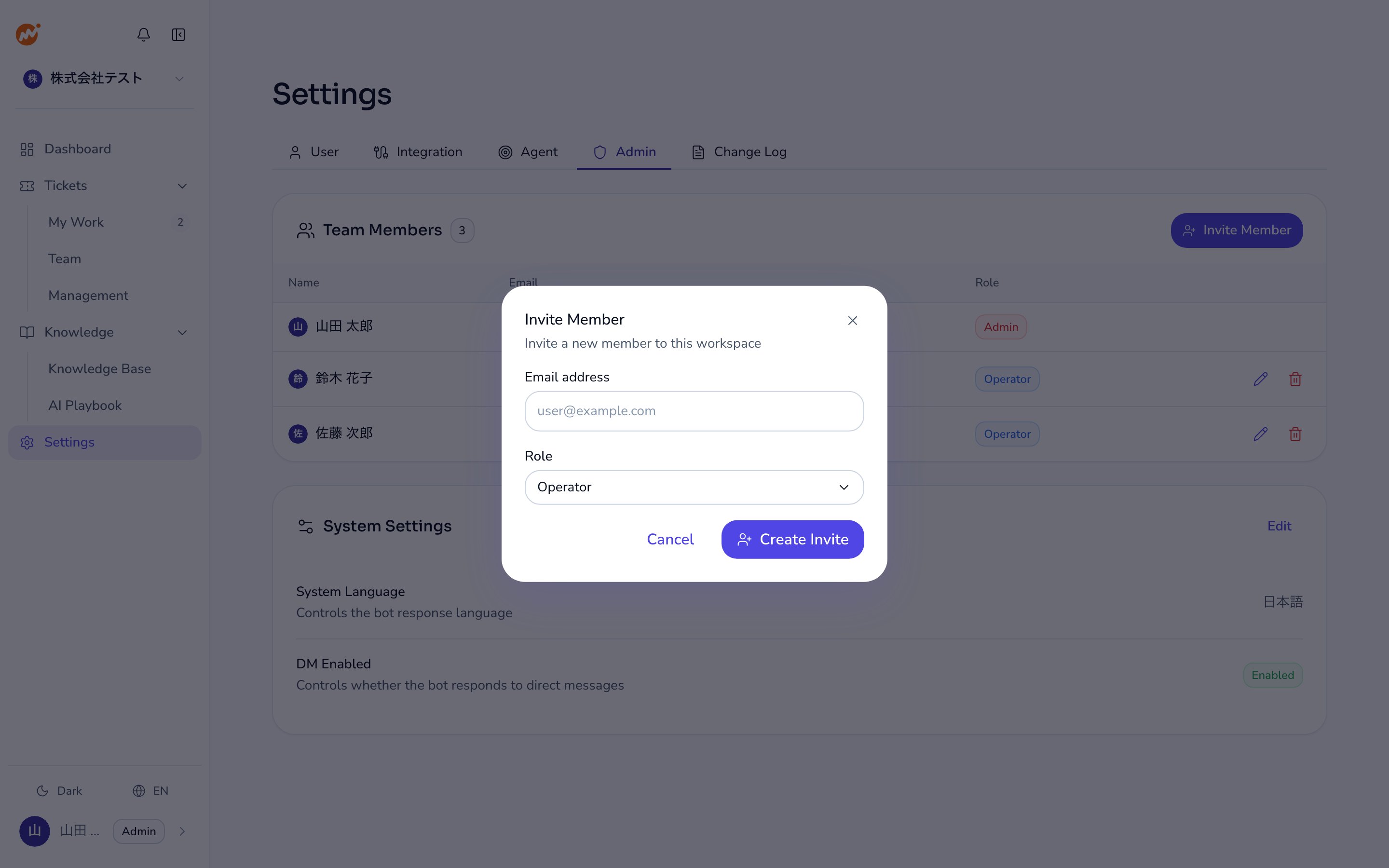 Enter the email address of the user you want to invite and select the role to assign (**Admin** or **Operator**). The email address is required.
After creating the invitation, the link is copied to your clipboard. Send it to the intended recipient. Invitation links have an expiration date.
## Managing invitations
Pending invitations appear at the bottom of the member list.
* **Copy link**: Click the link icon on the invitation row to copy the invitation URL again
* **Cancel invitation**: Click the trash icon and select **Cancel invitation** in the confirmation dialog
## Changing roles
In the member list, click the pencil icon in the row of the user you want to update.
Update the **Admin** and **Operator** checkboxes. At least one role must be selected.
Click the save icon to save the changes.
You cannot change your own role. Ask another Admin to make the change.
## Removing members
In the member list, click the trash icon in the row of the user you want to remove.
A confirmation dialog will appear. Review the details and click **Confirm**.
Removing a member revokes their access to Helpdesk immediately. Sessions that were assigned to the removed member remain open.
## Linking messaging platform accounts
From the **Team members** section, you can link member accounts to Slack, Microsoft Teams, LINE WORKS, or Google Chat. A checkmark is shown in the member list when a link is established.
* **Link an account**: Click the link icon, enter the member's email address on that platform (or LINE WORKS user ID), then click **Verify** followed by **Confirm**
* **Unlink an account**: Click the unlink icon and confirm the action
## Related pages
* [Notifications](/en/ai-helpdesk/admin/notifications) — Configure notifications for members
* [Session settings](/en/ai-helpdesk/admin/session-config) — Configure auto-close and reminder settings
Enter the email address of the user you want to invite and select the role to assign (**Admin** or **Operator**). The email address is required.
After creating the invitation, the link is copied to your clipboard. Send it to the intended recipient. Invitation links have an expiration date.
## Managing invitations
Pending invitations appear at the bottom of the member list.
* **Copy link**: Click the link icon on the invitation row to copy the invitation URL again
* **Cancel invitation**: Click the trash icon and select **Cancel invitation** in the confirmation dialog
## Changing roles
In the member list, click the pencil icon in the row of the user you want to update.
Update the **Admin** and **Operator** checkboxes. At least one role must be selected.
Click the save icon to save the changes.
You cannot change your own role. Ask another Admin to make the change.
## Removing members
In the member list, click the trash icon in the row of the user you want to remove.
A confirmation dialog will appear. Review the details and click **Confirm**.
Removing a member revokes their access to Helpdesk immediately. Sessions that were assigned to the removed member remain open.
## Linking messaging platform accounts
From the **Team members** section, you can link member accounts to Slack, Microsoft Teams, LINE WORKS, or Google Chat. A checkmark is shown in the member list when a link is established.
* **Link an account**: Click the link icon, enter the member's email address on that platform (or LINE WORKS user ID), then click **Verify** followed by **Confirm**
* **Unlink an account**: Click the unlink icon and confirm the action
## Related pages
* [Notifications](/en/ai-helpdesk/admin/notifications) — Configure notifications for members
* [Session settings](/en/ai-helpdesk/admin/session-config) — Configure auto-close and reminder settings