> ## Documentation Index
> Fetch the complete documentation index at: https://support.i.moneyforward.com/llms.txt
> Use this file to discover all available pages before exploring further.
# Register Playbooks
> How to register Playbooks by file upload or inline creation
A Playbook is a procedure document that AI Agent uses to handle employee inquiries. Based on registered Playbooks, AI Agent guides requesters through the appropriate procedure.
There are two ways to register Playbooks: **file upload** and **inline creation**.
## Register via file upload
Use file upload to register multiple Playbooks at once.
Supported file formats are **Markdown (.md), plain text (.txt), CSV (.csv), Word (.docx), and PDF (.pdf)**. Each file can be up to **5MB**, and you can upload up to **50 files** per operation. Each file must start with YAML frontmatter specifying `procedure_id`, `name`, `description`, `category`, and `subcategory`.
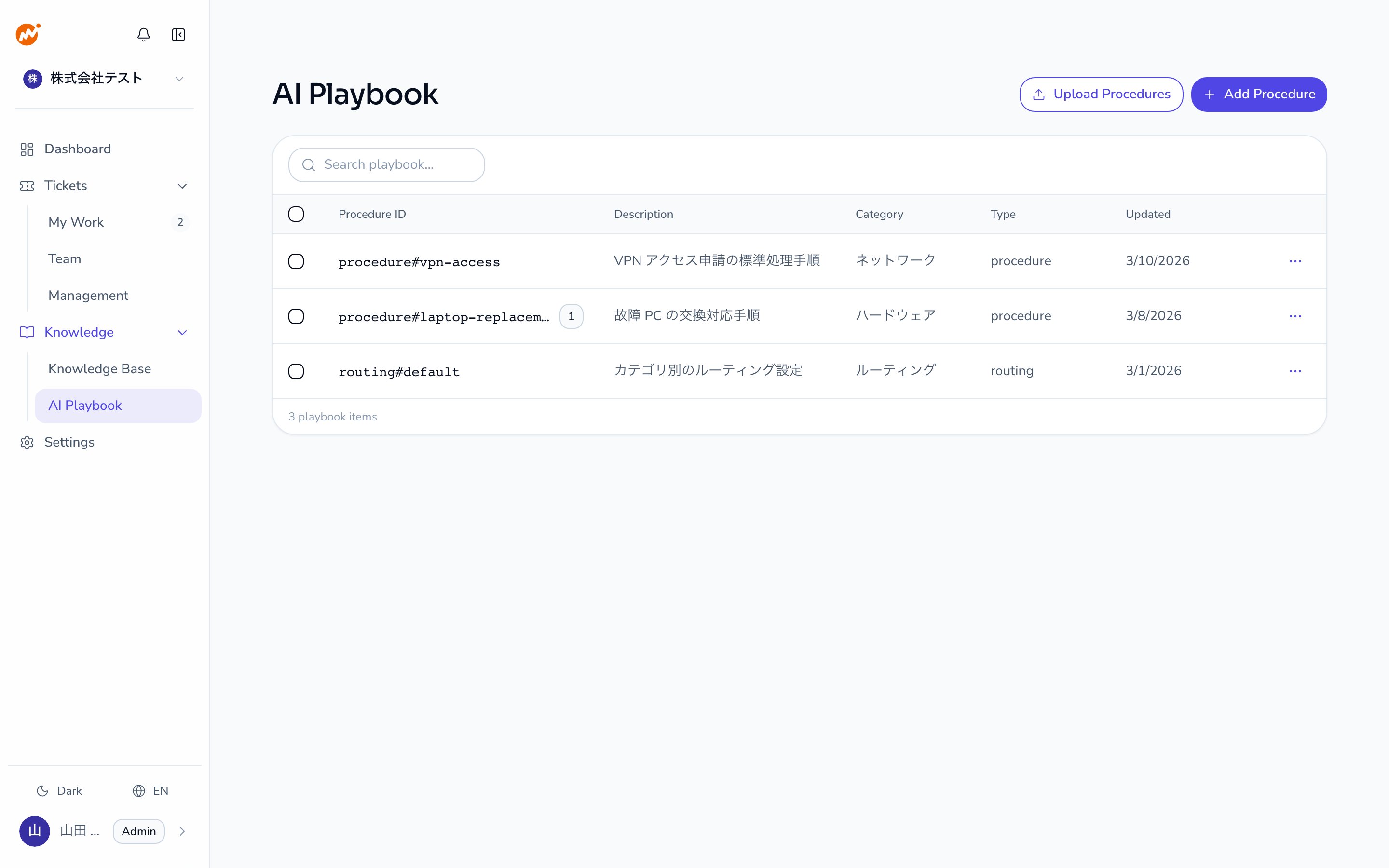
From the AI Helpdesk admin screen, select **AI Playbook**.
Click **Upload Procedures** and select the files you want to register. You can select multiple files at once.
After upload, each file's frontmatter and body are parsed, and any errors are shown per file. Review the content and click **Upload**.
If multiple files share the same `procedure_id`, only the first one loaded is registered. Review your files before uploading.
## Register via inline creation
Create a Playbook directly in the WebUI text editor.
From the AI Helpdesk admin screen, select **AI Playbook**.
Click **Add Procedure** to open the creation form.
Enter the Playbook content in the text editor. For step notation, see [Playbook step notation](/en/ai-helpdesk/playbooks/creating#playbook-step-notation) below.
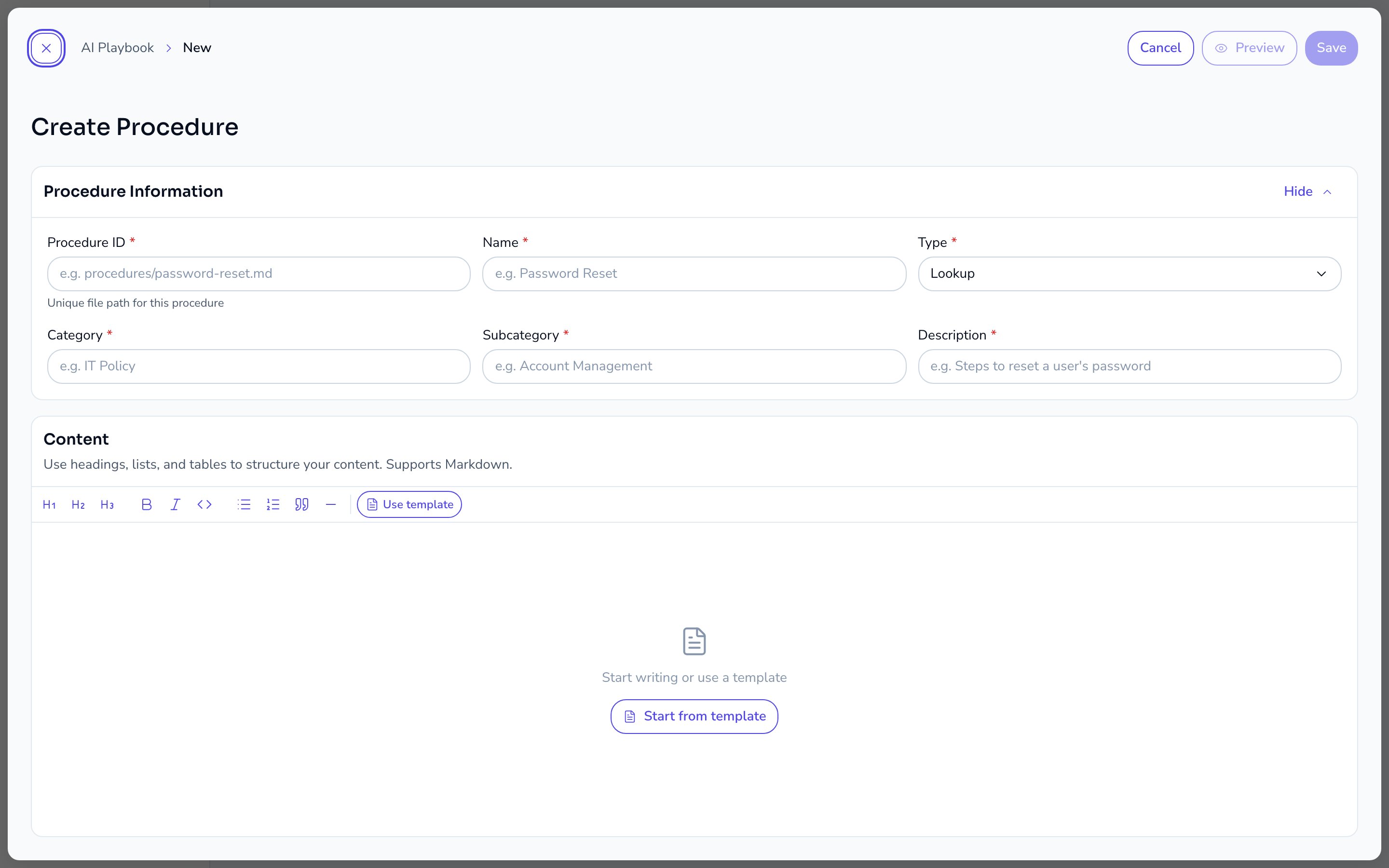 Click **Save**. The registered Playbook takes effect from the next triage onward.
 ## Playbook specifications
### General-purpose Playbook
When the Triage Agent cannot match an inquiry to any other Playbook, it falls back to a general-purpose Playbook. This fallback Playbook is stored as `procedures/general.md`. It appears in the list like any other Playbook and can be edited or deleted.
Keep the general-purpose Playbook's content updated to provide a reasonable fallback experience. Deleting it removes the fallback response for unmatched inquiries, so proceed with caution.
### When changes take effect
Registered or updated Playbook content takes effect **from the next triage onward**. Sessions already in progress are not affected.
## Playbook step notation
Playbook steps contain a natural language description of the action the AI agent should perform. Use the `{{tool_name}}` syntax in the step body to explicitly reference a tool the AI agent should call.
### How to reference tools
Embed `{{tool_name}}` inline in the step text.
```markdown theme={null}
### Step 1: Look up user account
Use {{mcp__admina__get_people_accounts}} to check the user's account status.
If the account is locked, proceed to Step 2. If not found, escalate.
```
Typing `{{` in the text editor opens a tool-name autocomplete menu (typing `/` opens the full command menu). You can pick a tool from the menu instead of typing it by hand.
### Available tools
**Knowledge and document search**
| Tool | Capability |
| ------------------------ | --------------------------------------------------------------------------------------------------------- |
| `{{document_search}}` | Searches the Knowledge Base and automatically falls back to web search when there is no hit (recommended) |
| `{{web_search}}` | Search the web directly for up-to-date information |
| `{{read_markdown_file}}` | Read a specific document file |
**Admina data lookup (MCP)**
| Tool | Capability |
| --------------------------------------- | ----------------------------------------------------------------------- |
| `{{mcp__admina__get_people_accounts}}` | Retrieve a user's team, employment status, and SaaS account information |
| `{{mcp__admina__get_devices}}` | Retrieve a user's device information |
| `{{mcp__admina__get_identities}}` | Retrieve a user's identity and MFA enrollment status |
| `{{mcp__admina__get_services}}` | Retrieve the list of available service integrations |
| `{{mcp__admina__get_service_accounts}}` | Retrieve the account list for a specific service |
Admina MCP tools require the Admina MCP integration to be enabled in **Settings > Integration**. Tool names follow the `{{mcp__admina__tool_name}}` format. Check with your admin for the full list of available Admina tools.
**Core tools**
| Tool | Capability |
| ------------------------------ | ------------------------------------------------------------------------------------------ |
| `{{check_session_status}}` | Check the current status and assignee of the session (always call before `{{escalation}}`) |
| `{{escalation}}` | Escalate to an operator or team |
| `{{escalation_contact}}` | Display a specific contact as a chip in the step text (see below) |
| `{{suggest_session_complete}}` | Confirm resolution with the user and prompt session close |
| `{{start_workflow}}` | Start tracking a named workflow (e.g. `password-reset`) |
| `{{update_conversation_data}}` | Save information collected during the conversation |
`{{investigation}}` and `{{resolution_planning}}` were removed as part of a prompt model refactor. The equivalent judgment is now built into the AI agent's core instructions, so Playbooks no longer need to call them explicitly.
### Contact chip syntax (`{{escalation_contact}}`)
`{{escalation_contact}}` is a different tool from `{{escalation}}`. It isn't an action the AI performs — it's **notation for displaying a contact clearly in the step text**. Embedded with no attributes, it resolves to your tenant's configured contact. Adding an attribute displays a specific contact as an icon-labeled chip.
| Syntax | Icon shown |
| ------------------------------------------------------ | ------------------------------------------------------ |
| `{{escalation_contact}}` | Generic icon (resolves to the tenant-configured value) |
| `{{escalation_contact name="display name"}}` | Person icon |
| `{{escalation_contact slack_name="display name"}}` | Slack icon |
| `{{escalation_contact teams_username="display name"}}` | Microsoft Teams icon |
| `{{escalation_contact line_id="display name"}}` | LINE WORKS icon |
| `{{escalation_contact email="email address"}}` | Mail icon |
```markdown theme={null}
If you have questions, check with {{escalation_contact name="Taro Yamada"}}.
```
### Example
```markdown theme={null}
## Password Reset Procedure
### Step 1: Check user account
Use {{mcp__admina__get_people_accounts}} to verify account status.
If the account is locked, proceed to Step 2. If not found, escalate.
### Step 2: Search internal documentation
Use {{document_search}} to find the password reset procedure.
Present the found procedure to the user clearly.
### Step 3: Confirm resolution
Check whether the issue is resolved.
If resolved, use {{suggest_session_complete}} to close the session.
If not resolved, use {{check_session_status}} to check status, and if not already escalated, use {{escalation}} to hand off to the IT team.
```
Tool references are optional. The AI agent selects tools from context even without them, but using `{{tool_name}}` makes tool selection more reliable and ensures expected behavior.
## Related pages
* [Edit and delete Playbooks](/en/ai-helpdesk/playbooks/editing)
* [Manage Handbooks](/en/ai-helpdesk/knowledge/handbook)
* [Add Knowledge](/en/ai-helpdesk/knowledge/adding)
## Playbook specifications
### General-purpose Playbook
When the Triage Agent cannot match an inquiry to any other Playbook, it falls back to a general-purpose Playbook. This fallback Playbook is stored as `procedures/general.md`. It appears in the list like any other Playbook and can be edited or deleted.
Keep the general-purpose Playbook's content updated to provide a reasonable fallback experience. Deleting it removes the fallback response for unmatched inquiries, so proceed with caution.
### When changes take effect
Registered or updated Playbook content takes effect **from the next triage onward**. Sessions already in progress are not affected.
## Playbook step notation
Playbook steps contain a natural language description of the action the AI agent should perform. Use the `{{tool_name}}` syntax in the step body to explicitly reference a tool the AI agent should call.
### How to reference tools
Embed `{{tool_name}}` inline in the step text.
```markdown theme={null}
### Step 1: Look up user account
Use {{mcp__admina__get_people_accounts}} to check the user's account status.
If the account is locked, proceed to Step 2. If not found, escalate.
```
Typing `{{` in the text editor opens a tool-name autocomplete menu (typing `/` opens the full command menu). You can pick a tool from the menu instead of typing it by hand.
### Available tools
**Knowledge and document search**
| Tool | Capability |
| ------------------------ | --------------------------------------------------------------------------------------------------------- |
| `{{document_search}}` | Searches the Knowledge Base and automatically falls back to web search when there is no hit (recommended) |
| `{{web_search}}` | Search the web directly for up-to-date information |
| `{{read_markdown_file}}` | Read a specific document file |
**Admina data lookup (MCP)**
| Tool | Capability |
| --------------------------------------- | ----------------------------------------------------------------------- |
| `{{mcp__admina__get_people_accounts}}` | Retrieve a user's team, employment status, and SaaS account information |
| `{{mcp__admina__get_devices}}` | Retrieve a user's device information |
| `{{mcp__admina__get_identities}}` | Retrieve a user's identity and MFA enrollment status |
| `{{mcp__admina__get_services}}` | Retrieve the list of available service integrations |
| `{{mcp__admina__get_service_accounts}}` | Retrieve the account list for a specific service |
Admina MCP tools require the Admina MCP integration to be enabled in **Settings > Integration**. Tool names follow the `{{mcp__admina__tool_name}}` format. Check with your admin for the full list of available Admina tools.
**Core tools**
| Tool | Capability |
| ------------------------------ | ------------------------------------------------------------------------------------------ |
| `{{check_session_status}}` | Check the current status and assignee of the session (always call before `{{escalation}}`) |
| `{{escalation}}` | Escalate to an operator or team |
| `{{escalation_contact}}` | Display a specific contact as a chip in the step text (see below) |
| `{{suggest_session_complete}}` | Confirm resolution with the user and prompt session close |
| `{{start_workflow}}` | Start tracking a named workflow (e.g. `password-reset`) |
| `{{update_conversation_data}}` | Save information collected during the conversation |
`{{investigation}}` and `{{resolution_planning}}` were removed as part of a prompt model refactor. The equivalent judgment is now built into the AI agent's core instructions, so Playbooks no longer need to call them explicitly.
### Contact chip syntax (`{{escalation_contact}}`)
`{{escalation_contact}}` is a different tool from `{{escalation}}`. It isn't an action the AI performs — it's **notation for displaying a contact clearly in the step text**. Embedded with no attributes, it resolves to your tenant's configured contact. Adding an attribute displays a specific contact as an icon-labeled chip.
| Syntax | Icon shown |
| ------------------------------------------------------ | ------------------------------------------------------ |
| `{{escalation_contact}}` | Generic icon (resolves to the tenant-configured value) |
| `{{escalation_contact name="display name"}}` | Person icon |
| `{{escalation_contact slack_name="display name"}}` | Slack icon |
| `{{escalation_contact teams_username="display name"}}` | Microsoft Teams icon |
| `{{escalation_contact line_id="display name"}}` | LINE WORKS icon |
| `{{escalation_contact email="email address"}}` | Mail icon |
```markdown theme={null}
If you have questions, check with {{escalation_contact name="Taro Yamada"}}.
```
### Example
```markdown theme={null}
## Password Reset Procedure
### Step 1: Check user account
Use {{mcp__admina__get_people_accounts}} to verify account status.
If the account is locked, proceed to Step 2. If not found, escalate.
### Step 2: Search internal documentation
Use {{document_search}} to find the password reset procedure.
Present the found procedure to the user clearly.
### Step 3: Confirm resolution
Check whether the issue is resolved.
If resolved, use {{suggest_session_complete}} to close the session.
If not resolved, use {{check_session_status}} to check status, and if not already escalated, use {{escalation}} to hand off to the IT team.
```
Tool references are optional. The AI agent selects tools from context even without them, but using `{{tool_name}}` makes tool selection more reliable and ensures expected behavior.
## Related pages
* [Edit and delete Playbooks](/en/ai-helpdesk/playbooks/editing)
* [Manage Handbooks](/en/ai-helpdesk/knowledge/handbook)
* [Add Knowledge](/en/ai-helpdesk/knowledge/adding)