> ## Documentation Index
> Fetch the complete documentation index at: https://support.i.moneyforward.com/llms.txt
> Use this file to discover all available pages before exploring further.
# Edit and delete Playbooks
> How to edit, delete, and bulk delete registered Playbooks
Registered Playbooks can be edited or deleted at any time from the management screen.
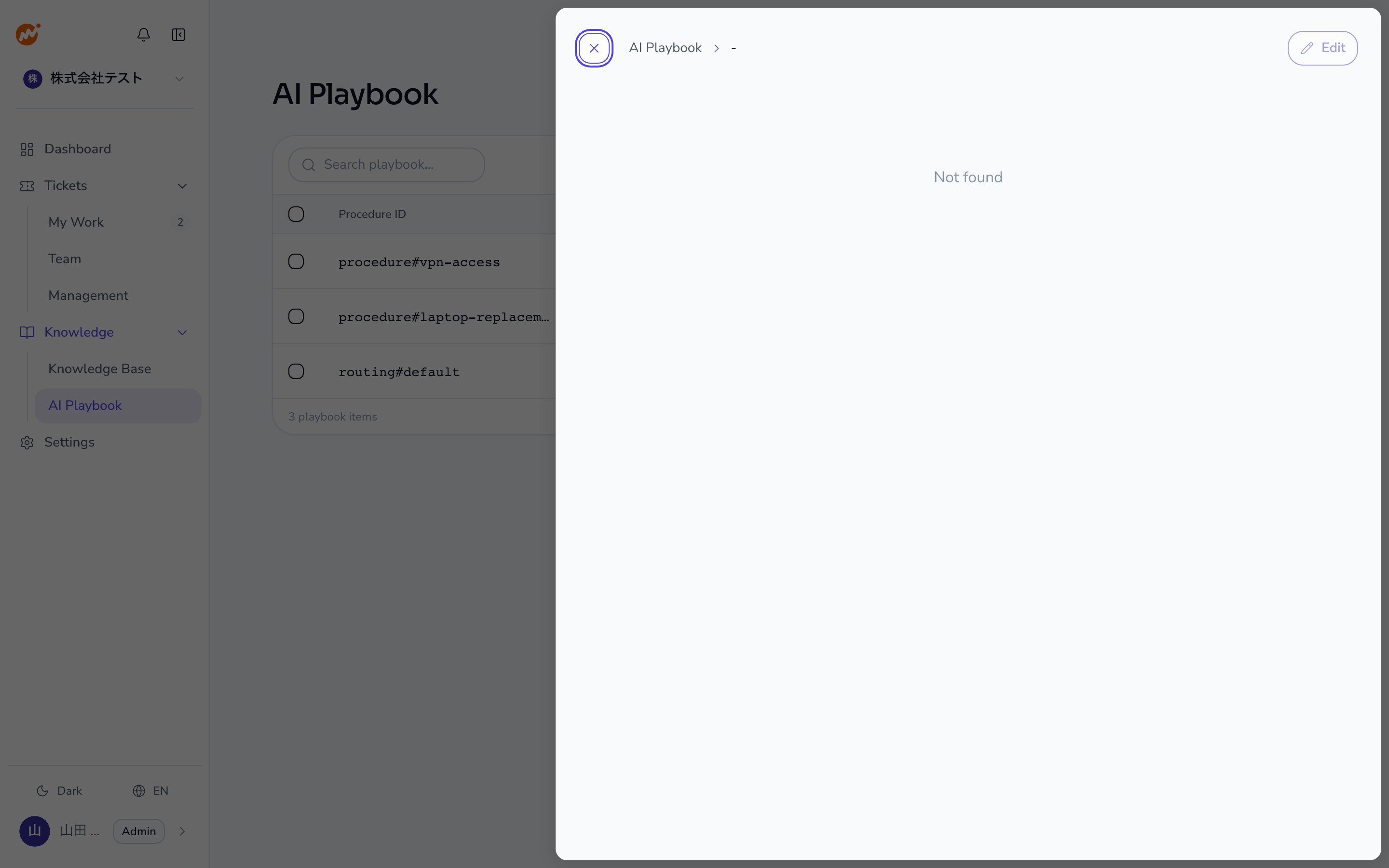 ## Edit a Playbook
From the AI Helpdesk admin screen, select **AI Playbook**.
Click the Playbook you want to edit, or select **Edit** from the **... (action menu)** at the end of the row.
Modify the content in the text editor and click **Save**.
Edited content takes effect from the next triage onward. Sessions already in progress continue using the Playbook version that was active when the session started.
## Delete a Playbook
From the AI Helpdesk admin screen, select **AI Playbook**.
Select **Delete** from the **... (action menu)** at the end of the row for the Playbook you want to delete.
Click **Delete** in the confirmation dialog.
The **general-purpose Playbook** (`procedures/general.md`) is used as a fallback for inquiries that don't match any other Playbook. Like any other Playbook, you can edit or delete it — but deleting it removes the fallback response for unmatched inquiries.
## Bulk delete Playbooks
To delete multiple Playbooks at once, use the bulk delete feature.
From the AI Helpdesk admin screen, select **AI Playbook**.
Check the checkbox on each row for the Playbooks you want to delete. Checking the header row checkbox selects all currently displayed Playbooks.
Click the **Delete** button that appears after making a selection.
Click **Delete** in the confirmation dialog.
## Search and filter Playbooks
Enter a keyword in the search bar at the top of the Playbook list to filter Playbooks by name. This is useful when you have a large number of registered Playbooks.
You can also filter by **Category**, **Type**, and **Has proposals**. The list can be grouped by category, type, or last updated date.
## Notes on deletion
* Deleting a Playbook does not affect sessions already using it. Those sessions continue with the Playbook content available at session start.
* You can re-register a Playbook with the same content after deletion, but the previous history is not retained.
## Related pages
* [Register Playbooks](/en/ai-helpdesk/playbooks/creating)
* [Manage Handbooks](/en/ai-helpdesk/knowledge/handbook)
## Edit a Playbook
From the AI Helpdesk admin screen, select **AI Playbook**.
Click the Playbook you want to edit, or select **Edit** from the **... (action menu)** at the end of the row.
Modify the content in the text editor and click **Save**.
Edited content takes effect from the next triage onward. Sessions already in progress continue using the Playbook version that was active when the session started.
## Delete a Playbook
From the AI Helpdesk admin screen, select **AI Playbook**.
Select **Delete** from the **... (action menu)** at the end of the row for the Playbook you want to delete.
Click **Delete** in the confirmation dialog.
The **general-purpose Playbook** (`procedures/general.md`) is used as a fallback for inquiries that don't match any other Playbook. Like any other Playbook, you can edit or delete it — but deleting it removes the fallback response for unmatched inquiries.
## Bulk delete Playbooks
To delete multiple Playbooks at once, use the bulk delete feature.
From the AI Helpdesk admin screen, select **AI Playbook**.
Check the checkbox on each row for the Playbooks you want to delete. Checking the header row checkbox selects all currently displayed Playbooks.
Click the **Delete** button that appears after making a selection.
Click **Delete** in the confirmation dialog.
## Search and filter Playbooks
Enter a keyword in the search bar at the top of the Playbook list to filter Playbooks by name. This is useful when you have a large number of registered Playbooks.
You can also filter by **Category**, **Type**, and **Has proposals**. The list can be grouped by category, type, or last updated date.
## Notes on deletion
* Deleting a Playbook does not affect sessions already using it. Those sessions continue with the Playbook content available at session start.
* You can re-register a Playbook with the same content after deletion, but the previous history is not retained.
## Related pages
* [Register Playbooks](/en/ai-helpdesk/playbooks/creating)
* [Manage Handbooks](/en/ai-helpdesk/knowledge/handbook)