> ## Documentation Index
> Fetch the complete documentation index at: https://support.i.moneyforward.com/llms.txt
> Use this file to discover all available pages before exploring further.
# Identity Provider Function (Microsoft Entra ID / Azure AD)
> Sync application access permissions from Microsoft Entra ID (Azure AD) into Admina by linking Azure AD as your identity provider.
This feature uses Microsoft EntraID (Azure AD) as the identity provider to centrally.
Manage applications registered in Azure AD by linking them with Admina services.
#### **What is the ID provider function?**
Once integration with Microsoft EntraID (Azure AD) is complete, "Identity Provider" will appear under Integrations > Integrations. This feature allows you to manage various applications managed on Azure AD (e.g., Office 365, Salesforce, Zoom, etc.) by linking them to supported services in Admina. By linking them, changes made on the Azure AD side will be automatically reflected in Admina, allowing you to see the usage status of each service in one place.
#### **Preparation before use**
To use the identity provider feature, you must have already completed the integration with Microsoft EntraID (Azure AD).
| Confirm Project | content |
| --------------------------------------------- | --------------------------------------------------------------------------------------------------------------------------------------------------------------------------------------------- |
| Integration with Microsoft EntraID (Azure AD) | Microsoft EntraID (Azure AD) must be integrated with Admina using OAuth2. For integration instructions, please refer to [Microsoft EntraID (Azure AD)](/en/integrations/3fyaqnp8nn-azure-ad). |
| Application registration | The managed application must be registered in Azure AD. |
### **Integration method**
After integrating with Microsoft EntraID (Azure AD), you can access either [the integration screen](#how-to-integrate-from-the-integration-screen) or the [service screen](#how-to-link-from-the-service-screen).
If your Azure AD client secret expires, all integrations, including IDP integration, will stop. Please renew it as soon as possible before it expires.
#### **How to integrate from the integration screen**
From the integration screen, you can register apps registered in Azure AD via IDP integration.
1. In Integrations, under "Identity Provider," click " **Microsoft Entra ID (Azure AD) ."**
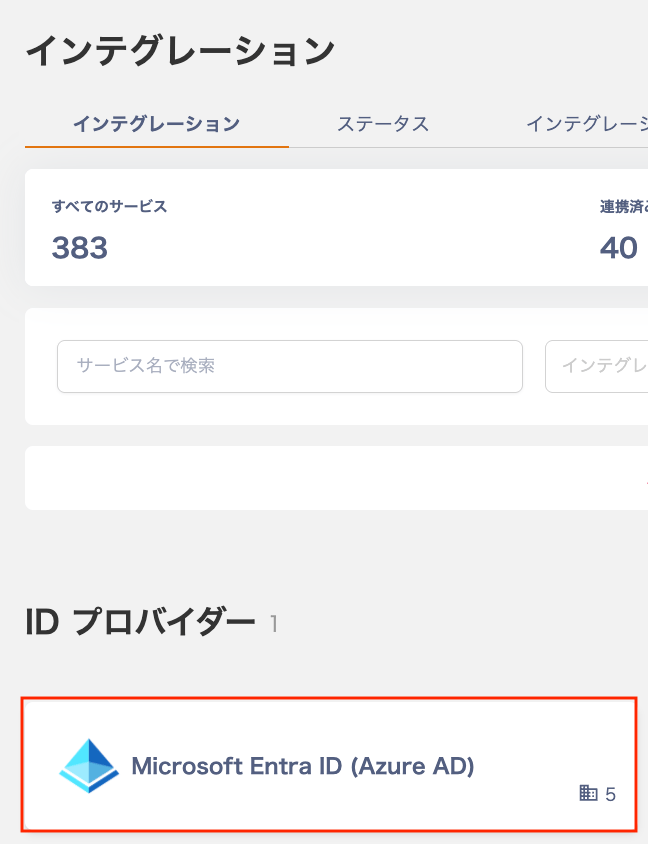 2. Select the "Integrate via IDP" tab and then select a workspace.
The workspaces where your application is registered will be displayed.
2. Select the "Integrate via IDP" tab and then select a workspace.
The workspaces where your application is registered will be displayed.
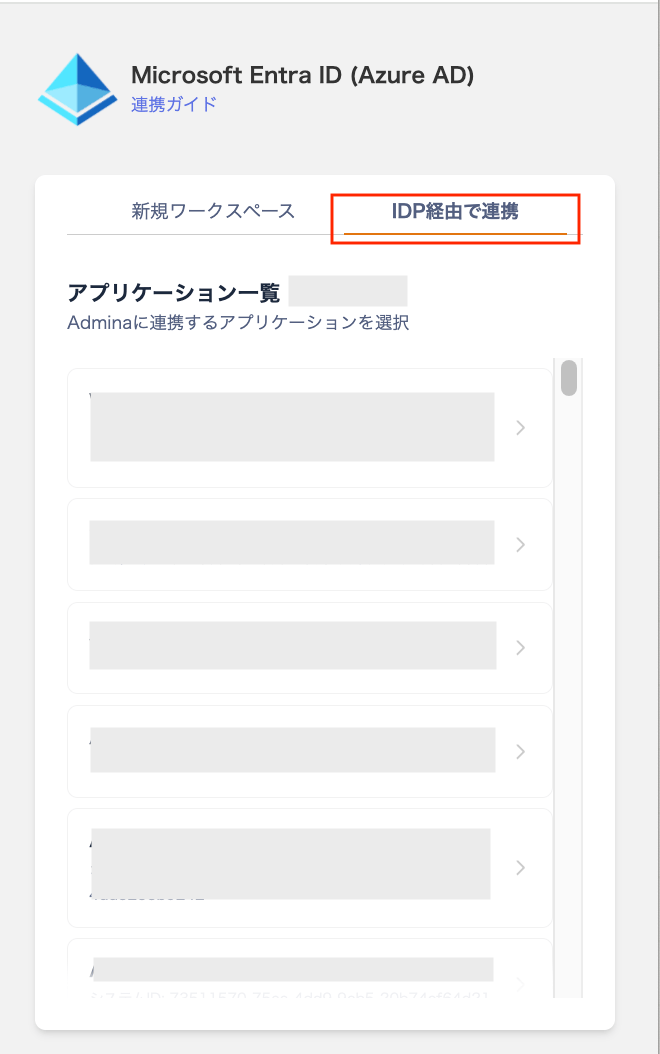 3. Select the application you want to integrate with.
The applications registered in Azure AD will be displayed in the "Application.
List." Click to select the application you want to integrate with Admina.
3. Select the application you want to integrate with.
The applications registered in Azure AD will be displayed in the "Application.
List." Click to select the application you want to integrate with Admina.
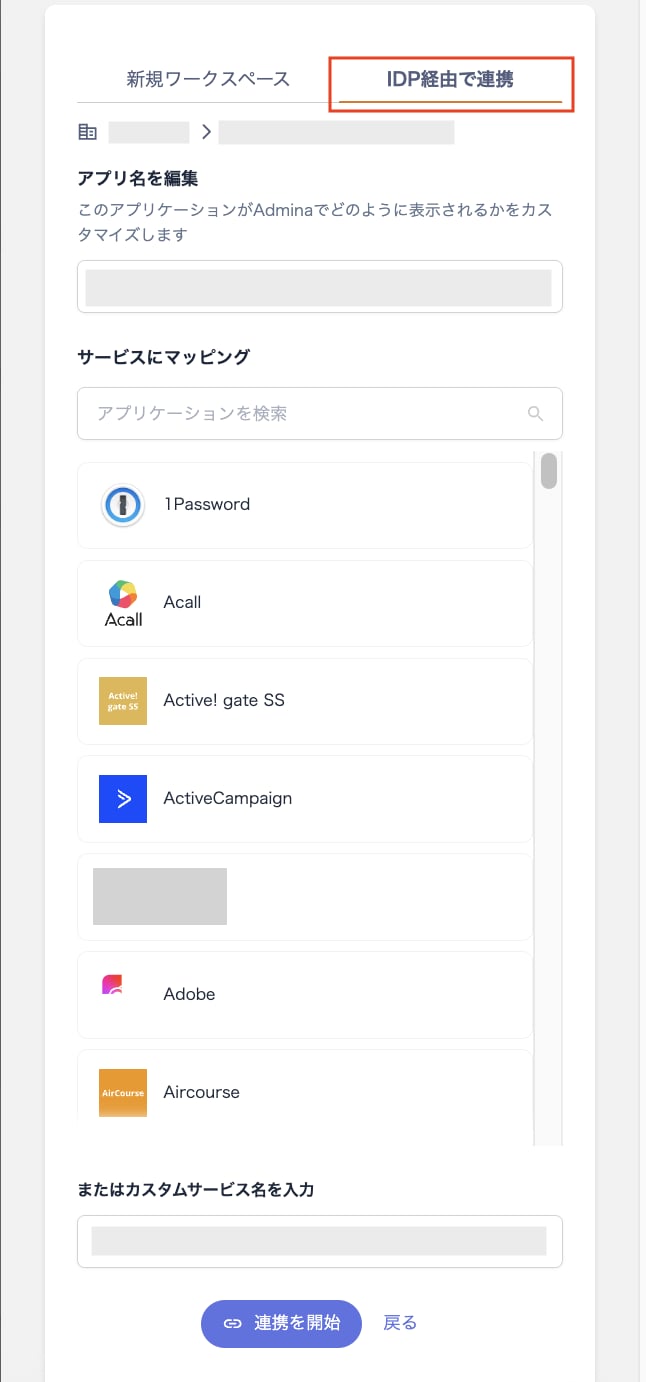 4. Select the service you want to map and click \[Start Integration].
Once you select an app, a list of corresponding Admina services will appear; select the mapping destination. If there are no corresponding services, you can also enter a custom service name directly.
4. Select the service you want to map and click \[Start Integration].
Once you select an app, a list of corresponding Admina services will appear; select the mapping destination. If there are no corresponding services, you can also enter a custom service name directly.
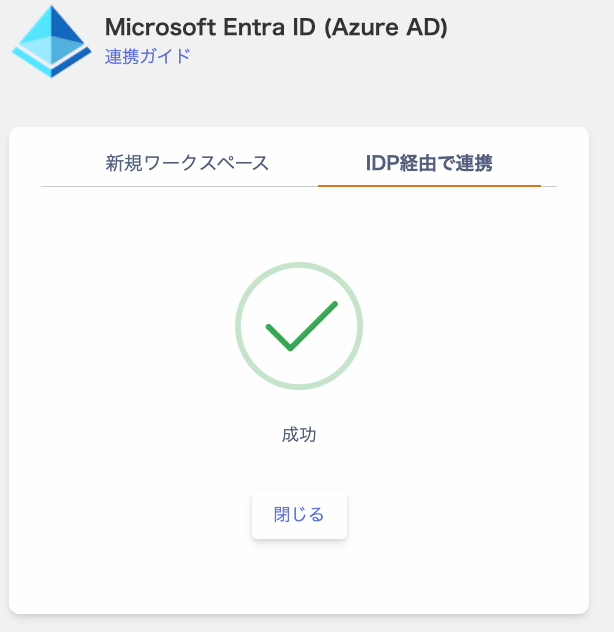
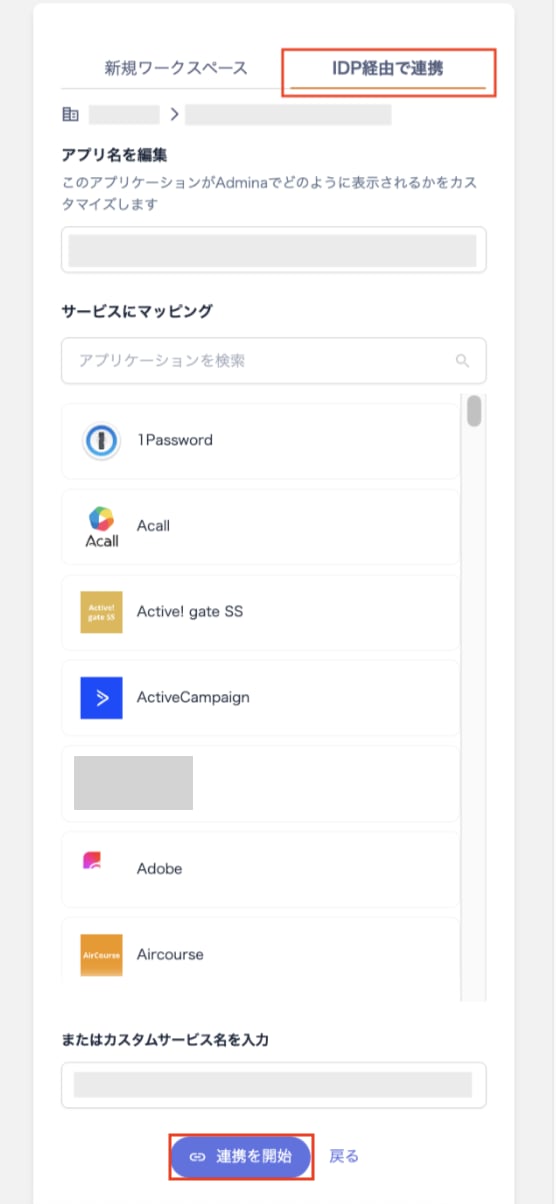 5. Once the connection is successful, "Success" will be displayed. Click \[Close] to finish.
 #### **How to link from the service screen**
You can also add and manage IDP integrations directly from the service screen.
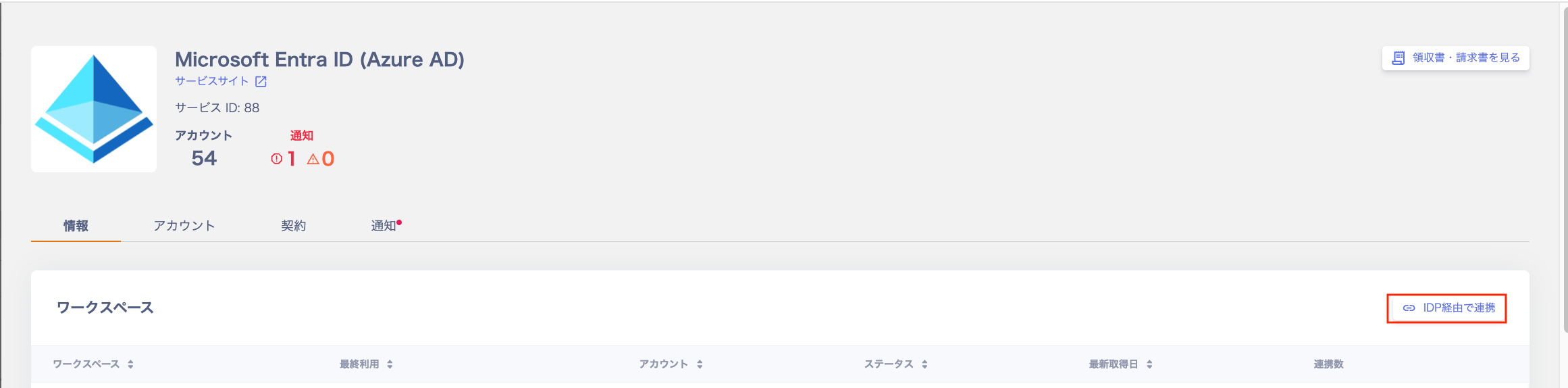
1. Click Services > Microsoft Entra ID (Azure AD) > Information > Workspaces > Connect via IDP.
#### **How to link from the service screen**
You can also add and manage IDP integrations directly from the service screen.
1. Click Services > Microsoft Entra ID (Azure AD) > Information > Workspaces > Connect via IDP.
 2. Select the "Integrate via IDP" tab and then select a workspace.
The workspaces where your application is registered will be displayed.
3. Select the application you want to integrate with.
The applications registered in Azure AD will be displayed in the "Application.
List." Click to select the application you want to integrate with Admina.
4. Select the service you want to map and click \[Start Integration].
Once you select an app, a list of corresponding Admina services will appear; select the mapping destination. If there are no corresponding services, you can also enter a custom service name directly.
5. Once the connection is successful, "Success" will be displayed. Click \[Close] to finish.
#### **How to verify after integration**
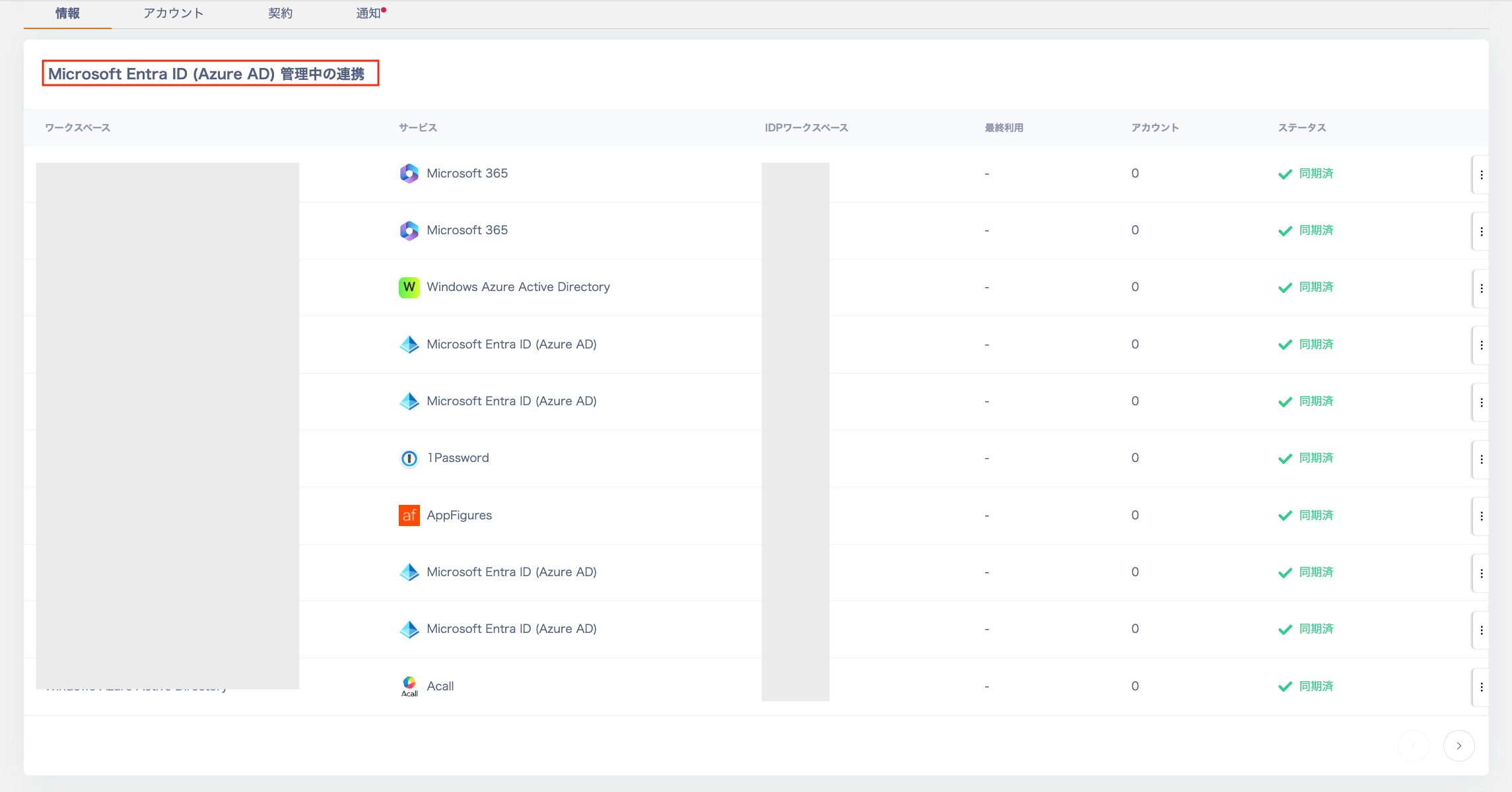
You can view a list of all services integrated via IDP in the Services > Microsoft Entra ID.
(Azure AD) > "Information" > "Microsoft Entra ID (Azure AD) Integrations under Management" section.
You can also [search for your Microsoft Entra ID (Azure AD) workspace name](/en/it-management/saas-management/dcqgfmkgaq-services) in Services > Services List to view the list.
Services > Select SaaS > "Information" > Services that are linked via IDP are those.
That are displayed as "\[Via IDP]" in the workspace.
2. Select the "Integrate via IDP" tab and then select a workspace.
The workspaces where your application is registered will be displayed.
3. Select the application you want to integrate with.
The applications registered in Azure AD will be displayed in the "Application.
List." Click to select the application you want to integrate with Admina.
4. Select the service you want to map and click \[Start Integration].
Once you select an app, a list of corresponding Admina services will appear; select the mapping destination. If there are no corresponding services, you can also enter a custom service name directly.
5. Once the connection is successful, "Success" will be displayed. Click \[Close] to finish.
#### **How to verify after integration**
You can view a list of all services integrated via IDP in the Services > Microsoft Entra ID.
(Azure AD) > "Information" > "Microsoft Entra ID (Azure AD) Integrations under Management" section.
You can also [search for your Microsoft Entra ID (Azure AD) workspace name](/en/it-management/saas-management/dcqgfmkgaq-services) in Services > Services List to view the list.
Services > Select SaaS > "Information" > Services that are linked via IDP are those.
That are displayed as "\[Via IDP]" in the workspace.
 #### **Synchronization method**
##### **When synchronizing all services linked via IDP**
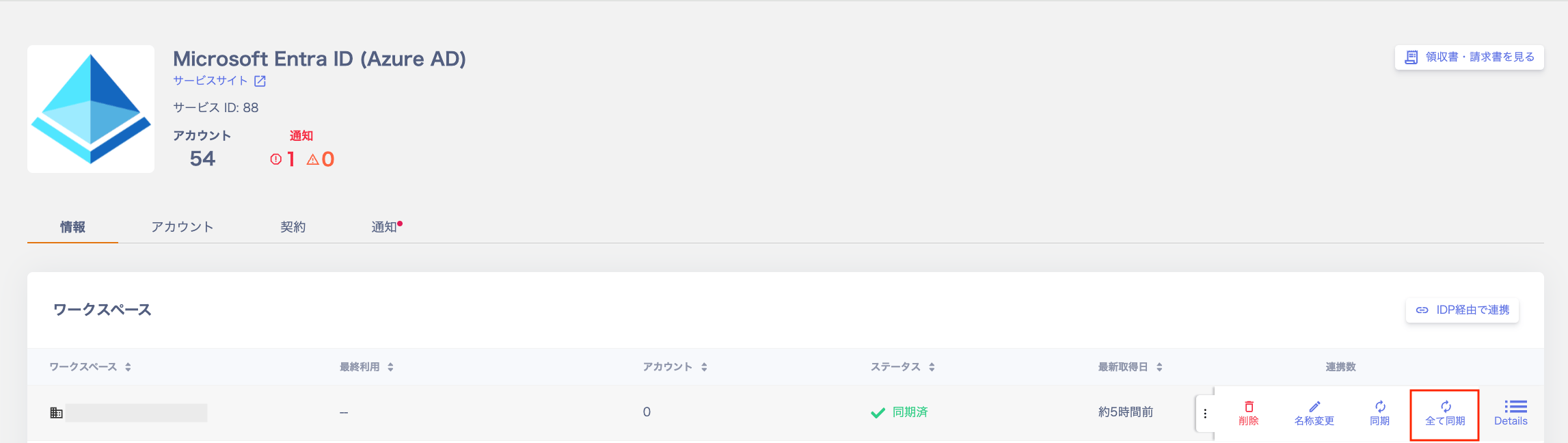
To delete a workspace, go to Services > Microsoft Entra ID (Azure AD) > "Information" tab.
Click the three dots \[ **︙** ] next to it, then click "Sync All". This will sync all services connected via IDP.
#### **Synchronization method**
##### **When synchronizing all services linked via IDP**
To delete a workspace, go to Services > Microsoft Entra ID (Azure AD) > "Information" tab.
Click the three dots \[ **︙** ] next to it, then click "Sync All". This will sync all services connected via IDP.
 ##### **When synchronizing services individually via IDP**
**Service screen : You can synchronize by tapping the three dots \[ ︙** ] on the following screen . This is a method for individually synchronizing services linked via IDP.
* Services > Microsoft Entra ID (Azure AD) > "Information" > "Microsoft Entra ID (Azure AD) Integrations under Management"
• Services > Select SaaS > Information > Workspace
##### **When synchronizing services individually via IDP**
**Service screen : You can synchronize by tapping the three dots \[ ︙** ] on the following screen . This is a method for individually synchronizing services linked via IDP.
* Services > Microsoft Entra ID (Azure AD) > "Information" > "Microsoft Entra ID (Azure AD) Integrations under Management"
• Services > Select SaaS > Information > Workspace
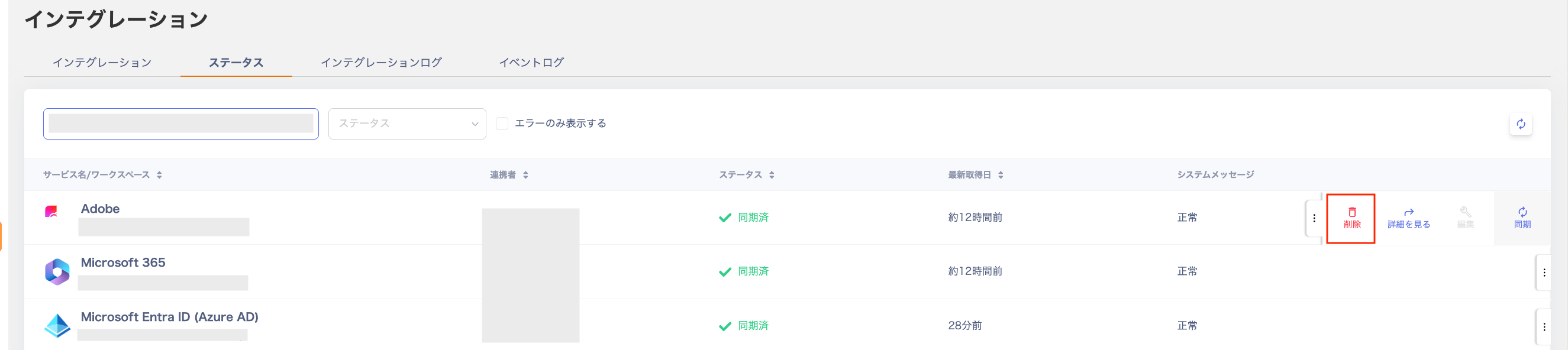
 **Integration screen : You can synchronize by tapping the three dots \[ ︙** ] on the following screen . This is a method for individually synchronizing services that have been linked via IDP.
Integration > Status
**Integration screen : You can synchronize by tapping the three dots \[ ︙** ] on the following screen . This is a method for individually synchronizing services that have been linked via IDP.
Integration > Status
 #### **How to delete**
##### **If you want to delete all services linked via IDP**
**Go to Services > Microsoft Entra ID (Azure AD) > "Information" tab > and click "Delete" from the three dots**.
**\[** **︙** ] next to the workspace you want to delete . This will delete all services that were connected via IDP.
##### **When individually deleting services via IDP**
**Service screen : You can delete services individually by clicking the three dots \[ ︙** ] on the following screen . This is how to delete services linked via IDP.
* Services > Microsoft Entra ID (Azure AD) > "Information" > "Microsoft Entra ID (Azure AD) Integrations under Management"
• Services > Select SaaS > Information > Workspace
#### **How to delete**
##### **If you want to delete all services linked via IDP**
**Go to Services > Microsoft Entra ID (Azure AD) > "Information" tab > and click "Delete" from the three dots**.
**\[** **︙** ] next to the workspace you want to delete . This will delete all services that were connected via IDP.
##### **When individually deleting services via IDP**
**Service screen : You can delete services individually by clicking the three dots \[ ︙** ] on the following screen . This is how to delete services linked via IDP.
* Services > Microsoft Entra ID (Azure AD) > "Information" > "Microsoft Entra ID (Azure AD) Integrations under Management"
• Services > Select SaaS > Information > Workspace
 **Integration screen : You can delete services individually from the three dots \[ ︙** ] on the following screen . This is how to delete services that were integrated via IDP.
Integration > Status
**Integration screen : You can delete services individually from the three dots \[ ︙** ] on the following screen . This is how to delete services that were integrated via IDP.
Integration > Status