> ## Documentation Index
> Fetch the complete documentation index at: https://support.i.moneyforward.com/llms.txt
> Use this file to discover all available pages before exploring further.
# Jobcan Workflow
> Steps to integrate with Jobcan Workflow.
## Supported Features
Account Deactivation Account Creation
## Prerequisites
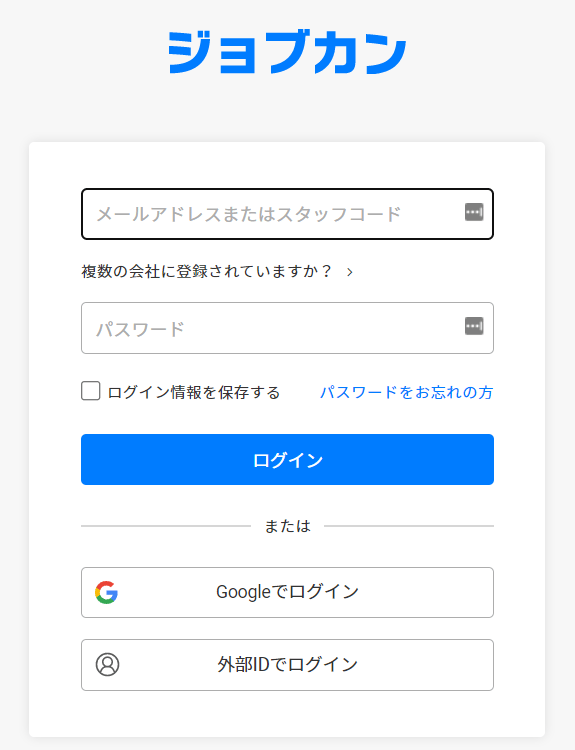
### How to Log In to Jobcan Workflow
Log in at the [Jobcan Workflow login page](https://id.jobcan.jp/users/sign_in?lang=ja).
Using your preferred login method or by entering your email address and password.
 ### How to Obtain Your Access Key
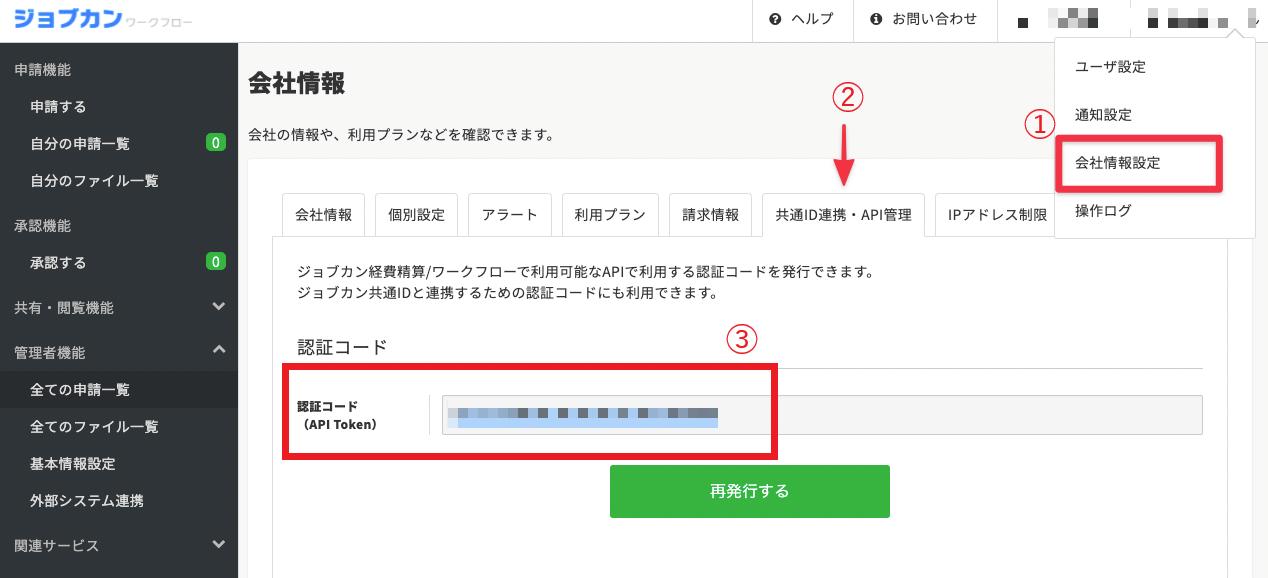
After logging in to Jobcan Workflow, go to **Company Settings** > **Common.
ID Integration & API Management** from the menu in the upper right.
The **Authentication Code (API Token) is your access key** — save it.
### How to Obtain Your Access Key
After logging in to Jobcan Workflow, go to **Company Settings** > **Common.
ID Integration & API Management** from the menu in the upper right.
The **Authentication Code (API Token) is your access key** — save it.
 ## Setting Up the Integration
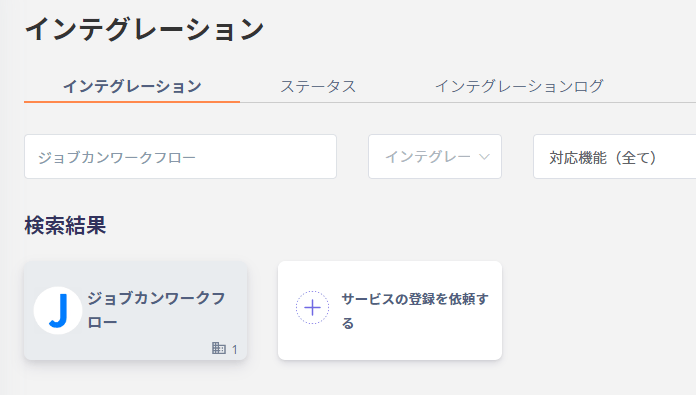
Search for **Jobcan Workflow** in the integration screen of MoneyForward Admina IT Management Cloud and click on it.
## Setting Up the Integration
Search for **Jobcan Workflow** in the integration screen of MoneyForward Admina IT Management Cloud and click on it.
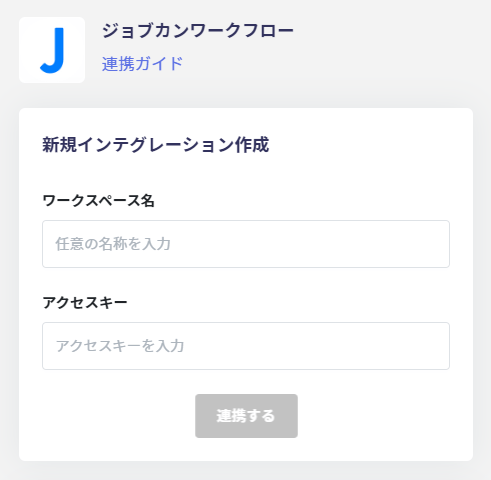
 Enter **any name for the workspace name (e.g., your company name)**.
The **access key** obtained in the previous step, then click **Connect**.
Enter **any name for the workspace name (e.g., your company name)**.
The **access key** obtained in the previous step, then click **Connect**.
 Once the integration with Jobcan Workflow is successful.
The registered user information will appear in the account list.
If the process does not complete successfully, go to the **Status** tab in the integration screen, click **Edit**.
Try connecting again.
If the issue persists, please contact us via chat.
For an overview of the Jobcan Workflow integration, visit the [integration page](http://admina.moneyforward.com/en/integrations/wf-jobcan).
Once the integration with Jobcan Workflow is successful.
The registered user information will appear in the account list.
If the process does not complete successfully, go to the **Status** tab in the integration screen, click **Edit**.
Try connecting again.
If the issue persists, please contact us via chat.
For an overview of the Jobcan Workflow integration, visit the [integration page](http://admina.moneyforward.com/en/integrations/wf-jobcan).