> ## Documentation Index
> Fetch the complete documentation index at: https://support.i.moneyforward.com/llms.txt
> Use this file to discover all available pages before exploring further.
# GMO Sign
> Instructions for integrating with GMO Sign (electronic signature service).
## Supported Features
Account Deletion Account Provisioning
Integration requires the optional **External System Integration (API Integration)** service subscription.
GMO Sign: [API Integration](https://www.gmosign.com/app-connect/api.html)
GMO Sign's API may have IP address restrictions. Please refer to [Removing IP Address Restrictions for the API](https://helpcenter.gmosign.com/hc/ja/articles/45501033583385-API%E3%81%AEIP%E3%82%A2%E3%83%89%E3%83%AC%E3%82%B9%E5%88%B6%E9%99%90%E8%A7%A3%E9%99%A4-%E3%82%AA%E3%83%97%E3%82%B7%E3%83%A7%E3%83%B3-Ver-1) and allow or remove the IP addresses used by this service.
[IP Addresses, URLs, and Port Numbers](/en/it-management/faq/nmglgrm1ik-restrict-ip)
## Prerequisites
### How to Log In to GMO Sign
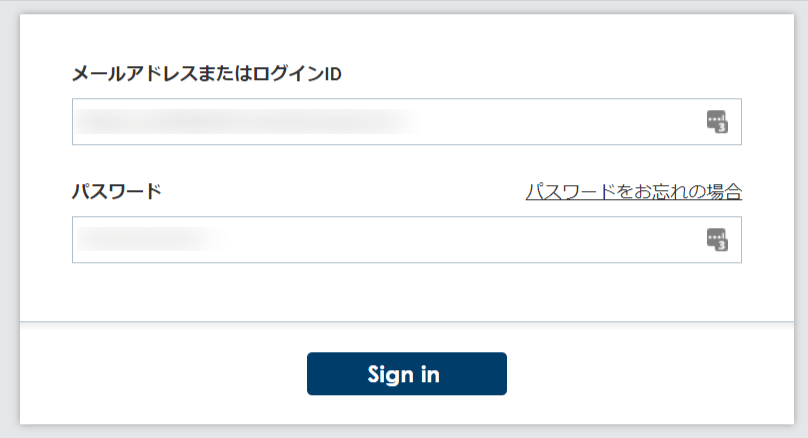
Go to the [GMO Sign login page](https://secure.gmosign.com/login/) and enter your **email address and password** to log in.
 ### How to Obtain the Client ID and Client Secret
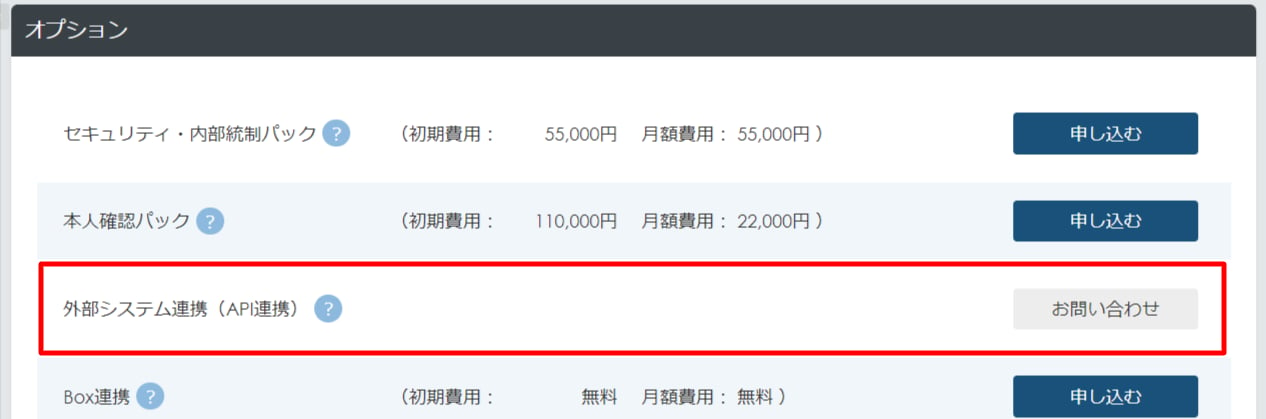
After logging in to GMO Sign, check **Options** from the **Usage Panel**.
Submit a usage application from the [contact form](https://www.gmosign.com/form/option/) under.
**External System Integration (API Integration)** to obtain your **Customer ID and Secret Key**.
These become your **Client ID and Client Secret**.
### How to Obtain the Client ID and Client Secret
After logging in to GMO Sign, check **Options** from the **Usage Panel**.
Submit a usage application from the [contact form](https://www.gmosign.com/form/option/) under.
**External System Integration (API Integration)** to obtain your **Customer ID and Secret Key**.
These become your **Client ID and Client Secret**.
 ## Integration Setup
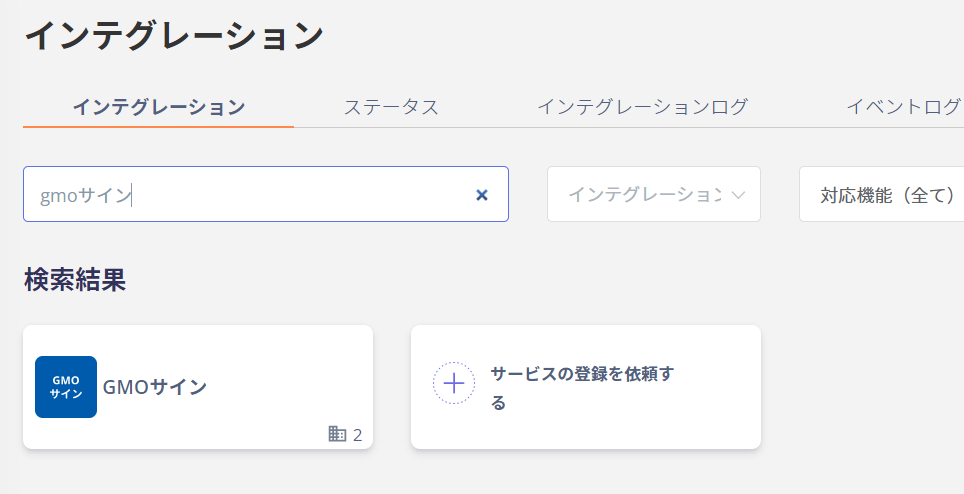
On the MoneyForward Admina integrations screen, search for **GMO Sign**.
## Integration Setup
On the MoneyForward Admina integrations screen, search for **GMO Sign**.
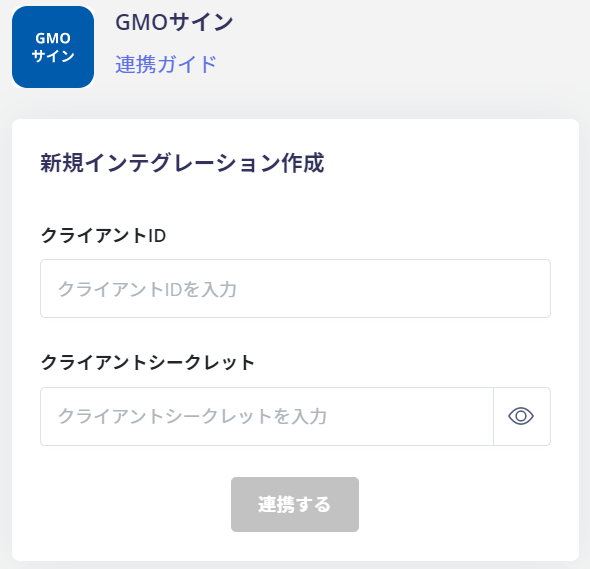
 Enter the following and click **Connect**.
* **Client ID**: Customer ID
* **Client Secret**: Secret Key
Enter the following and click **Connect**.
* **Client ID**: Customer ID
* **Client Secret**: Secret Key
 Once the integration with GMO Sign is successful, the registered user information will appear in the account list.
If the integration does not complete successfully.
Go to the Status tab on the integrations screen, click **Edit**, and try connecting again.
If the issue persists, please contact us via chat.
For an overview of the GMO Sign integration, visit the [integration page](http://admina.moneyforward.com/en/integrations/gmo-sign).
Once the integration with GMO Sign is successful, the registered user information will appear in the account list.
If the integration does not complete successfully.
Go to the Status tab on the integrations screen, click **Edit**, and try connecting again.
If the issue persists, please contact us via chat.
For an overview of the GMO Sign integration, visit the [integration page](http://admina.moneyforward.com/en/integrations/gmo-sign).