> ## Documentation Index
> Fetch the complete documentation index at: https://support.i.moneyforward.com/llms.txt
> Use this file to discover all available pages before exploring further.
# Webex by CISCO
> Instructions for integrating with Webex by CISCO.
## Supported Features
Account Creation Account Deletion
## Integration Setup
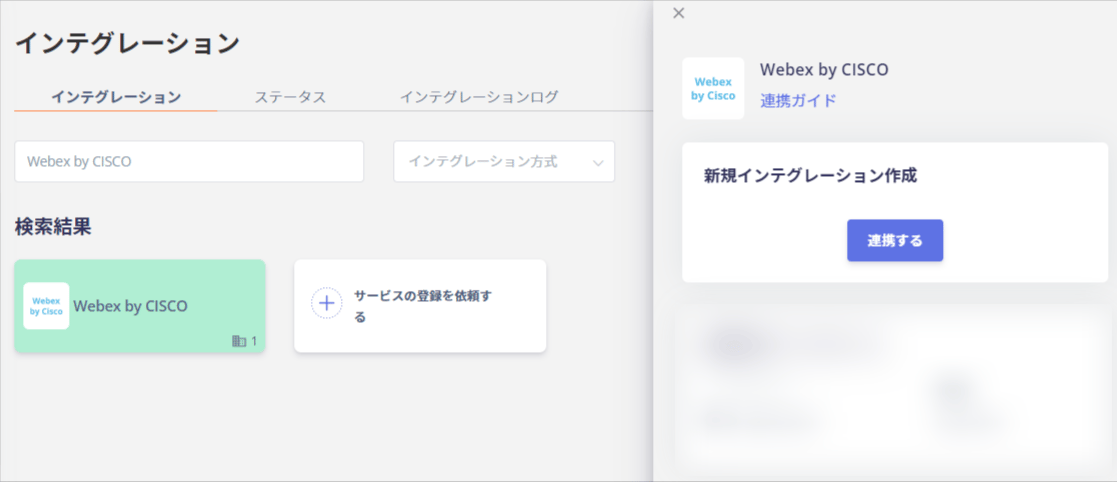
In the MoneyForward Admina integration screen, search for **Webex by CISCO** and click **Connect**.
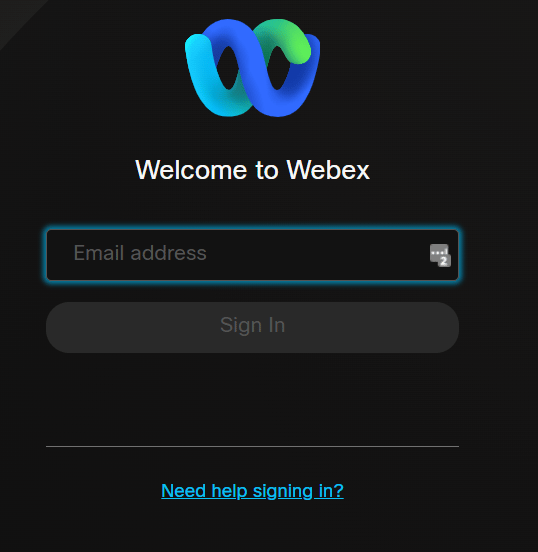
 You will be redirected to the Webex by CISCO login screen. Enter your Webex by CISCO login email address and password, then log in.
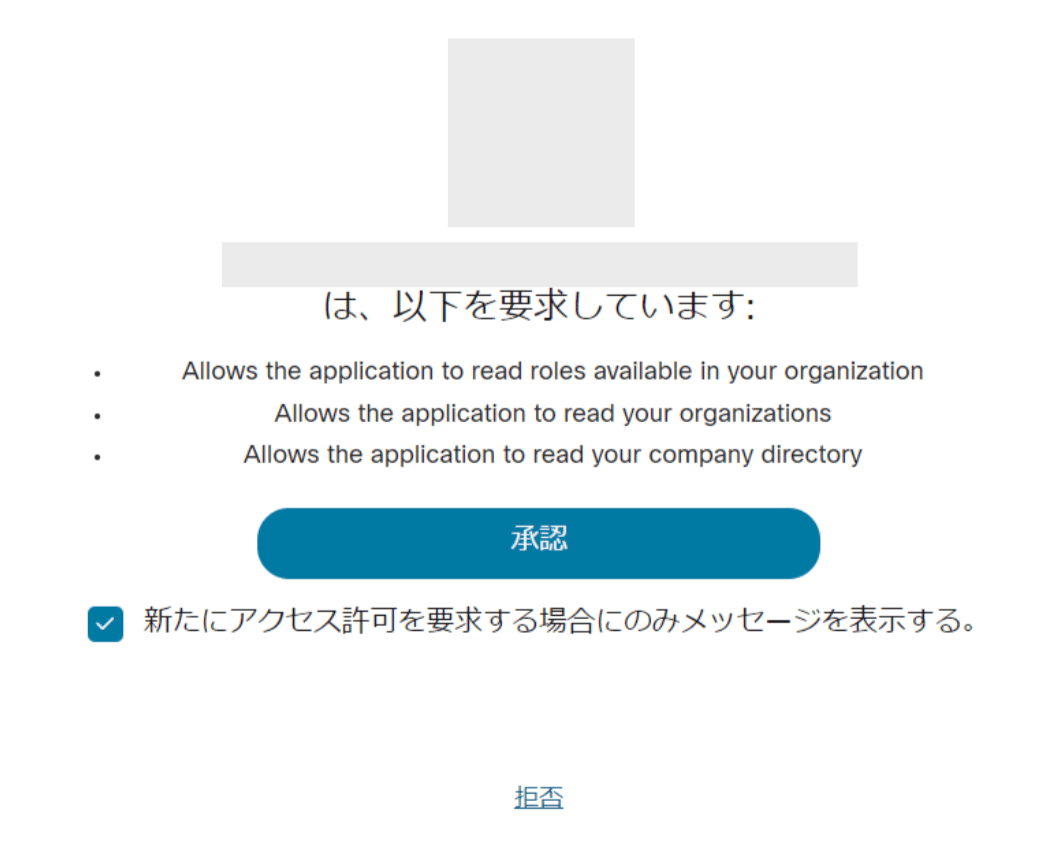
 After logging in, an authorization screen will appear. Click **Approve**.
 Once the integration with Webex by CISCO is successful, registered user information will appear in the account list.
If the process does not complete successfully, go to the Status tab on the integration screen, click **Edit**, and try connecting again.
If the issue persists, please contact us via chat.
Once the integration with Webex by CISCO is successful, registered user information will appear in the account list.
If the process does not complete successfully, go to the Status tab on the integration screen, click **Edit**, and try connecting again.
If the issue persists, please contact us via chat.