> ## Documentation Index
> Fetch the complete documentation index at: https://support.i.moneyforward.com/llms.txt
> Use this file to discover all available pages before exploring further.
# Toyokumo Safety Confirmation Service 2
> Steps to integrate with Toyokumo Safety Confirmation Service 2.
## Supported Features
Account Deletion Account Creation
An Enterprise plan subscription is required to use this integration.
## Prerequisites
### How to Log In to Toyokumo Safety Confirmation Service 2
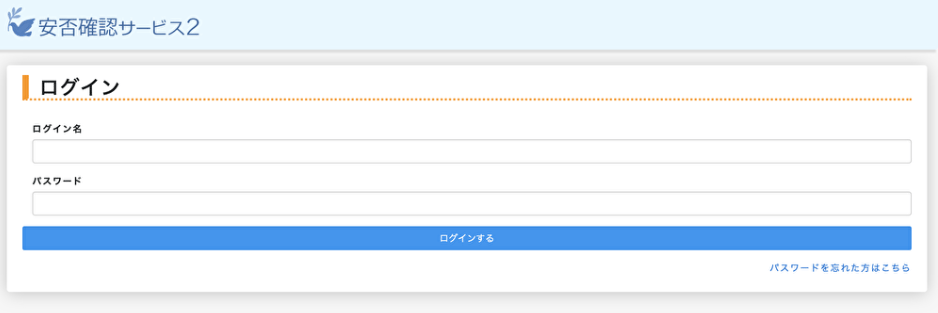
On the Toyokumo Safety Confirmation Service 2 login page, enter your email address and password to log in.
For login instructions, refer to the operation guide: [How to Log In](https://anpi-guide.toyokumo.co.jp/log-in/).
 ### How to Obtain the Access Key
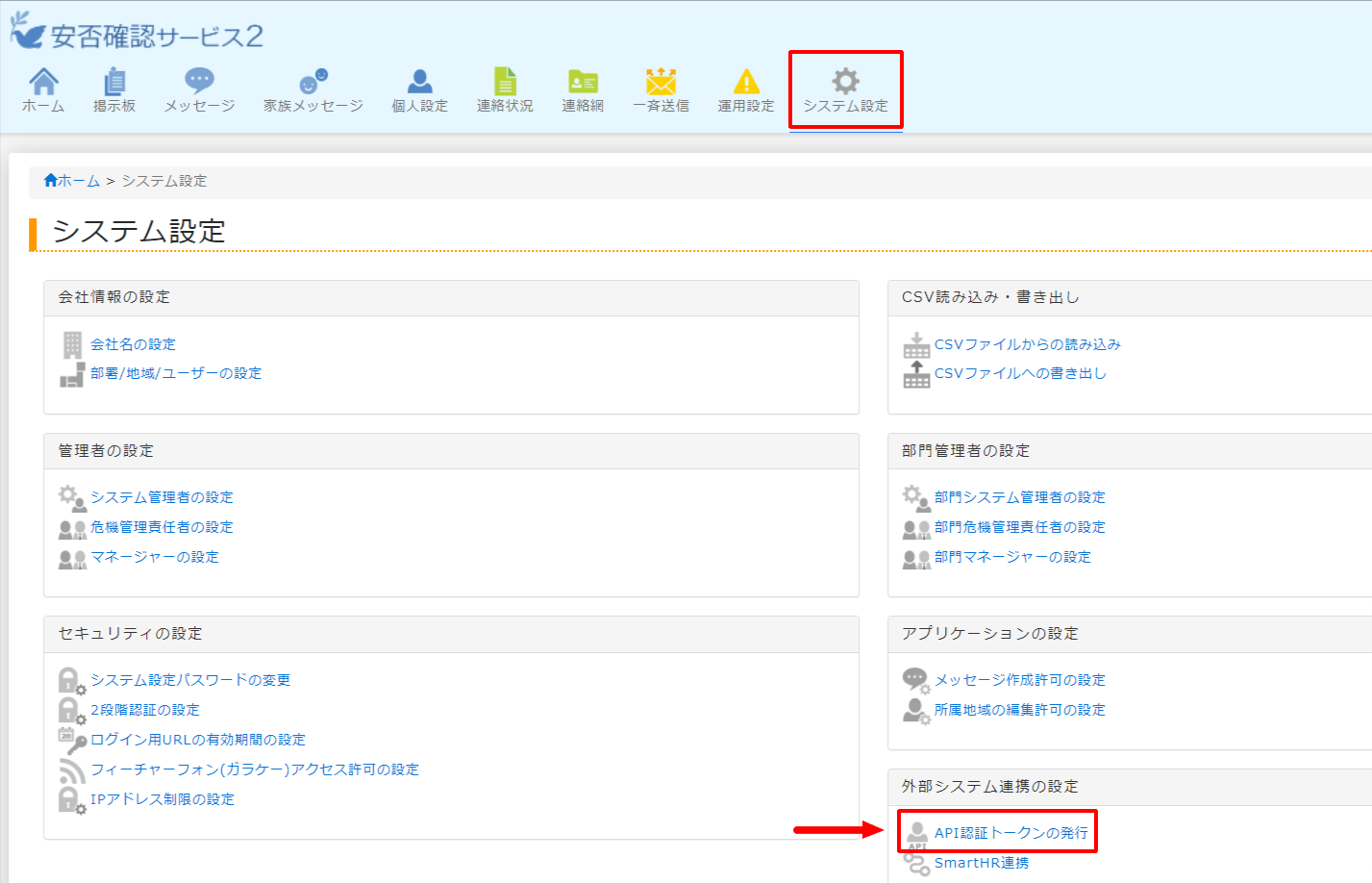
After logging in to Toyokumo Safety Confirmation Service 2, go to **System Settings > External System Integration Settings > API Authentication Token Issuance**.
Only system administrators can issue API authentication tokens. For details, refer to [Issuing an API Authentication Token (external site)](https://files.microcms-assets.io/assets/9e2f8de18e89461397770cfc99b3525d/46b0664b5210492b9e59d56903958fa4/anpi2_system_manual.pdf?utm_source=chatgpt.com).
### How to Obtain the Access Key
After logging in to Toyokumo Safety Confirmation Service 2, go to **System Settings > External System Integration Settings > API Authentication Token Issuance**.
Only system administrators can issue API authentication tokens. For details, refer to [Issuing an API Authentication Token (external site)](https://files.microcms-assets.io/assets/9e2f8de18e89461397770cfc99b3525d/46b0664b5210492b9e59d56903958fa4/anpi2_system_manual.pdf?utm_source=chatgpt.com).
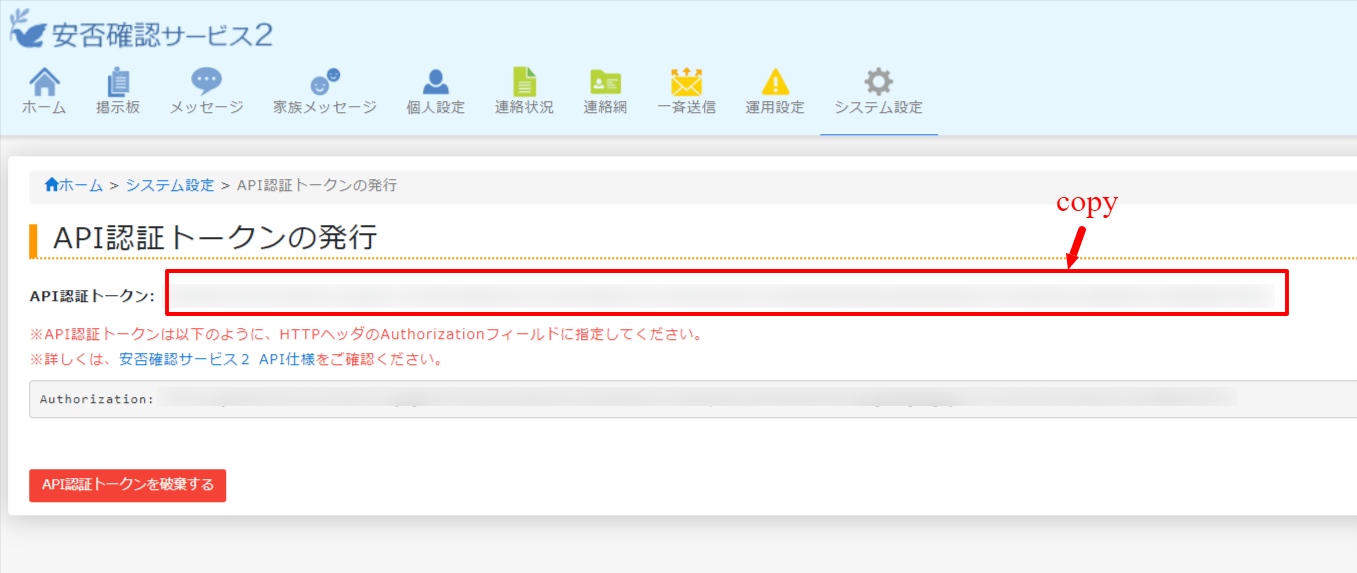
 The displayed **API authentication token is your access key** — copy and save it.
 ## Integration Setup
In the MoneyForward Admina integration screen, search for **Toyokumo Safety Confirmation Service 2**.
## Integration Setup
In the MoneyForward Admina integration screen, search for **Toyokumo Safety Confirmation Service 2**.
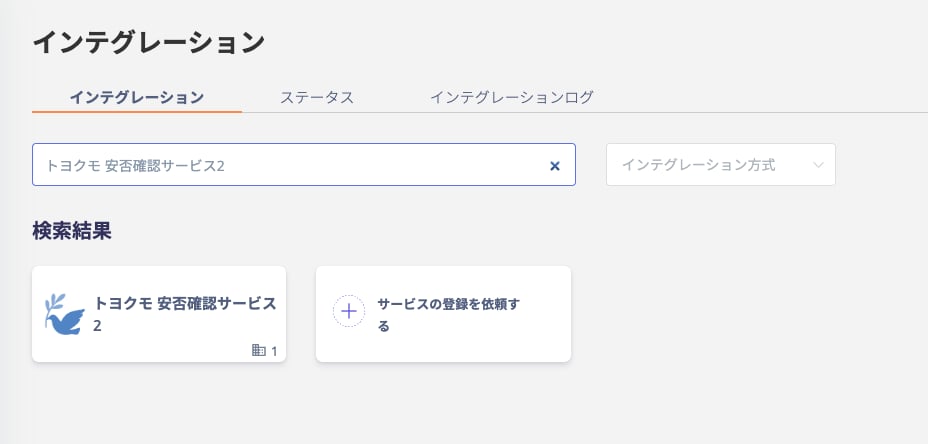 Enter an **optional workspace name** (such as your company name) and the **access key** obtained in the previous step, then click **Connect**.
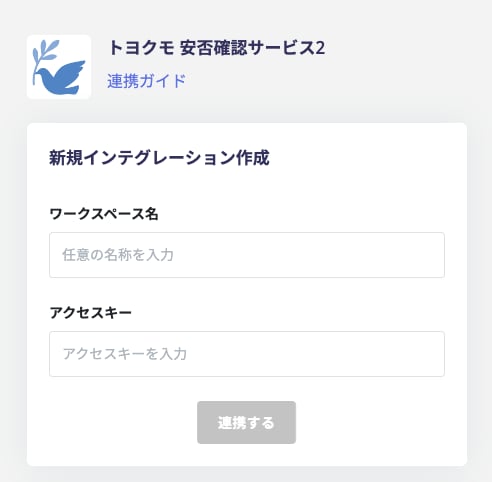 Once the integration with Toyokumo Safety Confirmation Service 2 is successful, the registered user information will appear in the account list.
If the process does not complete successfully, go to the Status tab on the integration screen, click **Edit**, and try connecting again.
If the issue persists, please contact us via chat.
For an overview of the Toyokumo Safety Confirmation Service 2 integration, see the [integration page](http://admina.moneyforward.com/en/integrations/anpi-toyokumo).
## Manual Linking of SaaS When Email Address Cannot Be Retrieved
This service is a SaaS from which email addresses cannot be retrieved, so the user type will be determined as "Unknown."
If necessary, manually link (deduplicate/merge) accounts with other accounts.
For details on the settings, see the following:
[Manually link (deduplicate/merge) a SaaS account to another account](/en/it-management/saas-management/d97dy5z2l7-merge)
Once the integration with Toyokumo Safety Confirmation Service 2 is successful, the registered user information will appear in the account list.
If the process does not complete successfully, go to the Status tab on the integration screen, click **Edit**, and try connecting again.
If the issue persists, please contact us via chat.
For an overview of the Toyokumo Safety Confirmation Service 2 integration, see the [integration page](http://admina.moneyforward.com/en/integrations/anpi-toyokumo).
## Manual Linking of SaaS When Email Address Cannot Be Retrieved
This service is a SaaS from which email addresses cannot be retrieved, so the user type will be determined as "Unknown."
If necessary, manually link (deduplicate/merge) accounts with other accounts.
For details on the settings, see the following:
[Manually link (deduplicate/merge) a SaaS account to another account](/en/it-management/saas-management/d97dy5z2l7-merge)