> ## Documentation Index
> Fetch the complete documentation index at: https://support.i.moneyforward.com/llms.txt
> Use this file to discover all available pages before exploring further.
# Atlassian
> Instructions for integrating with Atlassian.
## Supported Features
Account Deactivation
Organization admin permissions are required to set up this integration.
## Prerequisites
### How to Log In to Atlassian
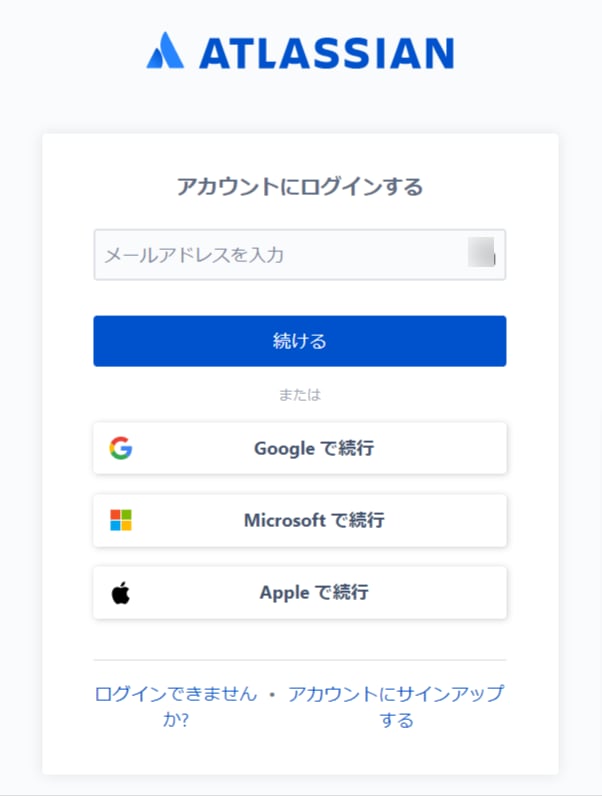
Log in to [Atlassian Login Page](https://id.atlassian.com/login) using your preferred login method or by entering your email address and password.
 ### Required Setup Before Integration (Organization Creation and Domain Verification)
In Admina, we retrieve managed accounts with email addresses from verified domains.
**If you have not yet created an organization or verified your domain, you will not be able to retrieve accounts. Please complete the following steps in Atlassian before setting up the integration:**
* **Create an organization**: [What is an Atlassian Organization (external site)](https://support.atlassian.com/organization-administration/docs/what-is-an-atlassian-organization/)
* **Verify your domain**: [Verify a Domain to Manage Accounts (external site)](https://support.atlassian.com/user-management/docs/verify-a-domain-to-manage-accounts/)
You need a managed account, not a regular user account. [What are Managed Accounts? (external site)](https://support.atlassian.com/user-management/docs/what-are-managed-accounts/)
For more information about account retrieval, see Account Retrieval from Atlassian Services.
### How to Obtain an API Key
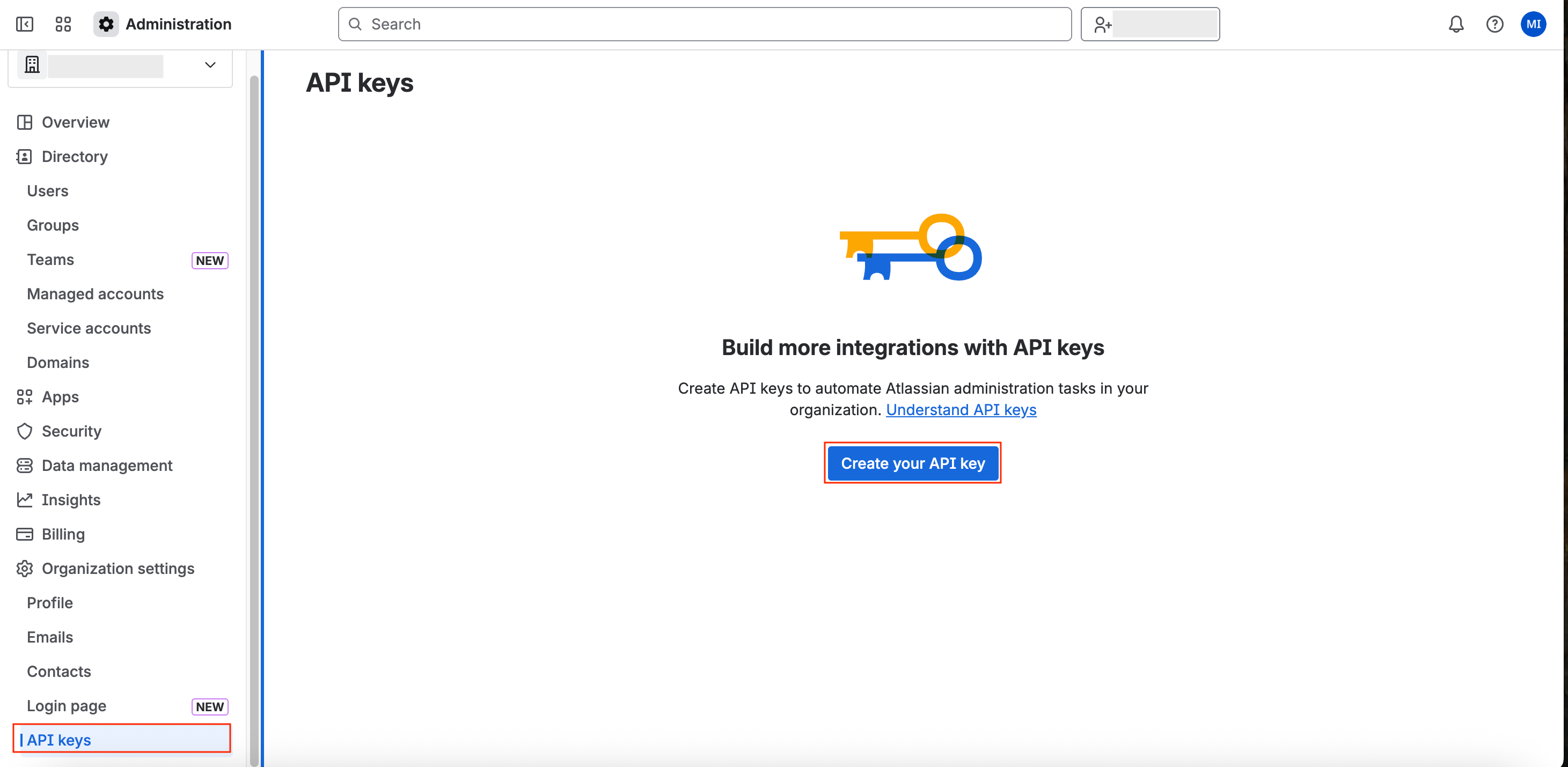
1. Go to [Atlassian Admin](https://admin.atlassian.com/) and navigate to Organization Settings > **API keys**.
2. Click **Create your API key**.
### Required Setup Before Integration (Organization Creation and Domain Verification)
In Admina, we retrieve managed accounts with email addresses from verified domains.
**If you have not yet created an organization or verified your domain, you will not be able to retrieve accounts. Please complete the following steps in Atlassian before setting up the integration:**
* **Create an organization**: [What is an Atlassian Organization (external site)](https://support.atlassian.com/organization-administration/docs/what-is-an-atlassian-organization/)
* **Verify your domain**: [Verify a Domain to Manage Accounts (external site)](https://support.atlassian.com/user-management/docs/verify-a-domain-to-manage-accounts/)
You need a managed account, not a regular user account. [What are Managed Accounts? (external site)](https://support.atlassian.com/user-management/docs/what-are-managed-accounts/)
For more information about account retrieval, see Account Retrieval from Atlassian Services.
### How to Obtain an API Key
1. Go to [Atlassian Admin](https://admin.atlassian.com/) and navigate to Organization Settings > **API keys**.
2. Click **Create your API key**.
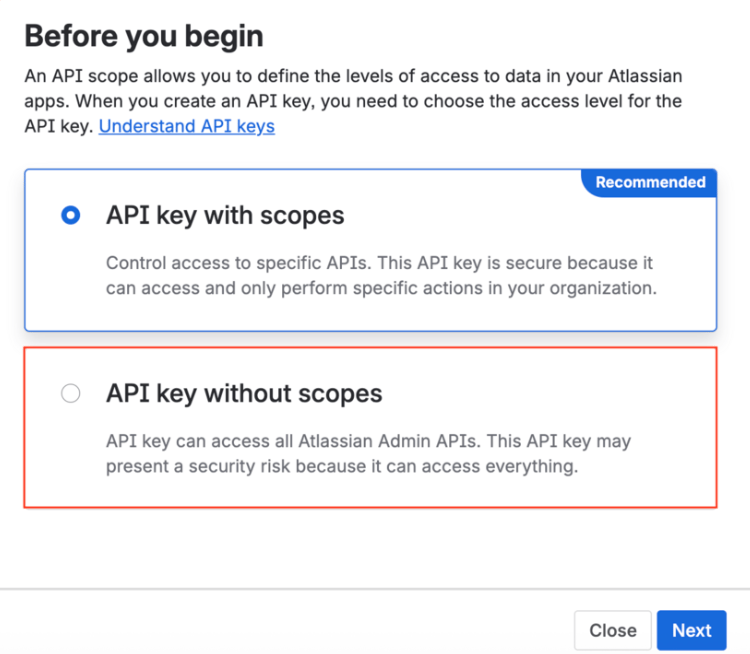
 3. A Scopes selection screen will appear. Click **API key without scopes**.
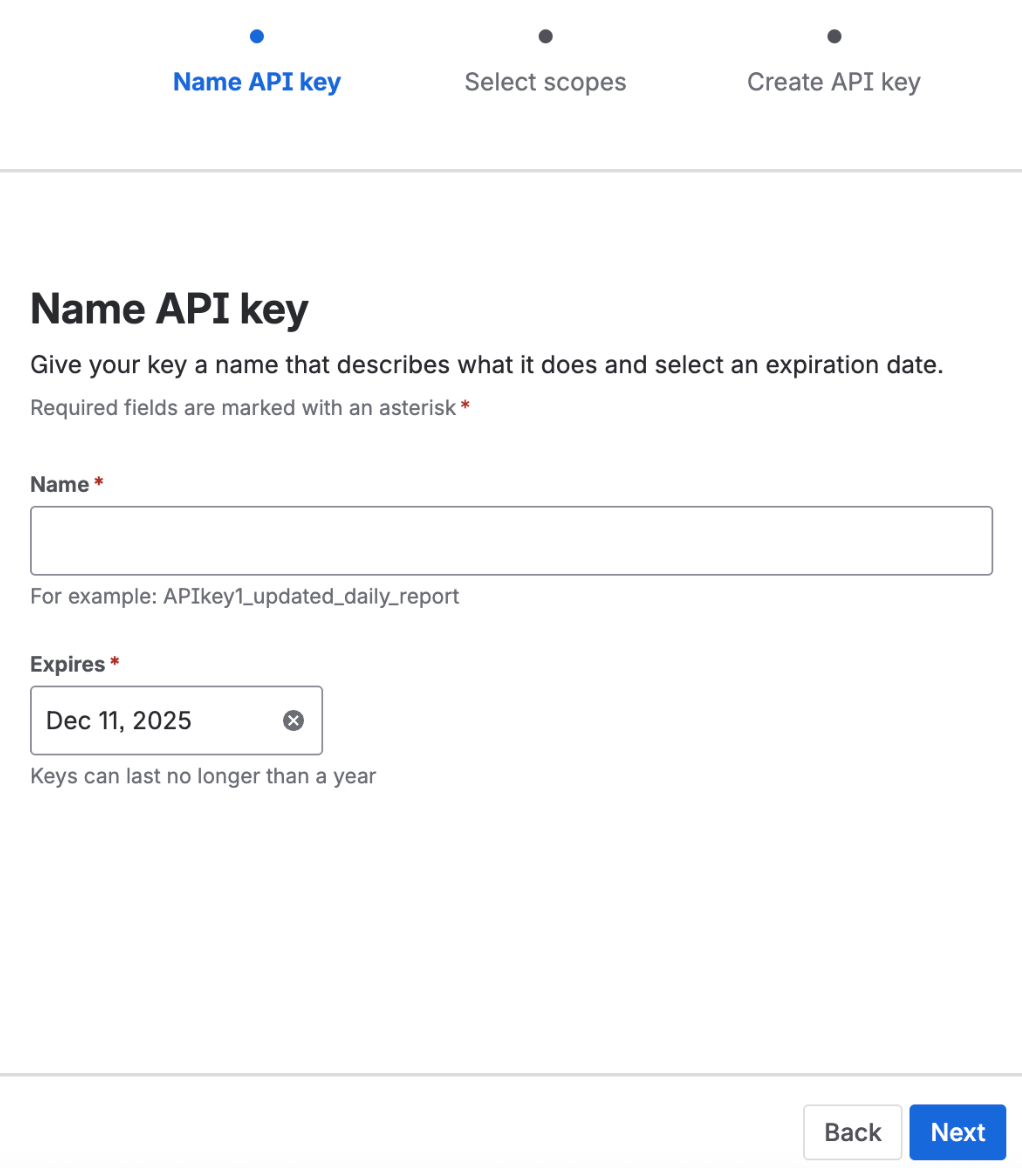
 4. Enter any name you prefer and set an expiration date for the API key.
The default expiration is one week. You can set a custom expiration period if needed. When the expiration date is reached, you will need to generate a new API key.
4. Enter any name you prefer and set an expiration date for the API key.
The default expiration is one week. You can set a custom expiration period if needed. When the expiration date is reached, you will need to generate a new API key.
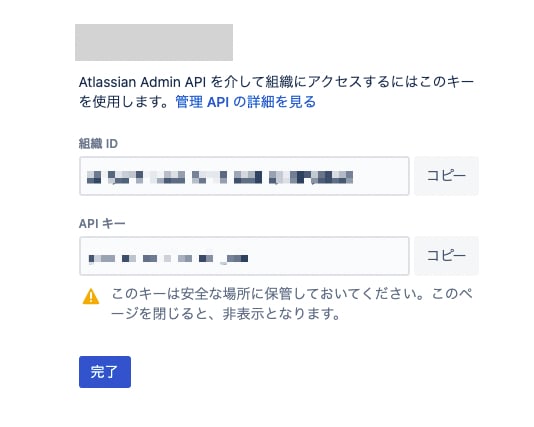
 5. Your **Organization ID** and **API Key** will be generated.
 ## Integration Setup
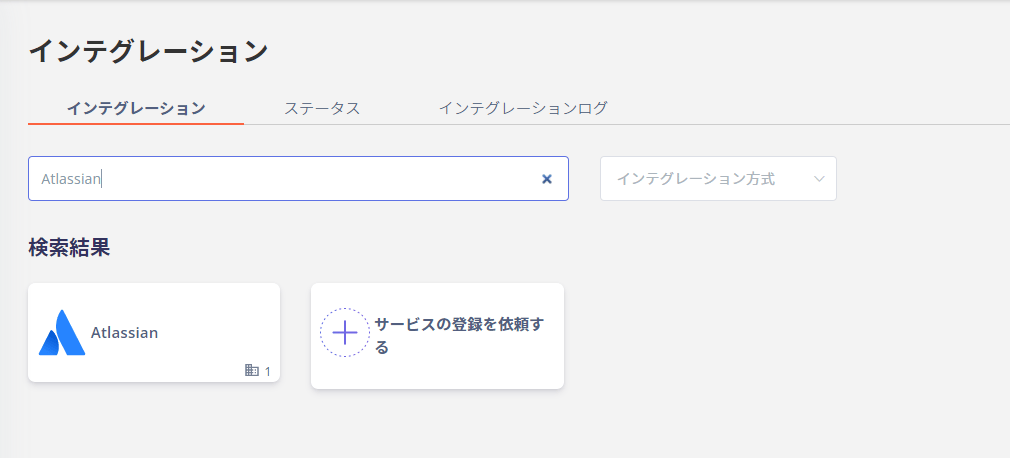
1. In the Admina integration screen, search for **Atlassian**.
## Integration Setup
1. In the Admina integration screen, search for **Atlassian**.
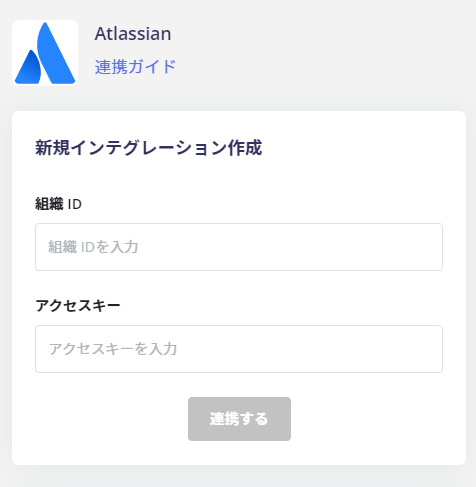
 2. Enter the **Organization ID** obtained in the previous step and the **API Key** in the access key field, then click **Connect**.
 3. When the Atlassian integration is successful, registered user information will appear in the account list.
If the account count shows `0` even after successful integration, please verify that you have completed the **organization creation and domain verification** steps mentioned above.
If the steps were not completed properly, edit from the status tab in the integration screen and try connecting again.
If the issue persists, please contact us via chat.
For more information about Atlassian integration, please visit the [integration page](http://admina.moneyforward.com/en/integrations/atlassian).
## FAQ
### Q. Want to Learn More About Account Retrieval from Atlassian Services
A. For Atlassian services, we retrieve account information as listed under **Retrieved Information** below. [What are Managed Accounts? (external site)](https://support.atlassian.com/user-management/docs/what-are-managed-accounts/)
For more information about account retrieval, see [Account Retrieval from Atlassian Services](/en/it-management/faq/w2k92cqw8b-jira-confluence-trello).
| SaaS Name | Retrieved Information |
| ----------------------------------------- | ------------------------------------------------------------------------------------------------------------------------------------------- |
| Atlassian | Only users with verified domain email addresses can be retrieved (external domain users or external IDs cannot be retrieved) |
| Atlassian Suite: Jira, Trello, Confluence | Retrieved information varies depending on Atlassian ID settings. (If default access is set to private, email addresses cannot be retrieved) |
### Q. After Integrating with Atlassian, Can I Check Jira, Confluence, and Trello Licenses?
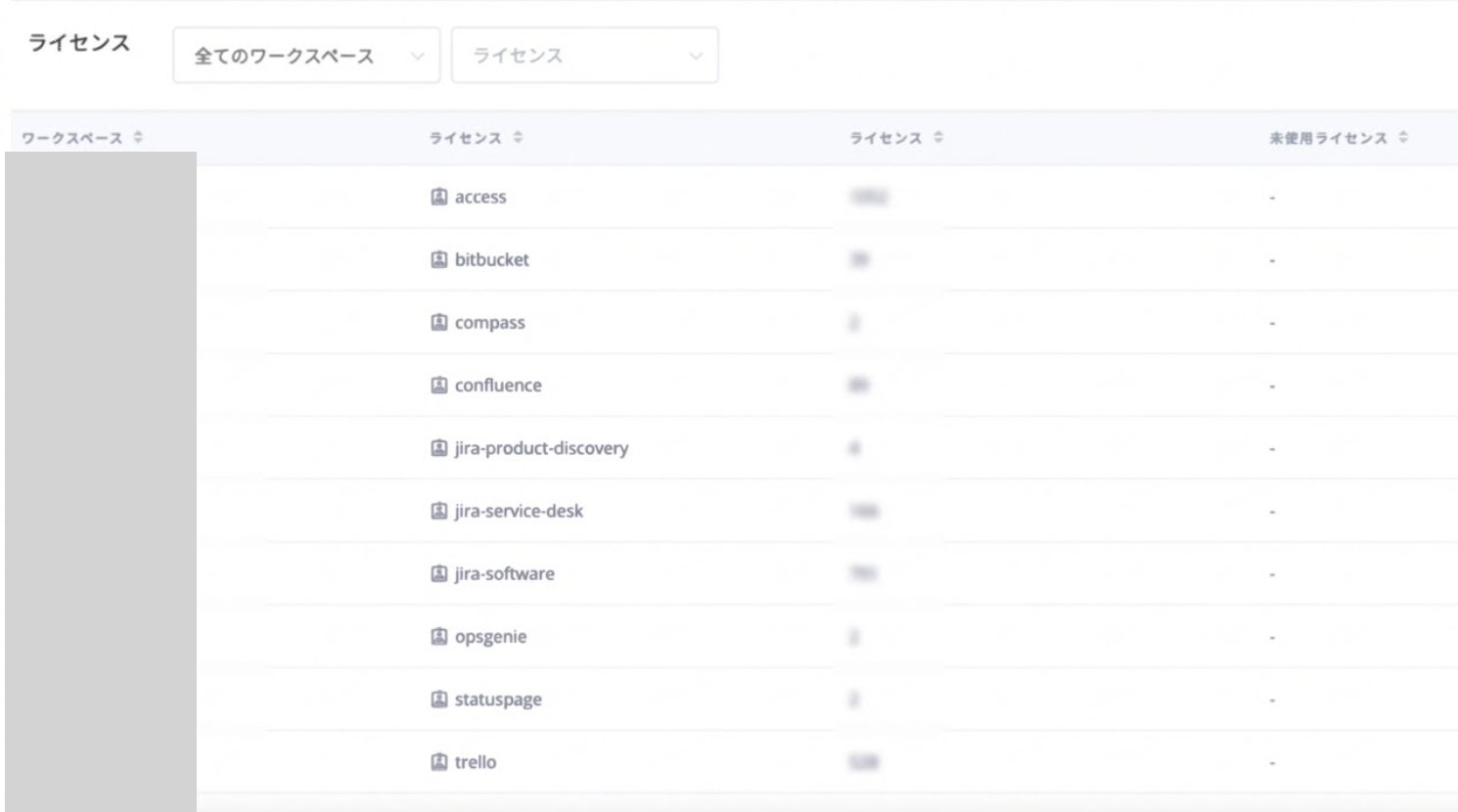
**A.** You can check the licenses for the retrieved Jira, Trello, and Confluence accounts in Services > Atlassian > Information > License, or Services > Atlassian > Accounts > Filter by "License".
For details, see [Accounts (Service Details)](/en/it-management/saas-management/dcqgfmkgaq-services) and [Information (Service Details)](/en/it-management/saas-management/dcqgfmkgaq-services).
3. When the Atlassian integration is successful, registered user information will appear in the account list.
If the account count shows `0` even after successful integration, please verify that you have completed the **organization creation and domain verification** steps mentioned above.
If the steps were not completed properly, edit from the status tab in the integration screen and try connecting again.
If the issue persists, please contact us via chat.
For more information about Atlassian integration, please visit the [integration page](http://admina.moneyforward.com/en/integrations/atlassian).
## FAQ
### Q. Want to Learn More About Account Retrieval from Atlassian Services
A. For Atlassian services, we retrieve account information as listed under **Retrieved Information** below. [What are Managed Accounts? (external site)](https://support.atlassian.com/user-management/docs/what-are-managed-accounts/)
For more information about account retrieval, see [Account Retrieval from Atlassian Services](/en/it-management/faq/w2k92cqw8b-jira-confluence-trello).
| SaaS Name | Retrieved Information |
| ----------------------------------------- | ------------------------------------------------------------------------------------------------------------------------------------------- |
| Atlassian | Only users with verified domain email addresses can be retrieved (external domain users or external IDs cannot be retrieved) |
| Atlassian Suite: Jira, Trello, Confluence | Retrieved information varies depending on Atlassian ID settings. (If default access is set to private, email addresses cannot be retrieved) |
### Q. After Integrating with Atlassian, Can I Check Jira, Confluence, and Trello Licenses?
**A.** You can check the licenses for the retrieved Jira, Trello, and Confluence accounts in Services > Atlassian > Information > License, or Services > Atlassian > Accounts > Filter by "License".
For details, see [Accounts (Service Details)](/en/it-management/saas-management/dcqgfmkgaq-services) and [Information (Service Details)](/en/it-management/saas-management/dcqgfmkgaq-services).