> ## Documentation Index
> Fetch the complete documentation index at: https://support.i.moneyforward.com/llms.txt
> Use this file to discover all available pages before exploring further.
# IBM MaaS360
> How to integrate with IBM MaaS360. This explains the full process, from getting your access key through to completing the integration.
export const IntegrationCapabilities = ({lang = "ja", modes = "", plan = "", lifecycle = "", automation = "", fetch = "", capabilities = "", memo = ""}) => {
const TEXT = ({
ja: {
rows: {
mode: "連携モード",
plan: "連携確認プラン",
lifecycle: "アカウントライフサイクル",
automation: "自動化",
fetch: "取得データ",
capabilities: "対応機能",
memo: "備考"
},
empty: "-",
more: "各項目の意味は[連携可能SaaS・機能対応一覧](/integrations/supported-saas)をご覧ください。",
mode: {
"API Key": "APIキー"
},
lifecycle: {
provisioning: "アカウント作成",
deactivate: "アカウント無効化",
delete: "アカウント削除"
},
automation: {
provisioning: "アカウント作成",
deactivate: "アカウント無効化",
delete: "アカウント削除"
},
fetch: {
User: "ユーザー名",
Mail: "メールアドレス",
Role: "ロール",
Status: "ステータス",
"2FA": "二要素認証",
LastActivity: "最終利用日",
Licenses: "ライセンス"
},
capabilities: {
"employee-master": "従業員マスター連携",
"identity-provider": "IDプロバイダー連携",
"cost-aggregation": "コスト管理",
"file-aggregation": "ファイル管理",
"file-permissions": "ファイル権限管理",
"device-aggregation": "MDM連携"
}
},
en: {
rows: {
mode: "Integration mode",
plan: "Verified plan",
lifecycle: "Account lifecycle",
automation: "Automation",
fetch: "Fetched data",
capabilities: "Capabilities",
memo: "Notes"
},
empty: "-",
more: "See [Supported SaaS and Capabilities](/en/integrations/supported-saas) for what each item means.",
mode: {},
lifecycle: {
provisioning: "Account creation",
deactivate: "Account deactivation",
delete: "Account deletion"
},
automation: {
provisioning: "Account creation",
deactivate: "Account deactivation",
delete: "Account deletion"
},
fetch: {
LastActivity: "Last Activity"
},
capabilities: {
"employee-master": "HR master",
"identity-provider": "Identity provider",
"cost-aggregation": "Cost management",
"file-aggregation": "File management",
"file-permissions": "File permissions",
"device-aggregation": "MDM integration"
}
}
})[lang === "en" ? "en" : "ja"];
const BADGE_COLORS = {
"ID/Password": "yellow",
"API Key": "cyan",
OAuth: "red",
App: "purple",
User: "blue",
Mail: "cyan",
Role: "orange",
Status: "teal",
"2FA": "pink",
LastActivity: "green",
Licenses: "purple",
provisioning: "green",
delete: "red",
deactivate: "yellow",
"employee-master": "blue",
"identity-provider": "teal",
"cost-aggregation": "yellow",
"file-aggregation": "cyan",
"file-permissions": "orange",
"device-aggregation": "purple"
};
const list = value => String(value || "").split(",").map(item => item.trim()).filter(Boolean);
const badges = (source, labels) => {
const values = list(source);
if (values.length === 0) {
return {TEXT.empty};
}
return values.map(value =>
{labels?.[value] ?? value}
);
};
const text = value => value || {TEXT.empty};
const ROWS = [["mode", badges(modes, TEXT.mode)], ["plan", text(plan)], ["lifecycle", badges(lifecycle, TEXT.lifecycle)], ["automation", badges(automation, TEXT.automation)], ["fetch", badges(fetch, TEXT.fetch)], ["capabilities", badges(capabilities, TEXT.capabilities)], ["memo", text(memo)]];
return
{ROWS.map(([key, value]) =>
- {TEXT.rows[key]}
- {value}
)}
;
};
## Integration Specifications
## Prerequisites
### Getting your access key
1. Log in to [https://login.maas360.com/](https://login.maas360.com/).
2. After logging in, check the URL shown in your browser's address bar. The hostname shown there (for example, `m4.maas360.com`) is the value you'll use for the **Base URL** below.
 3. Go to **Setup** > **Web Services API** > **Manage Access Key**, then click **Generate Access Key**.
4. Select "MaaS360 Web Services" for **Type**, enter any **Key Name**, then click **Generate**.
3. Go to **Setup** > **Web Services API** > **Manage Access Key**, then click **Generate Access Key**.
4. Select "MaaS360 Web Services" for **Type**, enter any **Key Name**, then click **Generate**.
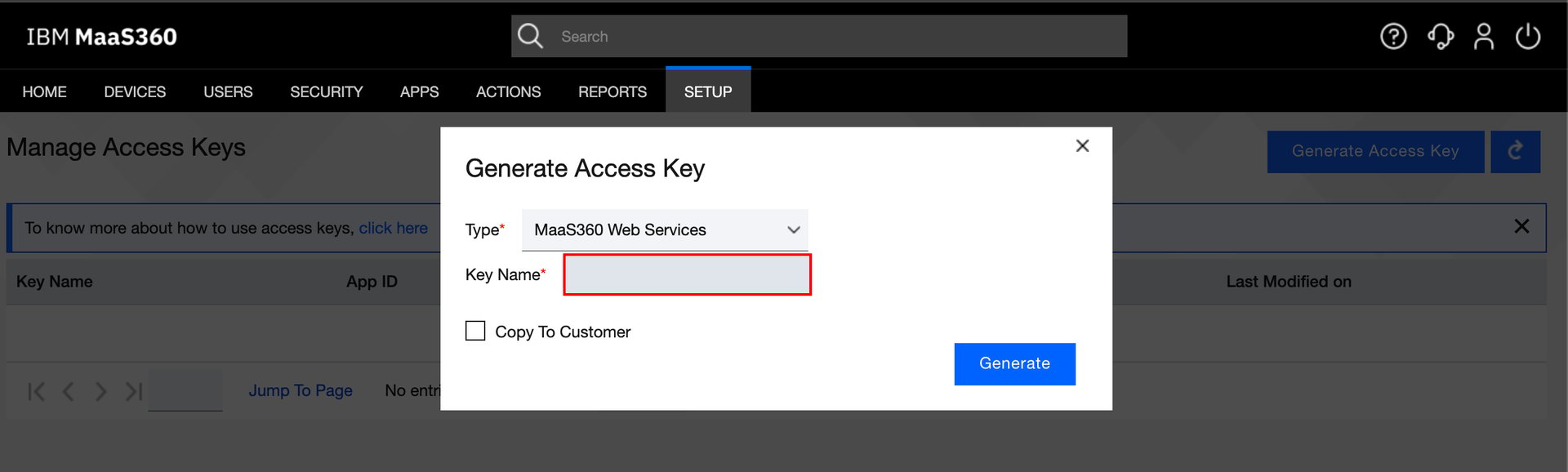 5. Use the **App ID** and **App Access Key** that are issued as the **Client ID** and **Client Secret** described below.
## Setting up the integration
1. On the integration screen, search for **IBM MaaS360**.
2. Enter the following, then click **Connect**:
* The **Base URL** that includes the hostname you checked in step 2
* The **Client ID** and **Client Secret** from the previous step
* The **username** and **password** you use to log in to MaaS360
5. Use the **App ID** and **App Access Key** that are issued as the **Client ID** and **Client Secret** described below.
## Setting up the integration
1. On the integration screen, search for **IBM MaaS360**.
2. Enter the following, then click **Connect**:
* The **Base URL** that includes the hostname you checked in step 2
* The **Client ID** and **Client Secret** from the previous step
* The **username** and **password** you use to log in to MaaS360
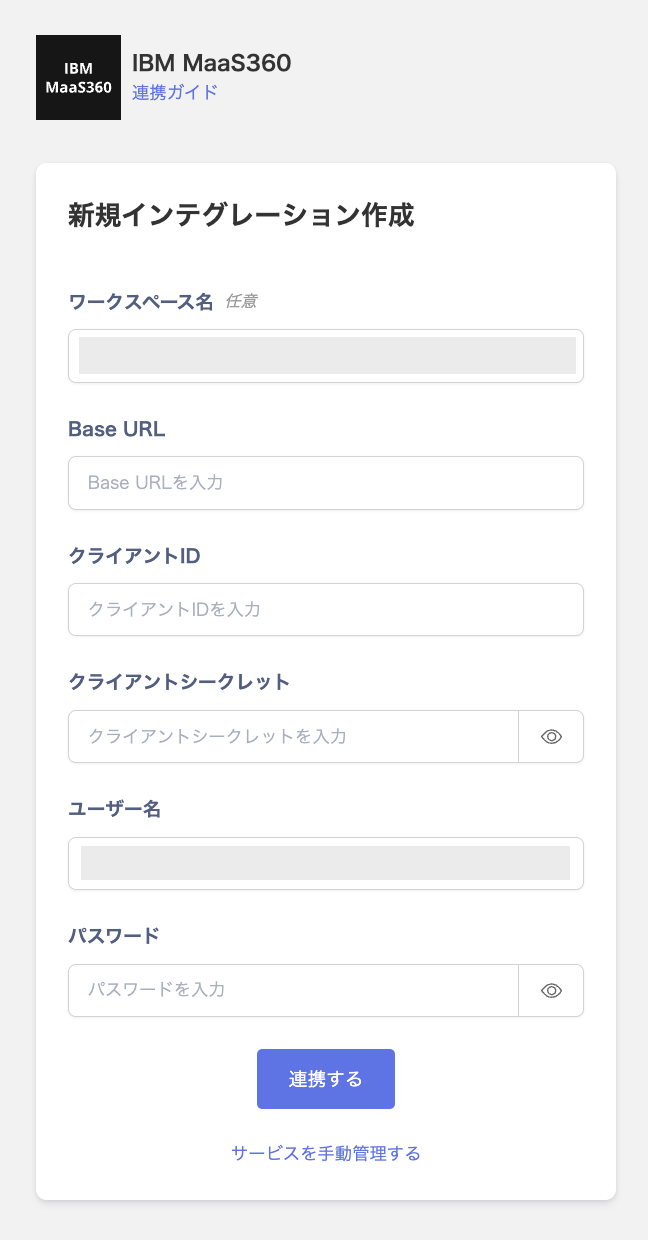 3. Once the integration with IBM MaaS360 succeeds, registered user information appears in the account list. If it doesn't complete successfully, first try the steps in [Troubleshooting failed SaaS integrations](/en/it-management/saas-management/93nahw45is-trouble). If that doesn't resolve it, check [Information to provide](/en/it-management/saas-management/93nahw45is-trouble#info-to-provide) and contact [support](/en/contact-support).
## MDM Integration
If you are using the device management feature, you can synchronize devices with IBM MaaS360. For details, see [4-0. Sync MDM-Compatible SaaS with Your Device Ledger](/en/it-management/device/k1u975zc6h-mdm).
For devices where an IMEI/ESN cannot be retrieved (Windows, Mac, etc.), the UDID is set in the serial number field. Because this does not match the actual serial number already registered on this service, such devices are registered as new instead of being merged with an existing device.
Records with an empty device name are not synchronized and are skipped.
### Synchronized Fields
| This-Service Field | Sync Pattern | IBM MaaS360 | Notes |
| -------------------- | ---------------------- | --------------------------------------------------------- | ---------------------------------------------------------------------------------------------------------------------------------------------------------------------------------------------------------------------------------- |
| Asset number | (2) This-service-based | `ibm-maas360_` | Assigned only when newly registered. If duplicated, a suffix such as `_1` is added. |
| Model name | (2) This-service-based | Model (model) | |
| Serial number (IMEI) | (1) MDM-based | IMEI/ESN (imeiEsn); if unavailable, UDID (udid) | Merge key. For devices without an IMEI/ESN (Windows/Mac, etc.), the UDID is used in the serial number field, so it does not match the actual serial number already registered on this service and the device is registered as new. |
| Email | (2) This-service-based | Username / Email Address (emailAddress) | Only for devices with no employee assigned, automatically linked to an employee by matching email address (devices with an empty serial number are excluded). |
| Type | (2) This-service-based | Determined from Device Type (deviceType) | "phone" → Smartphone; "laptop" → Laptop PC; "tablet" → Tablet; "desktop" → Desktop PC; otherwise → Other (the first matching keyword takes priority — for example, "Smartphone" is matched as Smartphone). |
| Status | (2) This-service-based | Determined by whether Email Address (emailAddress) is set | "In Use" if an email address is present; "In Stock" if not. |
| Phone number | (1) MDM-based | Phone Number (phoneNumber) | |
| Manufacturer | (1) MDM-based | Manufacturer (manufacturer) | |
| OS | (1) MDM-based | OS Name (osName) | |
| Version | (1) MDM-based | OS Version (osVersion) | |
| Hostname | (1) MDM-based | Device Name (deviceName) | Records with an empty device name are not synchronized (skipped). |
| Last used (MDM) | (1) MDM-based | Last Reported (lastReported) | Created automatically when MDM integration starts. |
| MDM link | (1) MDM-based | — | Because no device URL is set, the "Open in MDM" link is empty. |
| Managed | (1) MDM-based | Managed Status (maas360ManagedStatus) | "Enrolled" / "Activated" → Managed; other values (Not Enrolled, Control Removed, Inactive, etc.) → Unmanaged. |
| Managed | (3) MDM field | Managed: MDM enabled | |
3. Once the integration with IBM MaaS360 succeeds, registered user information appears in the account list. If it doesn't complete successfully, first try the steps in [Troubleshooting failed SaaS integrations](/en/it-management/saas-management/93nahw45is-trouble). If that doesn't resolve it, check [Information to provide](/en/it-management/saas-management/93nahw45is-trouble#info-to-provide) and contact [support](/en/contact-support).
## MDM Integration
If you are using the device management feature, you can synchronize devices with IBM MaaS360. For details, see [4-0. Sync MDM-Compatible SaaS with Your Device Ledger](/en/it-management/device/k1u975zc6h-mdm).
For devices where an IMEI/ESN cannot be retrieved (Windows, Mac, etc.), the UDID is set in the serial number field. Because this does not match the actual serial number already registered on this service, such devices are registered as new instead of being merged with an existing device.
Records with an empty device name are not synchronized and are skipped.
### Synchronized Fields
| This-Service Field | Sync Pattern | IBM MaaS360 | Notes |
| -------------------- | ---------------------- | --------------------------------------------------------- | ---------------------------------------------------------------------------------------------------------------------------------------------------------------------------------------------------------------------------------- |
| Asset number | (2) This-service-based | `ibm-maas360_` | Assigned only when newly registered. If duplicated, a suffix such as `_1` is added. |
| Model name | (2) This-service-based | Model (model) | |
| Serial number (IMEI) | (1) MDM-based | IMEI/ESN (imeiEsn); if unavailable, UDID (udid) | Merge key. For devices without an IMEI/ESN (Windows/Mac, etc.), the UDID is used in the serial number field, so it does not match the actual serial number already registered on this service and the device is registered as new. |
| Email | (2) This-service-based | Username / Email Address (emailAddress) | Only for devices with no employee assigned, automatically linked to an employee by matching email address (devices with an empty serial number are excluded). |
| Type | (2) This-service-based | Determined from Device Type (deviceType) | "phone" → Smartphone; "laptop" → Laptop PC; "tablet" → Tablet; "desktop" → Desktop PC; otherwise → Other (the first matching keyword takes priority — for example, "Smartphone" is matched as Smartphone). |
| Status | (2) This-service-based | Determined by whether Email Address (emailAddress) is set | "In Use" if an email address is present; "In Stock" if not. |
| Phone number | (1) MDM-based | Phone Number (phoneNumber) | |
| Manufacturer | (1) MDM-based | Manufacturer (manufacturer) | |
| OS | (1) MDM-based | OS Name (osName) | |
| Version | (1) MDM-based | OS Version (osVersion) | |
| Hostname | (1) MDM-based | Device Name (deviceName) | Records with an empty device name are not synchronized (skipped). |
| Last used (MDM) | (1) MDM-based | Last Reported (lastReported) | Created automatically when MDM integration starts. |
| MDM link | (1) MDM-based | — | Because no device URL is set, the "Open in MDM" link is empty. |
| Managed | (1) MDM-based | Managed Status (maas360ManagedStatus) | "Enrolled" / "Activated" → Managed; other values (Not Enrolled, Control Removed, Inactive, etc.) → Unmanaged. |
| Managed | (3) MDM field | Managed: MDM enabled | |