> ## Documentation Index
> Fetch the complete documentation index at: https://support.i.moneyforward.com/llms.txt
> Use this file to discover all available pages before exploring further.
# Google Drive
> Steps to integrate Google Drive with Admina using a service account.
## Supported Features
File Aggregation File Permission Management
## Integrating with Google Drive
Follow these steps to integrate Google Drive with Admina. The integration retrieves information about publicly shared files. ([About the External Shared Content Management feature](/en/it-management/file-management/aakpi1r7gq-file-management#1023961436))
* Account information is not retrieved.
* Only the names and links of files shared (made public) in shared drives (including My Drive) are retrieved. Data is not synced to Admina.
* Viewing files requires the Admin role in Admina. For details on Admina roles, see the page below.
[About Admina admin users: what are the differences between roles?](/en/it-management/settings/yne7fl2lcy-role-new)
## Prerequisites
### Enable APIs (Google Cloud Platform)
1. Create an account for the integration from Google Cloud Platform. Go to [Google Cloud Console](https://console.cloud.google.com/) and select or create a project.
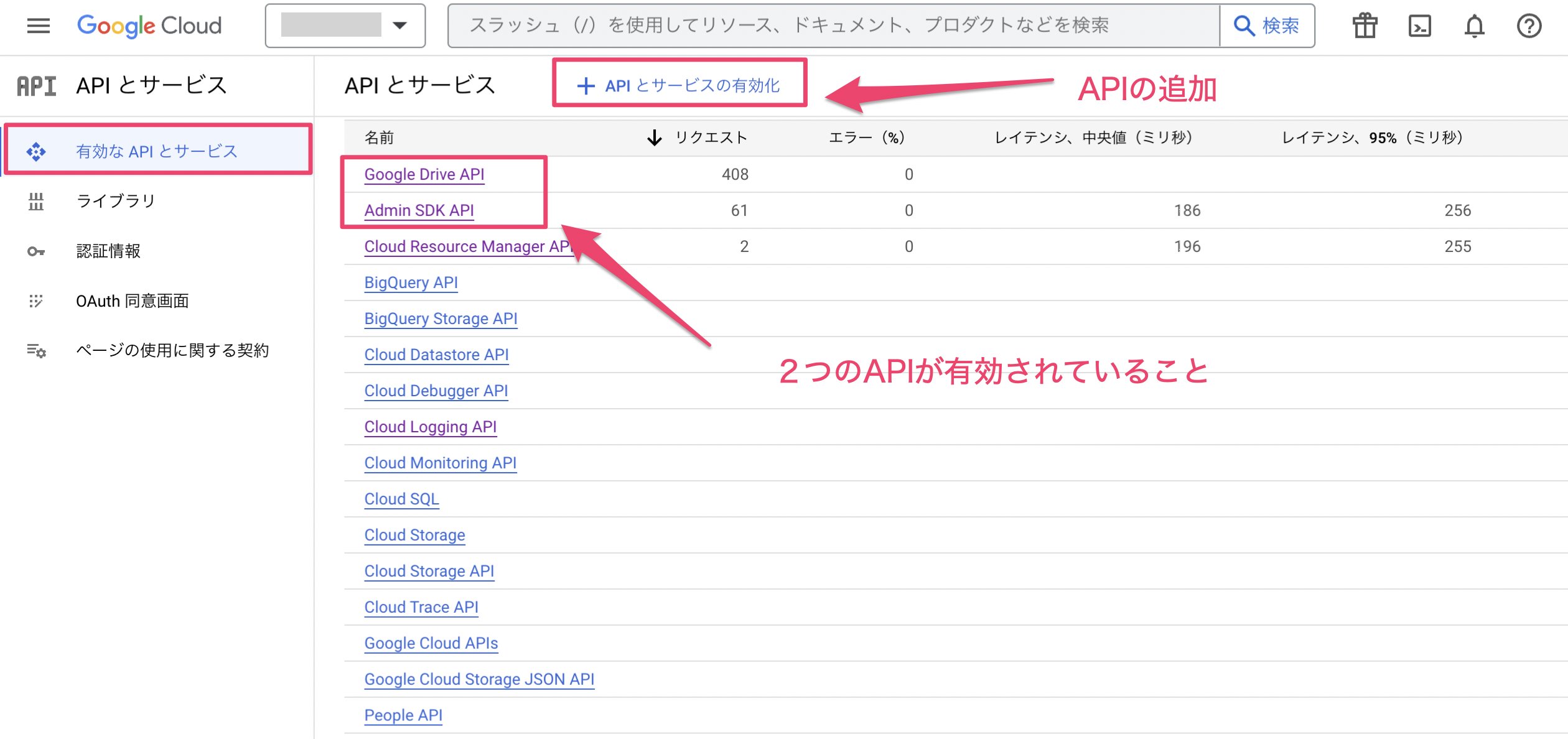
2. Under **APIs & Services** > **Enabled APIs & Services**, confirm that the following two APIs are enabled. If they are not enabled, add them from the [API Library](https://console.cloud.google.com/apis/library).
* **Google Drive API**
* **Admin SDK API**
 ### Create a Service Account
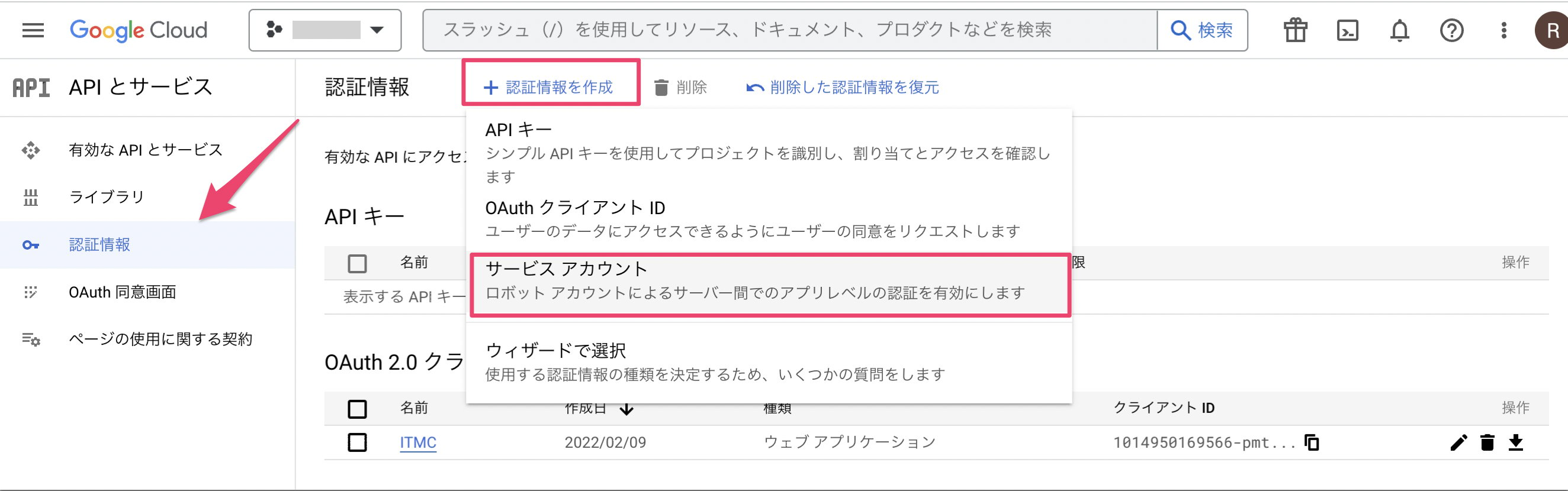
3. Go to **APIs & Services > Credentials > Create Credentials > Service account**.
### Create a Service Account
3. Go to **APIs & Services > Credentials > Create Credentials > Service account**.
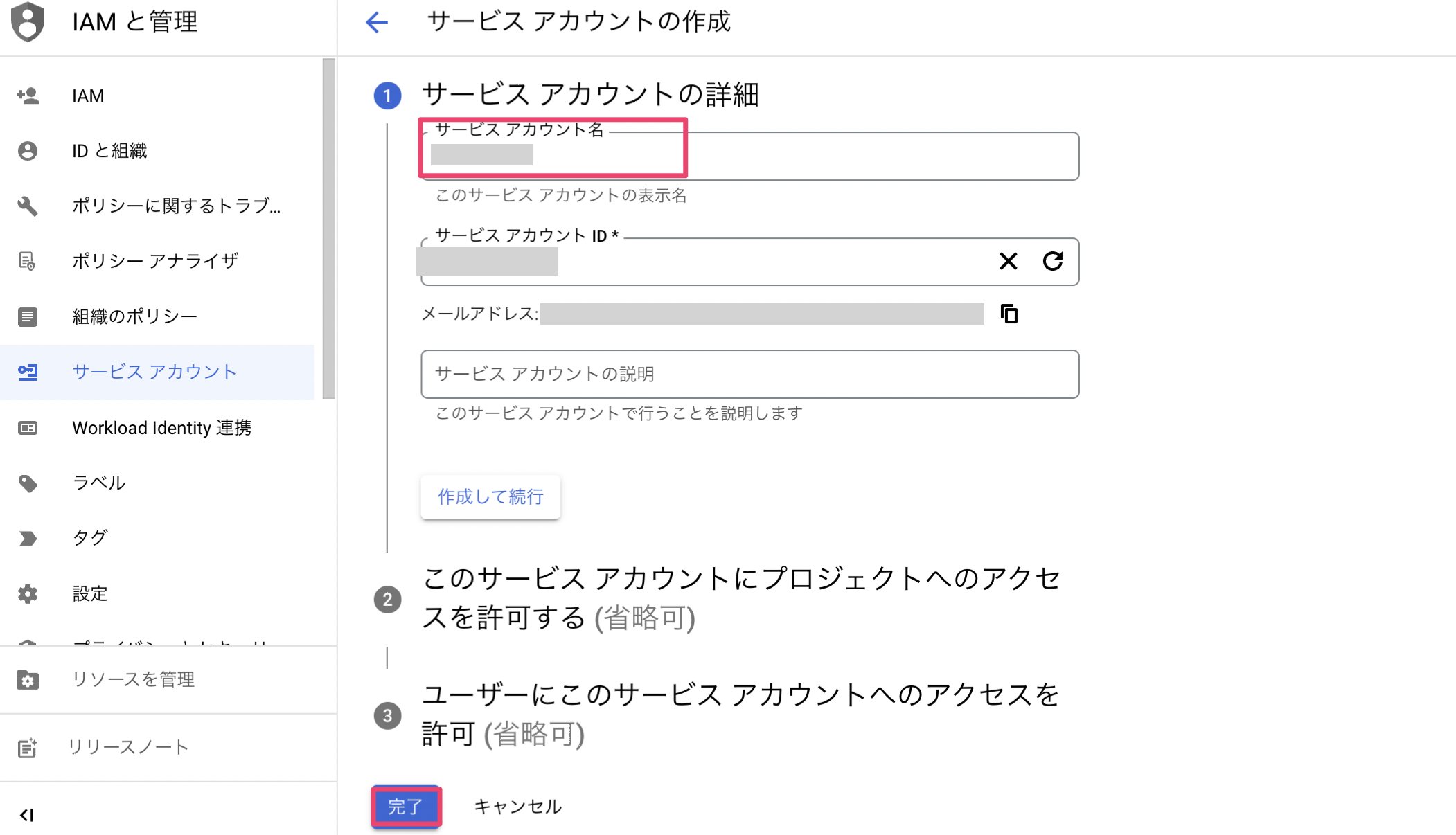
 4. Enter any name for the service account name and click **Done** (steps 2 and 3 are not required).
 ### Issue an API Key
5. The service account you created will appear under **APIs & Services > Credentials** — click it.
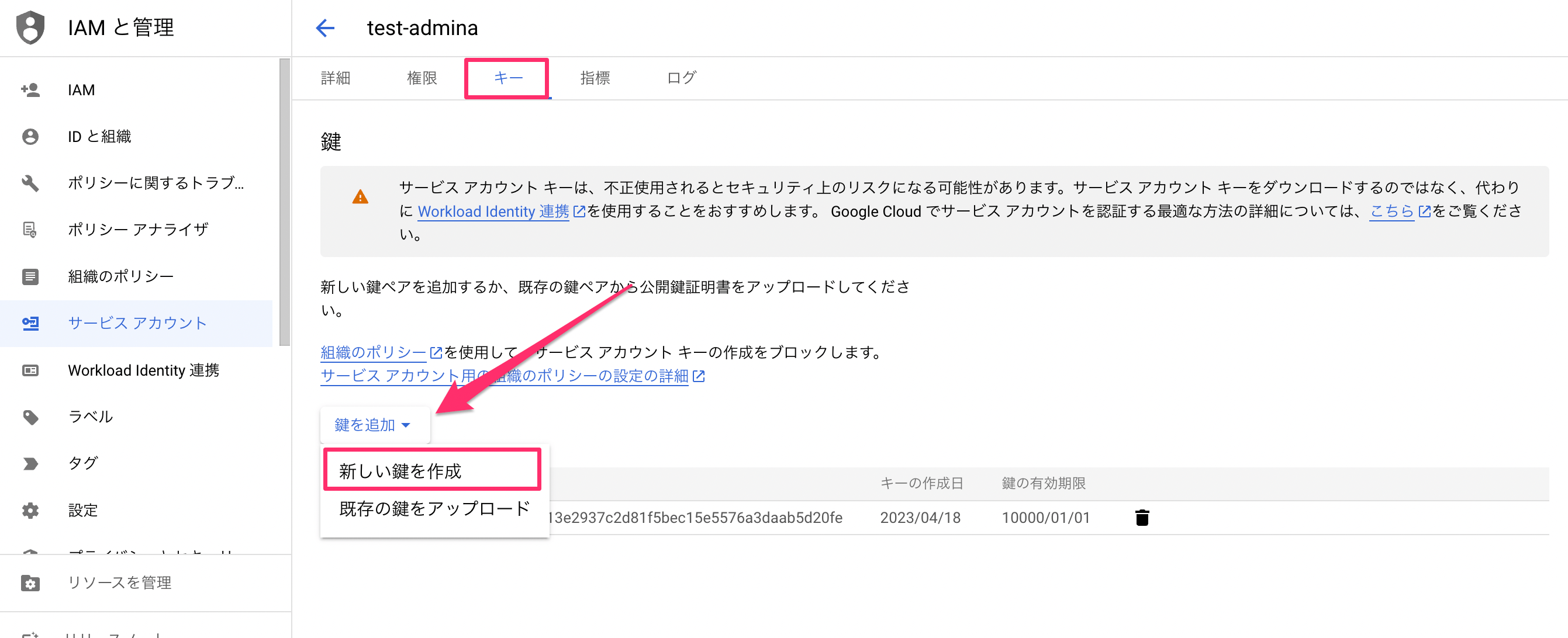
6. Go to the **Keys** tab and click **Add Key > Create new key**.
### Issue an API Key
5. The service account you created will appear under **APIs & Services > Credentials** — click it.
6. Go to the **Keys** tab and click **Add Key > Create new key**.
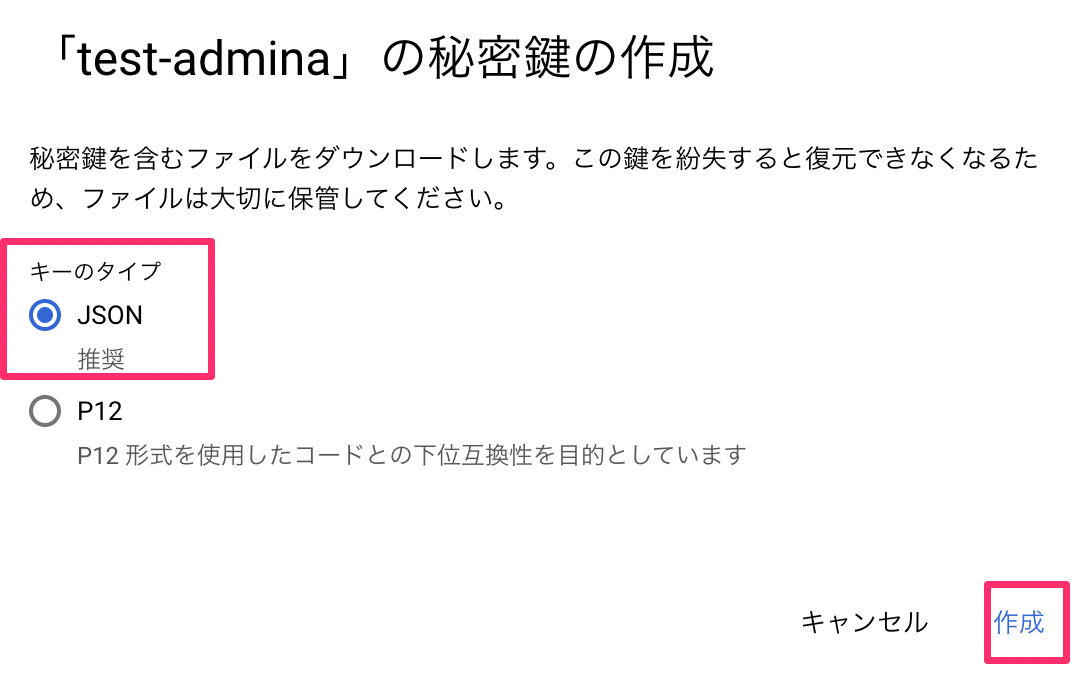
 7. Select **JSON** and click the **Create** button. A message "Private key saved to your computer" will appear, and a JSON file will be downloaded automatically. Keep this file safe, as it contains parameters such as the Client ID required for the Admina integration.
 ### Configure Domain-Wide Delegation (Google Admin Console)
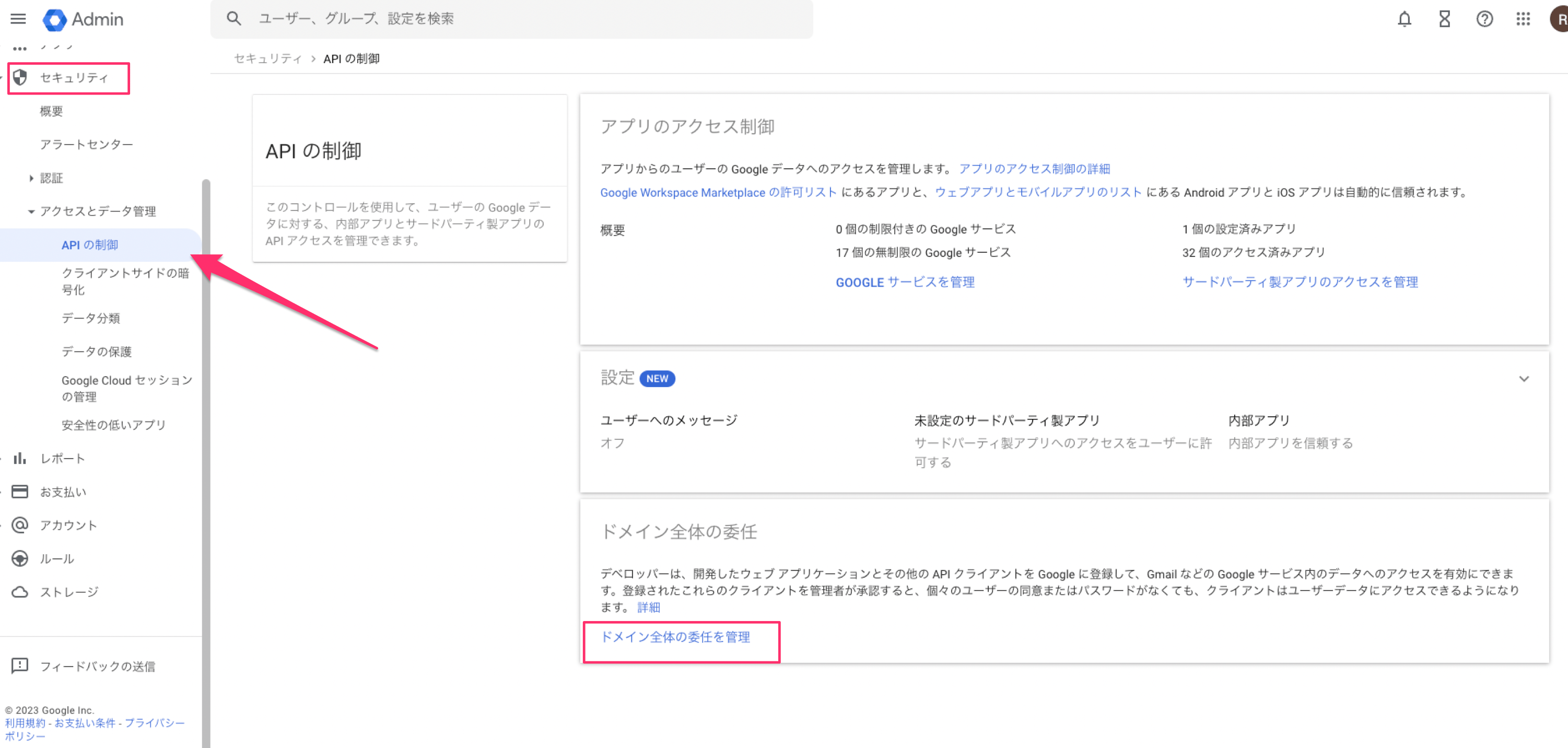
8. Go to the Google Workspace [Admin console](https://admin.google.com/) and click **Security > API controls > Manage Domain Wide Delegation**.
### Configure Domain-Wide Delegation (Google Admin Console)
8. Go to the Google Workspace [Admin console](https://admin.google.com/) and click **Security > API controls > Manage Domain Wide Delegation**.
 9. Click the **Add new** button.
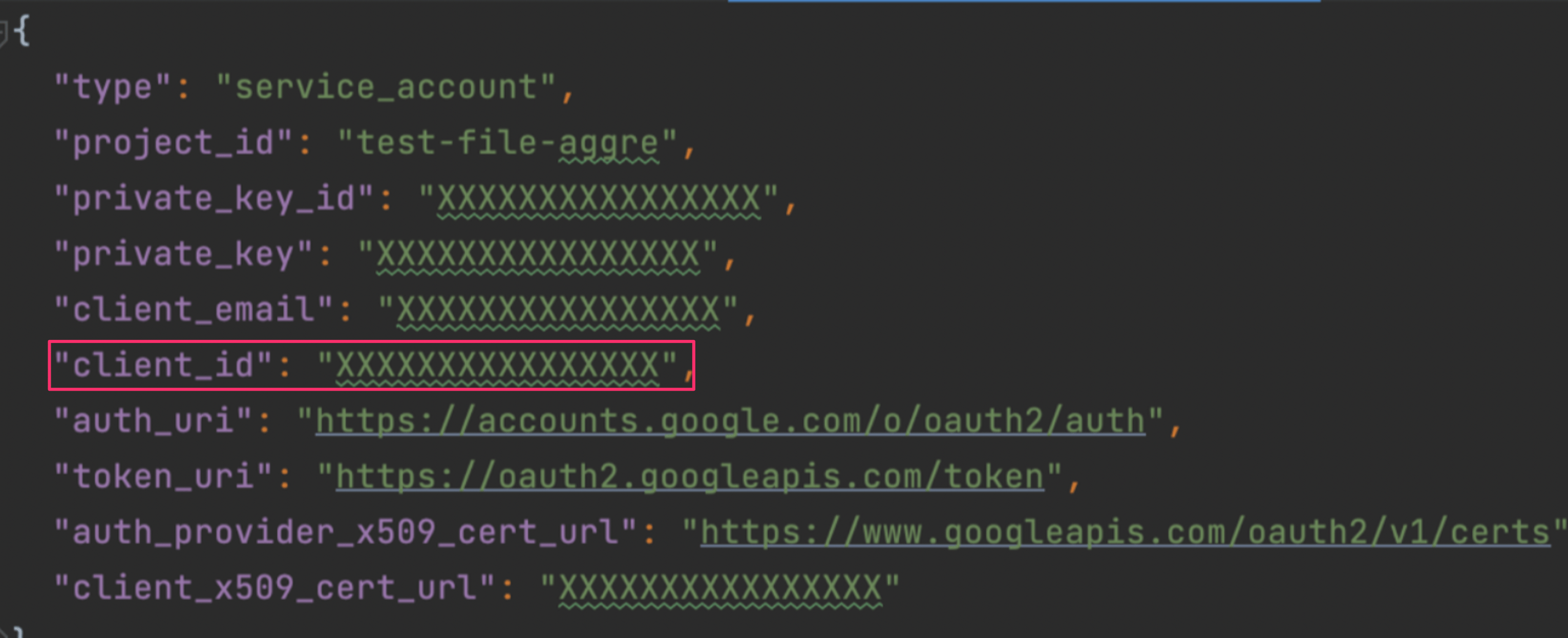
10. Open the JSON file you saved. Enter the value of `client_id` from the JSON file in the **Client ID** field.
9. Click the **Add new** button.
10. Open the JSON file you saved. Enter the value of `client_id` from the JSON file in the **Client ID** field.
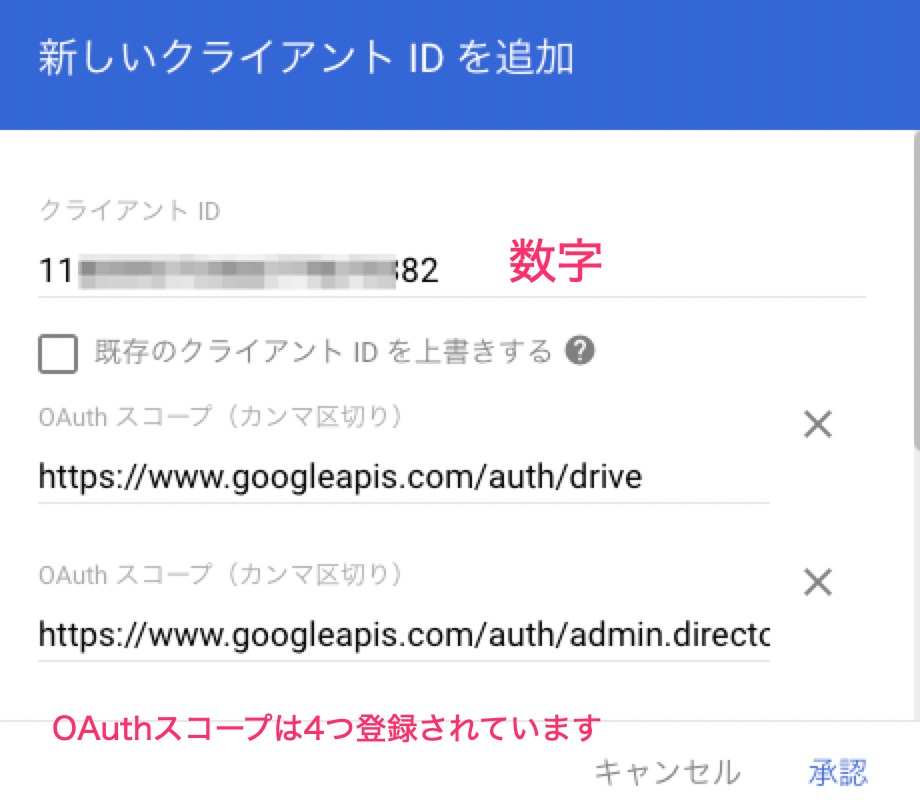
 11. Enter the following four values in **OAuth scopes**, then click **Authorize**.
1. `https://www.googleapis.com/auth/drive`
2. `https://www.googleapis.com/auth/admin.directory.user.readonly`
3. `https://www.googleapis.com/auth/admin.directory.group.readonly`
4. `https://www.googleapis.com/auth/admin.directory.domain.readonly`
11. Enter the following four values in **OAuth scopes**, then click **Authorize**.
1. `https://www.googleapis.com/auth/drive`
2. `https://www.googleapis.com/auth/admin.directory.user.readonly`
3. `https://www.googleapis.com/auth/admin.directory.group.readonly`
4. `https://www.googleapis.com/auth/admin.directory.domain.readonly`
 You can also set scope (a) to `https://www.googleapis.com/auth/drive.readonly`.
This allows all data to be retrieved as Read Only, but only files in **My Drive** will be retrieved (files in shared drives cannot be retrieved).
## Integration Setup
1. In the Admina integrations screen, search for **Google Drive**.
2. Open the JSON file you saved. Enter the values listed below and click **Connect**.
You can also set scope (a) to `https://www.googleapis.com/auth/drive.readonly`.
This allows all data to be retrieved as Read Only, but only files in **My Drive** will be retrieved (files in shared drives cannot be retrieved).
## Integration Setup
1. In the Admina integrations screen, search for **Google Drive**.
2. Open the JSON file you saved. Enter the values listed below and click **Connect**.
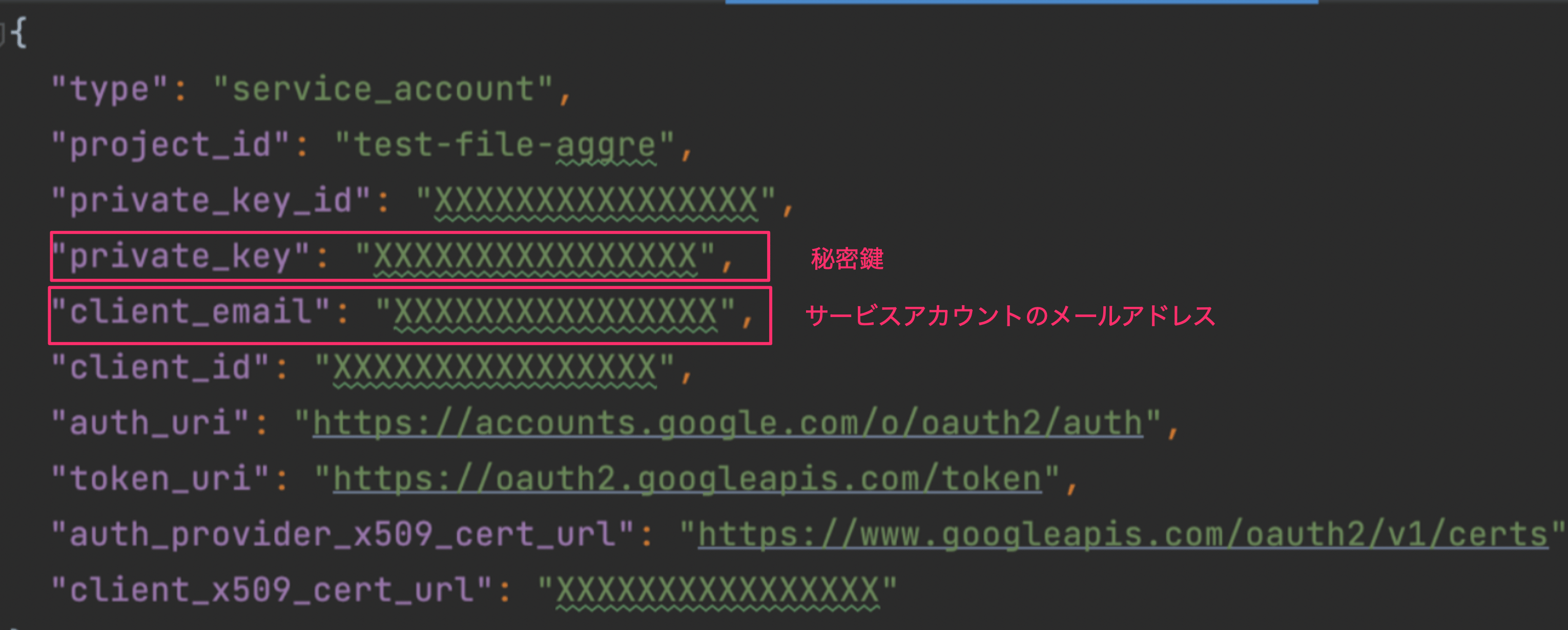 3. **Service account email address**: Enter the value of `client_email` from the JSON file.
4. **Private key**: Enter the private key `private_key` from the JSON file.
Enter everything from **-----BEGIN PRIVATE KEY-----** to **-----END PRIVATE KEY-----**. (The leading `"` and trailing `\n",` are not required.)
5. **Email address**: Enter the email address of the **Google Workspace** super admin.
3. **Service account email address**: Enter the value of `client_email` from the JSON file.
4. **Private key**: Enter the private key `private_key` from the JSON file.
Enter everything from **-----BEGIN PRIVATE KEY-----** to **-----END PRIVATE KEY-----**. (The leading `"` and trailing `\n",` are not required.)
5. **Email address**: Enter the email address of the **Google Workspace** super admin.
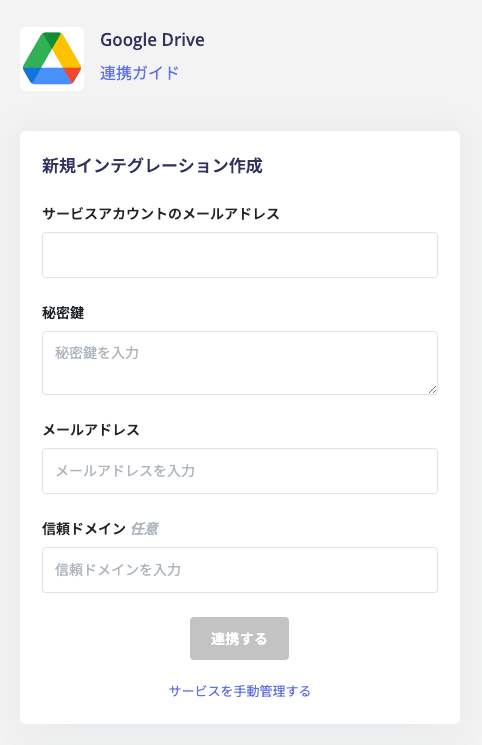 Trusted domains: You can exclude specified domains from external sharing detection. Use this to specify domains such as group company domains that you do not want to be detected as external. If there are multiple domains, separate them with commas (,) as shown below. (Your own company domain does not need to be entered.)
`moneyfoward.co.jp, i.moneyfoward.com`
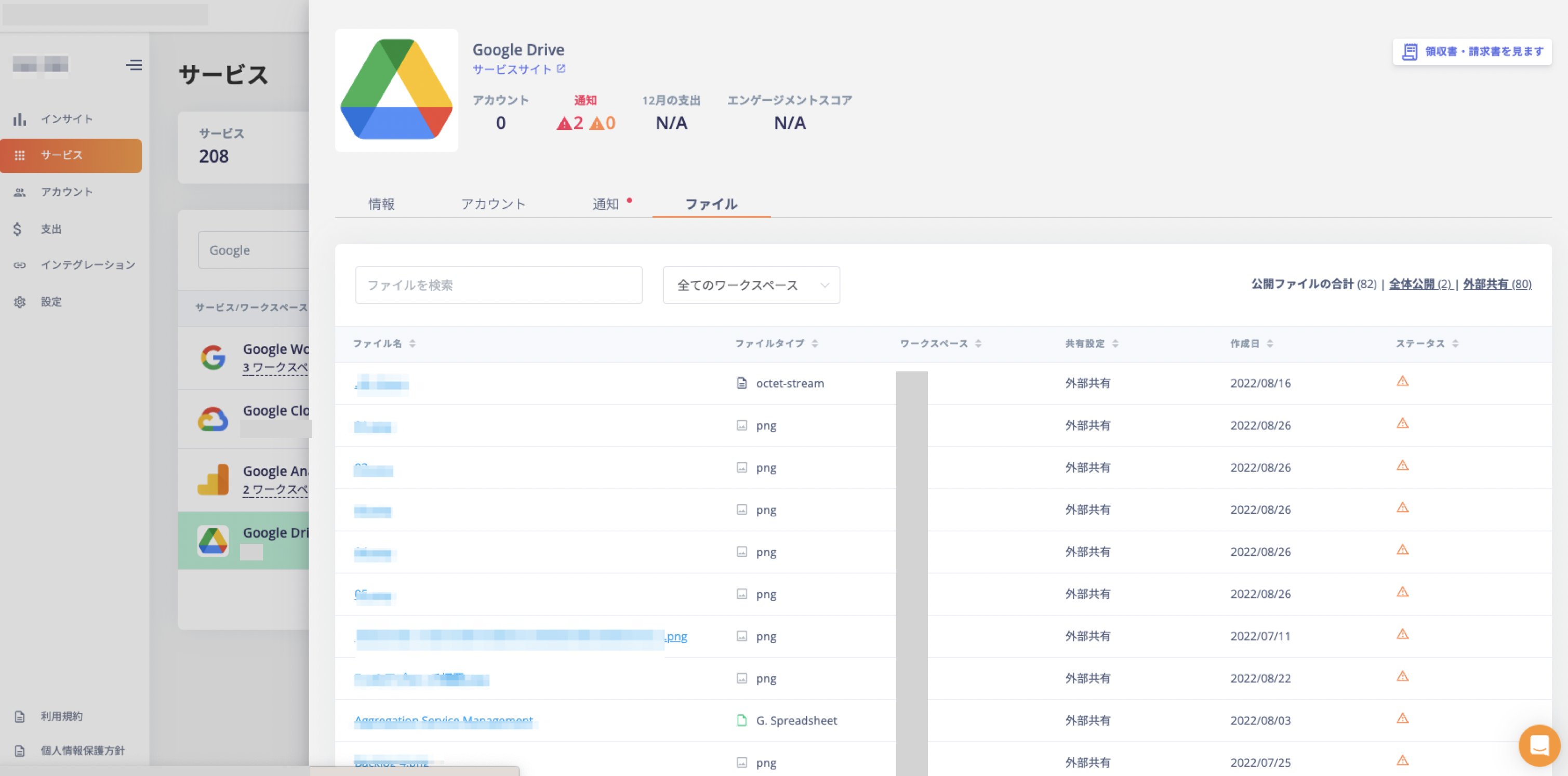
6. Once the integration with Google Drive is successful, a "Files" tab will appear under the service, displaying information about shared files. (Synchronization may take some time depending on the number of files.)
Trusted domains: You can exclude specified domains from external sharing detection. Use this to specify domains such as group company domains that you do not want to be detected as external. If there are multiple domains, separate them with commas (,) as shown below. (Your own company domain does not need to be entered.)
`moneyfoward.co.jp, i.moneyfoward.com`
6. Once the integration with Google Drive is successful, a "Files" tab will appear under the service, displaying information about shared files. (Synchronization may take some time depending on the number of files.)
 If the integration does not complete successfully, go to the **Status** tab on the integrations screen, click **Edit**, and try connecting again.
If the issue persists, please contact us via chat.
For an overview of the Google Drive integration, see the [integration page](https://admina.moneyforward.com/en/integrations/google-drive).
## Stopping Sharing
You can check the sharing status of retrieved files and stop sharing.
Click the **Share** button from the drawer on the right side.
If the integration does not complete successfully, go to the **Status** tab on the integrations screen, click **Edit**, and try connecting again.
If the issue persists, please contact us via chat.
For an overview of the Google Drive integration, see the [integration page](https://admina.moneyforward.com/en/integrations/google-drive).
## Stopping Sharing
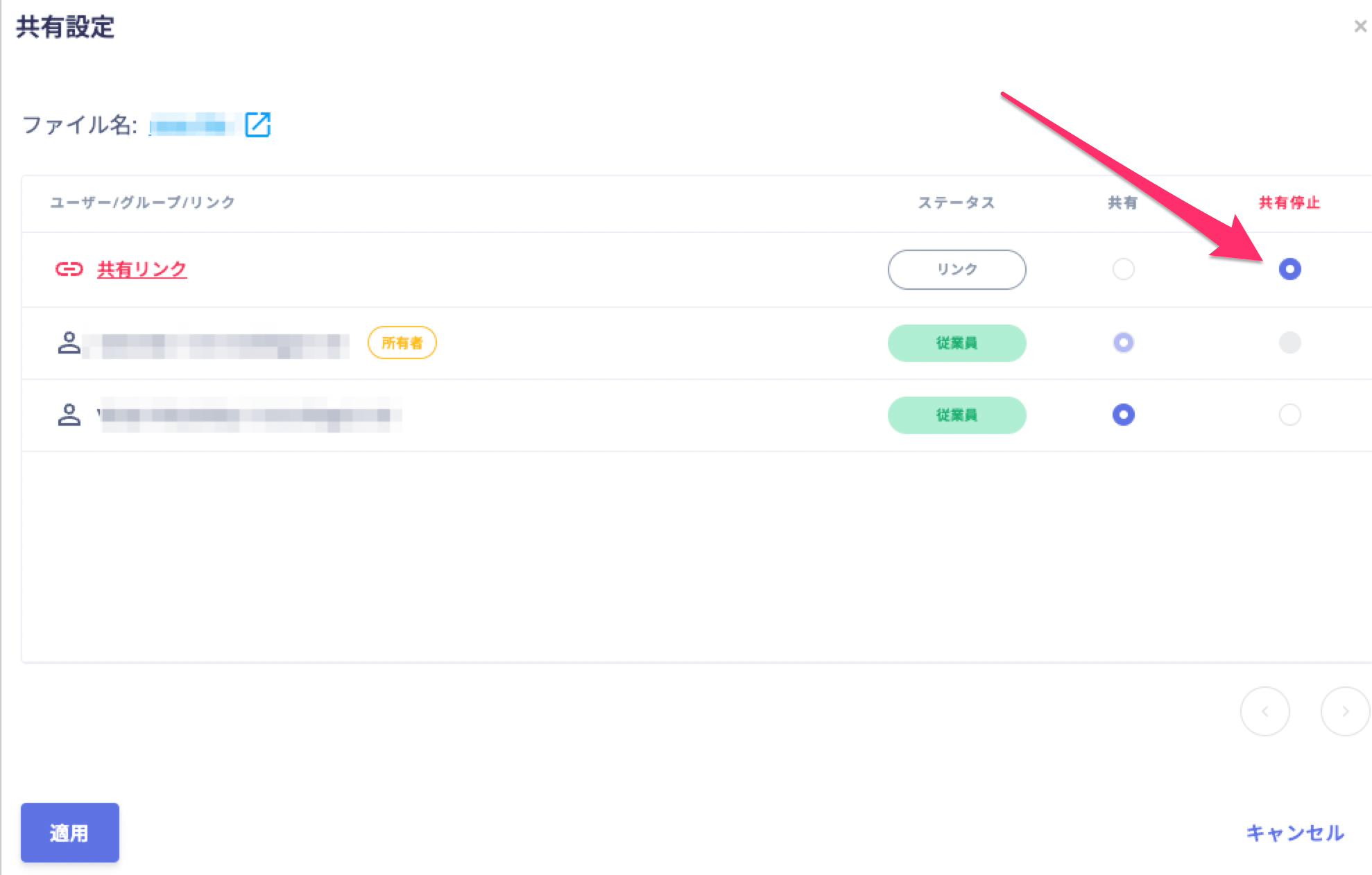
You can check the sharing status of retrieved files and stop sharing.
Click the **Share** button from the drawer on the right side.
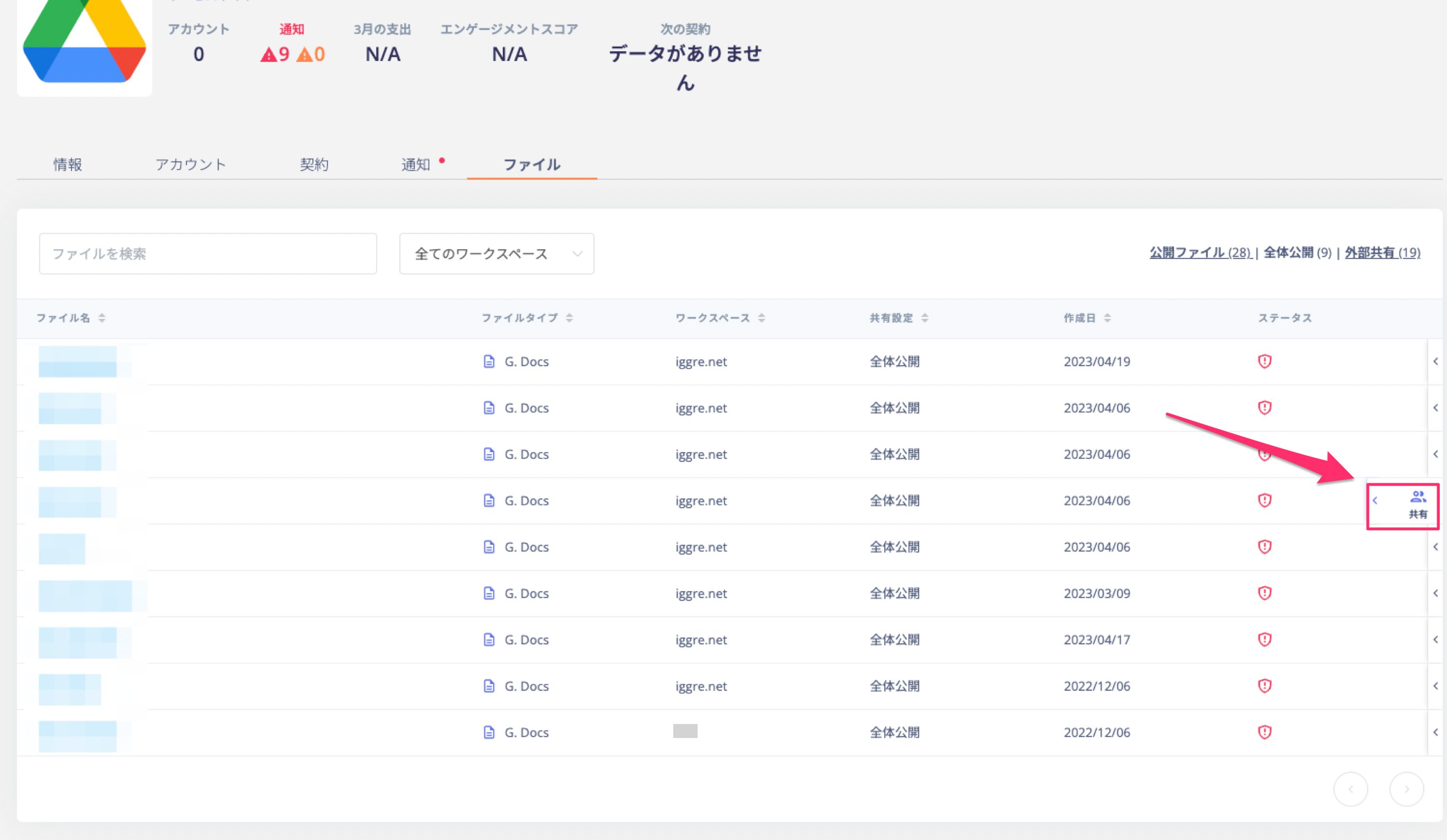 Select the user, group, or link whose sharing you want to stop, then click **Apply**.
 ## FAQ
### Q. Can you explain the sharing status for each file?
A. Please refer to the following.
| Status | Description |
| ----------------------------- | --------------------------------------------------------------------------------------------------------------------- |
| **External sharing** | Files shared with addresses outside the domains registered in Google Workspace are classified as "externally shared." |
| **Public (anyone with link)** | Files shared with "Anyone with the link" are displayed as "Public." |
## FAQ
### Q. Can you explain the sharing status for each file?
A. Please refer to the following.
| Status | Description |
| ----------------------------- | --------------------------------------------------------------------------------------------------------------------- |
| **External sharing** | Files shared with addresses outside the domains registered in Google Workspace are classified as "externally shared." |
| **Public (anyone with link)** | Files shared with "Anyone with the link" are displayed as "Public." |