> ## Documentation Index
> Fetch the complete documentation index at: https://support.i.moneyforward.com/llms.txt
> Use this file to discover all available pages before exploring further.
# kintone (global version)
> How to integrate with kintone (global version). This section describes a series of steps from administrator login to kintone from Admina by Money Forward to the integration method.
## Supported Features
Account Deletion Provisioning
An administrator account is required for integration.
## Advance Preparation
### How to login to kintone
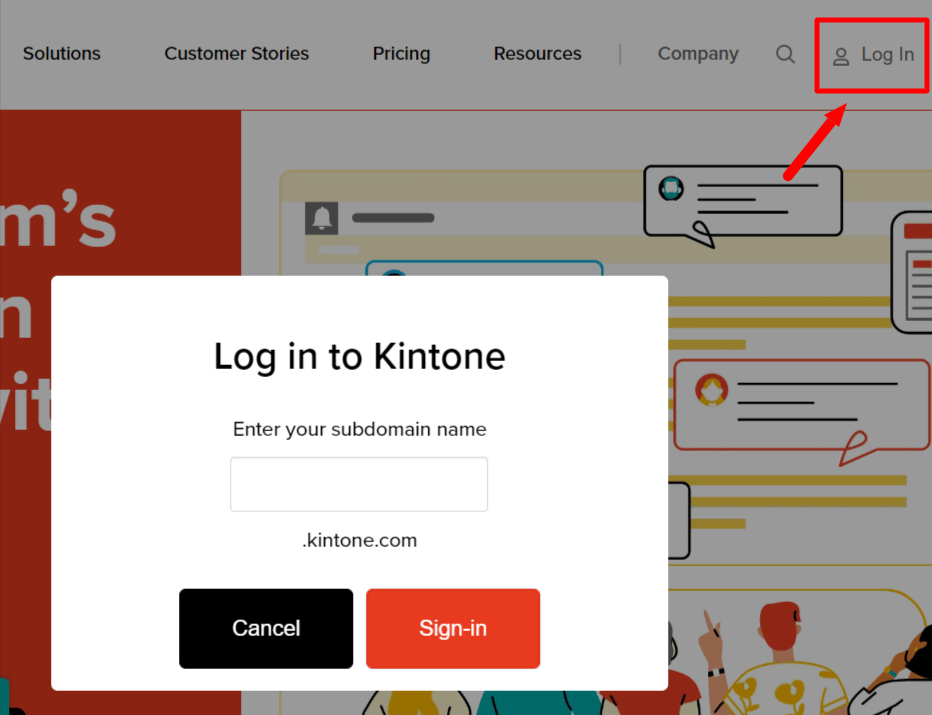
Click "Log in" at the upper right corner of the [kintone homepage](https://www.kintone.com/), enter your subdomain, and click Sign-in. Next, enter your email address and password to login.
If you have any questions about kintone login, please refer to [the kintone help site: Problems with Logging In](https://get.kintone.help/general/en/login.html).
 ### How to get Workspace key
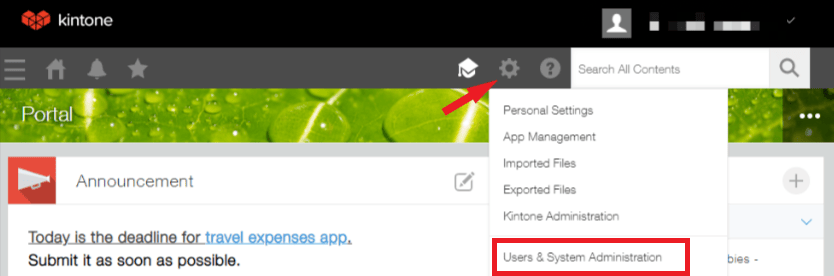
After logging into Kintone, access Kintone Common Management from the ⚙ setting icon.
### How to get Workspace key
After logging into Kintone, access Kintone Common Management from the ⚙ setting icon.
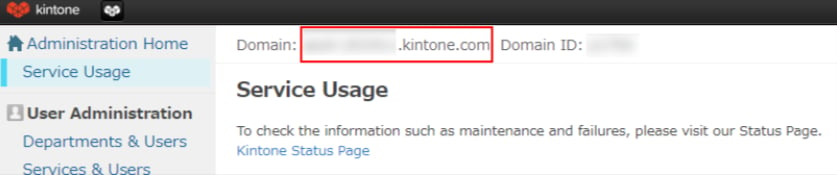
 You will see the domain at the top of the page. Part of the **domain is the workspace key**, so save it.
**`{workspace key}`** **.kintone.com**
You will see the domain at the top of the page. Part of the **domain is the workspace key**, so save it.
**`{workspace key}`** **.kintone.com**
 ## Integration Setup
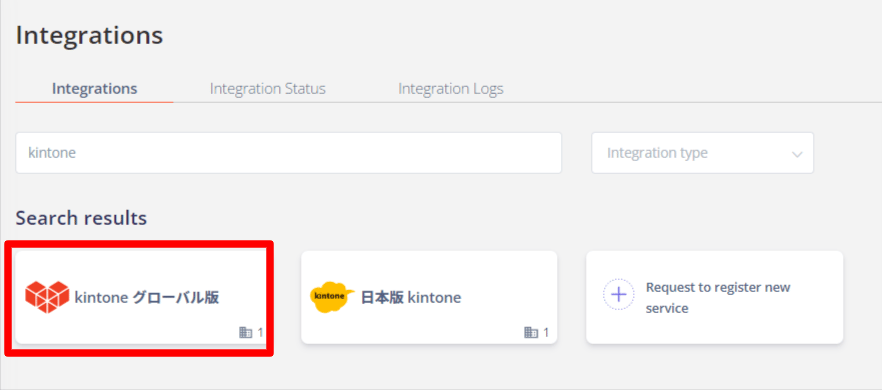
Search for and click on the **kintone global version** on the integration screen.
## Integration Setup
Search for and click on the **kintone global version** on the integration screen.
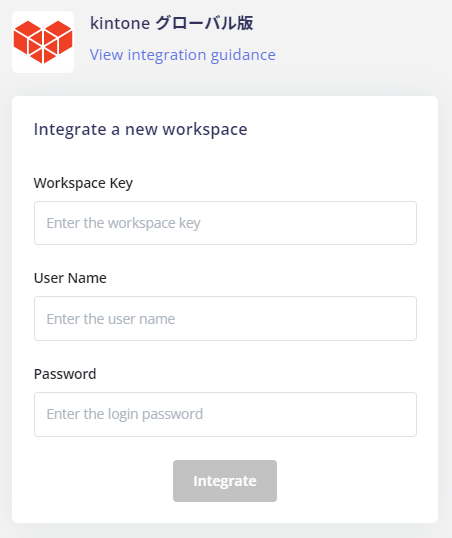
 Enter the **workspace key**, **username and password** obtained in the previous step, and click on **Integrate**.
 If the link is successful, the registered user information will be displayed in the account list.
If it does not complete normally, **edit** it from the status tab of the integration screen and try the linkage again.
If you can't solve it, please contact us via chat.
If the link is successful, the registered user information will be displayed in the account list.
If it does not complete normally, **edit** it from the status tab of the integration screen and try the linkage again.
If you can't solve it, please contact us via chat.