> ## Documentation Index
> Fetch the complete documentation index at: https://support.i.moneyforward.com/llms.txt
> Use this file to discover all available pages before exploring further.
# Datadog
> Instructions for integrating with Datadog.
## Supported Features
Account Deactivation Account Creation
## Prerequisites
### How to Log in to Datadog
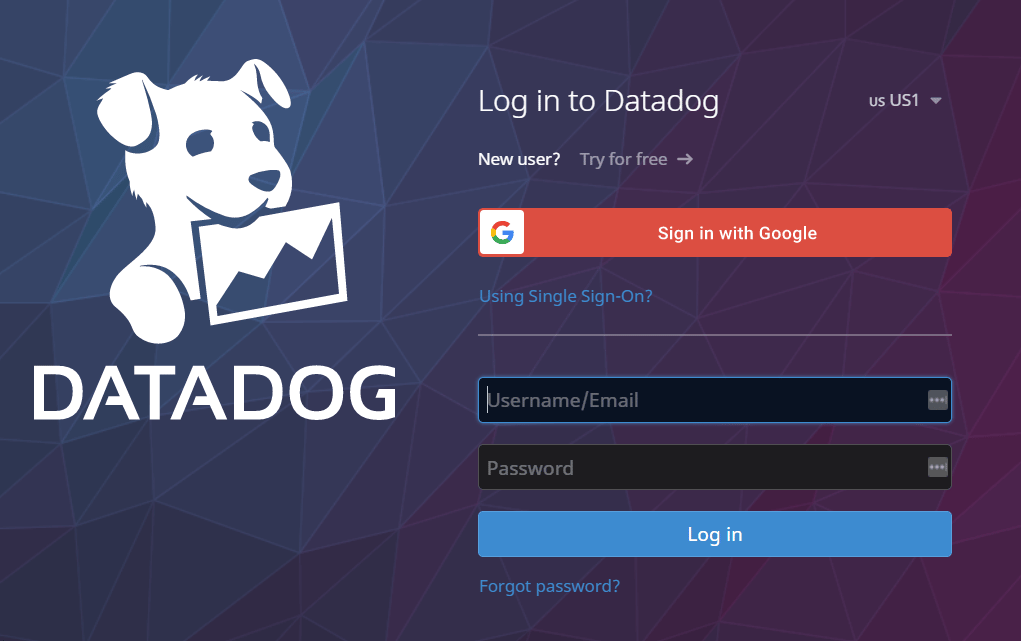
Go to the [Datadog login page](https://app.datadoghq.com/account/login), enter your username or email address and password, and log in.
 ### How to Obtain the Application Key
Application Keys must be issued by an Admin Role account, or an account with the following permissions:
* Access Management (User Access Manage, Org Management)
* API and Application Keys (5/5)
Please confirm that **user\_access\_read** under Org Management is authorized.
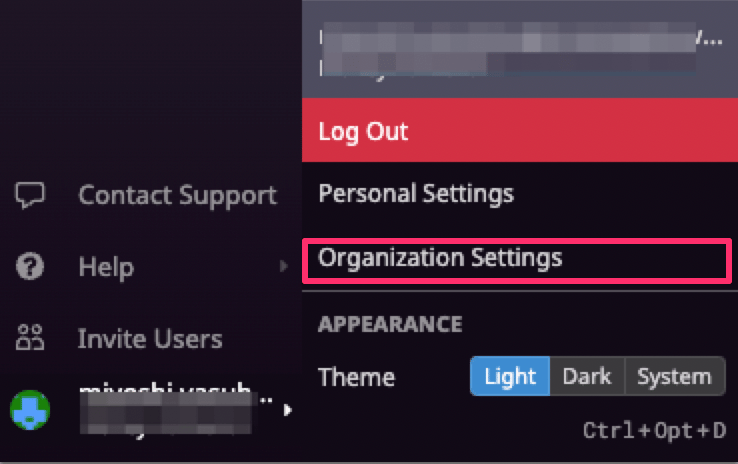
After logging in to Datadog, click **My Account** from the side menu, then click **Organization Settings**.
### How to Obtain the Application Key
Application Keys must be issued by an Admin Role account, or an account with the following permissions:
* Access Management (User Access Manage, Org Management)
* API and Application Keys (5/5)
Please confirm that **user\_access\_read** under Org Management is authorized.
After logging in to Datadog, click **My Account** from the side menu, then click **Organization Settings**.
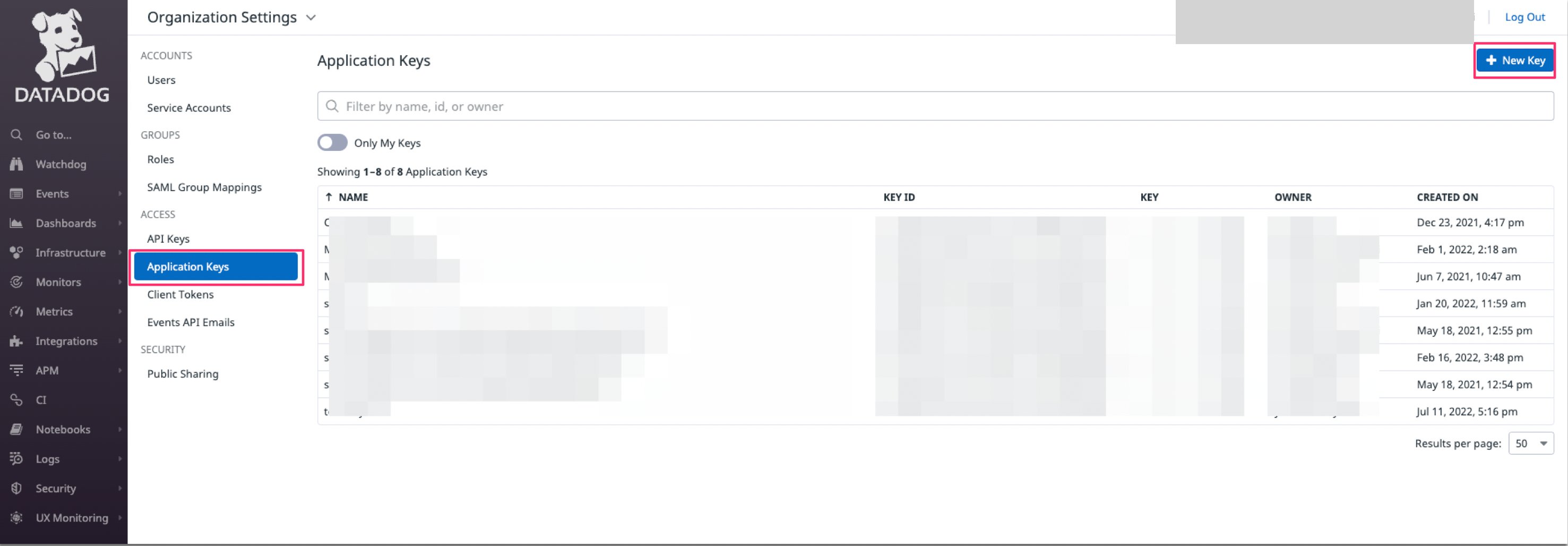
 Go to **Application Keys**. Click **+ New key** in the upper right, enter a name of your choice (e.g., company name), and click **Create Key**.
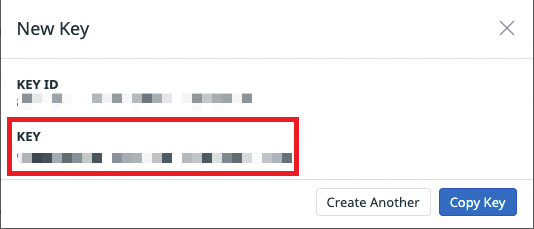
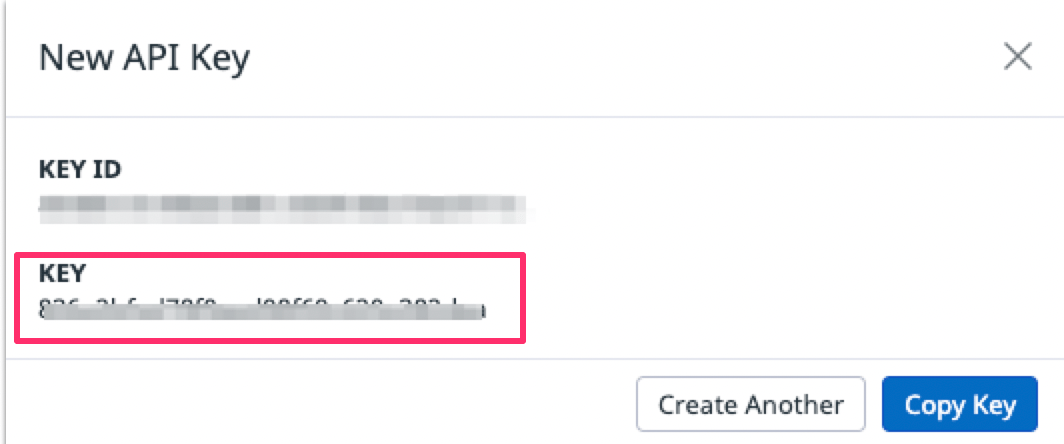
 A **new API key** will be created. The `KEY` value is your **workspace key** — save it.
 ### How to Obtain the API Key
API Keys must be issued by an Admin Role account with the following permissions:
* Access Management (User Access Manage, Org Management)
* API and Application Keys (5/5)
From **Organization Settings**, open **API Keys**. Click **+ New key** in the upper right, enter a name of your choice (e.g., company name), and click **Create API Key**.
### How to Obtain the API Key
API Keys must be issued by an Admin Role account with the following permissions:
* Access Management (User Access Manage, Org Management)
* API and Application Keys (5/5)
From **Organization Settings**, open **API Keys**. Click **+ New key** in the upper right, enter a name of your choice (e.g., company name), and click **Create API Key**.
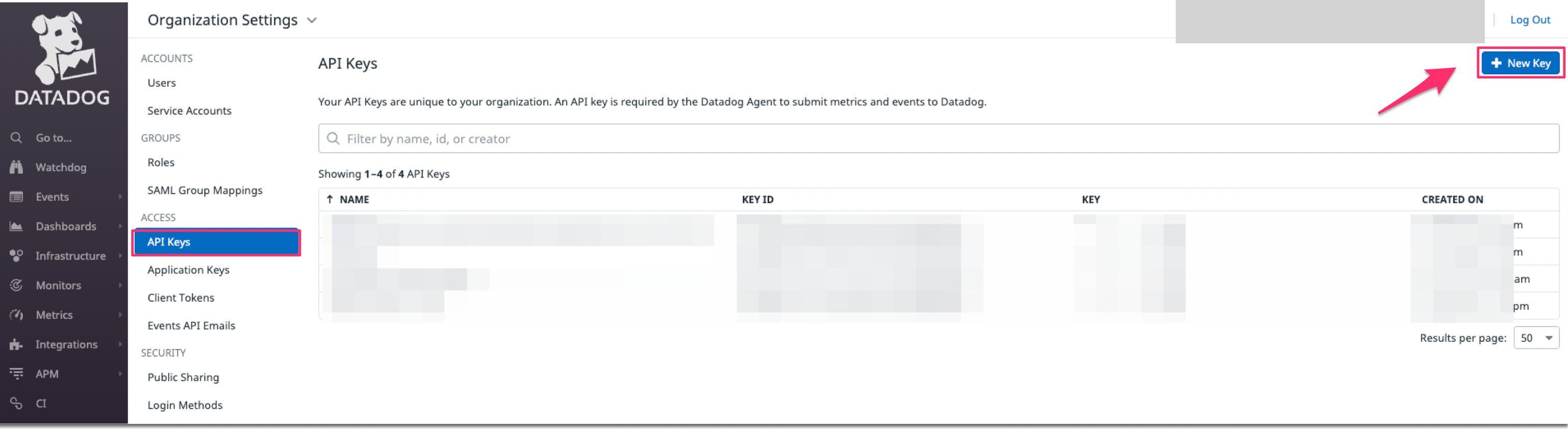 The **API key will be issued**. The `KEY` value is your **access key** — save it.
 ### Obtaining the Domain
Enter the site URL of your Datadog instance.
Example for US1: `https://app.datadoghq.com`
For more information about Datadog sites, refer to the following:
[Datadog Site](https://docs.datadoghq.com/ja/getting_started/site/)
## Integration Setup
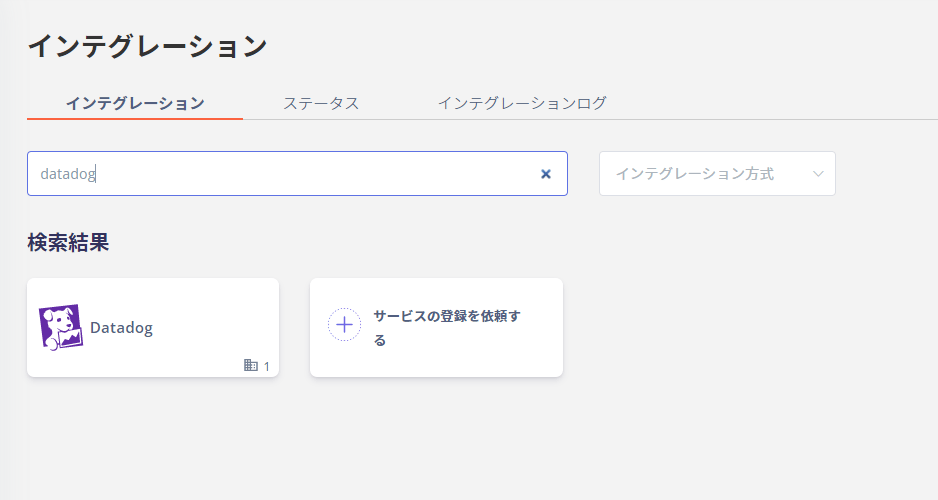
Search for **Datadog** on the MoneyForward Admina integration screen.
### Obtaining the Domain
Enter the site URL of your Datadog instance.
Example for US1: `https://app.datadoghq.com`
For more information about Datadog sites, refer to the following:
[Datadog Site](https://docs.datadoghq.com/ja/getting_started/site/)
## Integration Setup
Search for **Datadog** on the MoneyForward Admina integration screen.
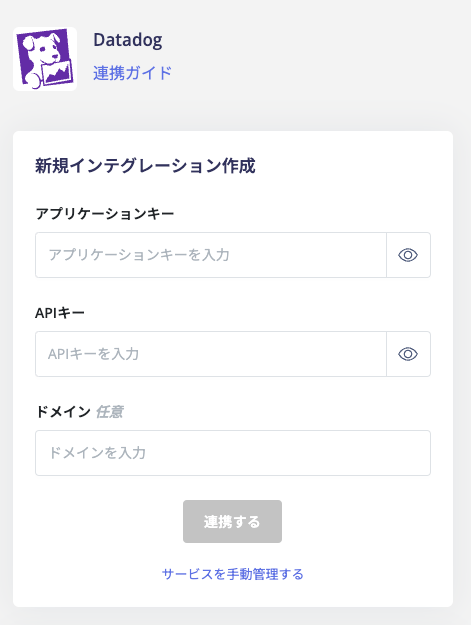
 Enter the **application key**, **API key**, and **domain** obtained in the previous steps, then click **Connect**.
 Once the Datadog integration is successful, the registered user information will appear in the account list.
If the process does not complete successfully, click **Edit** from the Status tab on the integration screen and try connecting again.
If the issue persists, please contact us via chat.
For an overview of the Datadog integration, see the [integration page](http://admina.moneyforward.com/en/integrations/datadog).
Once the Datadog integration is successful, the registered user information will appear in the account list.
If the process does not complete successfully, click **Edit** from the Status tab on the integration screen and try connecting again.
If the issue persists, please contact us via chat.
For an overview of the Datadog integration, see the [integration page](http://admina.moneyforward.com/en/integrations/datadog).