> ## Documentation Index
> Fetch the complete documentation index at: https://support.i.moneyforward.com/llms.txt
> Use this file to discover all available pages before exploring further.
# Wordpress self-host (API)
> Instructions for integrating with self-hosted WordPress.
## Supported Features
This service supports only basic account information retrieval and aggregation.
## Prerequisites
These instructions are for self-hosted WordPress. If your site is hosted on wordpress.com, please use the [wordpress.com integration](/en/integrations/mn16q7cley-word-press-com). The site you are connecting must also support HTTPS.
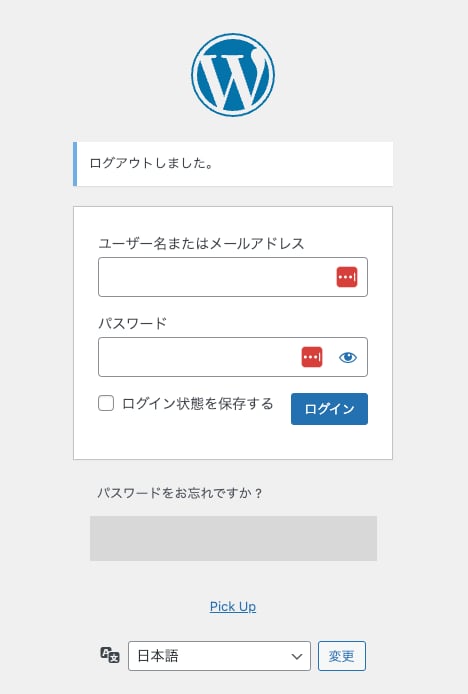
### How to Log in to WordPress
Log in to your WordPress site by entering your email address and password.
[\[Restriction\] Integration Failure with Google Authentication or SSO External Authentication Accounts](/en/it-management/faq/7gbneu0vz5-auth-error)
External authentication accounts such as Google or SSO cannot be used for integration. For details, please refer to the restriction: Integration Failure with Google Authentication or SSO External Authentication Accounts.
 ### Checking Your Version
Depending on your version, you may need to install a plugin or upgrade. Please check the following:
* **Below Version 4.4 (released 2015)**
* Integration is not available. Please consider upgrading.
* **Version 4.4 – 5.5**
* Plugin installation is required. Please install [Application Passwords](https://wordpress.org/plugins/application-passwords/).
* **Version 5.6 and later**
* No plugin installation is needed. Proceed to the next step.
### Checking Your Version
Depending on your version, you may need to install a plugin or upgrade. Please check the following:
* **Below Version 4.4 (released 2015)**
* Integration is not available. Please consider upgrading.
* **Version 4.4 – 5.5**
* Plugin installation is required. Please install [Application Passwords](https://wordpress.org/plugins/application-passwords/).
* **Version 5.6 and later**
* No plugin installation is needed. Proceed to the next step.
 ### How to Generate an Application Password
After logging in to WordPress, select the **Admin** user from the user list.
Scroll to the bottom of the user screen to find **Application Passwords**. Enter any name and click **Add New Application Password**.
### How to Generate an Application Password
After logging in to WordPress, select the **Admin** user from the user list.
Scroll to the bottom of the user screen to find **Application Passwords**. Enter any name and click **Add New Application Password**.
 An **application password will be generated**. Save it. (It cannot be regenerated, so be sure to copy and store it.)
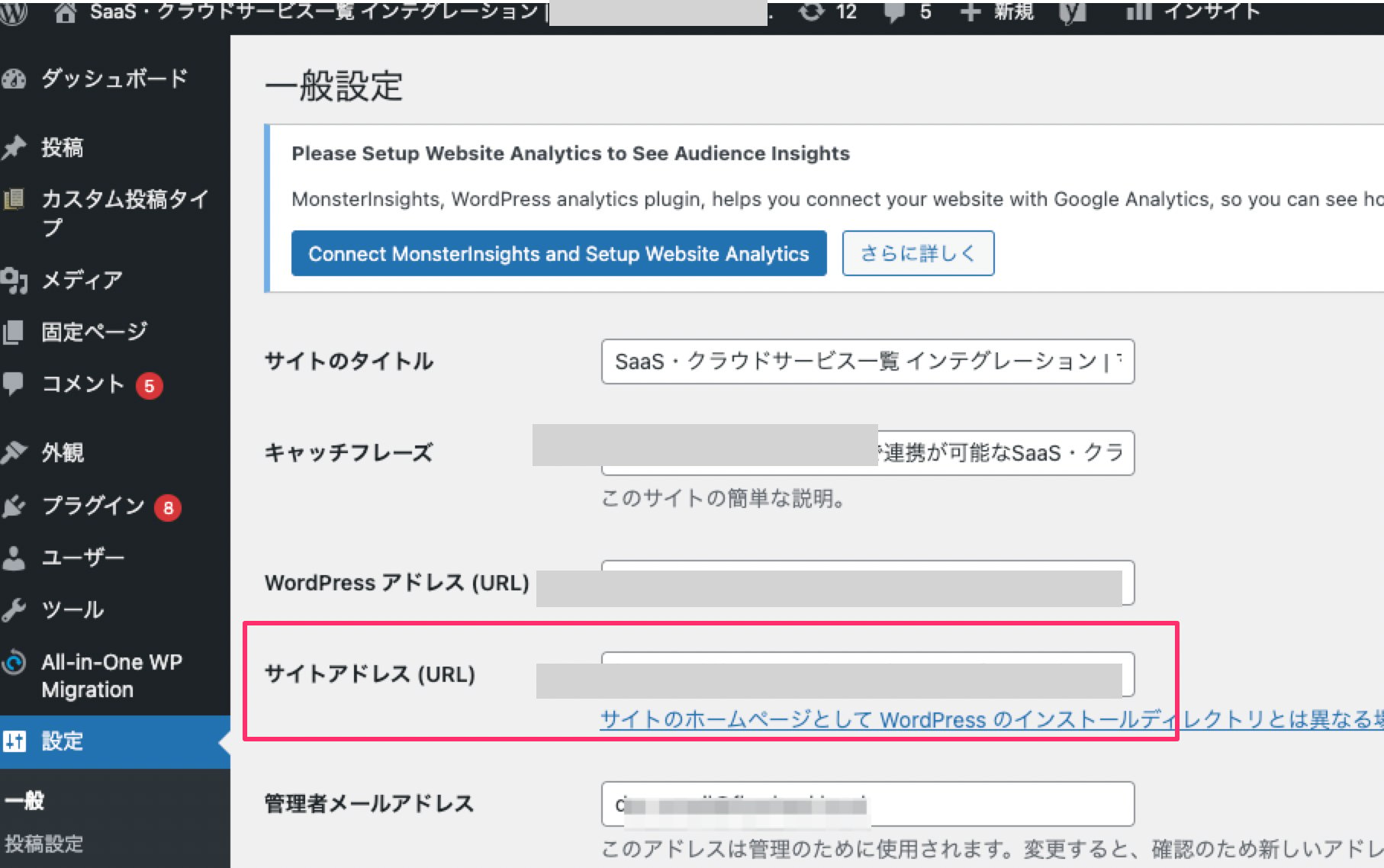
 ### Checking the Site Address (URL)
Go to **Settings > General Settings** from the left menu and copy the value of **Site Address (URL)**.
### Checking the Site Address (URL)
Go to **Settings > General Settings** from the left menu and copy the value of **Site Address (URL)**.
 ## Integration Setup
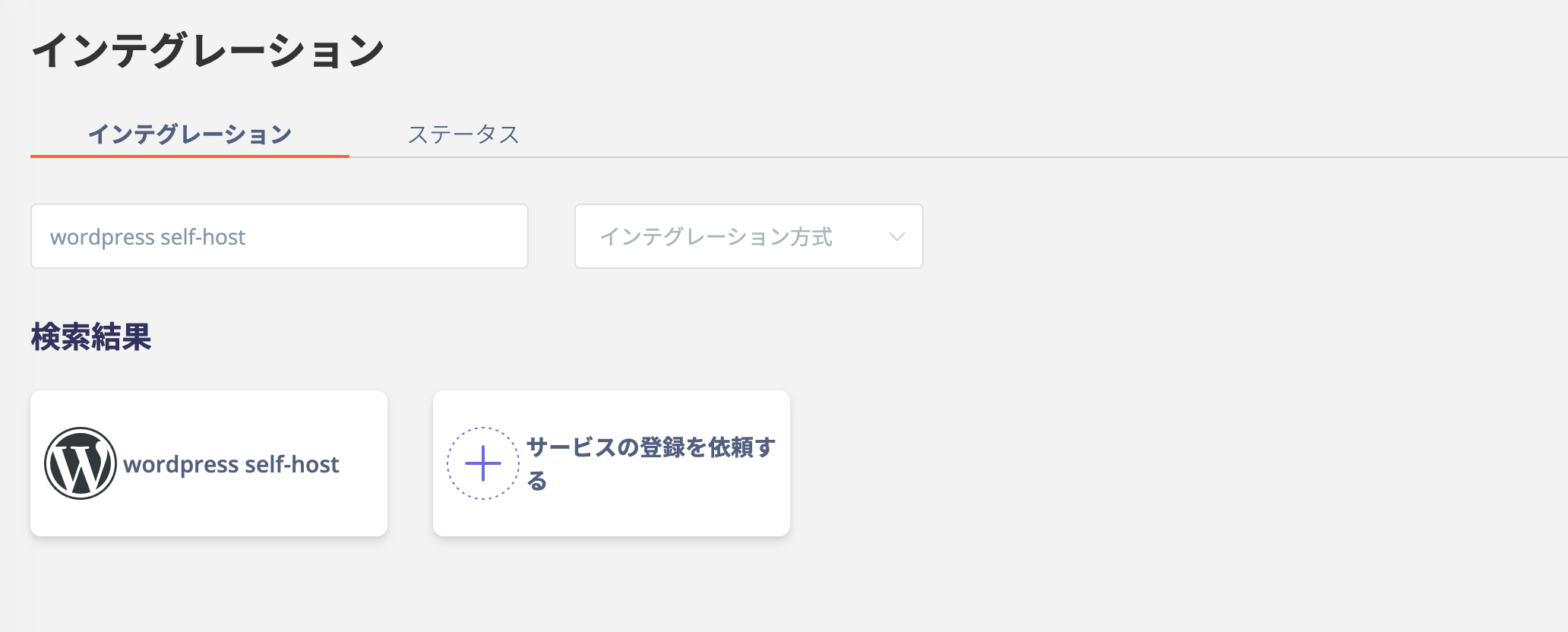
Search for **wordpress self-host** on the MoneyForward Admina integration screen and click on it.
## Integration Setup
Search for **wordpress self-host** on the MoneyForward Admina integration screen and click on it.
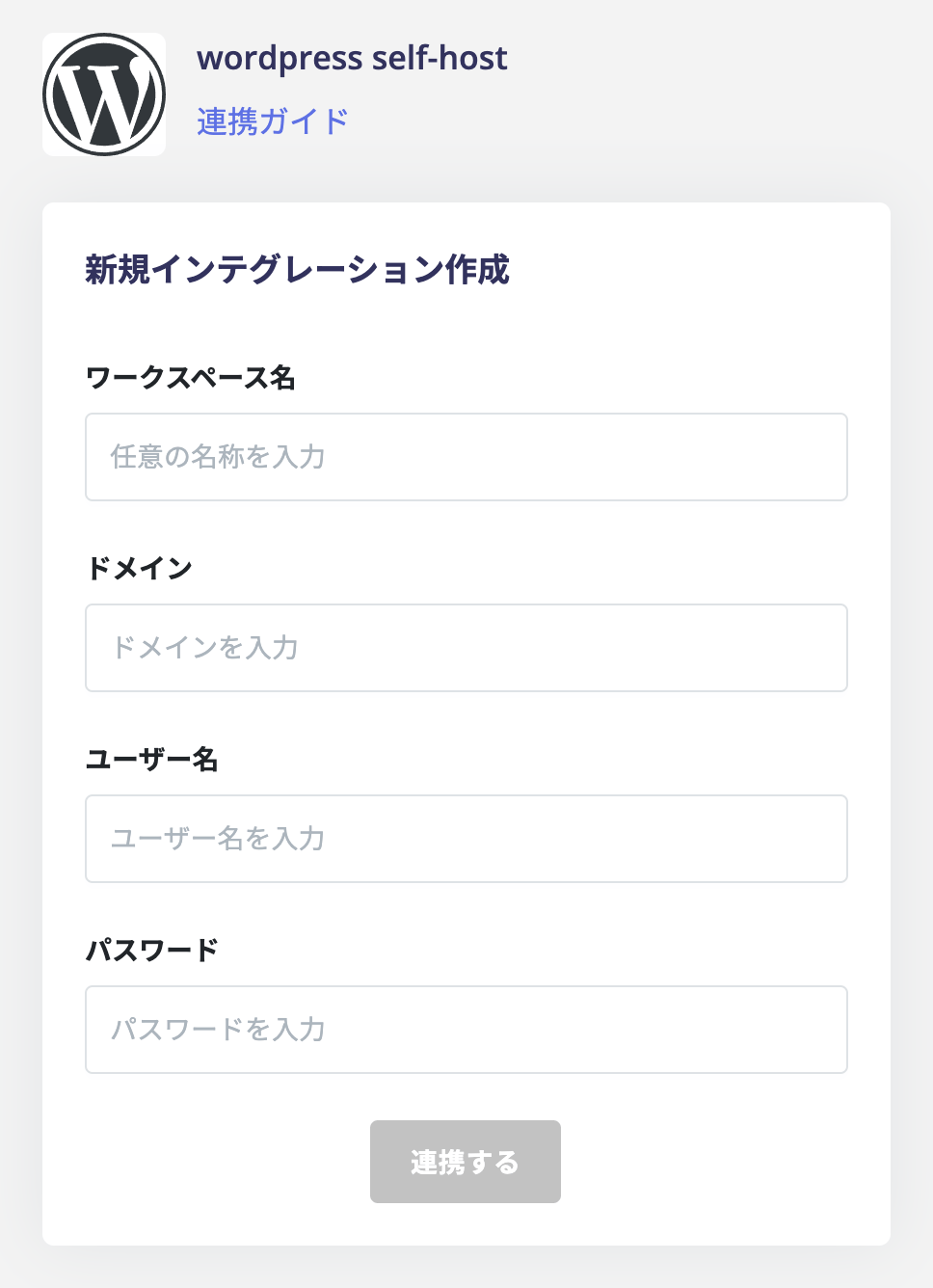
 Enter the following values obtained in the previous steps and click **Connect**.
* **Workspace Name**: Any string (e.g., company name)
* **Domain**: The `Site Address (URL)` confirmed earlier
* **Username**: The `username` that was used to generate the application password
* **Password**: The `application password`
Enter the following values obtained in the previous steps and click **Connect**.
* **Workspace Name**: Any string (e.g., company name)
* **Domain**: The `Site Address (URL)` confirmed earlier
* **Username**: The `username` that was used to generate the application password
* **Password**: The `application password`
 Once the integration with Wordpress self-host (API) is successful, the registered user information will appear in the account list.
If the process does not complete successfully, click **Edit** from the Status tab on the integration screen and try connecting again.
If the issue persists, please contact us via chat.
For an overview of the Wordpress self-host (API) integration, see the [integration page](http://admina.moneyforward.com/en/integrations/wordpress-selfhost).
Once the integration with Wordpress self-host (API) is successful, the registered user information will appear in the account list.
If the process does not complete successfully, click **Edit** from the Status tab on the integration screen and try connecting again.
If the issue persists, please contact us via chat.
For an overview of the Wordpress self-host (API) integration, see the [integration page](http://admina.moneyforward.com/en/integrations/wordpress-selfhost).