> ## Documentation Index
> Fetch the complete documentation index at: https://support.i.moneyforward.com/llms.txt
> Use this file to discover all available pages before exploring further.
# Livestorm
> How to integrate with Livestorm. This explains the full process, from getting an API token through to completing the integration.
## Prerequisites
### Getting your API token
1. After logging in to Livestorm with an admin account, select **Apps** from the left navigation menu.
2. At the bottom of the page, under **Build your own**, click **Configure your API**.
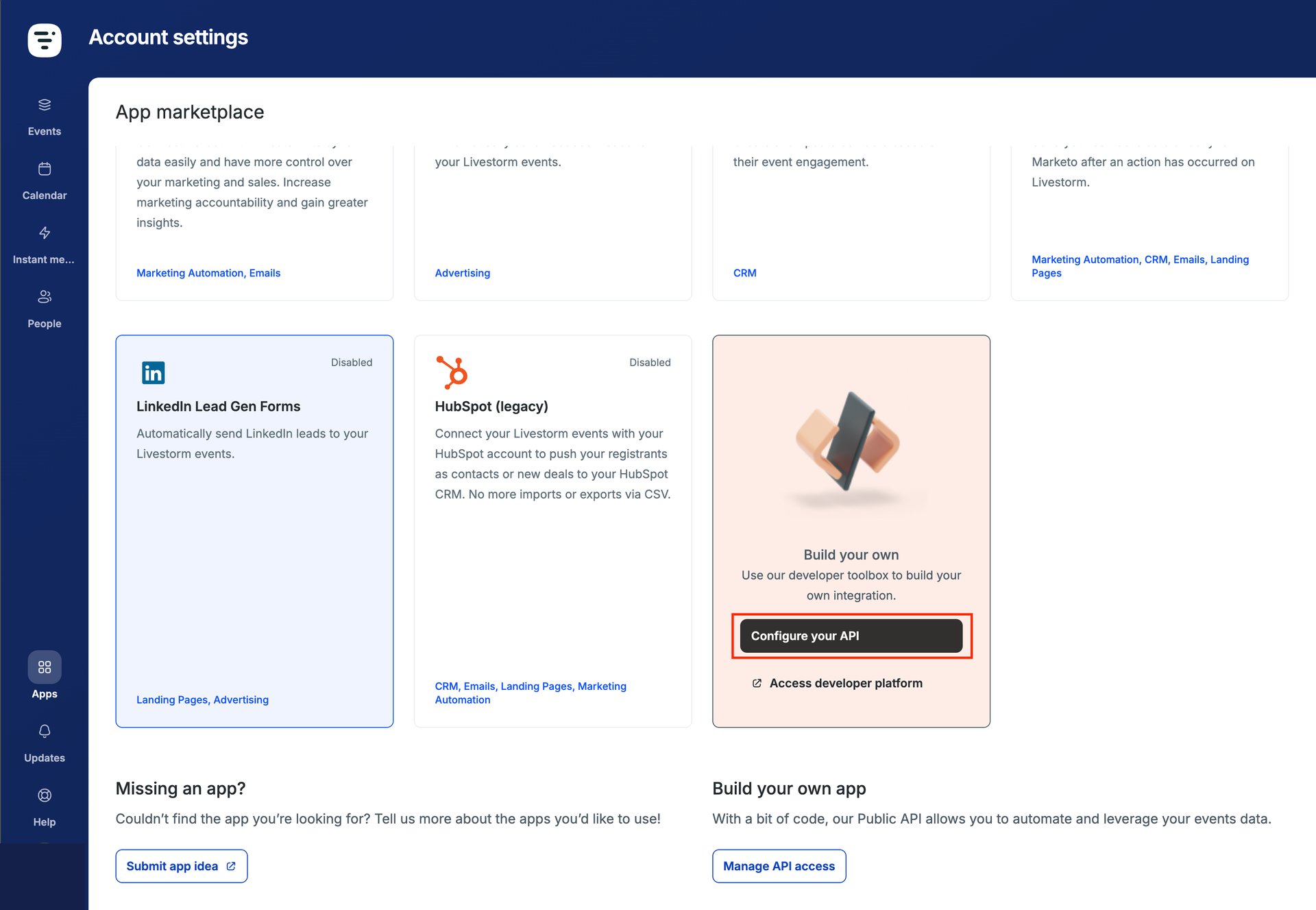 Your account must be on the **Team** or **Enterprise** plan to use the API. If it isn't, contact Livestorm support ([help@livestorm.co](mailto:help@livestorm.co)) to enable the API for your workspace.
3. Open the **Token management** tab and click **New token**. Enter any token name, and set **Admin** permission to **Write**; all other permissions can stay **None**. Choose a clear token name, since it matters if you ever need to revoke and re-set up the integration.
Your account must be on the **Team** or **Enterprise** plan to use the API. If it isn't, contact Livestorm support ([help@livestorm.co](mailto:help@livestorm.co)) to enable the API for your workspace.
3. Open the **Token management** tab and click **New token**. Enter any token name, and set **Admin** permission to **Write**; all other permissions can stay **None**. Choose a clear token name, since it matters if you ever need to revoke and re-set up the integration.
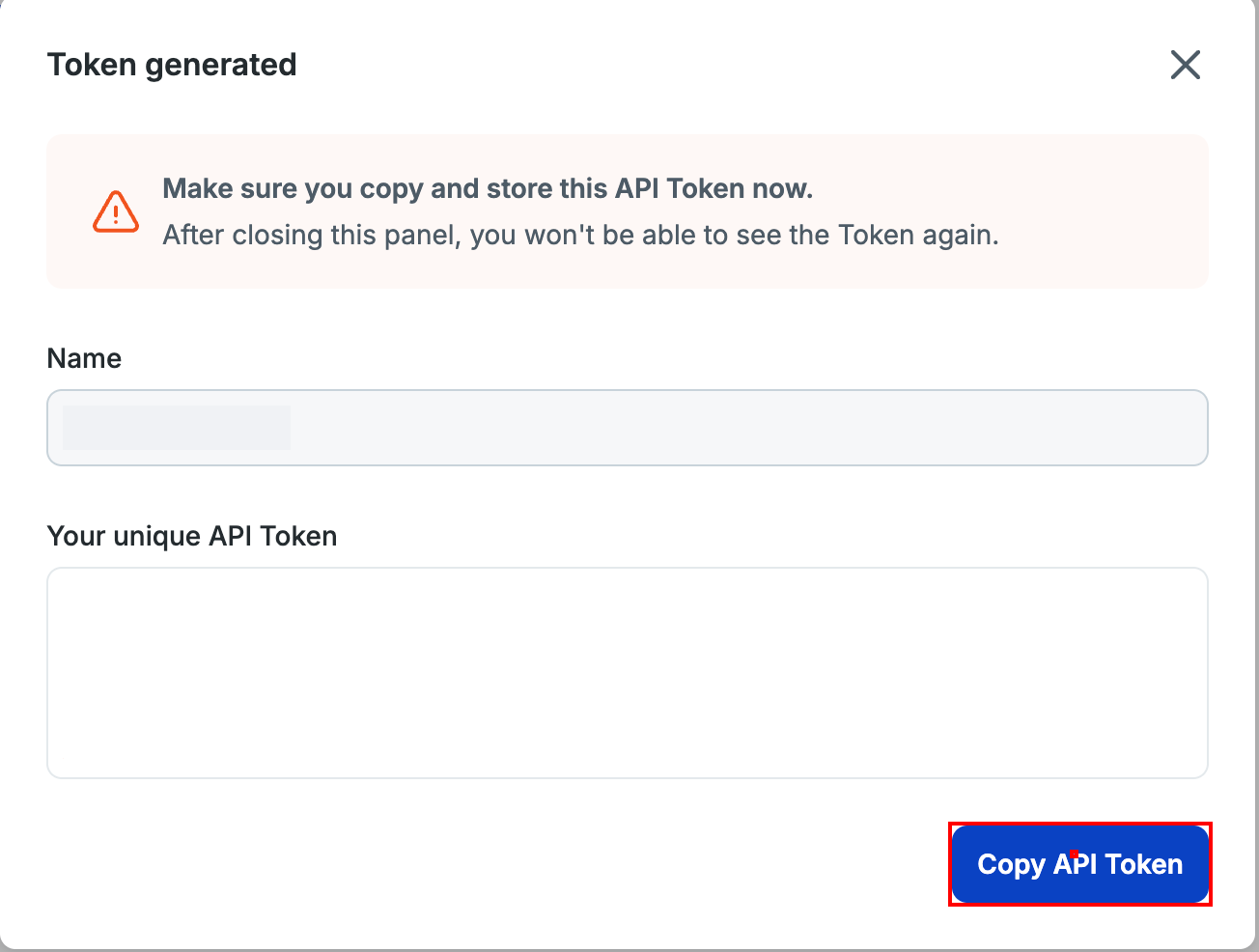
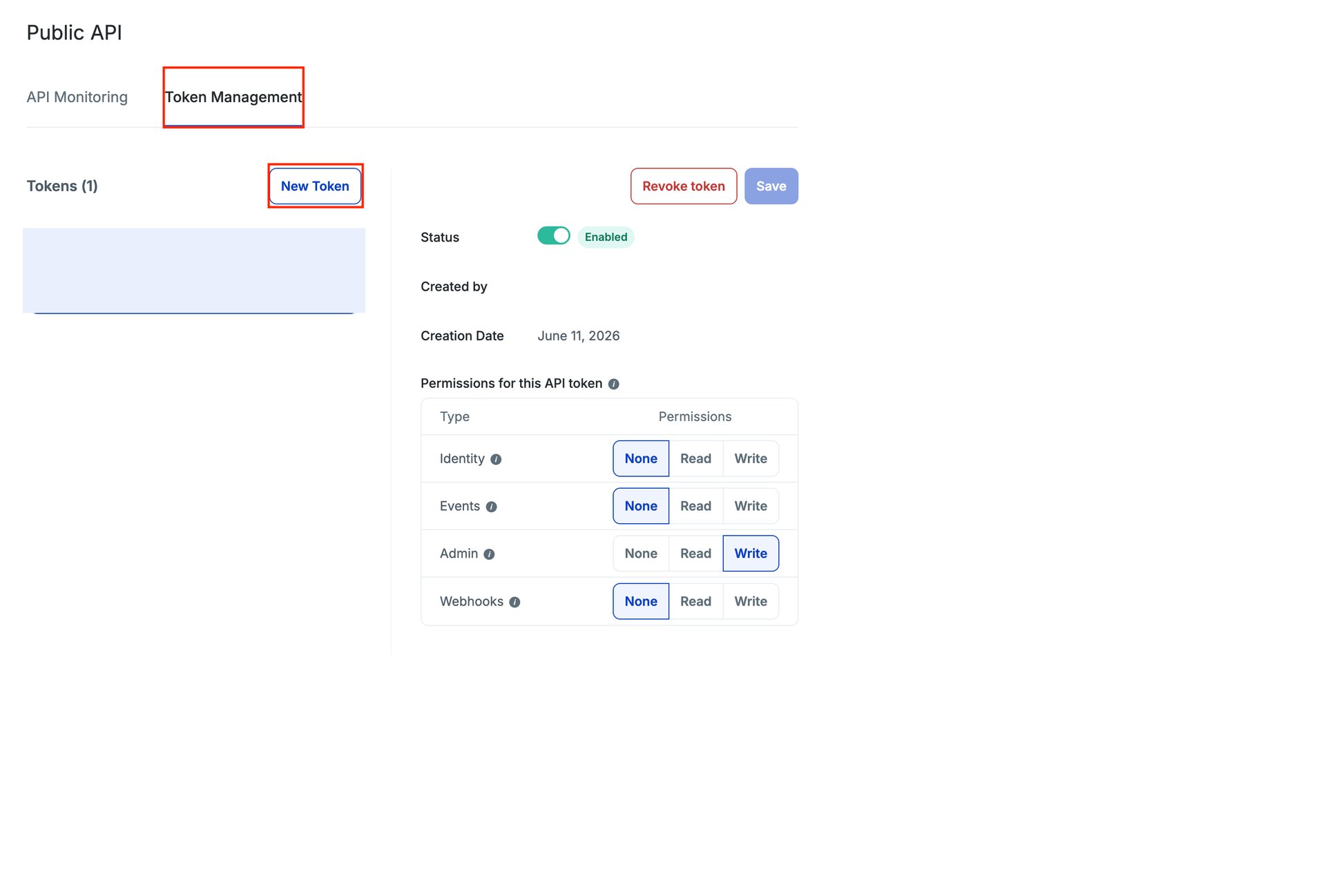 4. Click **Save** to display the API token. Be sure to copy it now using **Copy API Token**, since it is shown only on this screen.
 ## Setting up the integration
1. On the integration screen, search for **Livestorm**.
2. Enter the API key from the previous step, then click **Connect**.
## Setting up the integration
1. On the integration screen, search for **Livestorm**.
2. Enter the API key from the previous step, then click **Connect**.
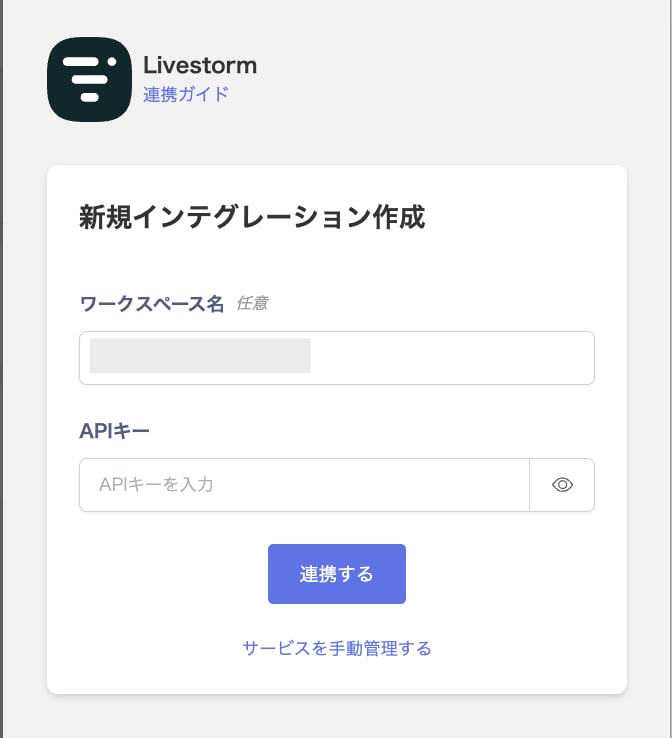 3. Once the integration with Livestorm succeeds, registered user information appears in the account list. If it doesn't complete successfully, first try the steps in [Troubleshooting failed SaaS integrations](/en/it-management/saas-management/93nahw45is-trouble). If that doesn't resolve it, check [Information to provide](/en/it-management/saas-management/93nahw45is-trouble#info-to-provide) and contact [support](/en/contact-support).