> ## Documentation Index
> Fetch the complete documentation index at: https://support.i.moneyforward.com/llms.txt
> Use this file to discover all available pages before exploring further.
# Sumo Logic
> How to integrate with Sumo Logic. This explains the full process, from getting an access key through to completing the integration.
## Prerequisites
### Getting your access key
1. After logging in to Sumo Logic, select **Security** under **Administration** in the left navigation menu. Then open the **Access Keys** tab.
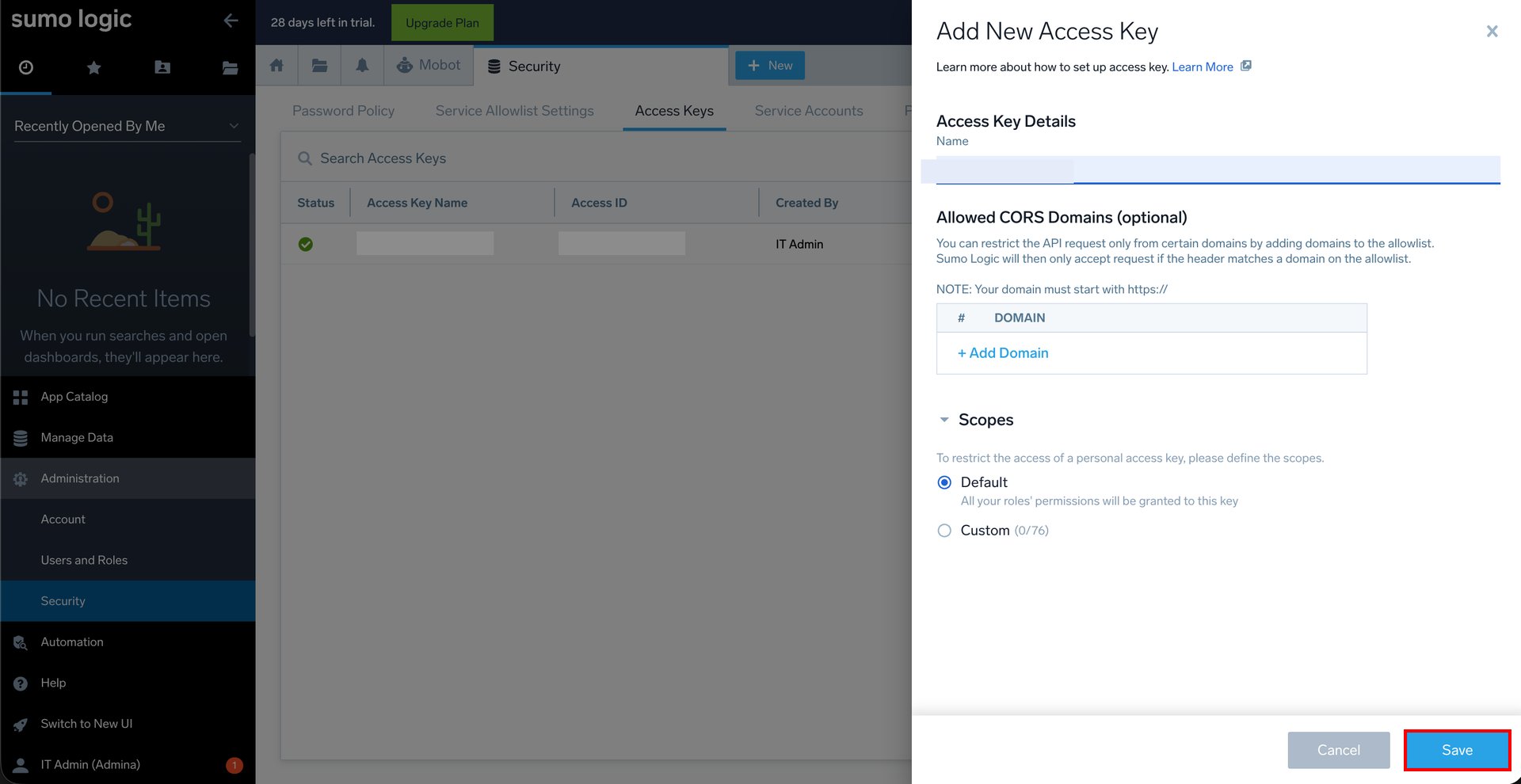
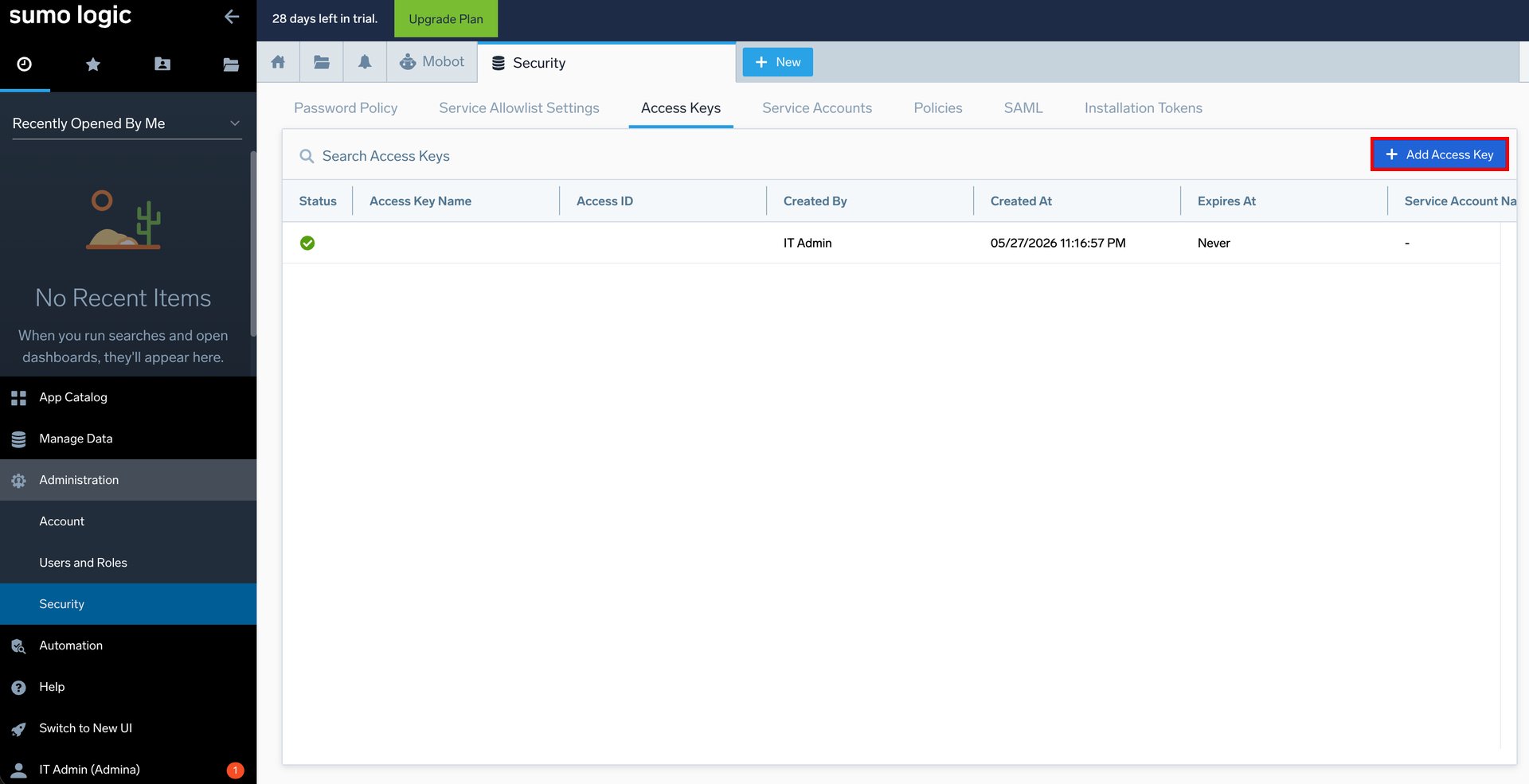 2. Click **Add Access Key**, enter any key name, then click **Save**.
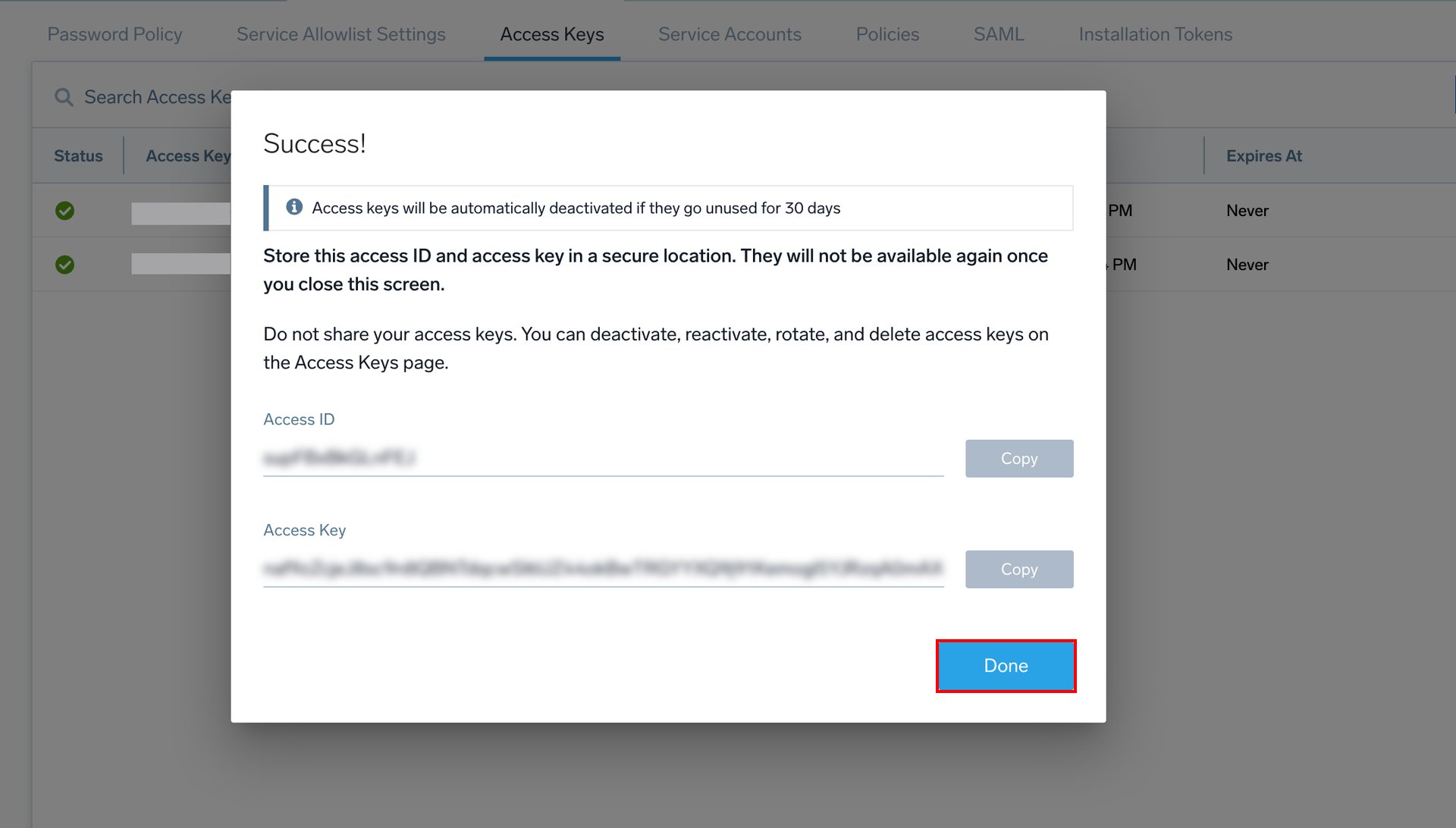
 3. Copy and save the **Access ID** and **Access Key** shown. These values are shown only on this screen, so be sure to save them now.
 ## Setting up the integration
1. On the integration screen, search for **Sumo Logic**.
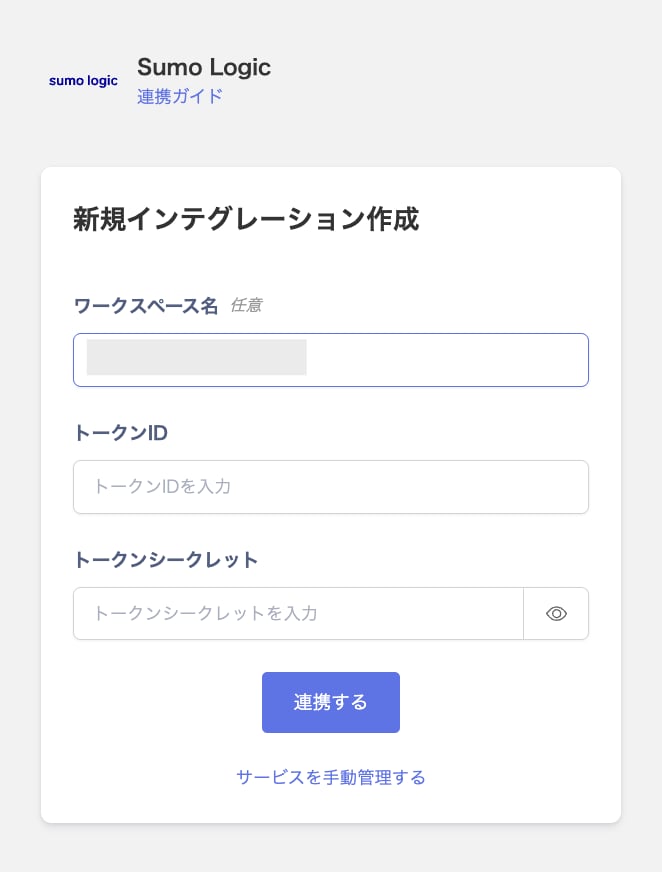
2. Enter the **Token ID** (Access ID) and **Token Secret** (Access Key) from the previous step, then click **Connect**.
## Setting up the integration
1. On the integration screen, search for **Sumo Logic**.
2. Enter the **Token ID** (Access ID) and **Token Secret** (Access Key) from the previous step, then click **Connect**.
 3. Once the integration with Sumo Logic succeeds, registered user information appears in the account list. If it doesn't complete successfully, first try the steps in [Troubleshooting failed SaaS integrations](/en/it-management/saas-management/93nahw45is-trouble). If that doesn't resolve it, check [Information to provide](/en/it-management/saas-management/93nahw45is-trouble#info-to-provide) and contact [support](/en/contact-support).