> ## Documentation Index
> Fetch the complete documentation index at: https://support.i.moneyforward.com/llms.txt
> Use this file to discover all available pages before exploring further.
# Hubble
> Instructions for integrating with Hubble. This guide covers the full process from administrator login to completing the integration from MoneyForward Admina.
## Supported Features
Account Creation Account Deletion
## How to Log in to Hubble
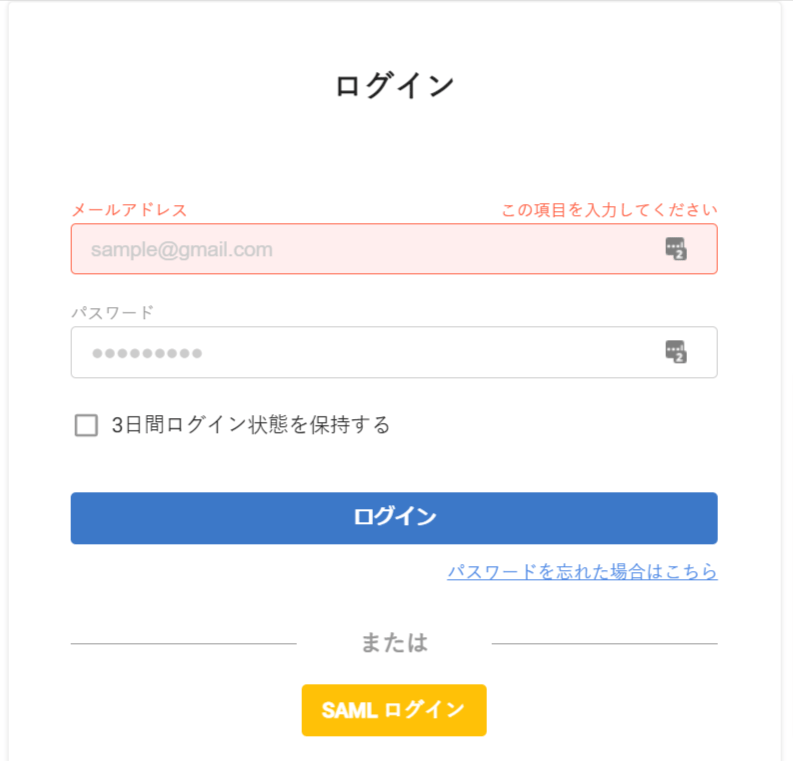
Go to the [Hubble login page](https://app.hubble-docs.com/login) and enter your email address and password to log in.
External authentication accounts such as Google or SSO cannot be used for this integration. For details, see \[Restrictions] Integration failure due to Google authentication or SSO external accounts.
 ## Integration Setup
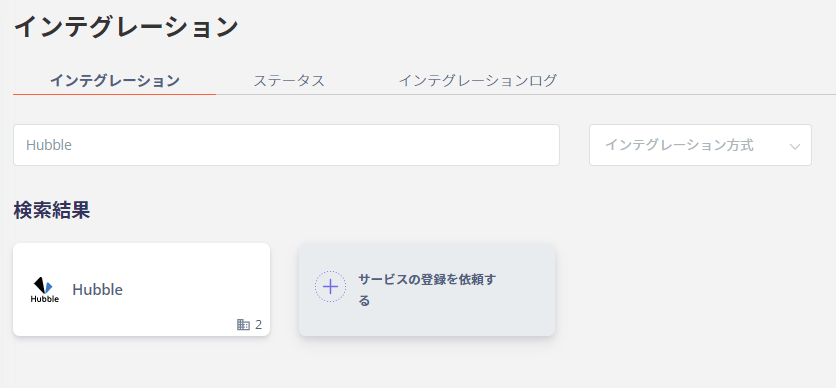
In the MoneyForward Admina integrations screen, search for **Hubble**.
## Integration Setup
In the MoneyForward Admina integrations screen, search for **Hubble**.
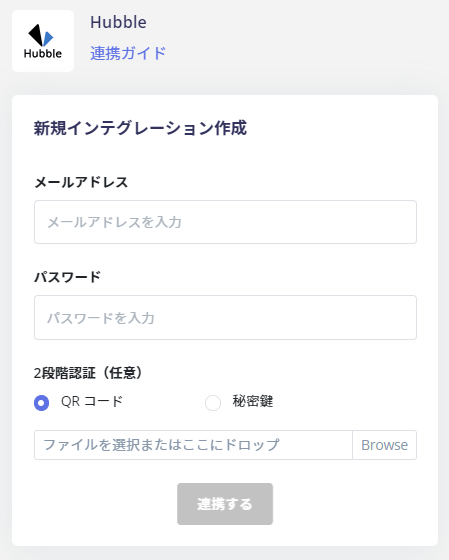
 Enter your Hubble login **email address** and **password**, then click **Connect**.
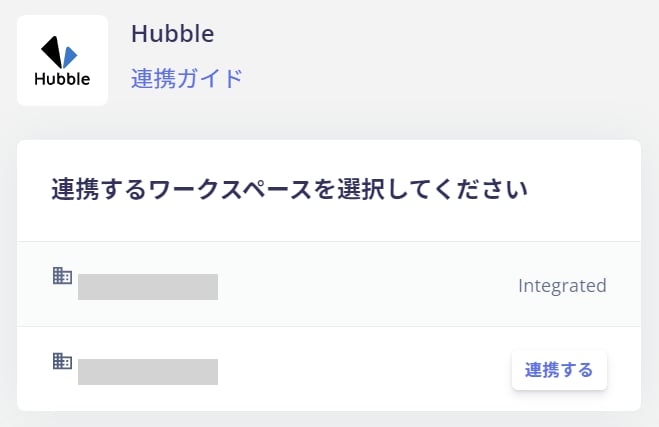
 If you have multiple workspaces in Hubble, a screen like the one below will appear. **Select the workspace to integrate** and click **Connect**.
 Once the integration with Hubble is successful, registered user information will appear in the account list.
If the integration does not complete successfully, click **Edit** on the status tab of the integrations screen and try connecting again.
If the issue persists, please contact us via chat.
For an overview of the Hubble integration, visit the [integration page](http://admina.moneyforward.com/en/integrations/hubble).
Once the integration with Hubble is successful, registered user information will appear in the account list.
If the integration does not complete successfully, click **Edit** on the status tab of the integrations screen and try connecting again.
If the issue persists, please contact us via chat.
For an overview of the Hubble integration, visit the [integration page](http://admina.moneyforward.com/en/integrations/hubble).