> ## Documentation Index
> Fetch the complete documentation index at: https://support.i.moneyforward.com/llms.txt
> Use this file to discover all available pages before exploring further.
# Kommo
> Instructions for integrating with Kommo. Obtain a Client ID and Client Secret from Kommo, then enter them on the integration screen to connect.
Translation Disclaimer: The documents herein have been machine translated for your convenience. While reasonable efforts are made to provide accurate translations, portions may be incorrect. If you would like to report a translation error or inaccuracy, please contact us.
## Preparation
* An account with administrator privileges is required for integration.
### How to log in
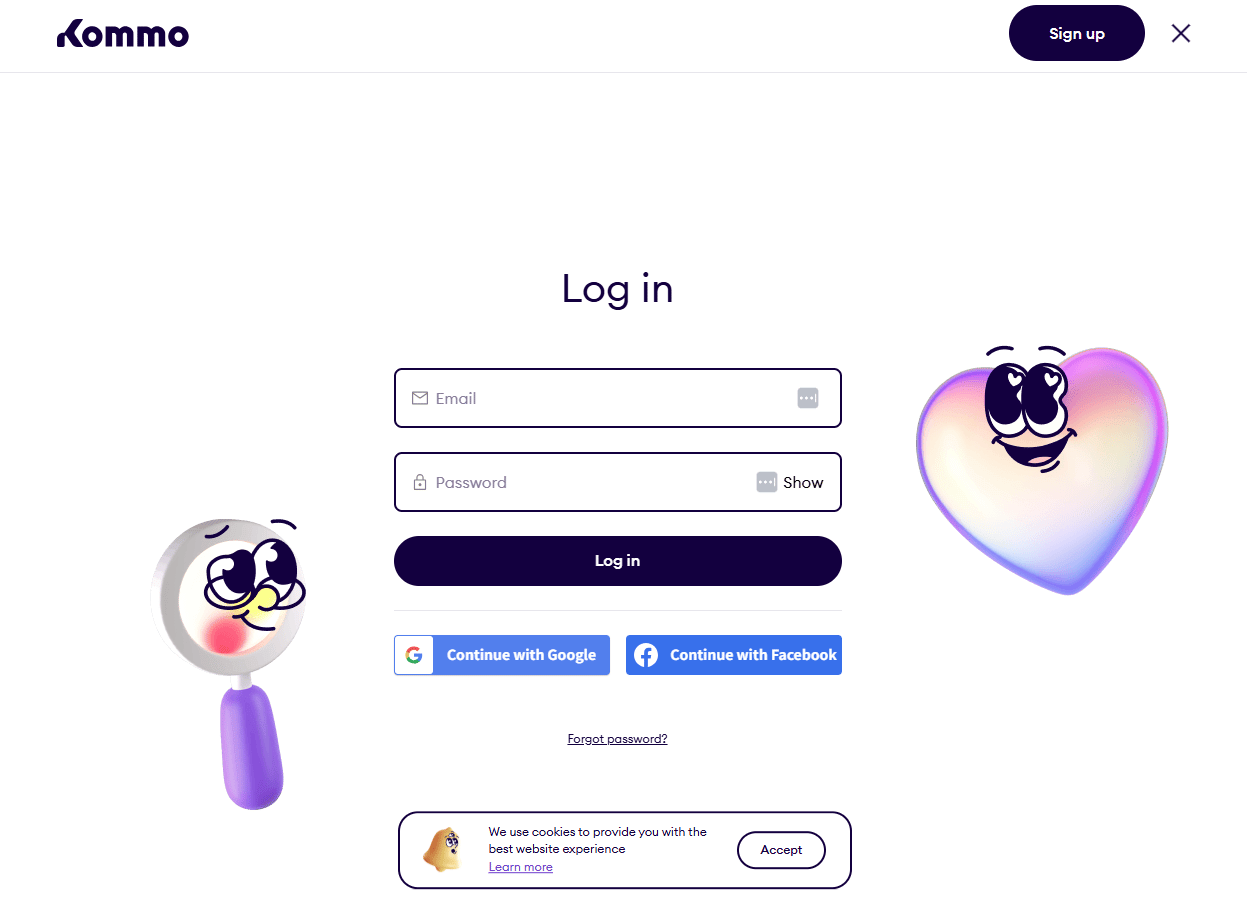
On [the Kommo login page](https://www.kommo.com/), enter your email address and password to log in.
 ### How to obtain the Client ID and Client Secret
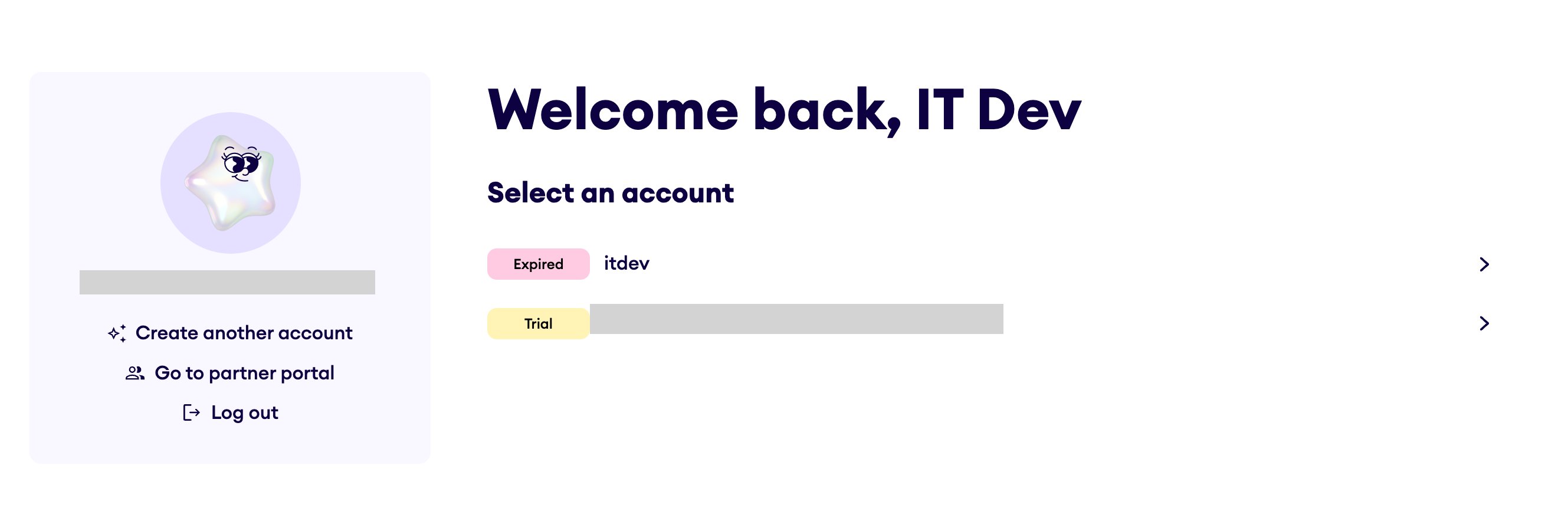
Choose an account that you own and manage, rather than an account that you were invited to or an account that is simply linked to your account.
\*For images, please select **itdev**.
### How to obtain the Client ID and Client Secret
Choose an account that you own and manage, rather than an account that you were invited to or an account that is simply linked to your account.
\*For images, please select **itdev**.
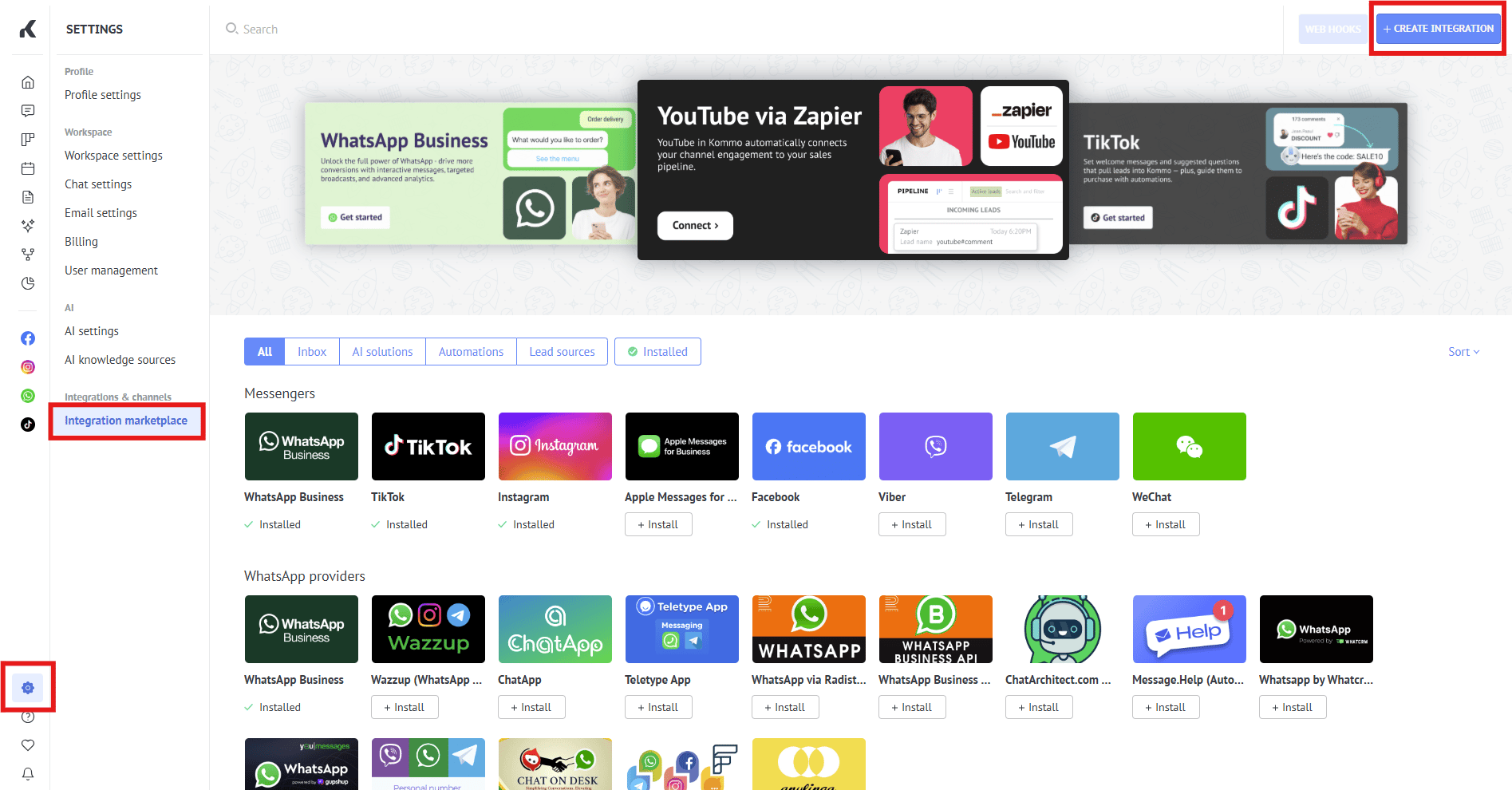
 Click **Settings** > **Integration marketplace** > **+Create Integration**.
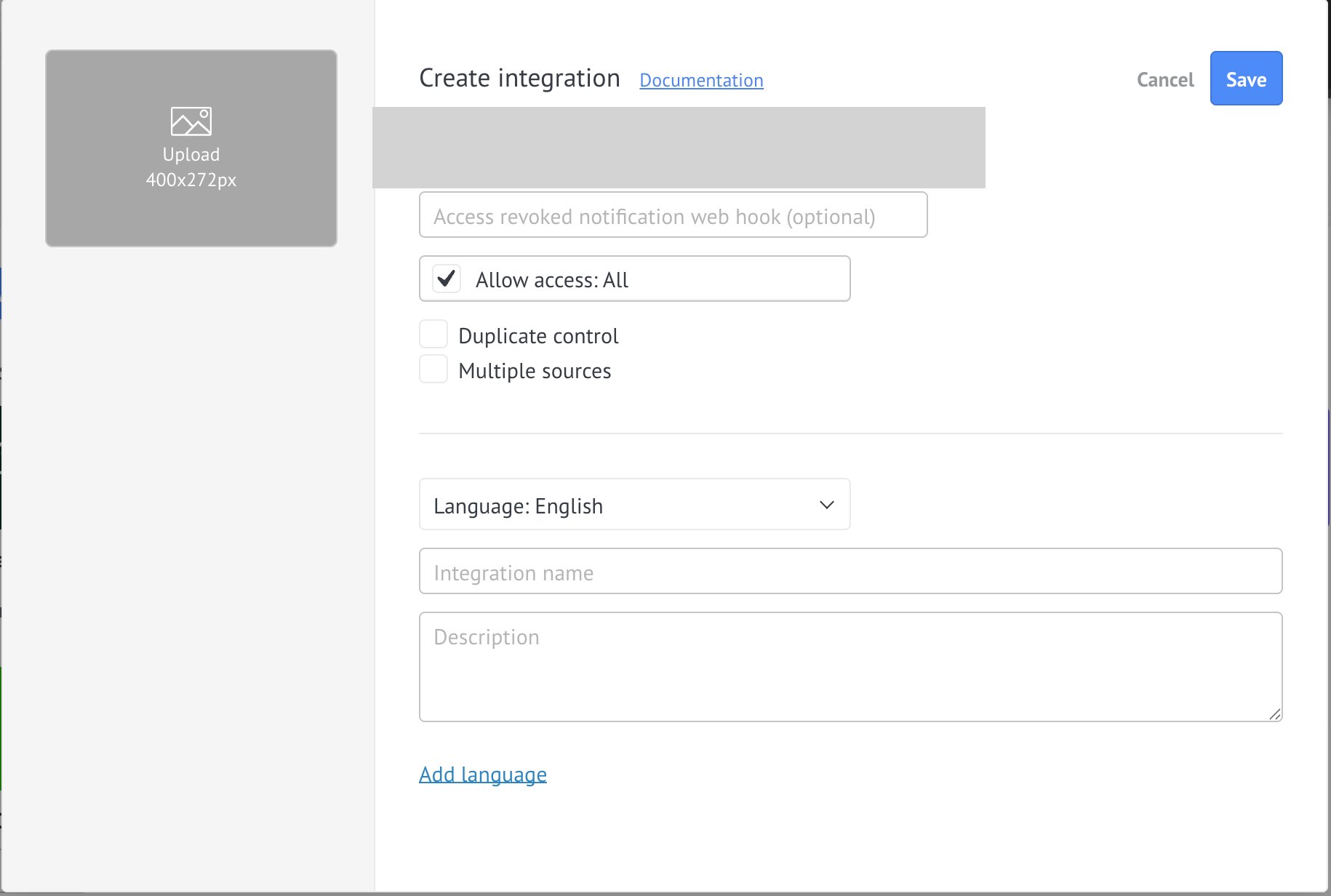
 Enter the following into the displayed input field and click **Save**.
1. **OAuth callback (redirect) URL**
The URL will vary depending on your environment.
* **Production environment (main):** `https://itmc.i.moneyforward.com/oauth/callback` or `https://itmc-sbn.i.moneyforward.com/oauth/callback`
* **Test environment (staging):** `https://itmc.i.iggre.net/oauth/callback`
2. Grant access to "All" or "Account Data".
Additionally, it is recommended to enter **"Admina"** as the Integration name.
Enter the following into the displayed input field and click **Save**.
1. **OAuth callback (redirect) URL**
The URL will vary depending on your environment.
* **Production environment (main):** `https://itmc.i.moneyforward.com/oauth/callback` or `https://itmc-sbn.i.moneyforward.com/oauth/callback`
* **Test environment (staging):** `https://itmc.i.iggre.net/oauth/callback`
2. Grant access to "All" or "Account Data".
Additionally, it is recommended to enter **"Admina"** as the Integration name.
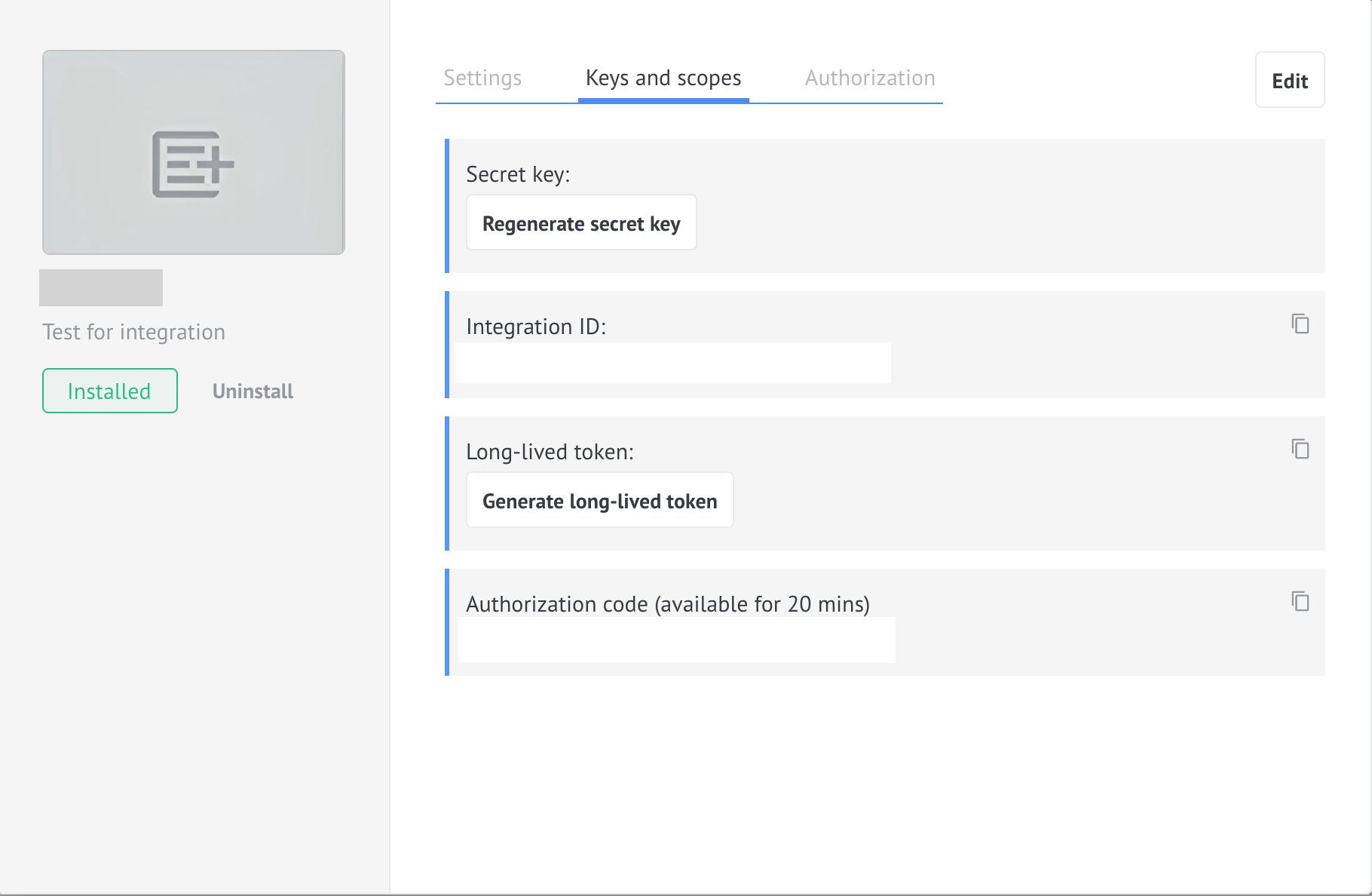
 Follow the instructions and copy the displayed **Integration ID**. This is your **Client ID**.
Next, click **Generate secret key**.
(If you have forgotten your secret key, please click **Regenerate secret key**.)
Follow the instructions and copy the displayed **Integration ID**. This is your **Client ID**.
Next, click **Generate secret key**.
(If you have forgotten your secret key, please click **Regenerate secret key**.)
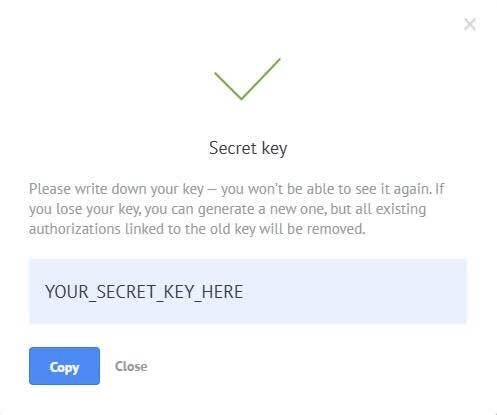
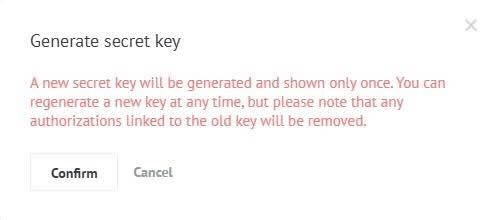 Next, click **Confirm**, and the **Secret key (client secret)** will be displayed in the box below. Copy this key.
 ## Integration setup
On the integration screen, search for **Kommo**.
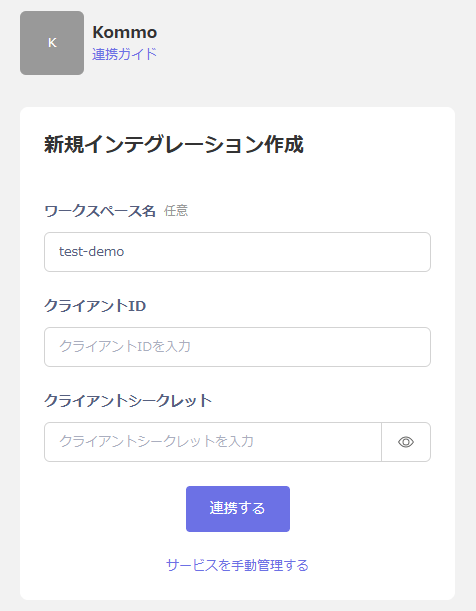
Enter your desired **workspace name**, the **client ID and client secret** obtained in the previous step, and click **"Connect"**.
## Integration setup
On the integration screen, search for **Kommo**.
Enter your desired **workspace name**, the **client ID and client secret** obtained in the previous step, and click **"Connect"**.
 Once the connection is successful, the registered user information will be displayed in the account list.
If the process does not complete successfully, please **edit** the status in the Integration screen and try the integration again.
If the issue persists, please contact us via chat.
Once the connection is successful, the registered user information will be displayed in the account list.
If the process does not complete successfully, please **edit** the status in the Integration screen and try the integration again.
If the issue persists, please contact us via chat.