> ## Documentation Index
> Fetch the complete documentation index at: https://support.i.moneyforward.com/llms.txt
> Use this file to discover all available pages before exploring further.
# Smaregi
> Instructions for integrating with Smaregi.
## Supported Features
This service supports only basic account information retrieval and aggregation.
## Prerequisites
There is no cost to purchase the app.
### Applying for the App
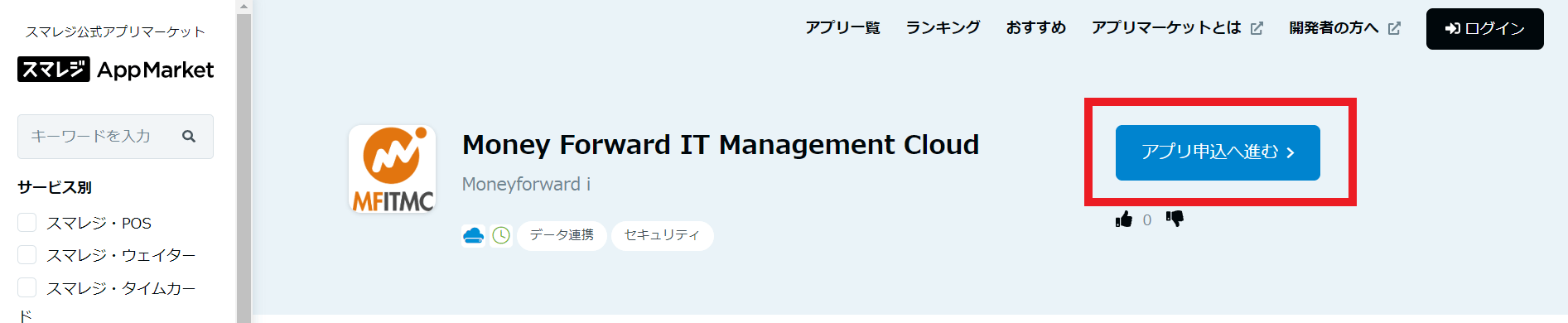
Purchase the Money Forward IT Management Cloud app from the Smaregi AppMarket.
Go to the app page at the URL below and click **Proceed to app application**.
[https://apps.smaregi.jp/apps/820](https://apps.smaregi.jp/apps/820)
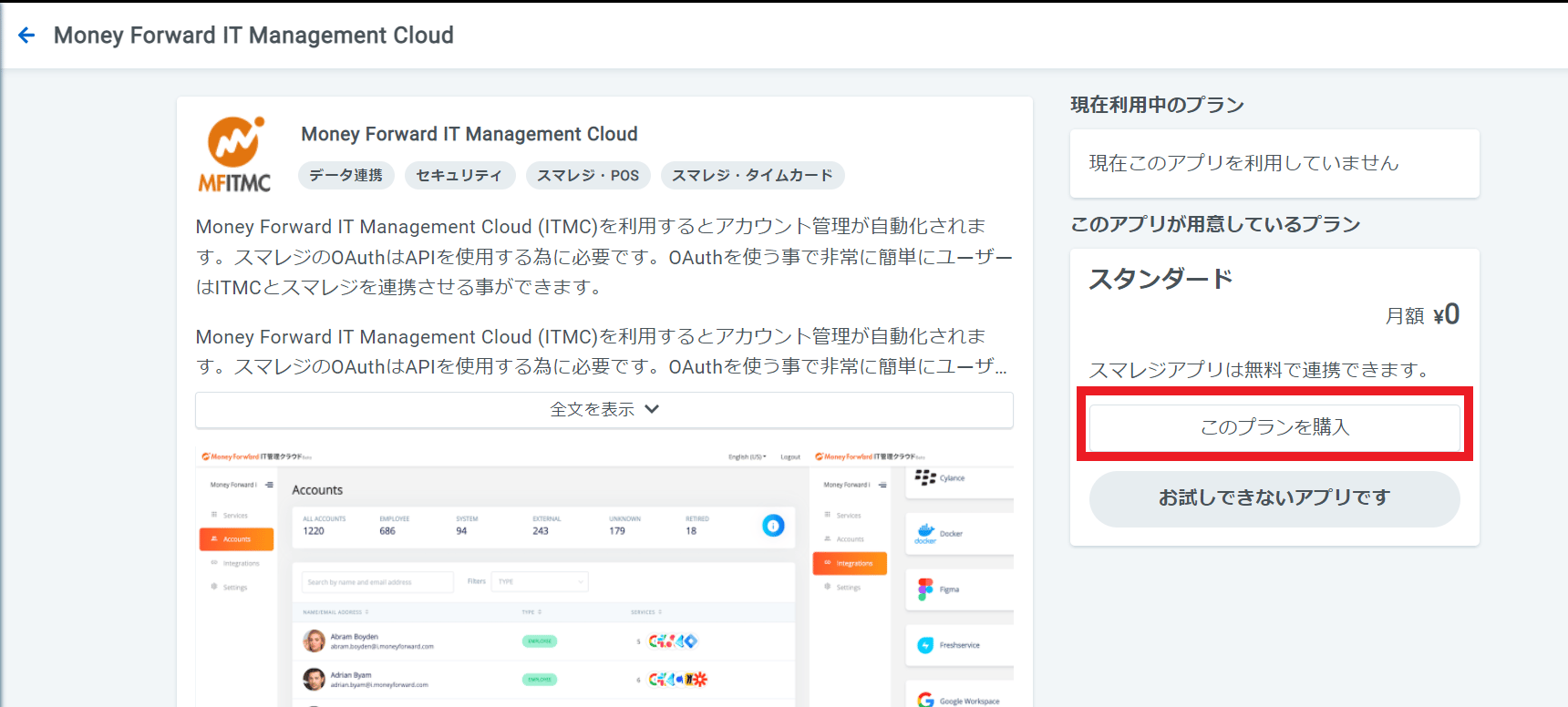
 Click **Purchase plan**.
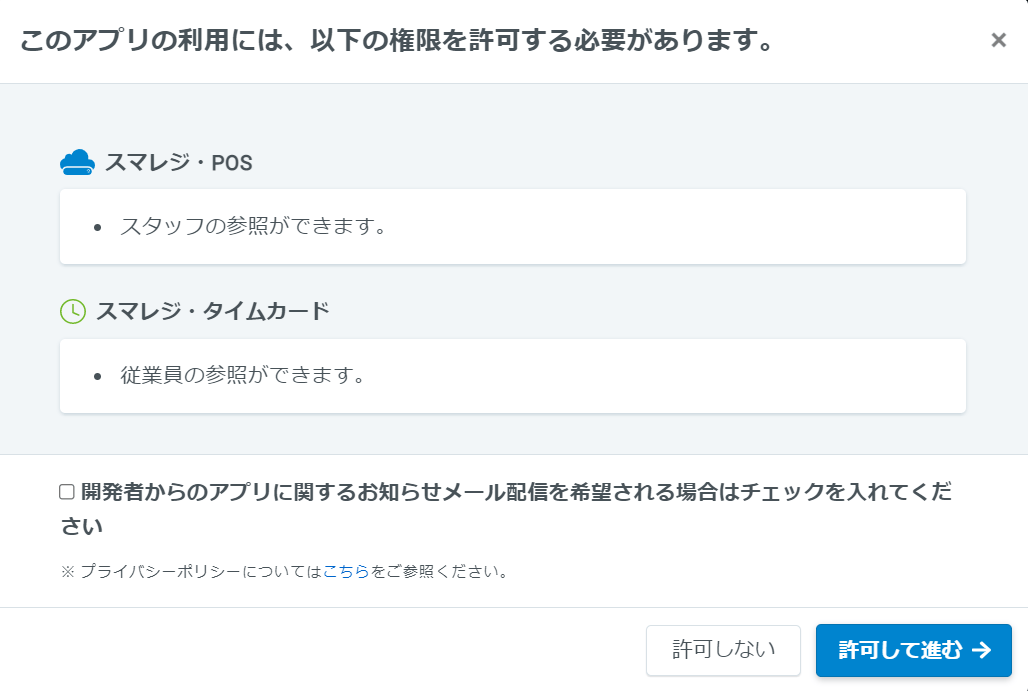
 A screen like the one below will appear — click **Allow and proceed**. Once the purchase is complete, the purchased app will appear under "Apps in use" on your My Page.
 ### How to Log In to Smaregi
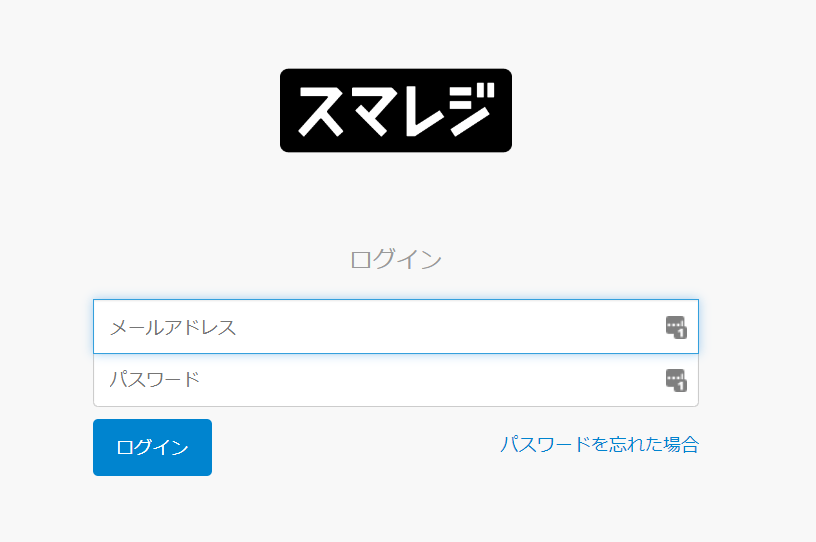
Go to the [Smaregi login page](https://home.smaregi.jp/users), enter your email address and password, and log in.
### How to Log In to Smaregi
Go to the [Smaregi login page](https://home.smaregi.jp/users), enter your email address and password, and log in.
 ### Finding Your Workspace Key
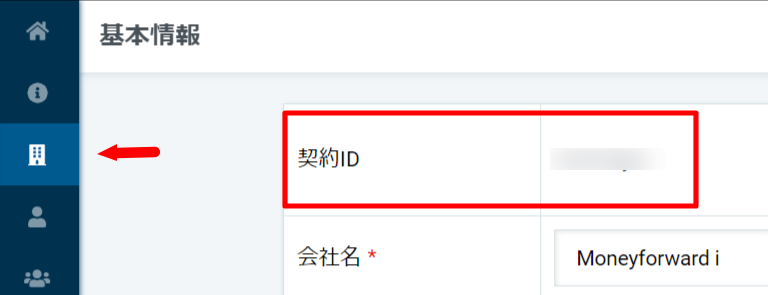
After logging in to Smaregi, select the building icon (third from the top) in the left menu bar and go to **Basic Information**.
The **contract ID is your workspace key** — copy it.
### Finding Your Workspace Key
After logging in to Smaregi, select the building icon (third from the top) in the left menu bar and go to **Basic Information**.
The **contract ID is your workspace key** — copy it.
 ## Integration Setup
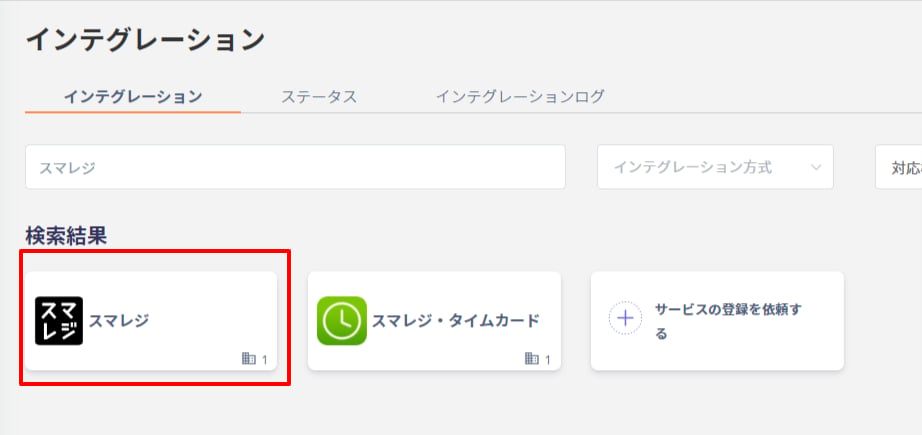
Search for **Smaregi** on the MoneyForward Admina integrations page.
## Integration Setup
Search for **Smaregi** on the MoneyForward Admina integrations page.
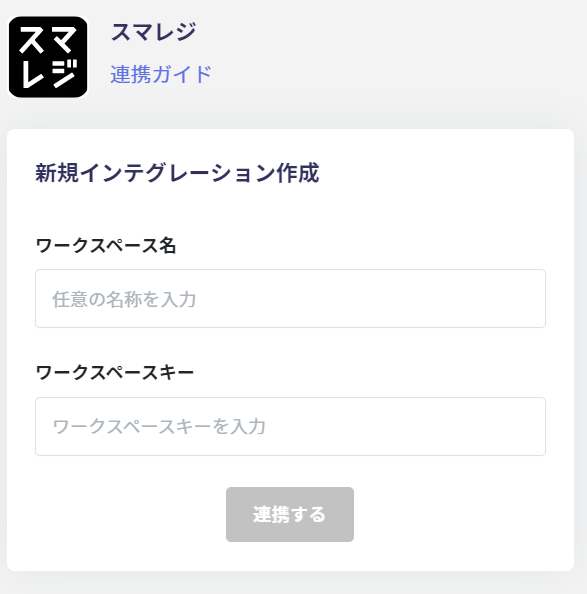
 Enter any name for the **workspace name** (e.g., your company name) and the **workspace key** confirmed in the previous step, then click **Connect**.
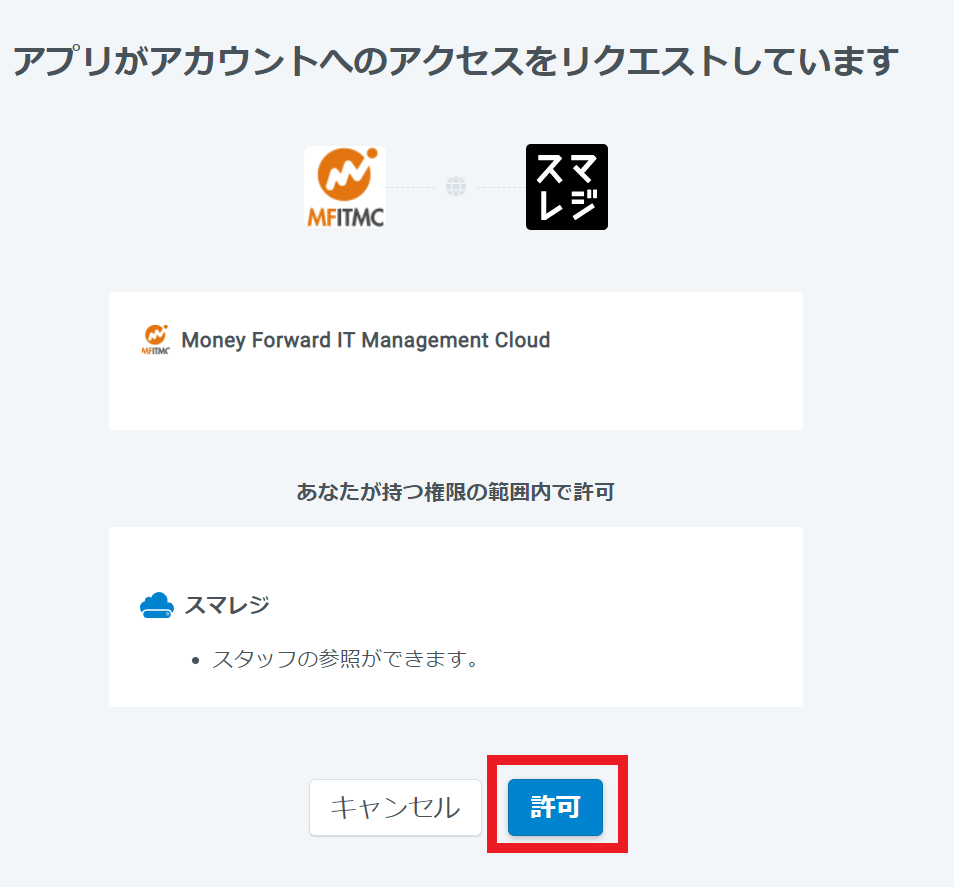
 A permission screen like the one below will appear — click **Allow**.
 Once the integration with Smaregi is successful, registered user information will appear in the account list.
If the integration did not complete successfully, click **Edit** from the Status tab on the integrations page and try connecting again.
If the issue persists, please contact us via chat.
For an overview of the Smaregi integration, visit the [integration page](http://admina.moneyforward.com/en/integrations/sumaregi).
Once the integration with Smaregi is successful, registered user information will appear in the account list.
If the integration did not complete successfully, click **Edit** from the Status tab on the integrations page and try connecting again.
If the issue persists, please contact us via chat.
For an overview of the Smaregi integration, visit the [integration page](http://admina.moneyforward.com/en/integrations/sumaregi).