> ## Documentation Index
> Fetch the complete documentation index at: https://support.i.moneyforward.com/llms.txt
> Use this file to discover all available pages before exploring further.
# SmartHR
> Instructions for integrating with SmartHR.
## Supported Features
Employee Master Integration Account Deletion Account Creation
## About the SmartHR Integration
There are two ways to integrate SmartHR with Admina: via OAuth or via API key.
For new integrations, we recommend using OAuth as it is simpler to set up.
## Prerequisites
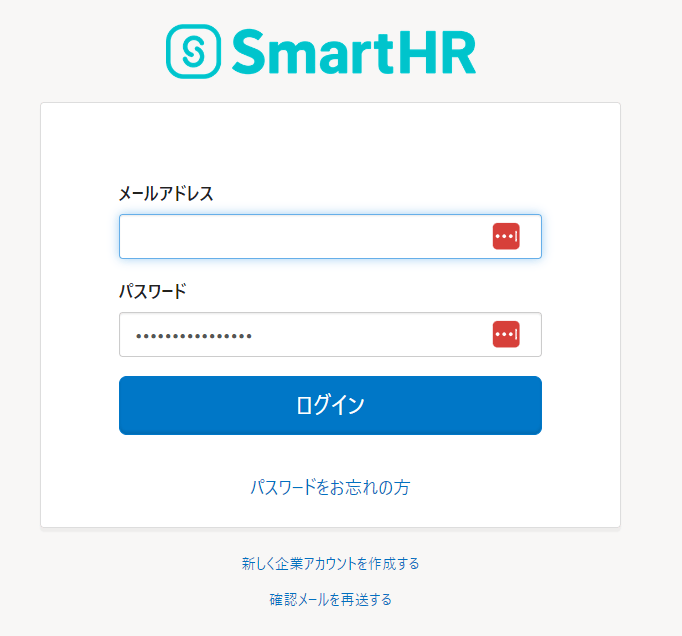
### How to Log In to SmartHR
Go to the [SmartHR login page](https://app.smarthr.jp/login) and enter your email address and password to log in.
 ### OAuth Integration (Recommended)
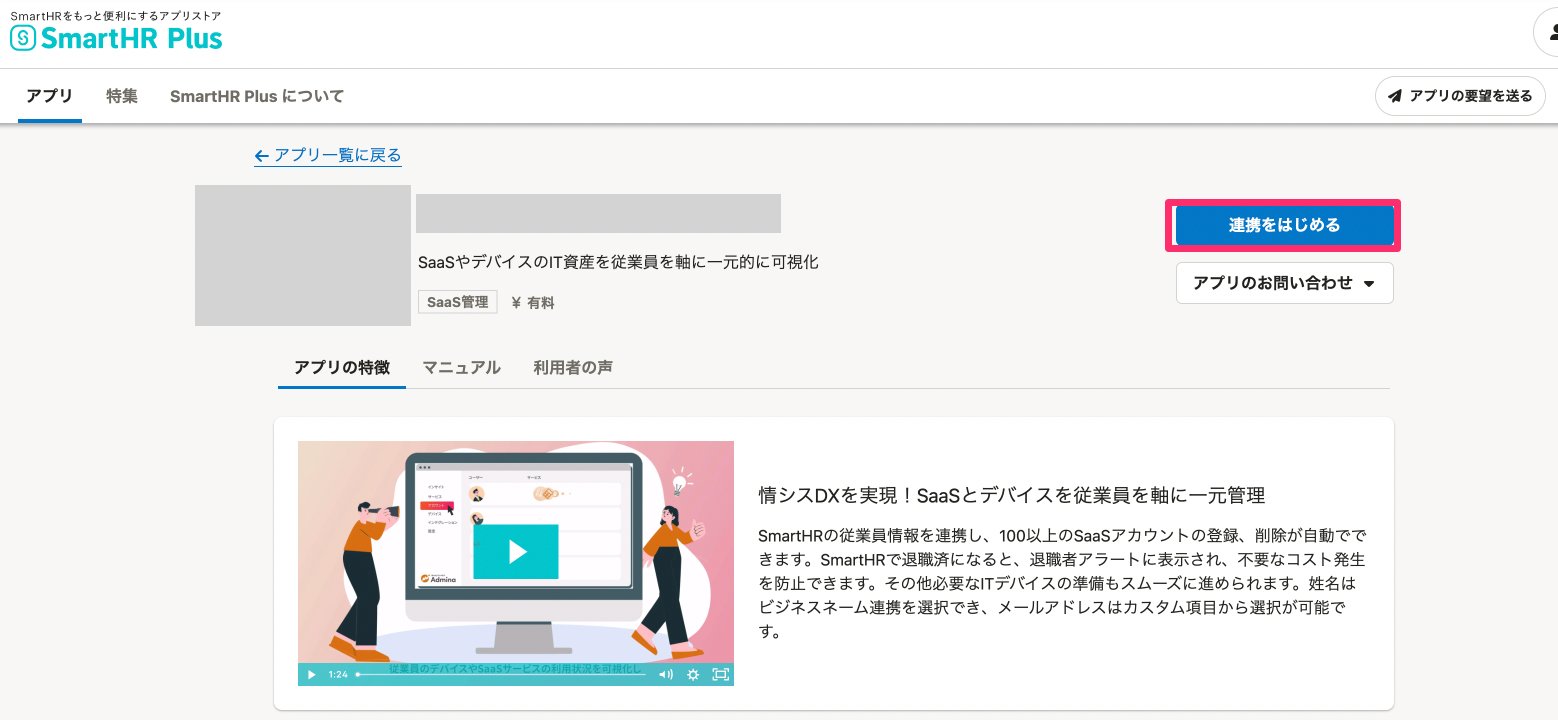
To integrate via OAuth, access SmartHR Plus from the link below and authorize the connection between Admina and SmartHR.
[SaaS Management: MoneyForward Admina SmartHR Plus](https://www.smarthr.plus/apps/admina)
1. Click **Get Started**.
### OAuth Integration (Recommended)
To integrate via OAuth, access SmartHR Plus from the link below and authorize the connection between Admina and SmartHR.
[SaaS Management: MoneyForward Admina SmartHR Plus](https://www.smarthr.plus/apps/admina)
1. Click **Get Started**.
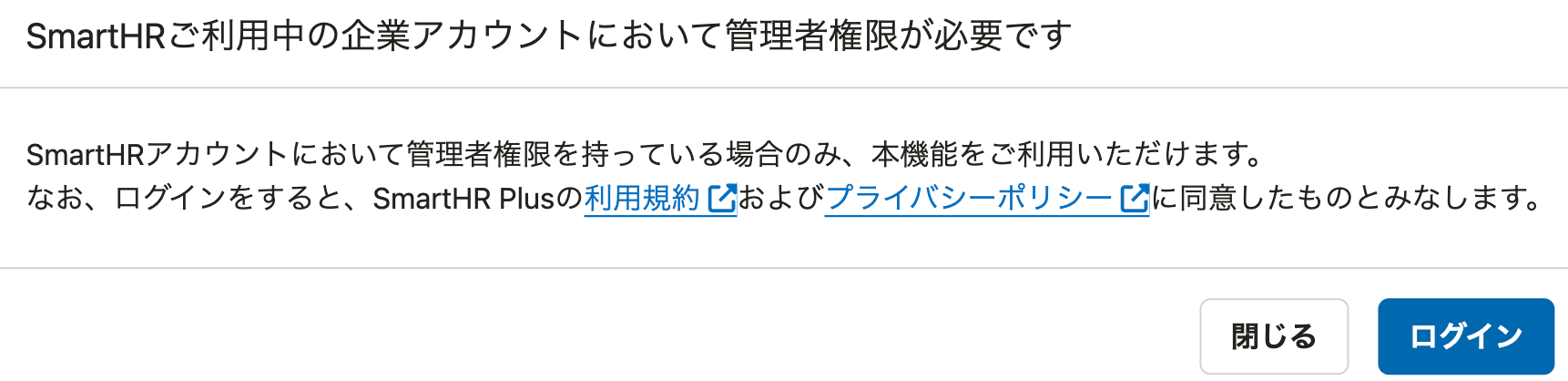
 2. Log in to SmartHR with an administrator account. Once logged in, the prerequisites are complete — proceed to the Integration Setup section below.
 ### API Key Integration
To integrate via API key, confirm the following items.
**How to Obtain Your Workspace Key**
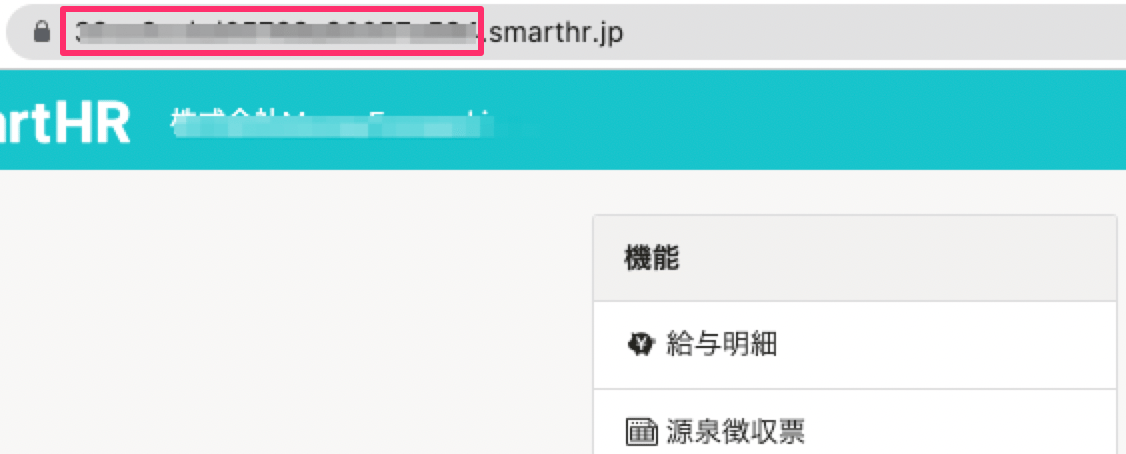
After logging in to [SmartHR](https://app.smarthr.jp/login), **part of the URL is your workspace key**. Copy and save it.
`https://{workspace-key}.smarthr.jp/` (do not include https\://)
### API Key Integration
To integrate via API key, confirm the following items.
**How to Obtain Your Workspace Key**
After logging in to [SmartHR](https://app.smarthr.jp/login), **part of the URL is your workspace key**. Copy and save it.
`https://{workspace-key}.smarthr.jp/` (do not include https\://)
 **How to Obtain Your Access Key**
The **access token is your access key**. Refer to SmartHR's documentation to issue an access token.
[How to Issue an Access Token](https://knowledge.smarthr.jp/hc/ja/articles/360026266033)
* The following permissions are required: read access for employee information (/crews) and accounts (/users).
* If retrieving email addresses from custom employee fields at the time of integration, read permission for the added custom employee field items is also required.
## Integration Setup
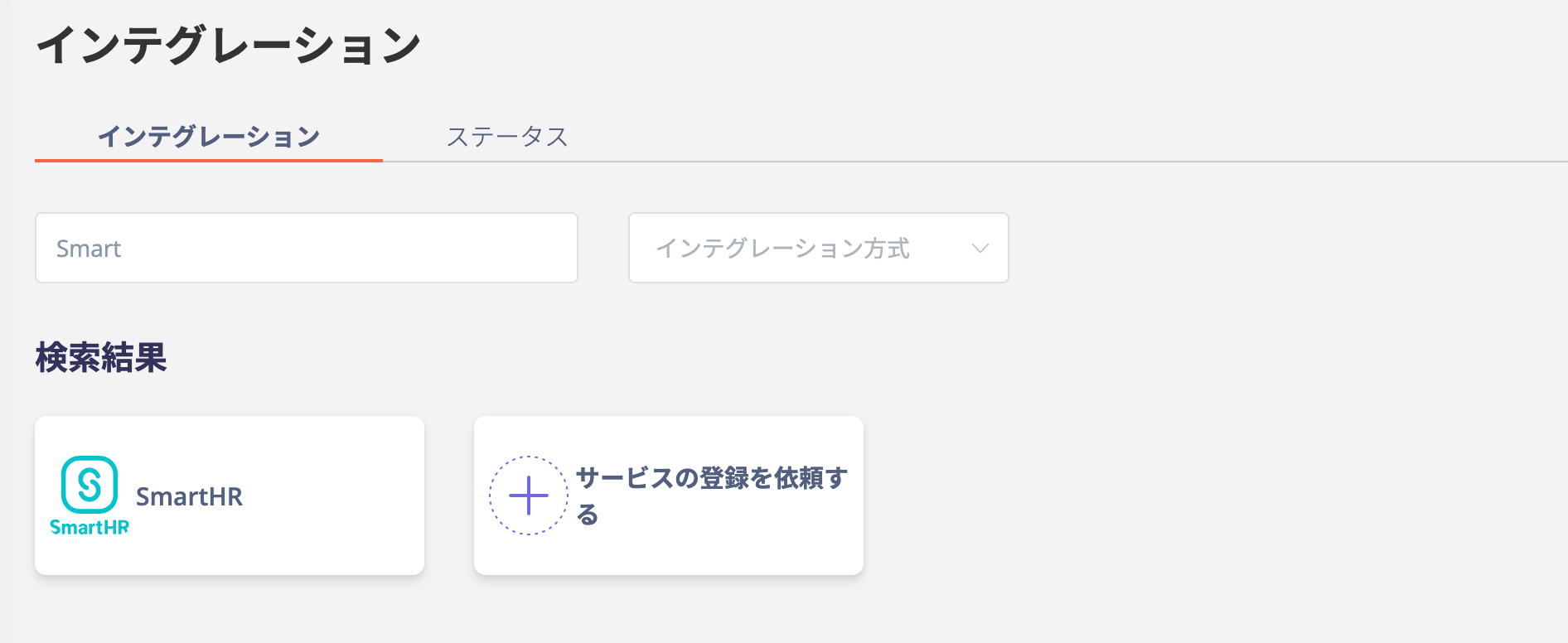
In the MoneyForward Admina integrations screen, search for **SmartHR**.
**How to Obtain Your Access Key**
The **access token is your access key**. Refer to SmartHR's documentation to issue an access token.
[How to Issue an Access Token](https://knowledge.smarthr.jp/hc/ja/articles/360026266033)
* The following permissions are required: read access for employee information (/crews) and accounts (/users).
* If retrieving email addresses from custom employee fields at the time of integration, read permission for the added custom employee field items is also required.
## Integration Setup
In the MoneyForward Admina integrations screen, search for **SmartHR**.
 ### OAuth Integration (Recommended)
Click the OAuth tab and click **Connect**. Configure the following options as needed.
### OAuth Integration (Recommended)
Click the OAuth tab and click **Connect**. Configure the following options as needed.
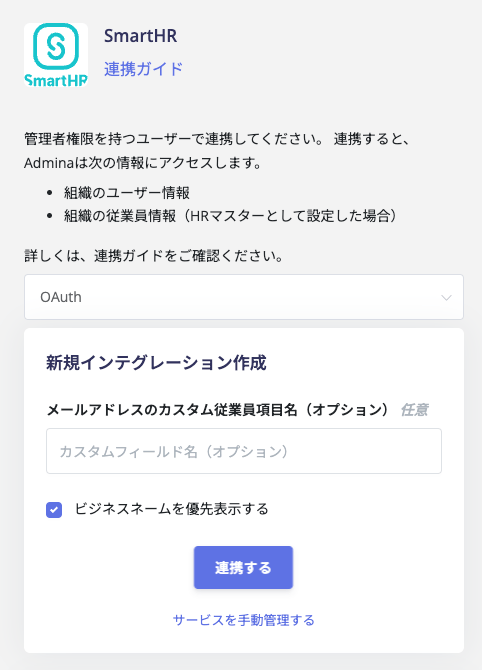 * **Custom employee field name for email address (optional)**: If retrieving an email address from a custom employee field, enter the **custom employee field name (shown in the red frame in the image below)**. When specified, it is retrieved as the primary address. Multiple field names can be entered separated by commas (the first field is used as the primary address). Once connected, automatic matching (merging) by the custom employee field email address becomes available.
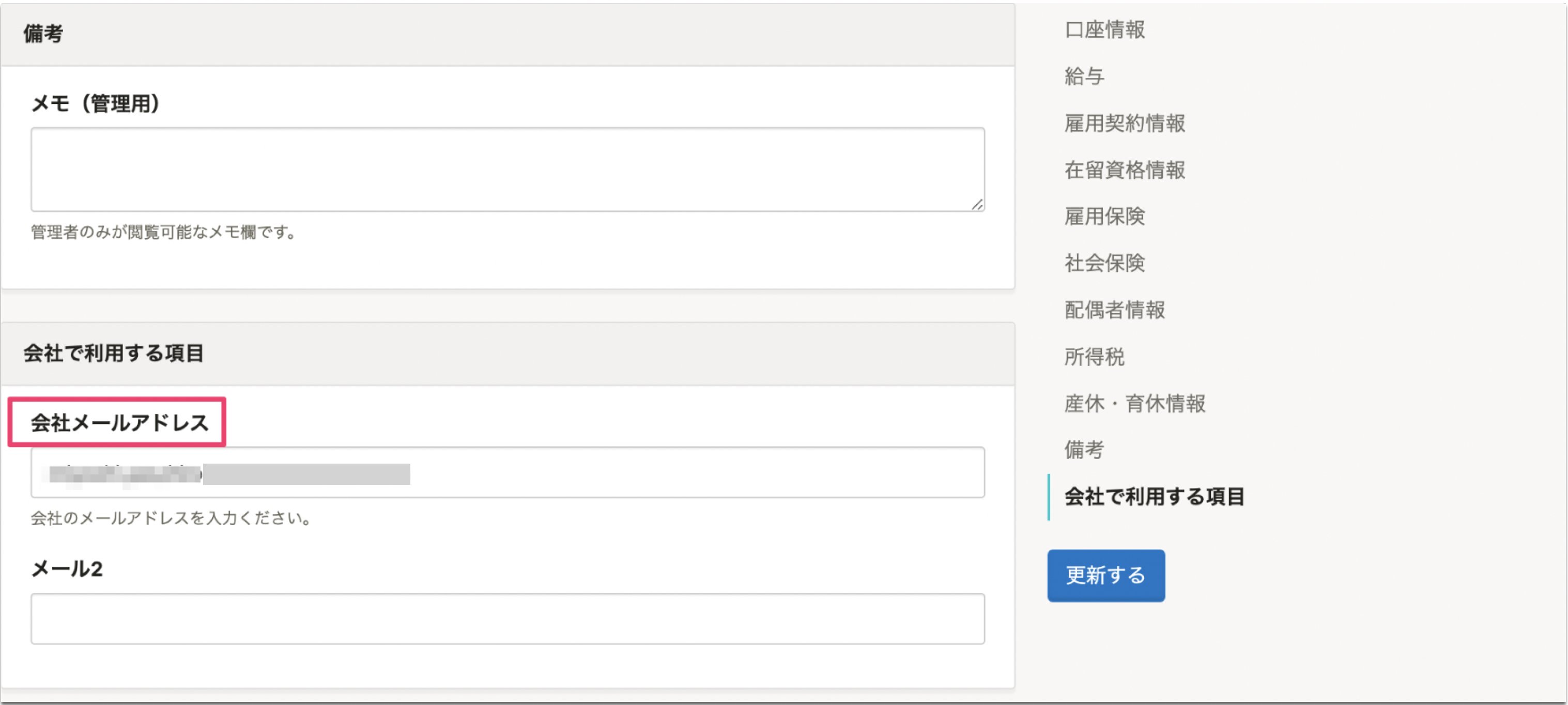 * **Prioritize business name display**: If a business name is set in SmartHR, it will be used as the user's display name in Admina.
### API Key Integration
Select the \[API] tab, enter the values for each field below, and click **Connect**.
* **Prioritize business name display**: If a business name is set in SmartHR, it will be used as the user's display name in Admina.
### API Key Integration
Select the \[API] tab, enter the values for each field below, and click **Connect**.
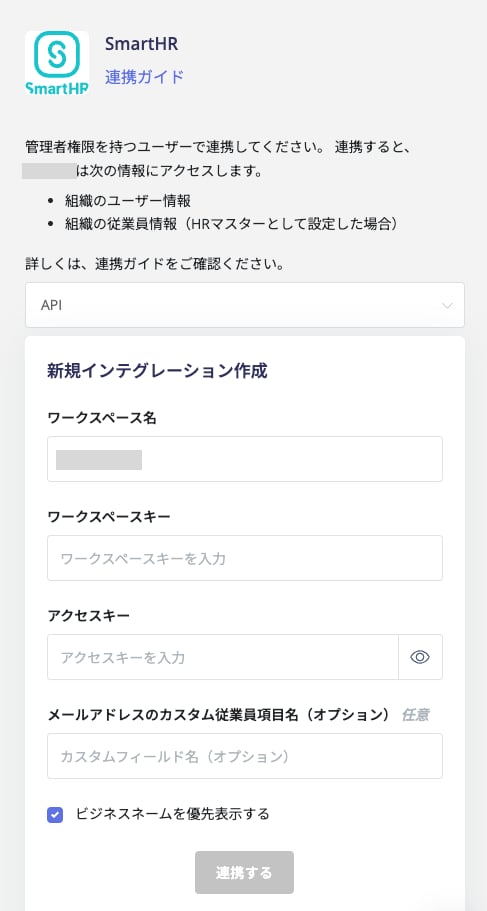 * **Workspace name**: Any string (e.g., company name)
* **Workspace key**: The **workspace key** obtained in the previous step
* **Access key**: The **API key** issued in the previous step
* **Custom employee field name for email address (optional)**: If retrieving an email address from a custom employee field, enter the **custom employee field name (shown in the red frame in the image below)**. When specified, it is retrieved as the primary address. Multiple field names can be entered separated by commas (the first field is used as the primary address). Once connected, automatic matching (merging) by the custom employee field email address becomes available.
* **Prioritize business name display**: If a business name is set in SmartHR, it will be used as the user's display name in Admina.
Once the integration with SmartHR is successful, the registered user information will appear in the account list.
If the integration does not complete successfully, click **Edit** from the Status tab on the integrations screen and try again.
If the issue persists, please contact us via chat.
For an overview of the SmartHR integration, see the [integration page](https://admina.moneyforward.com/en/integrations/smarthr).
## Data Retrieved via SmartHR Integration
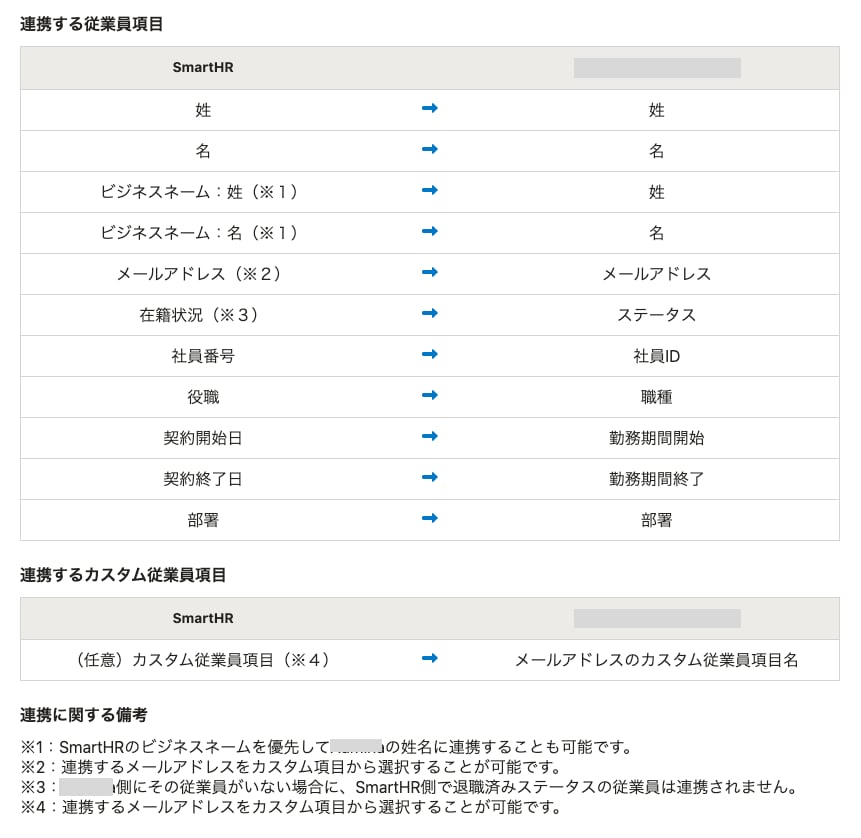
For details on the fields synced from SmartHR to Admina, please refer to [SmartHR Plus](https://www.smarthr.plus/apps/admina).
* **Workspace name**: Any string (e.g., company name)
* **Workspace key**: The **workspace key** obtained in the previous step
* **Access key**: The **API key** issued in the previous step
* **Custom employee field name for email address (optional)**: If retrieving an email address from a custom employee field, enter the **custom employee field name (shown in the red frame in the image below)**. When specified, it is retrieved as the primary address. Multiple field names can be entered separated by commas (the first field is used as the primary address). Once connected, automatic matching (merging) by the custom employee field email address becomes available.
* **Prioritize business name display**: If a business name is set in SmartHR, it will be used as the user's display name in Admina.
Once the integration with SmartHR is successful, the registered user information will appear in the account list.
If the integration does not complete successfully, click **Edit** from the Status tab on the integrations screen and try again.
If the issue persists, please contact us via chat.
For an overview of the SmartHR integration, see the [integration page](https://admina.moneyforward.com/en/integrations/smarthr).
## Data Retrieved via SmartHR Integration
For details on the fields synced from SmartHR to Admina, please refer to [SmartHR Plus](https://www.smarthr.plus/apps/admina).