> ## Documentation Index
> Fetch the complete documentation index at: https://support.i.moneyforward.com/llms.txt
> Use this file to discover all available pages before exploring further.
# 2-3. Browser Extension Setup Guide (Windows Intune)
> Steps to distribute the browser extension to Windows devices managed by Microsoft Intune.
This guide covers distributing the Admina browser extension to Windows devices managed by Microsoft Intune.
For an overview of the extension, see [Distribute the browser extension to detect shadow IT and retrieve service activity](/en/it-management/shadow-it/7q1wryx3dk-extension).
Three distribution methods are available for Windows. Choose the one that fits your environment.
| Method | Target environment |
| ----------------------------------------------------------------------------------------------- | ----------------------------------------------------------------------- |
| [Solo setup](/en/it-management/admina-extension/windows-solo-setup) | Configure each device individually. Suitable for small device counts |
| [GPO (on-premises Active Directory)](/en/it-management/admina-extension/qegqblx598-windows-gpo) | Devices joined to an on-premises AD domain |
| **Intune (MDM)** ← this guide | **Devices managed by Microsoft Intune. On-premises AD is not required** |
***
## 1. Prerequisites
This guide assumes the following are already in place.
* Target devices are **enrolled in Microsoft Intune** (visible under **Devices** in the [Intune admin center](https://intune.microsoft.com/#home) and syncing normally)
* Devices are **joined to Microsoft Entra ID**
* An **Entra ID security group** exists for the users you will deploy to
* The operator holds the **Intune Administrator** role
Target browsers are Google Chrome and Microsoft Edge. If you deploy to both, configure each separately (the steps are the same).
### Values to obtain from the Admina admin console
Before you start, note the following three values from the Admina admin console.
| Value | Description |
| -------------- | ------------------------------- |
| ApiKey | API key issued per organization |
| CreatedDate | Issue timestamp |
| OrganizationID | Organization ID |
***
## 2. Distribution files
| File | Purpose |
| ----------------------------------------------- | --------------------------------------------------------------------- |
| `ExtensionChrome.admx` / `ExtensionChrome.adml` | Configuration template for Chrome (one pair) |
| `ExtensionEdge.admx` / `ExtensionEdge.adml` | Configuration template for Edge (one pair) |
| `Set-UserEmailEnv.ps1` | Script that sets each user's email address in an environment variable |
Upload `.admx` and `.adml` files as **matching name pairs**.
Download the files below and use them when uploading to Intune.
Clicking a link below opens the file in the same tab. Use your browser's back button to return to this page after downloading.
| File | Description | Download |
| ---------------------- | ------------------------------------------------------------------------------------- | ----------------------------------------------------------------------------------------------------------------------------- |
| `ExtensionChrome.admx` | Configuration template for Chrome (ADMX definition file) | [Download](https://files.support.i.moneyforward.com/files/it-management/admina-extension/windows-intune/ExtensionChrome.admx) |
| `ExtensionChrome.adml` | String resource file paired with `ExtensionChrome.admx` | [Download](https://files.support.i.moneyforward.com/files/it-management/admina-extension/windows-intune/ExtensionChrome.adml) |
| `ExtensionEdge.admx` | Configuration template for Edge (ADMX definition file) | [Download](https://files.support.i.moneyforward.com/files/it-management/admina-extension/windows-intune/ExtensionEdge.admx) |
| `ExtensionEdge.adml` | String resource file paired with `ExtensionEdge.admx` | [Download](https://files.support.i.moneyforward.com/files/it-management/admina-extension/windows-intune/ExtensionEdge.adml) |
| `Set-UserEmailEnv.ps1` | Intune Platform script that sets each user's email address in an environment variable | [Download](https://files.support.i.moneyforward.com/files/it-management/admina-extension/windows-intune/Set-UserEmailEnv.ps1) |
To get everything at once, use [Download all files as ZIP](https://files.support.i.moneyforward.com/files/it-management/admina-extension/windows-intune/all-files.zip).
`Set-UserEmailEnv.ps1` is saved as **UTF-8 with BOM, CRLF line endings**. Windows PowerShell (5.1) needs this format to interpret the script's encoding correctly, so keep this format if you edit the file.
***
## 3. How distribution works
Intune has no built-in way to embed the signed-in user's email address into configuration values automatically. This guide combines two components.
**① Configuration template (ADMX)** distributes force-install of the extension and related parameters. For `UserEmail`, it writes a **reference to the environment variable** `%USEREMAIL%`, not the actual email address.
**② Script (Set-UserEmailEnv.ps1)** sets each user's own email address in the `USEREMAIL` environment variable at sign-in.
When the browser loads configuration, `%USEREMAIL%` expands to the actual email address. Each user sends the correct value to Admina. **Even when multiple users share one device, each user is recorded with their own email address.**
***
## 4. Configuration steps
### Step 1: Import configuration templates
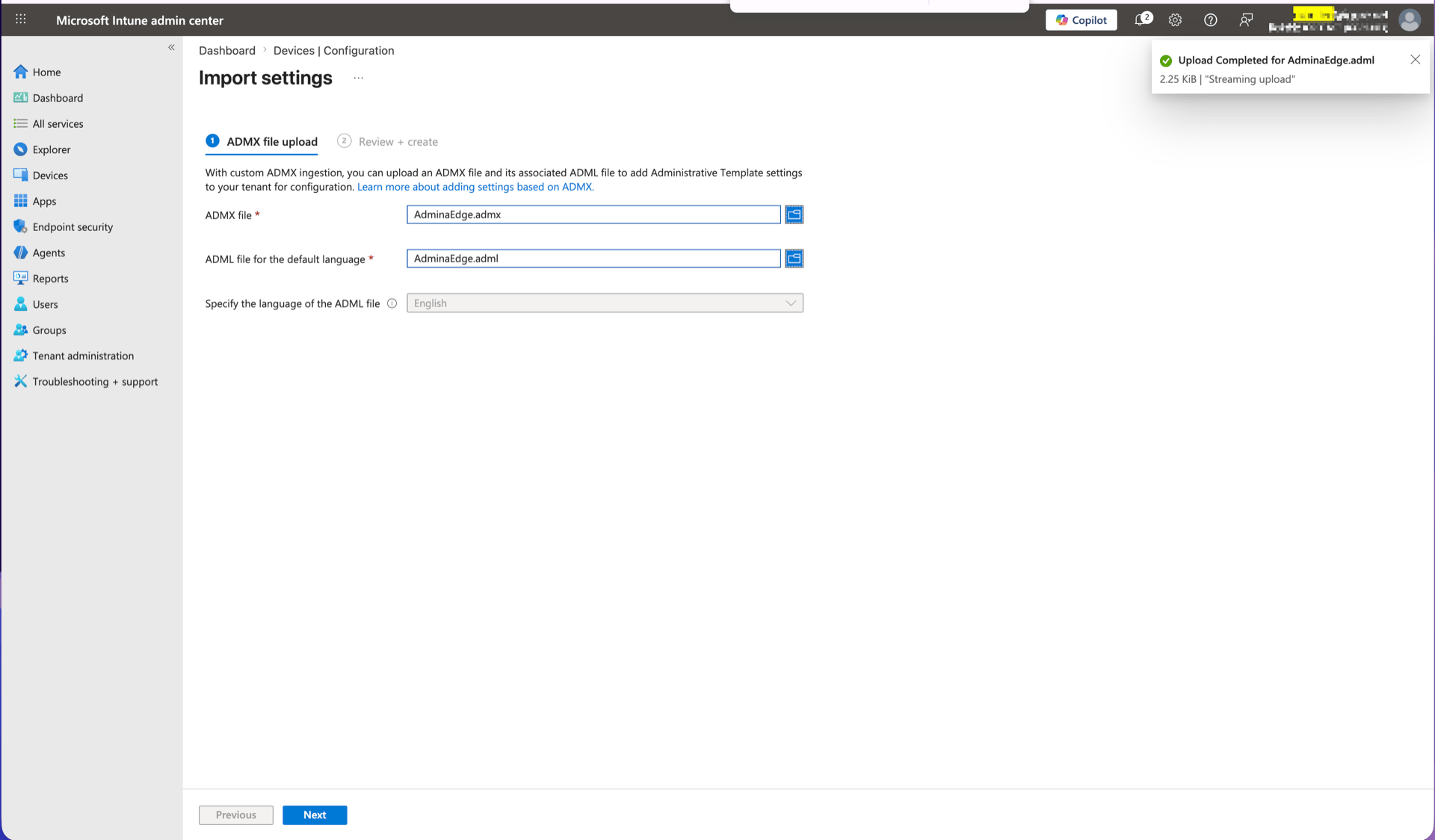
In the [Intune admin center](https://intune.microsoft.com/#home), open:
> [**Devices** → **Configuration**](https://intune.microsoft.com/#view/Microsoft_Intune_DeviceSettings/DevicesMenu/~/configuration) → **Manage** → **Templates** → **Import ADMX**
Import Chrome and Edge **separately** in two runs.
1. First run: upload `ExtensionChrome.admx` and `ExtensionChrome.adml`
2. Second run: upload `ExtensionEdge.admx` and `ExtensionEdge.adml`
Both should show **State** as **Available** when import succeeds.
 ### Step 2: Create a configuration profile
> [**Devices** → **Configuration**](https://intune.microsoft.com/#view/Microsoft_Intune_DeviceSettings/DevicesMenu/~/configuration) → **Create** → **New Policy**
### Step 2: Create a configuration profile
> [**Devices** → **Configuration**](https://intune.microsoft.com/#view/Microsoft_Intune_DeviceSettings/DevicesMenu/~/configuration) → **Create** → **New Policy**
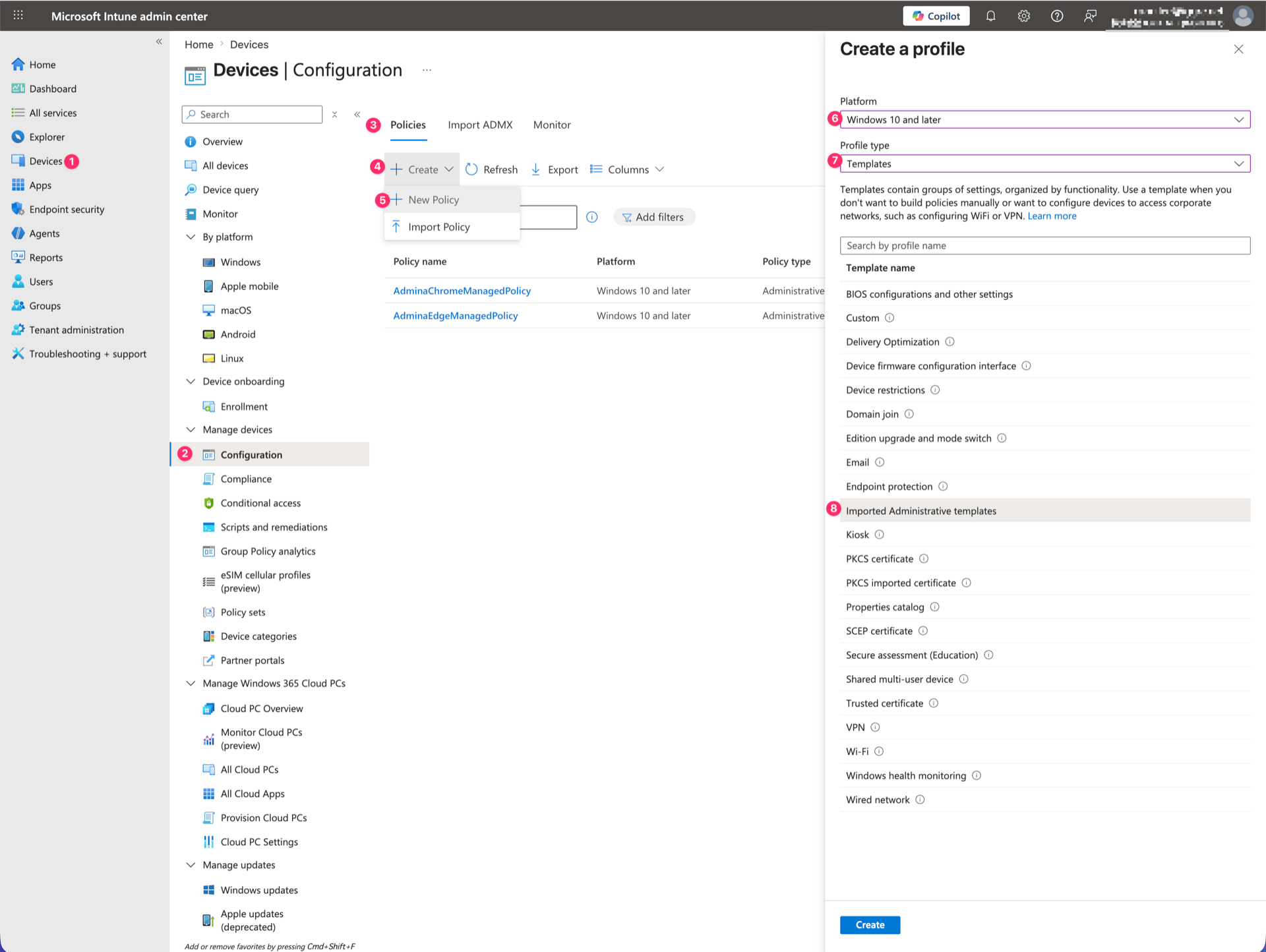 Select and enter the following.
| Field | Example |
| ------------ | ---------------------------------------------------------------------------------------------------------------- |
| Platform | **Windows 10 and later** |
| Profile type | **Templates** → **Imported Administrative templates** |
| Name | `AdminaChromeManagedPolicy` (for Edge, use something like `AdminaEdgeManagedPolicy` to include the browser name) |
| Description | `Distributes the Admina policy for Chrome` |
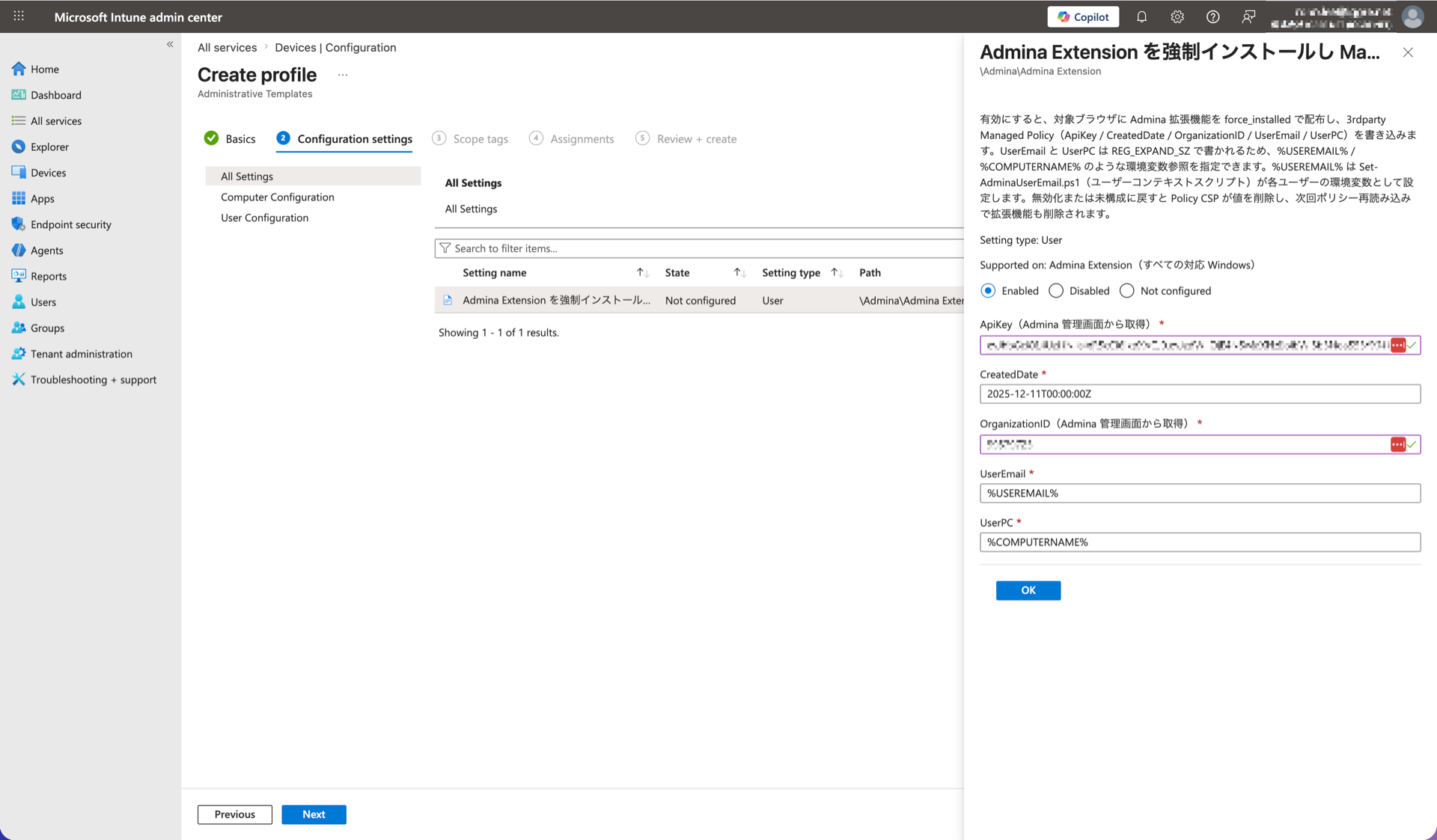
On the **Configuration settings** page, search for `Admina`. Two policies appear. Select the browser you want to deploy.
* `[Chrome] Admina Extension を強制インストールし Managed Policy を配布する`
* `[Edge] Admina Extension を強制インストールし Managed Policy を配布する`
Select **Enabled** and enter the following values.
| Field | Value to enter |
| -------------- | ---------------------------------------------- |
| ApiKey | Value from Admina admin console |
| CreatedDate | Value from Admina admin console |
| OrganizationID | Value from Admina admin console |
| UserEmail | `%USEREMAIL%` ← **enter this string as-is** |
| UserPC | `%COMPUTERNAME%` ← **enter this string as-is** |
> **Do not replace UserEmail and UserPC with actual values.** Enter `%USEREMAIL%` and `%COMPUTERNAME%` as literal strings. The browser expands them to per-user values when it loads configuration.
Select and enter the following.
| Field | Example |
| ------------ | ---------------------------------------------------------------------------------------------------------------- |
| Platform | **Windows 10 and later** |
| Profile type | **Templates** → **Imported Administrative templates** |
| Name | `AdminaChromeManagedPolicy` (for Edge, use something like `AdminaEdgeManagedPolicy` to include the browser name) |
| Description | `Distributes the Admina policy for Chrome` |
On the **Configuration settings** page, search for `Admina`. Two policies appear. Select the browser you want to deploy.
* `[Chrome] Admina Extension を強制インストールし Managed Policy を配布する`
* `[Edge] Admina Extension を強制インストールし Managed Policy を配布する`
Select **Enabled** and enter the following values.
| Field | Value to enter |
| -------------- | ---------------------------------------------- |
| ApiKey | Value from Admina admin console |
| CreatedDate | Value from Admina admin console |
| OrganizationID | Value from Admina admin console |
| UserEmail | `%USEREMAIL%` ← **enter this string as-is** |
| UserPC | `%COMPUTERNAME%` ← **enter this string as-is** |
> **Do not replace UserEmail and UserPC with actual values.** Enter `%USEREMAIL%` and `%COMPUTERNAME%` as literal strings. The browser expands them to per-user values when it loads configuration.
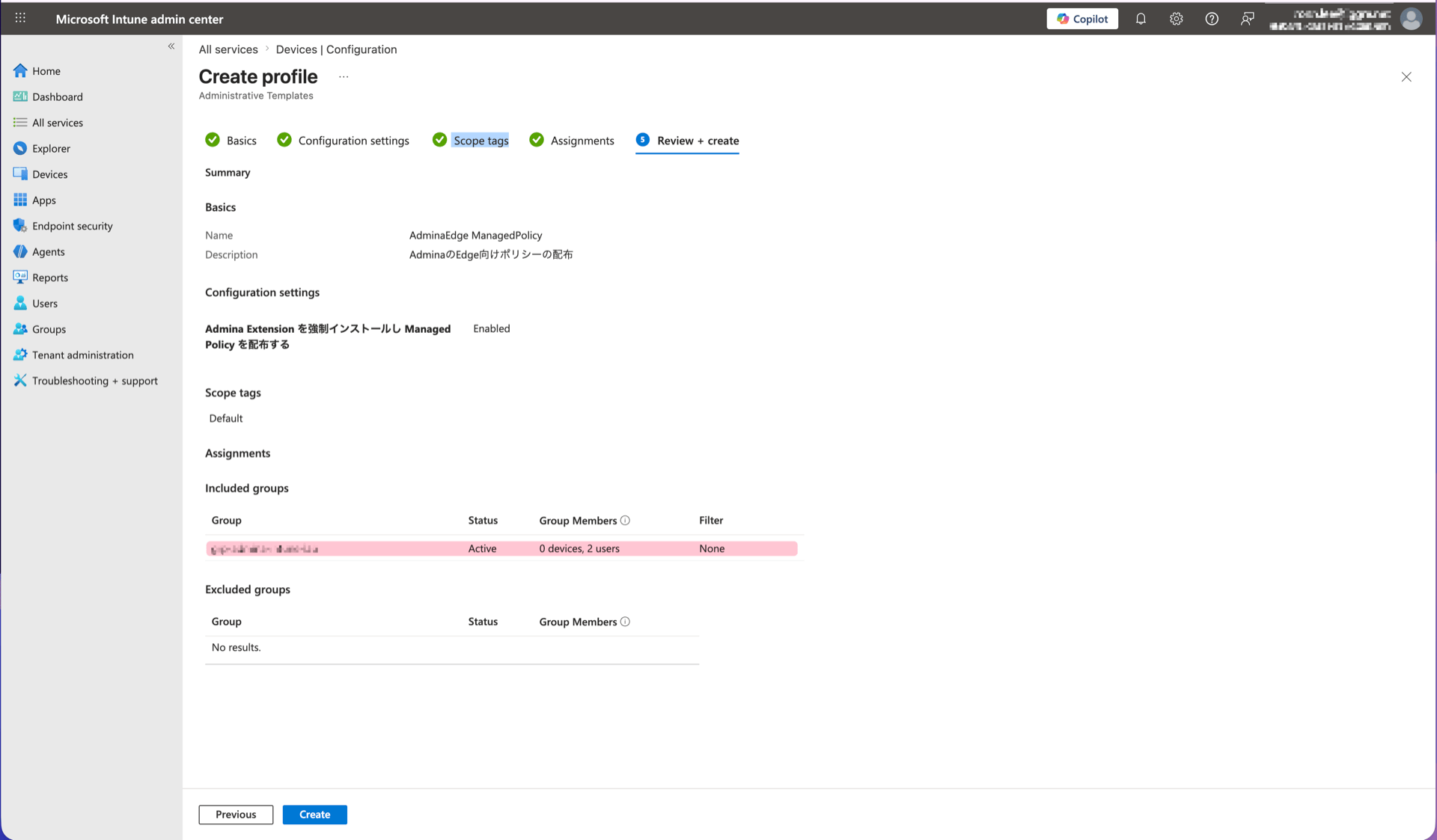
 Under **Assignments**, specify the **user group** to deploy to.
> Assign a **user group**, not a device group. This template applies per user.
Under **Assignments**, specify the **user group** to deploy to.
> Assign a **user group**, not a device group. This template applies per user.
 To deploy to both Chrome and Edge, repeat this step to create two profiles.
### Step 3: Deploy the email address script
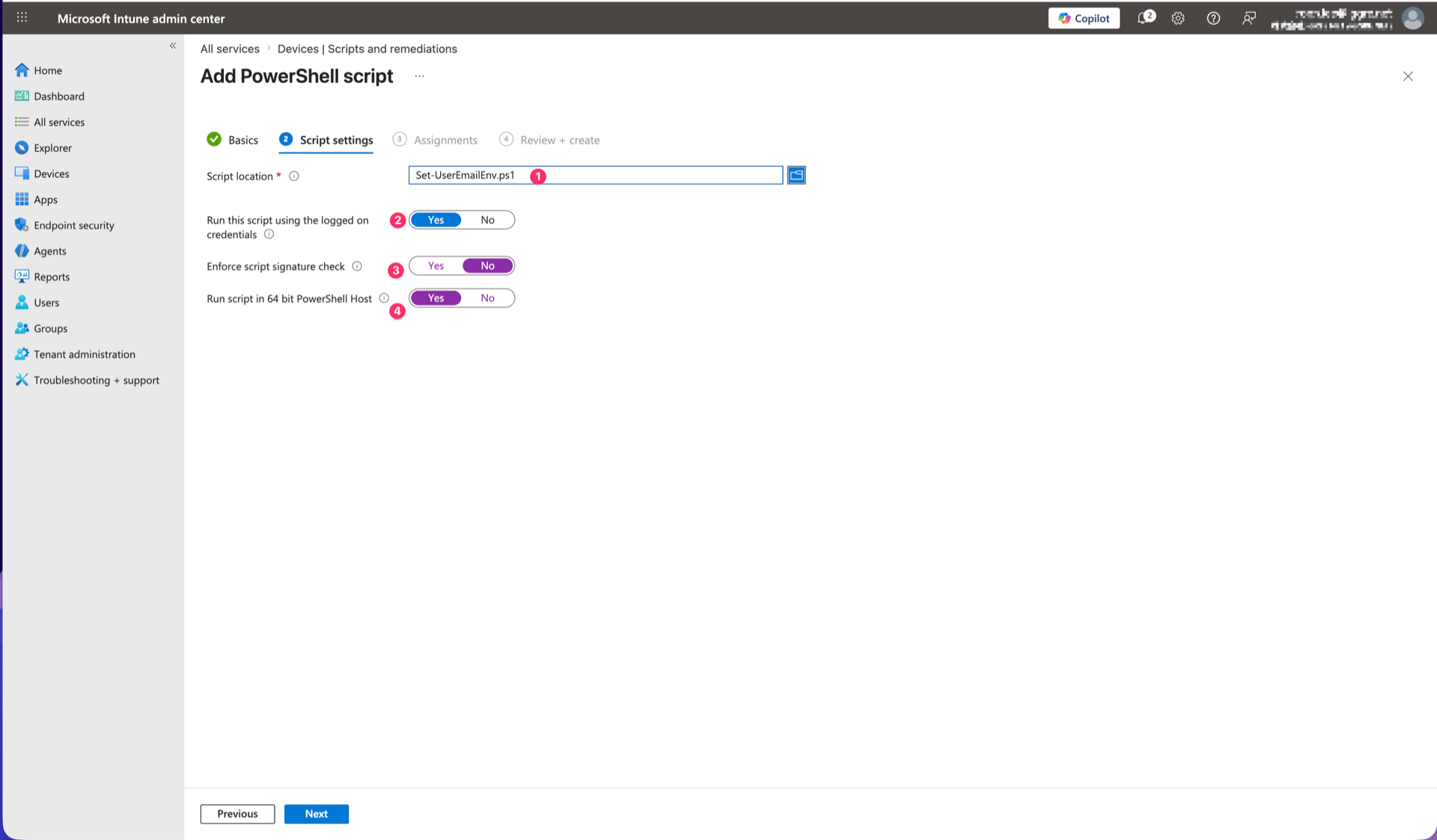
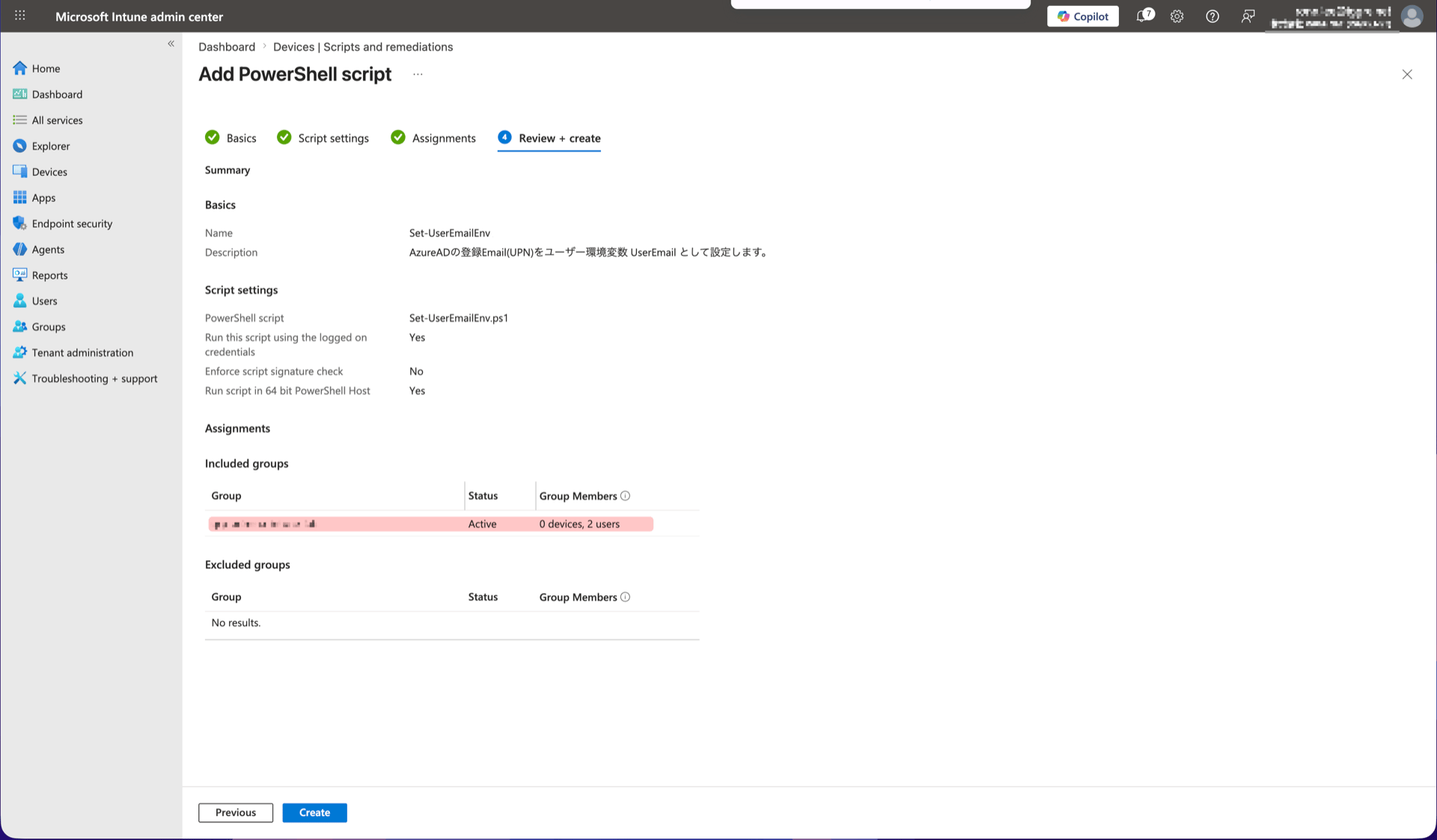
> [**Devices** → **Scripts and remediations**](https://intune.microsoft.com/#view/Microsoft_Intune_DeviceSettings/DevicesMenu/~/scripts) → **Platform scripts** → **Add** → **Windows 10 and later**
| Field | Setting |
| ----------------------------------------------- | ----------------------------- |
| Script | `Set-UserEmailEnv.ps1` |
| Run this script using the logged on credentials | **Yes** |
| Enforce script signature check | No |
| Run script in 64 bit PowerShell Host | Yes |
| Assignments | **Same user group** as Step 2 |
> **Set "Run this script using the logged on credentials" to Yes.** If left as No, each user's email address will not be set correctly.
To deploy to both Chrome and Edge, repeat this step to create two profiles.
### Step 3: Deploy the email address script
> [**Devices** → **Scripts and remediations**](https://intune.microsoft.com/#view/Microsoft_Intune_DeviceSettings/DevicesMenu/~/scripts) → **Platform scripts** → **Add** → **Windows 10 and later**
| Field | Setting |
| ----------------------------------------------- | ----------------------------- |
| Script | `Set-UserEmailEnv.ps1` |
| Run this script using the logged on credentials | **Yes** |
| Enforce script signature check | No |
| Run script in 64 bit PowerShell Host | Yes |
| Assignments | **Same user group** as Step 2 |
> **Set "Run this script using the logged on credentials" to Yes.** If left as No, each user's email address will not be set correctly.
 ***
## 5. Verification
Configuration can take several minutes to apply. After the target user signs in to the device, verify the following.
### Check 1: Environment variable
Open a **new** PowerShell window and run:
```powershell theme={null}
[Environment]::GetEnvironmentVariable('USEREMAIL', 'User')
```
If the signed-in user's email address appears, the check passed.
### Check 2: Extension
Open `chrome://extensions` (or `edge://extensions` for Edge) and confirm the Admina extension is installed. It shows as "Installed by your organization".
### Check 3: Extension settings page
Open the Admina extension options page. Confirm the **Email address** field shows the signed-in user's email and displays **Managed**.
If you encounter issues, see [How to check Diag data](/en/it-management/admina-extension/344geptwee-diag).
***
## 6. FAQ and troubleshooting
### Deployment errors during any step
If Step 2 (configuration profile) or Step 3 (script) fails to deploy, check that step's execution log in the Intune admin center.
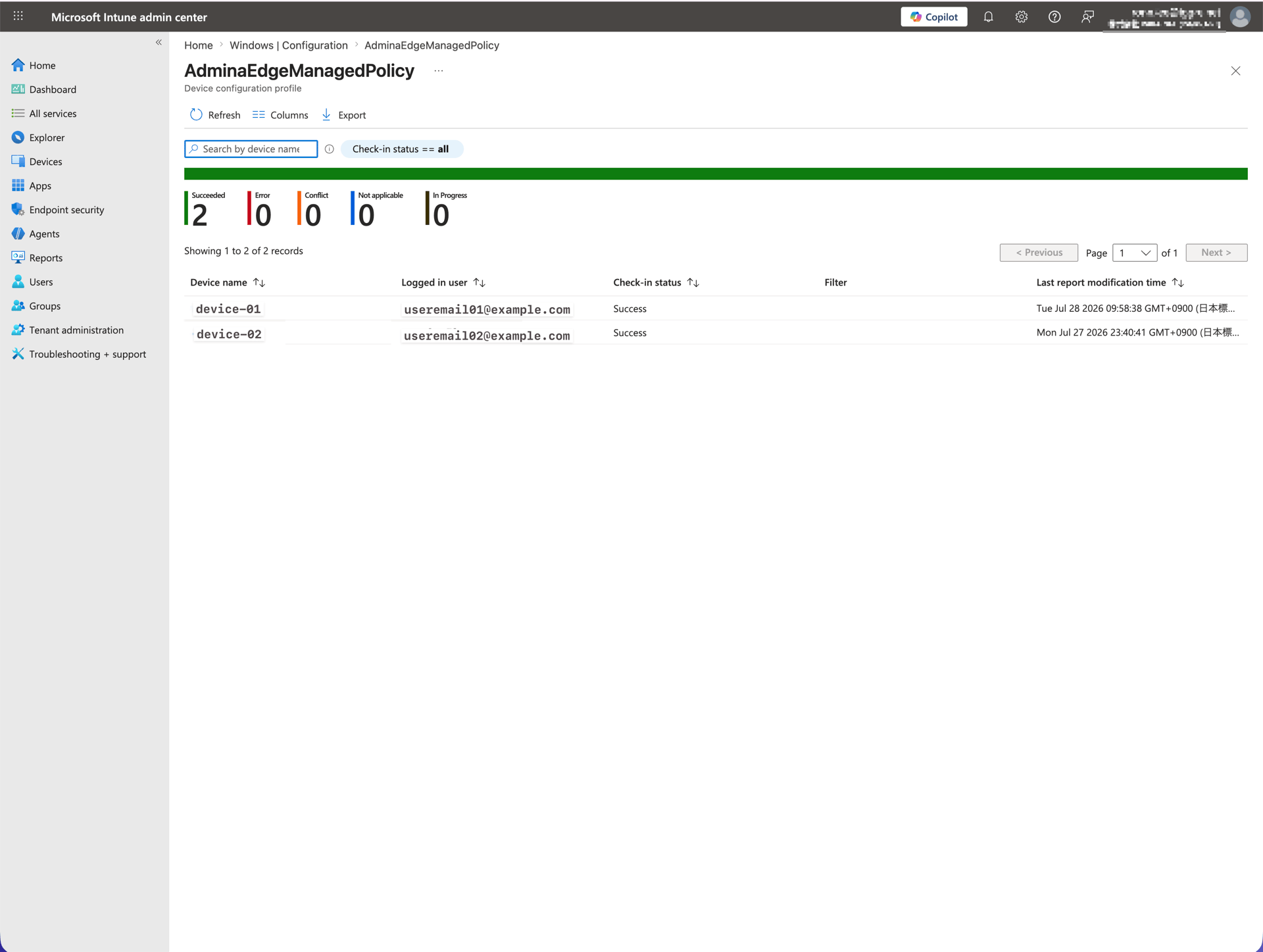
For the configuration profile, go to [**Devices** → **Configuration**](https://intune.microsoft.com/#view/Microsoft_Intune_DeviceSettings/DevicesMenu/~/configuration) → the profile → **Device status** to see the deployment result (Succeeded, Error, etc.) for each device.
***
## 5. Verification
Configuration can take several minutes to apply. After the target user signs in to the device, verify the following.
### Check 1: Environment variable
Open a **new** PowerShell window and run:
```powershell theme={null}
[Environment]::GetEnvironmentVariable('USEREMAIL', 'User')
```
If the signed-in user's email address appears, the check passed.
### Check 2: Extension
Open `chrome://extensions` (or `edge://extensions` for Edge) and confirm the Admina extension is installed. It shows as "Installed by your organization".
### Check 3: Extension settings page
Open the Admina extension options page. Confirm the **Email address** field shows the signed-in user's email and displays **Managed**.
If you encounter issues, see [How to check Diag data](/en/it-management/admina-extension/344geptwee-diag).
***
## 6. FAQ and troubleshooting
### Deployment errors during any step
If Step 2 (configuration profile) or Step 3 (script) fails to deploy, check that step's execution log in the Intune admin center.
For the configuration profile, go to [**Devices** → **Configuration**](https://intune.microsoft.com/#view/Microsoft_Intune_DeviceSettings/DevicesMenu/~/configuration) → the profile → **Device status** to see the deployment result (Succeeded, Error, etc.) for each device.
 For the script, go to [**Devices** → **Scripts and remediations**](https://intune.microsoft.com/#view/Microsoft_Intune_DeviceSettings/DevicesMenu/~/scripts) → the script → **Device status** / **User status** to see the execution result.
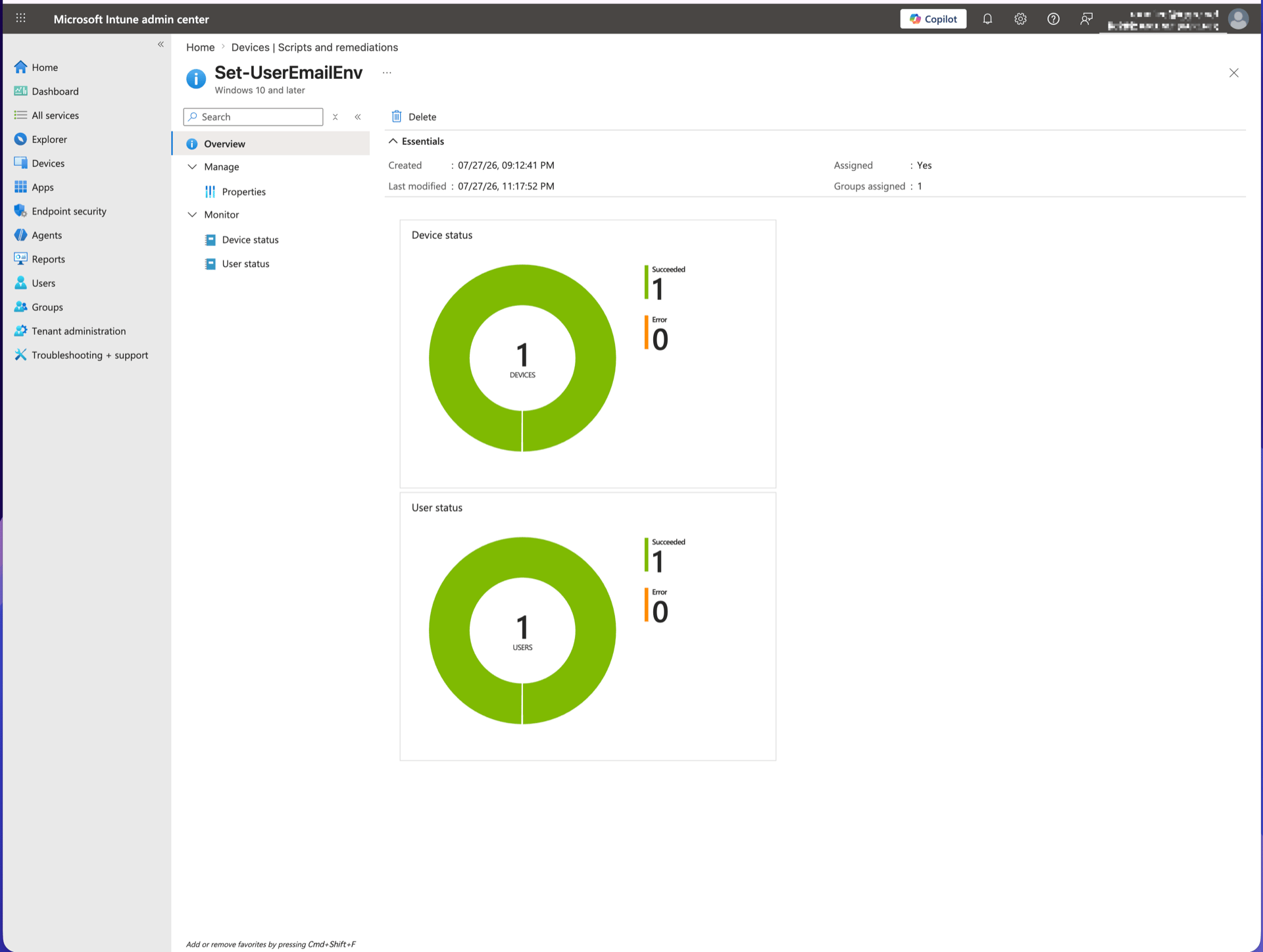 If a device shows Error, select it to see the detailed error code and message.
### Settings do not apply right after configuration
Intune configuration has a time lag before it applies. It may also sync on re-sign-in. Wait for a period (one to several hours) on a good network connection, or try signing off and back on.
### Extension shows `%USEREMAIL%`
This happens when data is sent before the environment variable expands. It normally resolves itself once the environment variable expands, so wait a while first. If it still does not resolve, check whether distribution failed using the steps below.
* "Run this script using the logged on credentials" is **Yes**
* Under [**Devices** → **Scripts and remediations**](https://intune.microsoft.com/#view/Microsoft_Intune_DeviceSettings/DevicesMenu/~/scripts) → the script → **Device status**, the target device shows **Success**
### Change configuration values (ApiKey, etc.)
Open the configuration profile from Step 2, update the values, and save. Changes apply to each device at the next sync. Re-uploading files is not required.
### Stop distribution
Remove the **assignment** from the Step 2 configuration profile or delete the profile itself. At the next policy refresh, settings are removed and the browser uninstalls the extension automatically.
The `USEREMAIL` environment variable remains and is not removed. It holds a general user email value, not Admina-specific data. Remove it separately if needed.
If a device shows Error, select it to see the detailed error code and message.
### Settings do not apply right after configuration
Intune configuration has a time lag before it applies. It may also sync on re-sign-in. Wait for a period (one to several hours) on a good network connection, or try signing off and back on.
### Extension shows `%USEREMAIL%`
This happens when data is sent before the environment variable expands. It normally resolves itself once the environment variable expands, so wait a while first. If it still does not resolve, check whether distribution failed using the steps below.
* "Run this script using the logged on credentials" is **Yes**
* Under [**Devices** → **Scripts and remediations**](https://intune.microsoft.com/#view/Microsoft_Intune_DeviceSettings/DevicesMenu/~/scripts) → the script → **Device status**, the target device shows **Success**
### Change configuration values (ApiKey, etc.)
Open the configuration profile from Step 2, update the values, and save. Changes apply to each device at the next sync. Re-uploading files is not required.
### Stop distribution
Remove the **assignment** from the Step 2 configuration profile or delete the profile itself. At the next policy refresh, settings are removed and the browser uninstalls the extension automatically.
The `USEREMAIL` environment variable remains and is not removed. It holds a general user email value, not Admina-specific data. Remove it separately if needed.