> ## Documentation Index
> Fetch the complete documentation index at: https://support.i.moneyforward.com/llms.txt
> Use this file to discover all available pages before exploring further.
# Deploy Admina Tracker (Microsoft Intune)
> Deploy Admina Tracker to Windows devices across your organization with Microsoft Intune. Learn how to configure ADMX templates and assign Win32 apps.
Follow these steps to deploy Admina Tracker with Microsoft Intune. You will import templates, create profiles, and deploy Win32 apps.
## Requirements
For base requirements (supported OS, permissions, network requirements, and more), see [Admina Tracker (Windows)](/en/it-management/admina-tracker/install-windows). Deploying via Microsoft Intune differs in the following ways:
| Item | Requirement |
| - | - |
| OS | Windows 10 (version 1809 or later) / Windows 11 (x64) |
| Permissions | Microsoft Intune administrator privileges (in Intune admin center)
No administrator privileges (UAC elevation) required on client devices |
Before starting, prepare deployment files (`.intunewin` package, detection script, ADMX templates). Also have your API key and Organization ID ready.
Download the deployment files
Deployment files are published per release. Replace `stable//` with the release version shown under **Settings** > **Admina Tracker** > **Downloads**.
| File | Purpose | Download |
| - | - | - |
| `Install-AdminaTracker.intunewin` | Win32 app package (registered in [Step 3](#add-app)) | [.intunewin](https://dl.itmc.i.moneyforward.com/admina-tracker/stable/intune/latest/Install-AdminaTracker.intunewin) / [.sha256](https://dl.itmc.i.moneyforward.com/admina-tracker/stable/intune/latest/Install-AdminaTracker.intunewin.sha256) |
| `Detect-AdminaTracker.ps1` | Installation detection script (used in detection rules) | [Download](https://dl.itmc.i.moneyforward.com/admina-tracker/stable/intune/latest/Detect-AdminaTracker.ps1) |
| `AdminaTracker.admx` | Policy template (imported in [Step 1](#import-admx)) | [Download](https://dl.itmc.i.moneyforward.com/admina-tracker/stable/intune/latest/AdminaTracker.admx) |
| `AdminaTracker.adml` | Language file for `.admx` (placed under `en-US/` and imported) | [Download](https://dl.itmc.i.moneyforward.com/admina-tracker/stable/intune/latest/en-US/AdminaTracker.adml) |
A `.sha256` checksum ships with the `.intunewin`. Verify integrity with `Get-FileHash` before uploading to Intune.
## Deployment overview
Admina Tracker deployment combines app deployment and configuration profile deployment. These roles complement each other:
* **Configuration profile (ADMX)**: Deploys settings like API key and Organization ID to registry policies.
* **Win32 app**: Installs agent binaries, startup tasks, and local database under the user profile.
Deployment proceeds in three steps:
1. **Import the ADMX template**
2. **Deploy configuration values with a configuration profile**
3. **Add the Win32 app and assign it to target groups**
For details on installed resources, see [Installed resources for Admina Tracker (Windows)](/en/it-management/admina-tracker/install-windows#resources).
## Installation steps
Step 1: Import the ADMX template
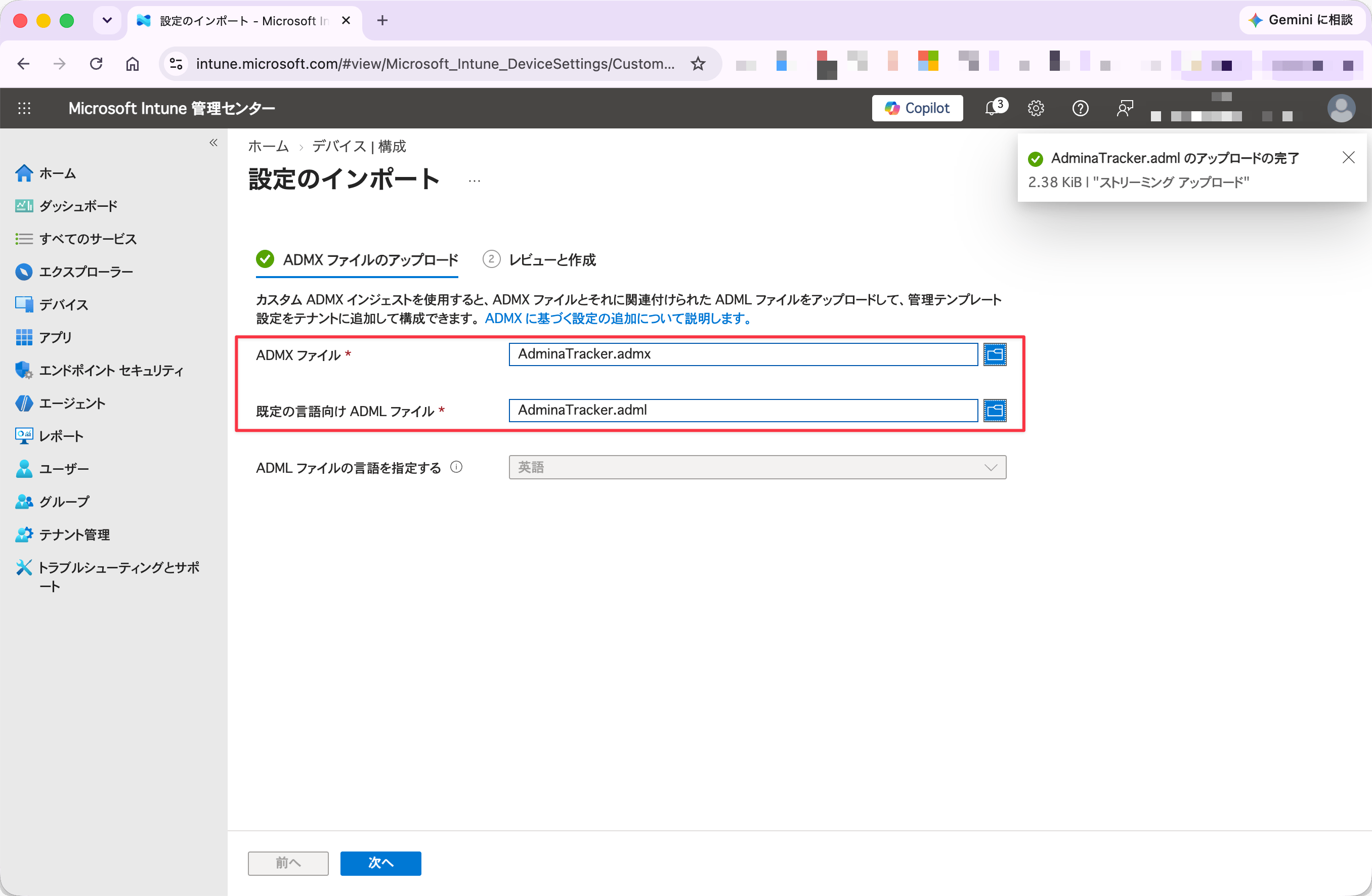
1. Prepare [`AdminaTracker.admx`](https://dl.itmc.i.moneyforward.com/admina-tracker/stable/intune/latest/AdminaTracker.admx) and [`en-US/AdminaTracker.adml`](https://dl.itmc.i.moneyforward.com/admina-tracker/stable/intune/latest/en-US/AdminaTracker.adml) from the deployment package.
2. Sign in to the Microsoft Intune admin center.
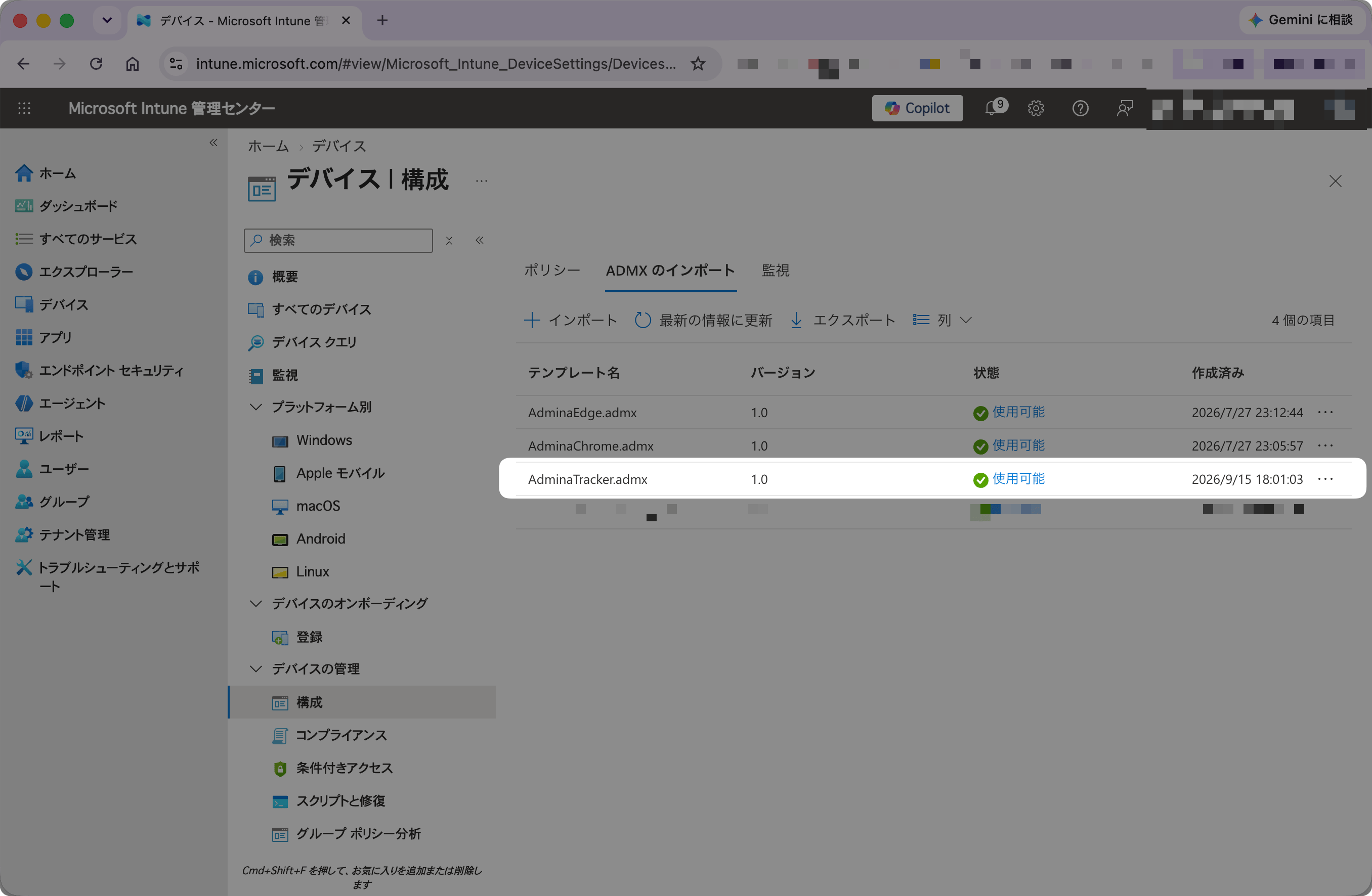
3. Open **Devices** > **Configuration** > **Import ADMX** tab.
4. Click **Import** and upload the `.admx` and `.adml` files as a pair.
5. Wait until the status displays "Available" in the list.
1. In Intune admin center, go to **Devices** > **Configuration** > **Policies** tab and click **+ Create** > **New policy**.
2. Select **Windows 10 and later** for Platform. Select **Templates** > **Imported Administrative templates (Preview)** for Profile type, and click **Create**.
Make sure to select "Imported Administrative templates (Preview)" rather than the built-in "Administrative templates".
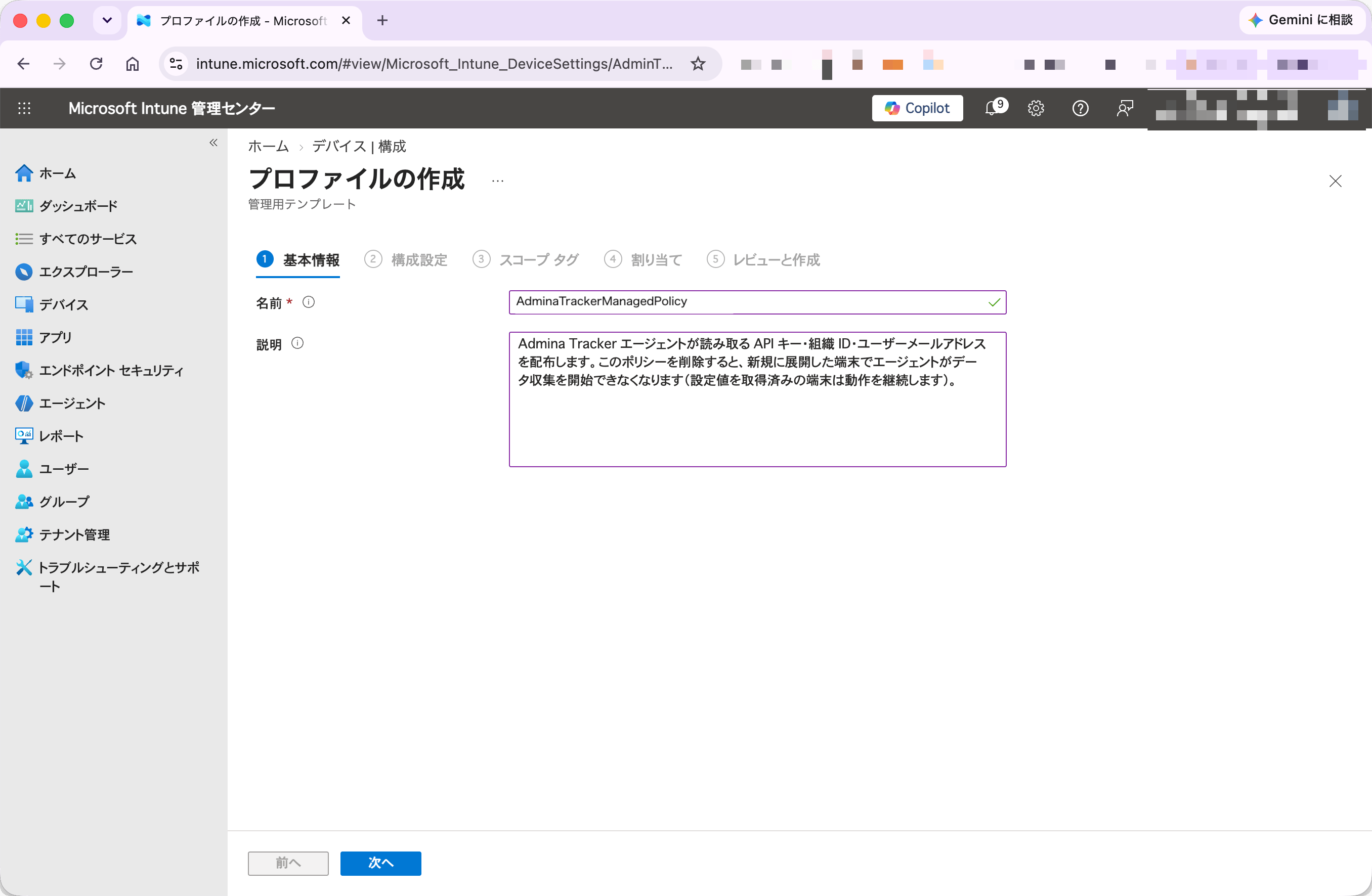
3. Enter a name and description, then click **Next**.
* Name: `AdminaTrackerManagedPolicy`
* Description: Paste the following text
```text theme={null}
Delivers the API key, organization ID, and user email address that the Admina Tracker agent reads. Removing this policy prevents the agent from starting data collection on newly deployed devices (devices that already retrieved the values keep running).
```
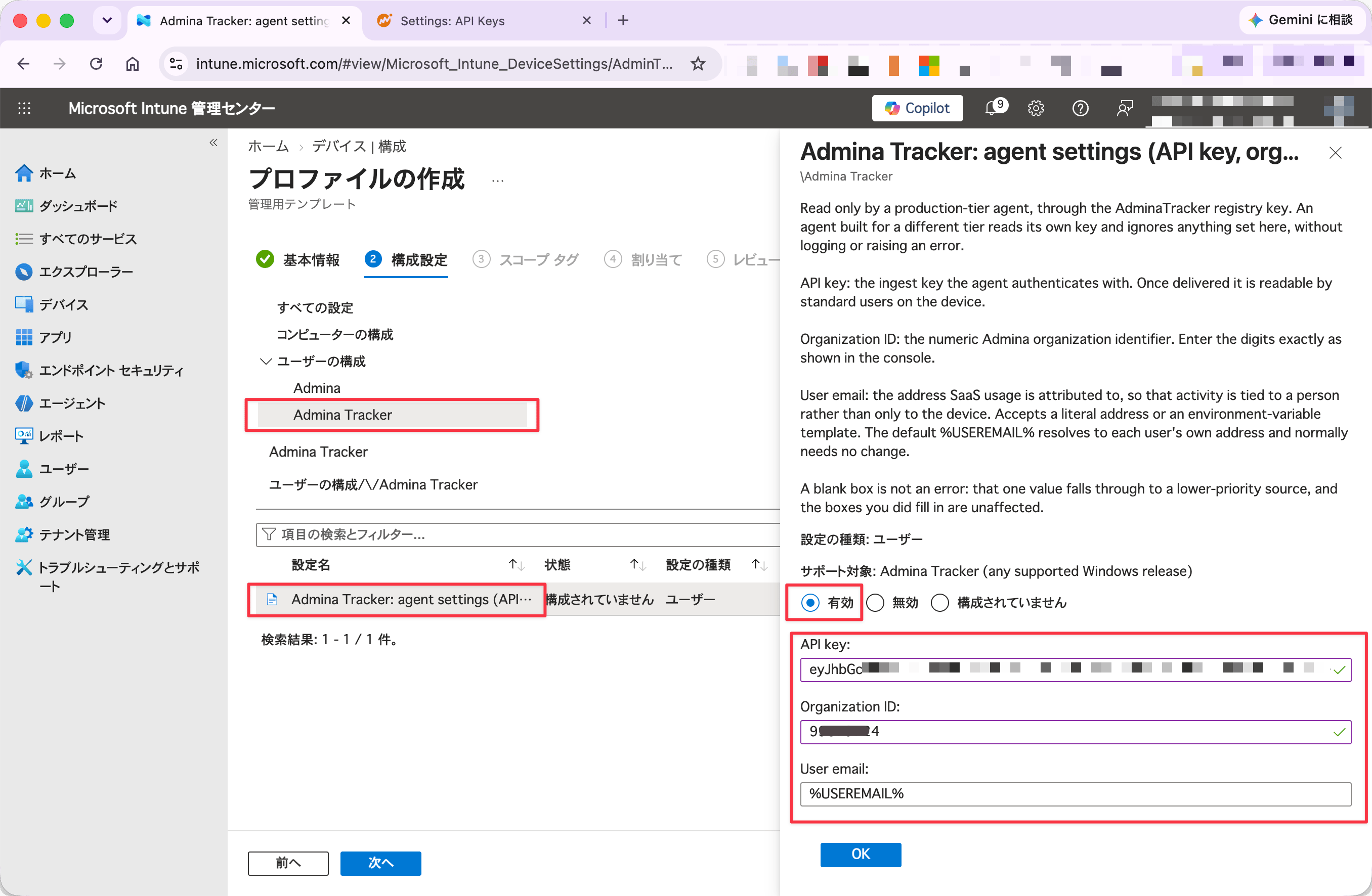
4. In **Configuration settings**, open the **Admina Tracker** category. Set **Admina Tracker: agent settings (API key, organization ID, user email)** to **Enabled**. Three input fields appear once it is enabled; enter a value in each:
* **API key** — The API key generated in the Admina management console
* **Organization ID** — Your Admina Organization ID
* **User email** — User email address. Defaults to `%USEREMAIL%`. To distribute a different value per user, leave the default unchanged and see [Distributing UserEmail](#distribute-useremail) below.
The three values are bundled into a single policy. `ApiKey`, `OrganizationID`, and `UserEmail` do not appear as separate policies. Leaving a field blank is not an error: that value alone falls through to a lower source in the [configuration resolution order](/en/it-management/admina-tracker/install-windows#config-resolution).
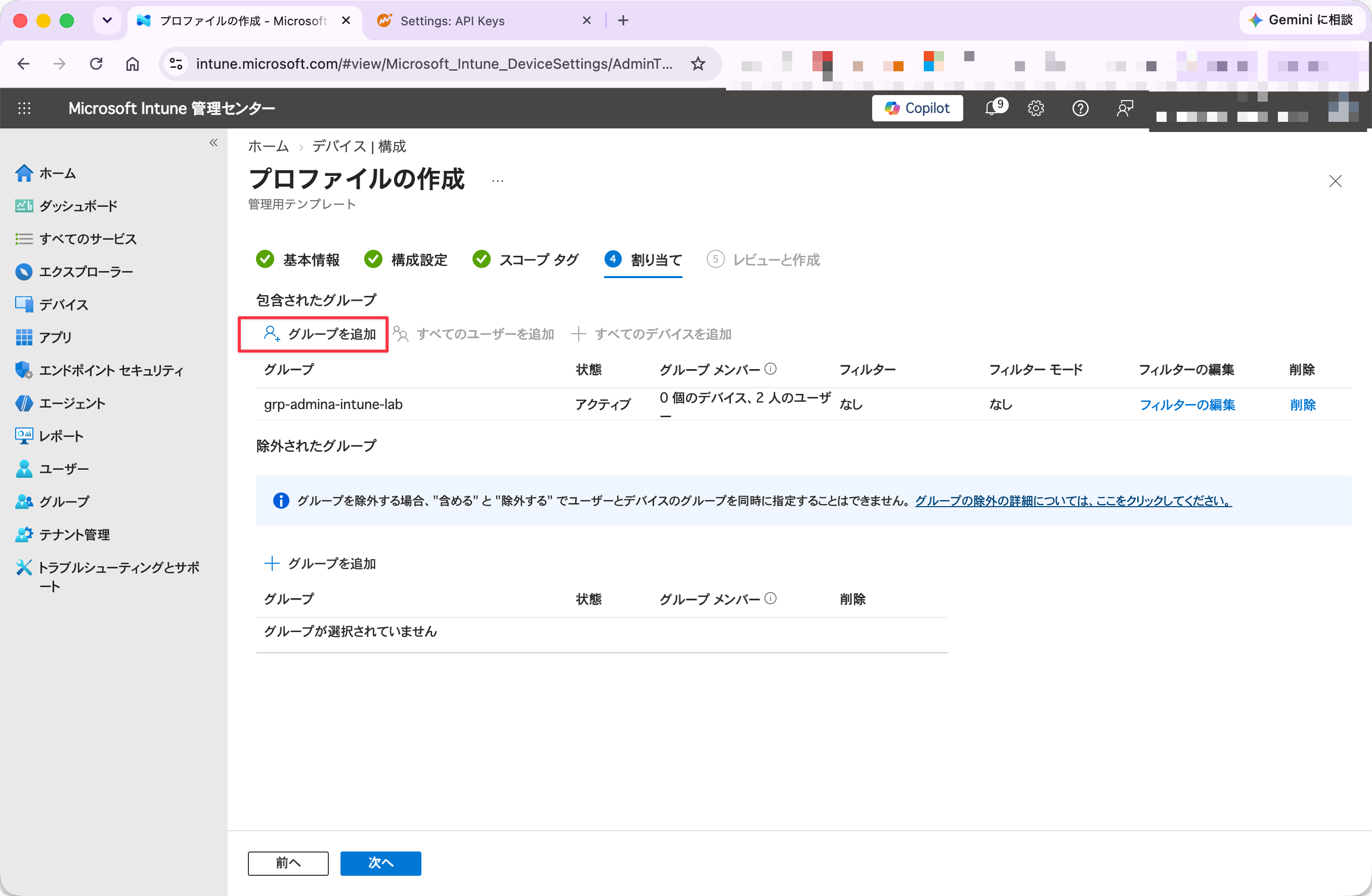
5. In **Assignments**, select the target groups.
**Configure the policy under User Configuration and assign it to user groups.** The policy also appears under Computer Configuration, but do not use it.
6. Review the settings and create the profile.
Distribute UserEmail
Leave the configuration policy's `UserEmail` field at its **default of `%USEREMAIL%`**. Then deploy `Set-UserEmailEnv.ps1` as an Intune platform script. The ADMX template ships this default, so there is nothing to type. The ADMX `UserEmail` field is treated as `expandable="true"` (`REG_EXPAND_SZ`). At agent startup, it expands using `HKCU\Environment\USEREMAIL` in the current session.
To learn where to obtain `Set-UserEmailEnv.ps1` and how to deploy it in Intune, see [Admina Extension Intune deployment](/en/it-management/admina-extension/windows-intune). Refer to the section "Step 3: Deploy the email address script". **If you have already deployed Admina Extension via Intune, `Set-UserEmailEnv.ps1` is already on client devices**. **Tracker requires no additional deployment**. One deployment covers both Extension and Tracker.
After deployment, run the following command in the target user's session to verify the environment variable is set:
```powershell theme={null}
[Environment]::GetEnvironmentVariable('USEREMAIL', 'User')
```
If `%USEREMAIL%` expansion fails, the Tracker agent rejects the template string as a value. It then falls back to a lower-priority configuration source. The literal `%USEREMAIL%` is not sent as the email address.
Step 3: Add and assign the app
1. In Intune admin center, go to **Apps** > **Windows** > **Add**.
2. Select **Windows app (Win32)** as the App type.
3. In **Select app package file**, upload the deployment package file ([`.intunewin`](https://dl.itmc.i.moneyforward.com/admina-tracker/stable/intune/latest/Install-AdminaTracker.intunewin)).
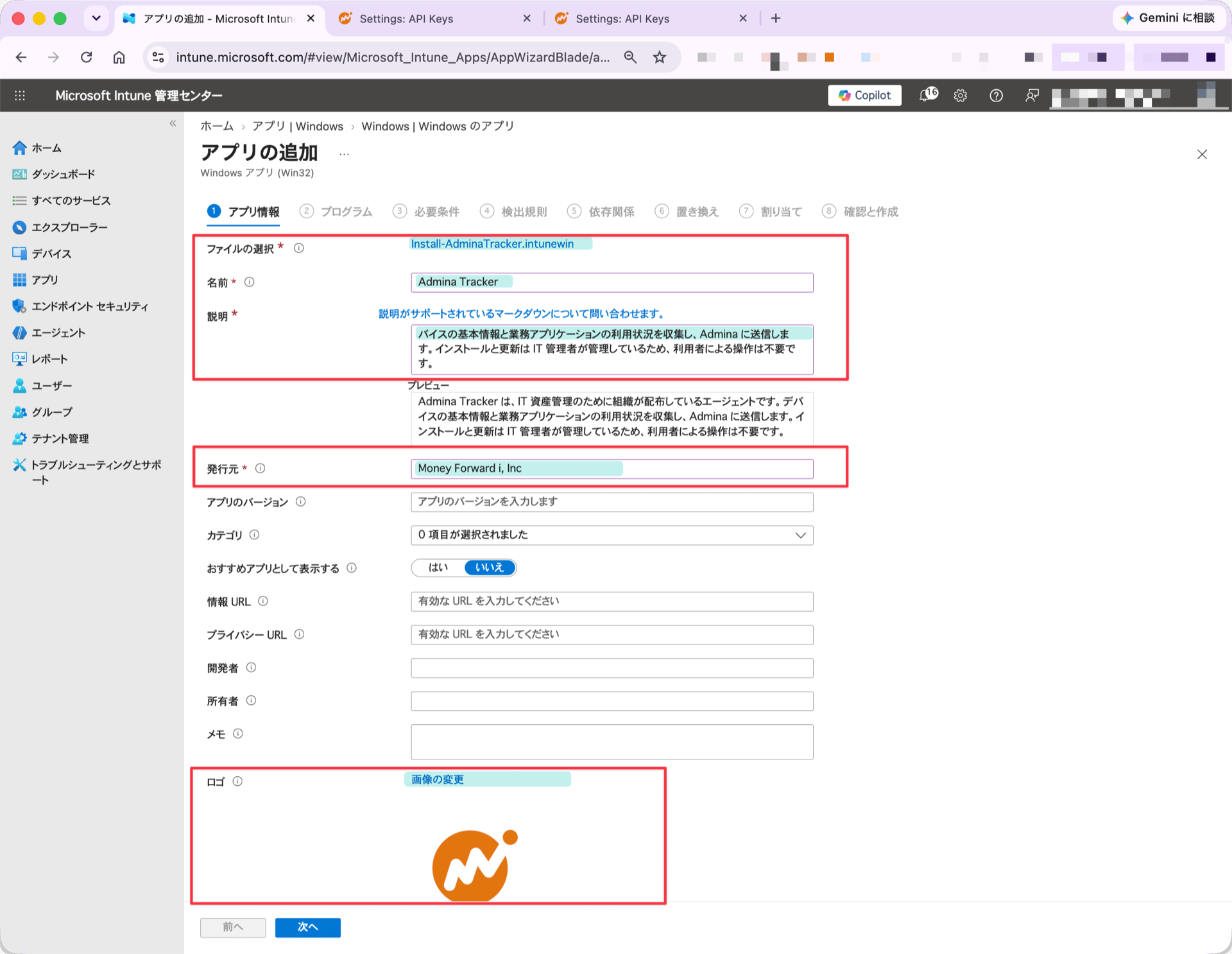
4. In **App information**, configure the following:
* Name: `Admina Tracker`
* Publisher: `Money Forward i, Inc`
* Description: Paste the following text
```text theme={null}
Admina Tracker is an agent your organization deploys for IT asset management. It collects basic device information and business application usage, and sends it to Admina. IT administrators manage its installation and updates, so no action is required from you.
```
* Logo: Right-click the image below, save it, and upload it (PNG, 512 × 512)
 **The description is also shown to end users in the Company Portal app.** Write it for the people who will read it there, not as an internal identifier. Adjust the wording about what is collected to match what your organization has communicated internally. **Category**, **Show this as a featured app in the Company Portal**, and **Logo** also affect how the app appears in the Company Portal.
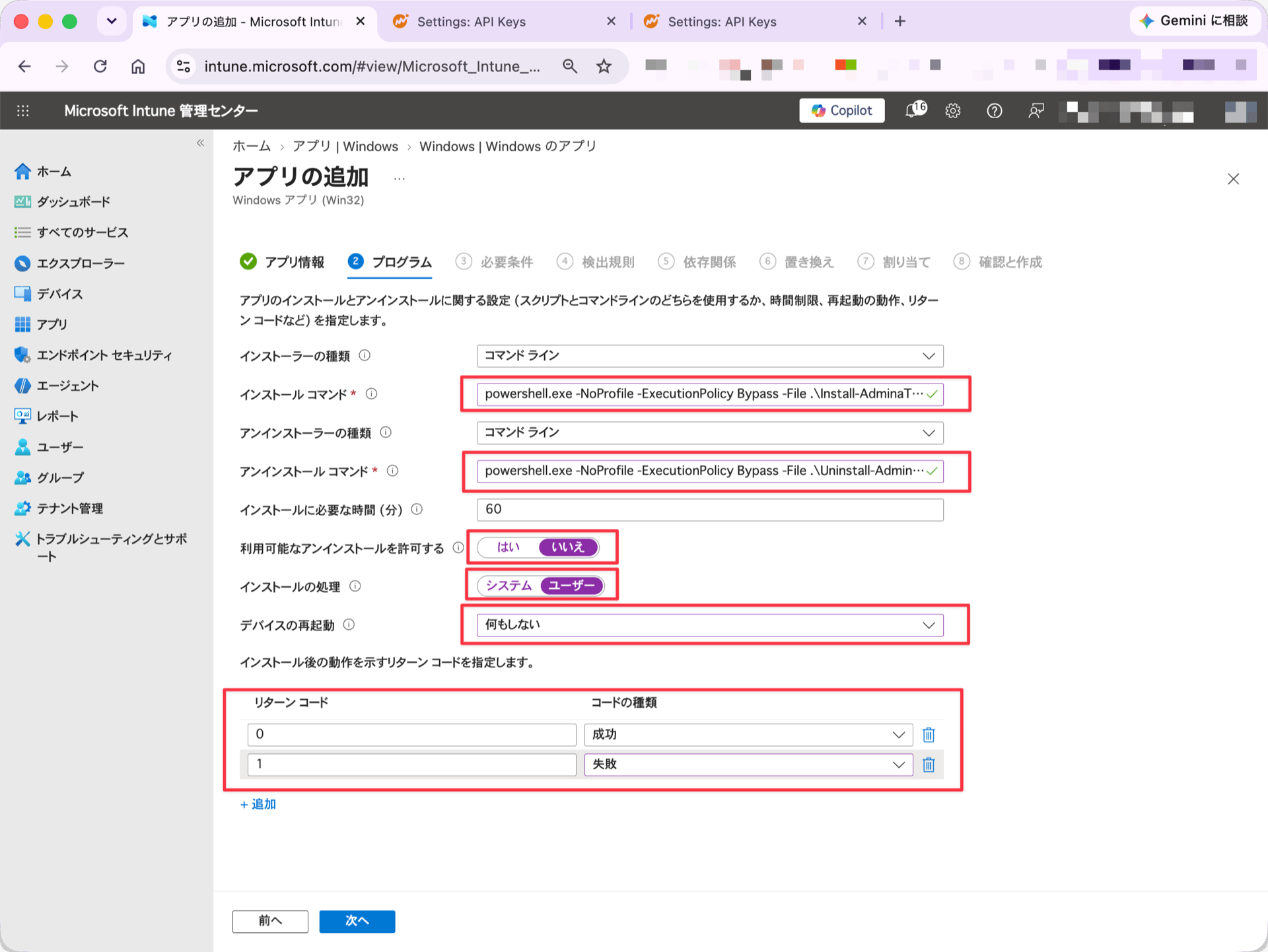
5. In **Program**, configure the following:
* Install command:
```text theme={null}
powershell.exe -NoProfile -ExecutionPolicy Bypass -File .\Install-AdminaTracker.ps1 -SkipConfigure
```
* Uninstall command:
```text theme={null}
powershell.exe -NoProfile -ExecutionPolicy Bypass -File .\Uninstall-AdminaTracker.ps1
```
* Install behavior: **User**
* Device restart behavior: **No specific action**
* Return codes: `0` (Success) / `1` (Failed)
Always set Install behavior to **User**. The agent installs into each user's profile directory and does not require administrator privileges (System context).
6. In **Requirements**, configure the following:
* Operating system architecture: **x64**
* Minimum operating system: **Windows 10 1809**
7. In **Detection rules**, configure the following:
* Rules format: **Use a custom detection script**
* Script file: Upload [`Detect-AdminaTracker.ps1`](https://dl.itmc.i.moneyforward.com/admina-tracker/stable/intune/latest/Detect-AdminaTracker.ps1) included in the deployment files
* Run script as 32-bit process on 64-bit clients: **No**
* Enforce script signature check and run script silently: **No**
Detection scripts cannot take arguments, so the deployment files include a pre-generated script with the environment already baked in. Use the one included in the deployment files as-is. Uploading a script built for a different environment makes detection report "not installed" every time, so Intune reinstalls the agent repeatedly.
8. **Dependencies** and **Supersedence** need no configuration. Click **Next** to continue.
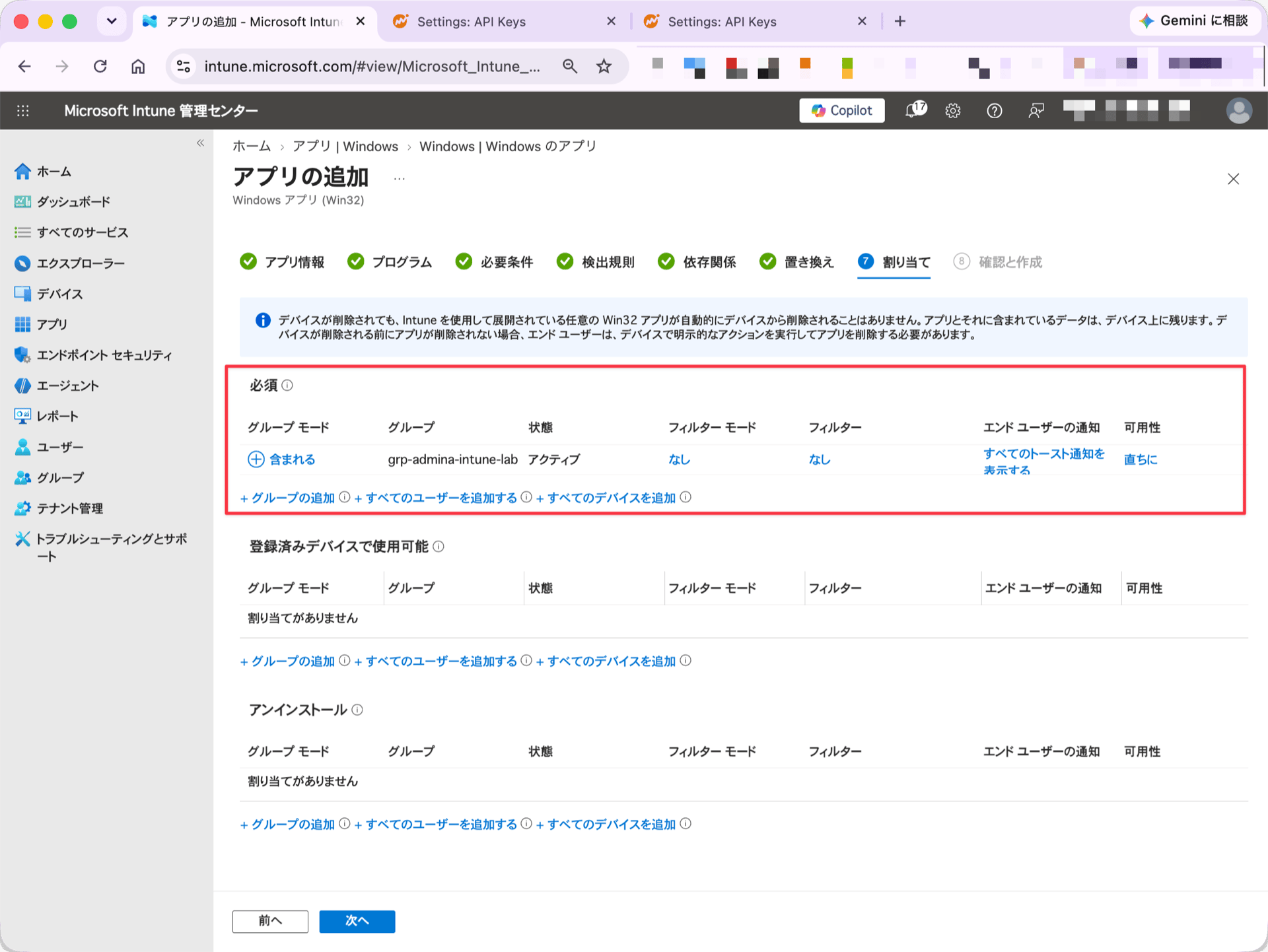
9. In **Assignments**, add the target **user groups** to the **Required** section.
Because the install behavior runs in user context, assign the app to **user groups** rather than device groups.
10. In **Review + create**, review the settings and click **Create**.
After assignment, the Intune agent syncs on the user's device. It installs the agent and applies settings automatically.
To change the assignment later, go to **Apps** > **Windows** > **Admina Tracker**. Edit the same settings under **Properties** > **Assignments** > **Edit**.
## Verify operation
### Verify in Intune admin center
Check the deployment status in Microsoft Intune admin center:
1. In Intune admin center, go to **Apps** > **Windows** > **Admina Tracker**.
2. Check **Device install status** or **User install status**.
3. Confirm that the target device or user status shows "Installed".
To speed up sync on the client device, have the user open **Settings** > **Accounts** > **Access work or school**. Then select the account and click **Info** > **Sync**.
### Verify agent operation on the client device
On devices deployed via Intune, the agent is installed in `%LOCALAPPDATA%\AdminaTracker\`. Open Command Prompt or PowerShell. Run `status` or `diag` with the full path to check status and connectivity.
PowerShell example:
```powershell theme={null}
# Show local diagnostic status
& "$env:LOCALAPPDATA\AdminaTracker\admina-tracker.exe" status
# Verify connectivity and authentication with the server
& "$env:LOCALAPPDATA\AdminaTracker\admina-tracker.exe" diag
```
Command Prompt example:
```cmd theme={null}
"%LOCALAPPDATA%\AdminaTracker\admina-tracker.exe" status
"%LOCALAPPDATA%\AdminaTracker\admina-tracker.exe" diag
```
## Deployed configuration values
The configuration profile writes settings to the following registry keys on client devices:
| Registry key | Setting | Description |
| - | - | - |
| `HKLM` or `HKCU\Software\Policies\MoneyForward-i\Admina\AdminaTracker` | `ApiKey` | API key for server communication |
| `HKLM` or `HKCU\Software\Policies\MoneyForward-i\Admina\AdminaTracker` | `OrganizationID` | Organization ID |
| `HKLM` or `HKCU\Software\Policies\MoneyForward-i\Admina\AdminaTracker` | `UserEmail` | User's email address |
* Settings are written to `HKLM` for computer configurations, or `HKCU` Policies hive for user configurations.
For details on the priority order used by the agent, see [Configuration resolution order for Admina Tracker (Windows)](/en/it-management/admina-tracker/install-windows#config-resolution).
## Uninstall
When uninstalling Admina Tracker, note that the app and configuration profile manage separate areas.
**Important**: Removing the configuration profile (ADMX) assignment alone will not stop the agent from collecting and sending data. The local database retains cached configuration values from the previous successful run (such as the API key). If the policy settings disappear, the agent automatically falls back to these cached values and continues sending telemetry. To completely stop data collection and transmission, you must uninstall the app itself (which removes the database).
### Uninstall the app
1. In Intune admin center, open **Apps** > **Windows** > **Admina Tracker**.
2. Open **Properties** > **Assignments** > **Edit**.
3. Remove the target group from "Required", and add the target user group to the "Uninstall" section.
4. Confirm that the **Group mode** on the row you added reads **Included**.
5. After saving, the uninstaller runs during the next client sync, removing the app binaries and scheduled tasks.
6. Confirm that **Device install status** displays "Uninstalled".
**If the group mode is left as "Excluded", the uninstall never runs.** An assignment that contains only an exclusion targets nobody. The device and user then disappear from the install status list, which looks like a completed uninstall — but **the agent keeps running on the device.**
Do not delete the app registration itself from your Intune tenant before sending the uninstall instruction to devices. Deleting the app definition prevents Intune from issuing uninstall commands, leaving the agent installed on client devices.
### Remove configuration profile assignment
1. In Intune admin center, open **Devices** > **Configuration**.
2. Open the Admina Tracker configuration profile and edit **Properties** > **Assignments**.
3. Remove the target group from the assignment and save.
4. Upon client sync, policy values in the registry (`Policies` hierarchy) are automatically removed.
### Resources removed during uninstallation
The resources removed by app uninstallation versus profile unassignment are as follows:
| Resource | App uninstall | Profile unassignment |
| - | :-: | :-: |
| Installation directory (`%LOCALAPPDATA%\AdminaTracker\`) | Removed | Retained |
| Agent and updater binaries | Removed | Retained |
| Local database (unsent data and cache) | Removed | Retained |
| Log files | Removed | Retained |
| Scheduled tasks (agent and updater) | Removed | Retained |
| Detection registry key (`HKCU\Software\MoneyForward-i\Admina\AdminaTracker`) | Removed | Retained |
| Policy settings (`ApiKey`, `OrganizationID`, `UserEmail` under `Policies`) | Retained | Removed |
## Troubleshooting
### Installation status shows "Failed"
* **Check target group assignment**: Verify that the assignment is set to a user group, not a device group.
* **Check Intune logs**: Check logs in `C:\ProgramData\Microsoft\IntuneManagementExtension\Logs\` for error details.
### Configuration settings are not applied
* **Check ADMX template status**: In **Import ADMX**, confirm that the template status shows "Available".
* **Check profile type**: Verify the profile uses "Imported Administrative templates (Preview)", not built-in templates.
### Uninstall never runs
If nothing happens after you assign the uninstall, check the following in order.
**1. Check the group mode**
In Intune admin center, open **Apps** > **Admina Tracker** > **Properties** > **Assignments**. Confirm that the **Group mode** on the "Uninstall" row reads **Included**. An assignment set to "Excluded" targets nobody, so the uninstall never runs.
**2. Check whether the device received the uninstall instruction**
Open PowerShell in the target user's session and run:
```powershell theme={null}
Select-String -Path "C:\ProgramData\Microsoft\IntuneManagementExtension\Logs\AppWorkload.log" -Pattern "Admina" |
Measure-Object | Select-Object Count
```
A `Count` of `0` means the device does not consider itself targeted by this app. Review the assignment (step 1) and the group membership.
**3. Force re-evaluation**
Win32 apps are re-evaluated roughly every 8 hours by default. To run it immediately, open PowerShell as an administrator and run:
```powershell theme={null}
Restart-Service IntuneManagementExtension
```
This does not drop a Remote Desktop connection. Wait 5-10 minutes, then repeat step 2.
**4. Check the result**
```powershell theme={null}
Select-String -Path "C:\ProgramData\Microsoft\IntuneManagementExtension\Logs\AppWorkload.log" -Pattern "lpExitCode|EnforcementState" |
Select-Object -Last 5 | ForEach-Object { $_.Line }
```
`lpExitCode 0` together with an `EnforcementState` of `Success` means the uninstall completed normally.
### Agent remains after uninstallation
* **Only configuration profile was removed**: Removing the profile leaves agent binaries. Set app assignment to "Uninstall".
* **User not signed in**: Uninstallation completes only after the user signs in and triggers a sync.
* **File lock**: If files are locked by antivirus scans or updater processes, sign out, sign in again, and retry the sync.
This documentation is built and hosted on [Mintlify](https://mintlify.com), a developer documentation platform.
**The description is also shown to end users in the Company Portal app.** Write it for the people who will read it there, not as an internal identifier. Adjust the wording about what is collected to match what your organization has communicated internally. **Category**, **Show this as a featured app in the Company Portal**, and **Logo** also affect how the app appears in the Company Portal.
5. In **Program**, configure the following:
* Install command:
```text theme={null}
powershell.exe -NoProfile -ExecutionPolicy Bypass -File .\Install-AdminaTracker.ps1 -SkipConfigure
```
* Uninstall command:
```text theme={null}
powershell.exe -NoProfile -ExecutionPolicy Bypass -File .\Uninstall-AdminaTracker.ps1
```
* Install behavior: **User**
* Device restart behavior: **No specific action**
* Return codes: `0` (Success) / `1` (Failed)
Always set Install behavior to **User**. The agent installs into each user's profile directory and does not require administrator privileges (System context).
6. In **Requirements**, configure the following:
* Operating system architecture: **x64**
* Minimum operating system: **Windows 10 1809**
7. In **Detection rules**, configure the following:
* Rules format: **Use a custom detection script**
* Script file: Upload [`Detect-AdminaTracker.ps1`](https://dl.itmc.i.moneyforward.com/admina-tracker/stable/intune/latest/Detect-AdminaTracker.ps1) included in the deployment files
* Run script as 32-bit process on 64-bit clients: **No**
* Enforce script signature check and run script silently: **No**
Detection scripts cannot take arguments, so the deployment files include a pre-generated script with the environment already baked in. Use the one included in the deployment files as-is. Uploading a script built for a different environment makes detection report "not installed" every time, so Intune reinstalls the agent repeatedly.
8. **Dependencies** and **Supersedence** need no configuration. Click **Next** to continue.
9. In **Assignments**, add the target **user groups** to the **Required** section.
Because the install behavior runs in user context, assign the app to **user groups** rather than device groups.
10. In **Review + create**, review the settings and click **Create**.
After assignment, the Intune agent syncs on the user's device. It installs the agent and applies settings automatically.
To change the assignment later, go to **Apps** > **Windows** > **Admina Tracker**. Edit the same settings under **Properties** > **Assignments** > **Edit**.
## Verify operation
### Verify in Intune admin center
Check the deployment status in Microsoft Intune admin center:
1. In Intune admin center, go to **Apps** > **Windows** > **Admina Tracker**.
2. Check **Device install status** or **User install status**.
3. Confirm that the target device or user status shows "Installed".
To speed up sync on the client device, have the user open **Settings** > **Accounts** > **Access work or school**. Then select the account and click **Info** > **Sync**.
### Verify agent operation on the client device
On devices deployed via Intune, the agent is installed in `%LOCALAPPDATA%\AdminaTracker\`. Open Command Prompt or PowerShell. Run `status` or `diag` with the full path to check status and connectivity.
PowerShell example:
```powershell theme={null}
# Show local diagnostic status
& "$env:LOCALAPPDATA\AdminaTracker\admina-tracker.exe" status
# Verify connectivity and authentication with the server
& "$env:LOCALAPPDATA\AdminaTracker\admina-tracker.exe" diag
```
Command Prompt example:
```cmd theme={null}
"%LOCALAPPDATA%\AdminaTracker\admina-tracker.exe" status
"%LOCALAPPDATA%\AdminaTracker\admina-tracker.exe" diag
```
## Deployed configuration values
The configuration profile writes settings to the following registry keys on client devices:
| Registry key | Setting | Description |
| - | - | - |
| `HKLM` or `HKCU\Software\Policies\MoneyForward-i\Admina\AdminaTracker` | `ApiKey` | API key for server communication |
| `HKLM` or `HKCU\Software\Policies\MoneyForward-i\Admina\AdminaTracker` | `OrganizationID` | Organization ID |
| `HKLM` or `HKCU\Software\Policies\MoneyForward-i\Admina\AdminaTracker` | `UserEmail` | User's email address |
* Settings are written to `HKLM` for computer configurations, or `HKCU` Policies hive for user configurations.
For details on the priority order used by the agent, see [Configuration resolution order for Admina Tracker (Windows)](/en/it-management/admina-tracker/install-windows#config-resolution).
## Uninstall
When uninstalling Admina Tracker, note that the app and configuration profile manage separate areas.
**Important**: Removing the configuration profile (ADMX) assignment alone will not stop the agent from collecting and sending data. The local database retains cached configuration values from the previous successful run (such as the API key). If the policy settings disappear, the agent automatically falls back to these cached values and continues sending telemetry. To completely stop data collection and transmission, you must uninstall the app itself (which removes the database).
### Uninstall the app
1. In Intune admin center, open **Apps** > **Windows** > **Admina Tracker**.
2. Open **Properties** > **Assignments** > **Edit**.
3. Remove the target group from "Required", and add the target user group to the "Uninstall" section.
4. Confirm that the **Group mode** on the row you added reads **Included**.
5. After saving, the uninstaller runs during the next client sync, removing the app binaries and scheduled tasks.
6. Confirm that **Device install status** displays "Uninstalled".
**If the group mode is left as "Excluded", the uninstall never runs.** An assignment that contains only an exclusion targets nobody. The device and user then disappear from the install status list, which looks like a completed uninstall — but **the agent keeps running on the device.**
Do not delete the app registration itself from your Intune tenant before sending the uninstall instruction to devices. Deleting the app definition prevents Intune from issuing uninstall commands, leaving the agent installed on client devices.
### Remove configuration profile assignment
1. In Intune admin center, open **Devices** > **Configuration**.
2. Open the Admina Tracker configuration profile and edit **Properties** > **Assignments**.
3. Remove the target group from the assignment and save.
4. Upon client sync, policy values in the registry (`Policies` hierarchy) are automatically removed.
### Resources removed during uninstallation
The resources removed by app uninstallation versus profile unassignment are as follows:
| Resource | App uninstall | Profile unassignment |
| - | :-: | :-: |
| Installation directory (`%LOCALAPPDATA%\AdminaTracker\`) | Removed | Retained |
| Agent and updater binaries | Removed | Retained |
| Local database (unsent data and cache) | Removed | Retained |
| Log files | Removed | Retained |
| Scheduled tasks (agent and updater) | Removed | Retained |
| Detection registry key (`HKCU\Software\MoneyForward-i\Admina\AdminaTracker`) | Removed | Retained |
| Policy settings (`ApiKey`, `OrganizationID`, `UserEmail` under `Policies`) | Retained | Removed |
## Troubleshooting
### Installation status shows "Failed"
* **Check target group assignment**: Verify that the assignment is set to a user group, not a device group.
* **Check Intune logs**: Check logs in `C:\ProgramData\Microsoft\IntuneManagementExtension\Logs\` for error details.
### Configuration settings are not applied
* **Check ADMX template status**: In **Import ADMX**, confirm that the template status shows "Available".
* **Check profile type**: Verify the profile uses "Imported Administrative templates (Preview)", not built-in templates.
### Uninstall never runs
If nothing happens after you assign the uninstall, check the following in order.
**1. Check the group mode**
In Intune admin center, open **Apps** > **Admina Tracker** > **Properties** > **Assignments**. Confirm that the **Group mode** on the "Uninstall" row reads **Included**. An assignment set to "Excluded" targets nobody, so the uninstall never runs.
**2. Check whether the device received the uninstall instruction**
Open PowerShell in the target user's session and run:
```powershell theme={null}
Select-String -Path "C:\ProgramData\Microsoft\IntuneManagementExtension\Logs\AppWorkload.log" -Pattern "Admina" |
Measure-Object | Select-Object Count
```
A `Count` of `0` means the device does not consider itself targeted by this app. Review the assignment (step 1) and the group membership.
**3. Force re-evaluation**
Win32 apps are re-evaluated roughly every 8 hours by default. To run it immediately, open PowerShell as an administrator and run:
```powershell theme={null}
Restart-Service IntuneManagementExtension
```
This does not drop a Remote Desktop connection. Wait 5-10 minutes, then repeat step 2.
**4. Check the result**
```powershell theme={null}
Select-String -Path "C:\ProgramData\Microsoft\IntuneManagementExtension\Logs\AppWorkload.log" -Pattern "lpExitCode|EnforcementState" |
Select-Object -Last 5 | ForEach-Object { $_.Line }
```
`lpExitCode 0` together with an `EnforcementState` of `Success` means the uninstall completed normally.
### Agent remains after uninstallation
* **Only configuration profile was removed**: Removing the profile leaves agent binaries. Set app assignment to "Uninstall".
* **User not signed in**: Uninstallation completes only after the user signs in and triggers a sync.
* **File lock**: If files are locked by antivirus scans or updater processes, sign out, sign in again, and retry the sync.
This documentation is built and hosted on [Mintlify](https://mintlify.com), a developer documentation platform.