> ## Documentation Index
> Fetch the complete documentation index at: https://support.i.moneyforward.com/llms.txt
> Use this file to discover all available pages before exploring further.
# Install Admina Tracker (Windows solo)
> Step-by-step guide to installing Admina Tracker manually on Windows. Download the installer, configure your API key, and start collecting device data.
Follow these steps to manually install Admina Tracker on an individual Windows device. Download the installer, configure your API key, and start collecting device data automatically.
## Installation steps
Step 1: Generate an API key
Admina Tracker requires an organization-specific API key to send data.
1. Log in to the Admina management console.
2. Open the **Settings** > **Admina Tracker** tab.
3. In the **API Key** section, click **Generate new API key**.
4. Copy the generated API key.
The API key is only displayed when generated. Copy it and store it securely. If lost, you can issue a new key by clicking **Recreate**, but you will need to update all existing Admina Tracker installations.
Note down the organization ID shown in **Settings** > **API keys**. You will use it as the Organization ID.
Step 2: Download the installer
1. Open the **Downloads** section on the **Settings** > **Admina Tracker** tab.
2. Download the **Windows (x64)** installer.
To get the installer without going through the console, download the [latest Windows (x64) installer](https://dl.itmc.i.moneyforward.com/admina-tracker/stable/win-x64/latest) directly.
Step 3: Install
1. Run the downloaded installer.
2. Select the installation folder (the default location is recommended).
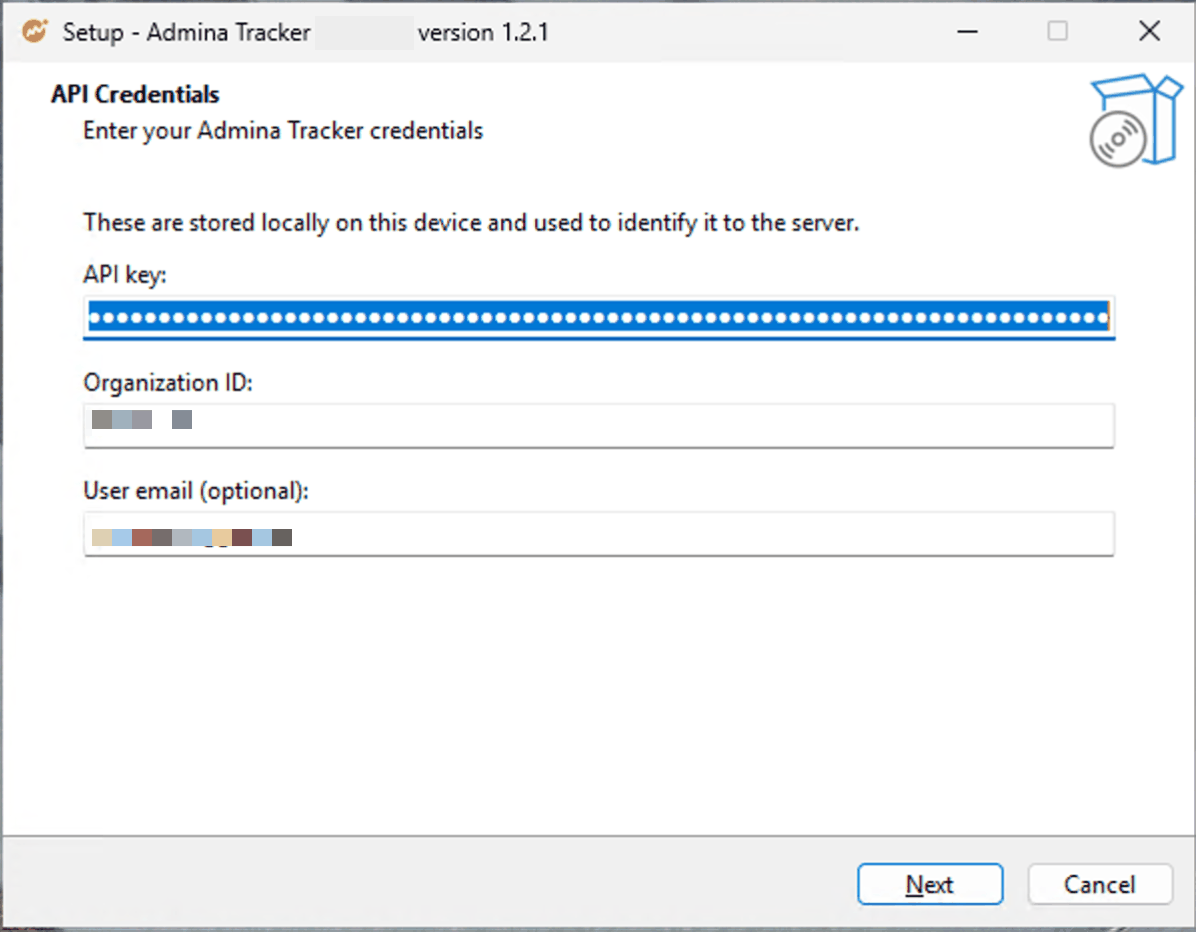
3. Enter the following on the next screen:
* `API key` — The API key generated in Step 1
* `Organization ID` — The Organization ID displayed in the management console
* `User email` (optional) — The user's email address
4. Click **Install**.
5. Installation is complete when "Installation complete" is displayed.
 After installation is complete, Admina Tracker automatically starts in the background. It starts automatically when you log in to Windows, so manual launch is not required.
Admina Tracker works with only `API key` and `Organization ID`, even if you leave `User email` empty. Admina identifies the device by its serial number and adds it to the device list. If a device with the same serial number already exists, Admina does not create a new device and uses the existing one.
Application usage is still recorded in Admina. Usage is tied to the device instead of the user's email address. Each record includes the device's host name, or the serial number if the host name is unavailable. You can tell which device was used, but not which user used it.
## Verify operation
Run the following command in Command Prompt to verify that Admina Tracker is running properly. It uses the full path so that it works right after installation.
```bat theme={null}
"%LOCALAPPDATA%\AdminaTracker\admina-tracker.exe" status
```
In PowerShell, run:
```powershell theme={null}
& "$env:LOCALAPPDATA\AdminaTracker\admina-tracker.exe" status
```
If running properly, the agent status is displayed.
## Uninstall
### Uninstall from Apps & features
1. Open **Settings** > **Apps** > **Apps & features**.
2. Locate **Admina Tracker** in the list.
3. Click **Uninstall**.
4. Choose whether to remove data and logs:
* Select **Yes** to delete all data and logs.
* Select **No** to keep data and logs for a future reinstall.
5. Uninstallation is complete when "Admina Tracker was successfully removed from your computer." is displayed.
If you select **No**, the following folders and files remain. If you changed the install folder, they remain under that folder.
| Path | Contents |
| - | - |
| `%LOCALAPPDATA%\AdminaTracker\data\` | Data directory. It holds the SQLite database of collected data (`agent.db`) and the API key, Organization ID, and User email settings |
| `%LOCALAPPDATA%\AdminaTracker\logs\` | Agent and updater logs |
The scheduled tasks, the `PATH` entry, and the registry values used for install detection are removed either way.
To carry over your previous settings when reinstalling, we recommend keeping the data. If data is kept, the API key, Organization ID, and User email are automatically filled in during reinstall.
## Troubleshooting
### "Windows protected your PC" warning
Windows SmartScreen may display this message on first launch. Click **More info**, then select **Run anyway**.
For other issues, such as API key errors or service stoppages, see [Admina Tracker (Windows) FAQ](/en/it-management/admina-tracker/install-windows#faq).
This documentation is built and hosted on [Mintlify](https://mintlify.com), a developer documentation platform.
After installation is complete, Admina Tracker automatically starts in the background. It starts automatically when you log in to Windows, so manual launch is not required.
Admina Tracker works with only `API key` and `Organization ID`, even if you leave `User email` empty. Admina identifies the device by its serial number and adds it to the device list. If a device with the same serial number already exists, Admina does not create a new device and uses the existing one.
Application usage is still recorded in Admina. Usage is tied to the device instead of the user's email address. Each record includes the device's host name, or the serial number if the host name is unavailable. You can tell which device was used, but not which user used it.
## Verify operation
Run the following command in Command Prompt to verify that Admina Tracker is running properly. It uses the full path so that it works right after installation.
```bat theme={null}
"%LOCALAPPDATA%\AdminaTracker\admina-tracker.exe" status
```
In PowerShell, run:
```powershell theme={null}
& "$env:LOCALAPPDATA\AdminaTracker\admina-tracker.exe" status
```
If running properly, the agent status is displayed.
## Uninstall
### Uninstall from Apps & features
1. Open **Settings** > **Apps** > **Apps & features**.
2. Locate **Admina Tracker** in the list.
3. Click **Uninstall**.
4. Choose whether to remove data and logs:
* Select **Yes** to delete all data and logs.
* Select **No** to keep data and logs for a future reinstall.
5. Uninstallation is complete when "Admina Tracker was successfully removed from your computer." is displayed.
If you select **No**, the following folders and files remain. If you changed the install folder, they remain under that folder.
| Path | Contents |
| - | - |
| `%LOCALAPPDATA%\AdminaTracker\data\` | Data directory. It holds the SQLite database of collected data (`agent.db`) and the API key, Organization ID, and User email settings |
| `%LOCALAPPDATA%\AdminaTracker\logs\` | Agent and updater logs |
The scheduled tasks, the `PATH` entry, and the registry values used for install detection are removed either way.
To carry over your previous settings when reinstalling, we recommend keeping the data. If data is kept, the API key, Organization ID, and User email are automatically filled in during reinstall.
## Troubleshooting
### "Windows protected your PC" warning
Windows SmartScreen may display this message on first launch. Click **More info**, then select **Run anyway**.
For other issues, such as API key errors or service stoppages, see [Admina Tracker (Windows) FAQ](/en/it-management/admina-tracker/install-windows#faq).
This documentation is built and hosted on [Mintlify](https://mintlify.com), a developer documentation platform.