> ## Documentation Index
> Fetch the complete documentation index at: https://support.i.moneyforward.com/llms.txt
> Use this file to discover all available pages before exploring further.
# 2. Check SaaS Payment Status
> Check SaaS payment status and details. You can manually link payments that were not automatically matched to a SaaS.
You need Admin permission to view this page. See [Basic Roles](/en/it-management/settings/yne7fl2lcy-role-new) for details.
#### Check SaaS Payment Status
The **Spending** screen shows data retrieved from your connected accounting service.
You can also manually link SaaS payment data or remove incorrect links.
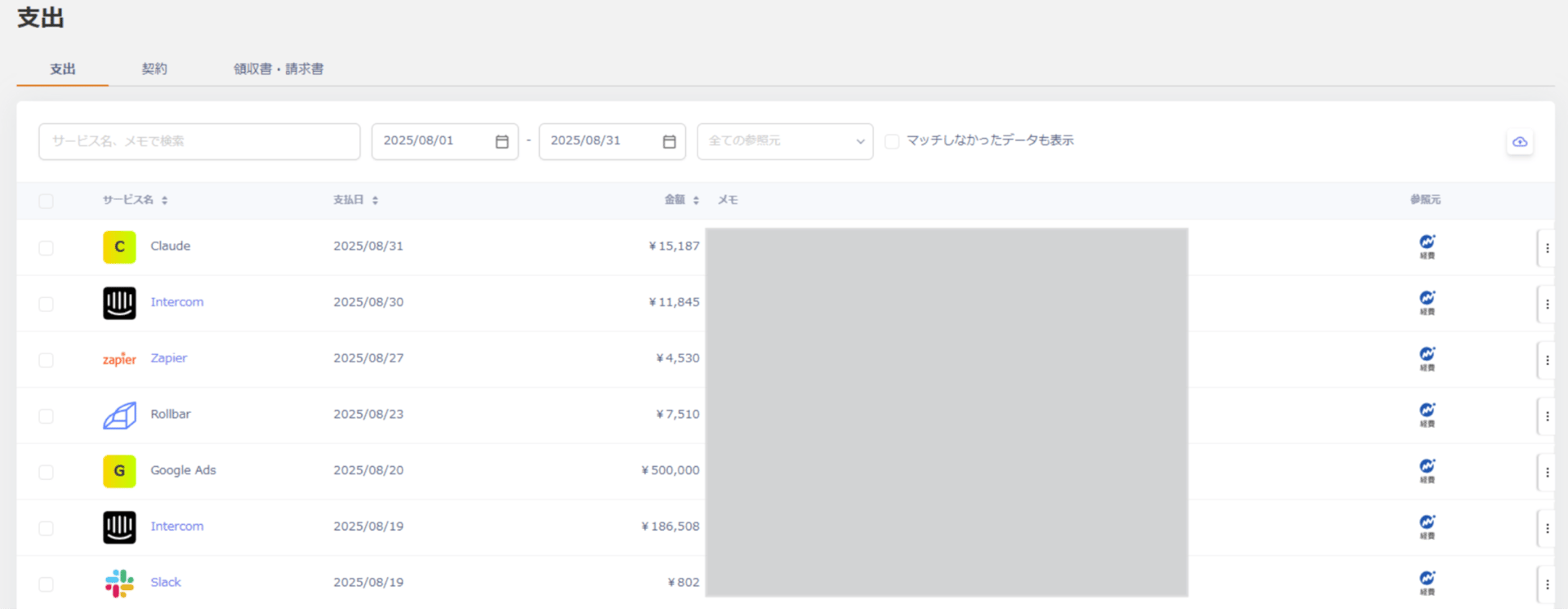 #### Show all data
By default, the screen shows only data that matched a SaaS name based on the memo field.
To include unmatched data, check **`Show unmatched data`**.
#### Show all data
By default, the screen shows only data that matched a SaaS name based on the memo field.
To include unmatched data, check **`Show unmatched data`**.
 #### Change the service name for payment data (manual linking)
This service automatically matches payment data from your connected accounting system against the SaaS database.
You can manually change the service name for unmatched data or incorrectly linked data.
**Steps**
1. Under Spending, click the three-dot menu \[**︙**] for a spending entry, then click **Edit**.
#### Change the service name for payment data (manual linking)
This service automatically matches payment data from your connected accounting system against the SaaS database.
You can manually change the service name for unmatched data or incorrectly linked data.
**Steps**
1. Under Spending, click the three-dot menu \[**︙**] for a spending entry, then click **Edit**.
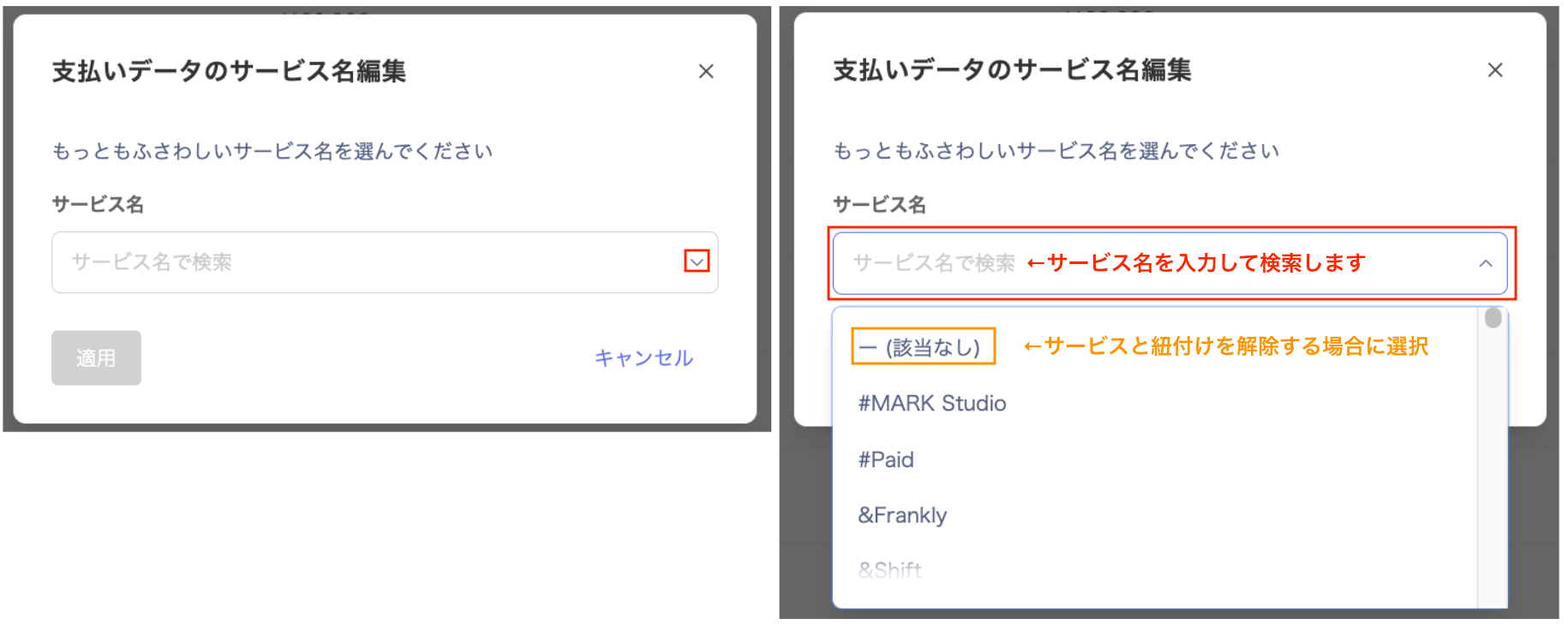
 2. In the **Edit service name for payment data** screen, type and select the service name you want to link, then click **Apply**.
To remove the link, select **— (None)**.
2. In the **Edit service name for payment data** screen, type and select the service name you want to link, then click **Apply**.
To remove the link, select **— (None)**.
 3. Confirm that the service name has changed to the one you selected.
