> ## Documentation Index
> Fetch the complete documentation index at: https://support.i.moneyforward.com/llms.txt
> Use this file to discover all available pages before exploring further.
# 2-5. Create and Manage Device Groups
> Learn how to dynamically aggregate and group devices that match a specified filter.
This feature dynamically aggregates and groups devices that match a specified filter (attribute, operator, and value). Created groups appear as tabs on the Devices screen. Other features, such as automations, alert rules, and the Directory, can also reference them. This feature does not add devices one by one manually.
## Steps to Create a Device Group
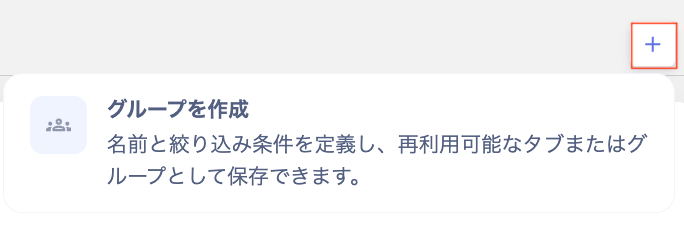
1. Click **+** at the top of the Devices screen.
 2. Select **Create group**.
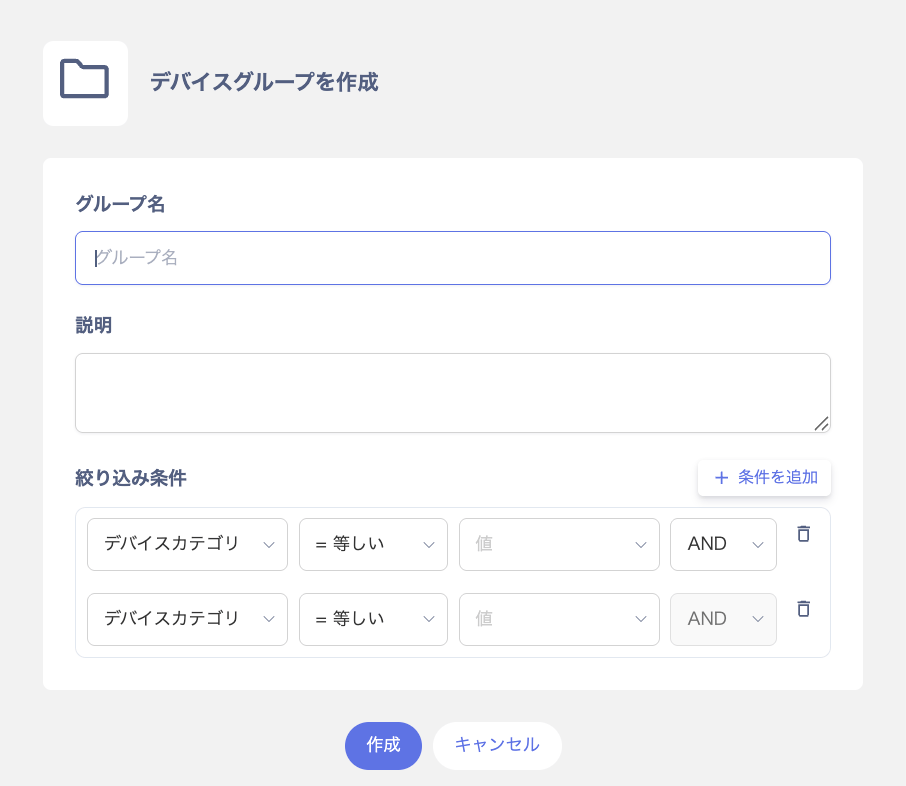
 3. On the "Create device group" screen, enter a group name and description, then set the filter conditions. Click **Add condition** to add multiple conditions. You can connect conditions with **AND** or **OR**.
* Group name is required, up to 255 characters.
* Description is optional, up to 1,024 characters.
* Attributes include device type, model name, OS, and location, plus custom fields and MDM fields.
* Operators include: equals / not equals / contains / starts with / after / before / later than / earlier than.
* For values, select the target value from the dropdown.
3. On the "Create device group" screen, enter a group name and description, then set the filter conditions. Click **Add condition** to add multiple conditions. You can connect conditions with **AND** or **OR**.
* Group name is required, up to 255 characters.
* Description is optional, up to 1,024 characters.
* Attributes include device type, model name, OS, and location, plus custom fields and MDM fields.
* Operators include: equals / not equals / contains / starts with / after / before / later than / earlier than.
* For values, select the target value from the dropdown.
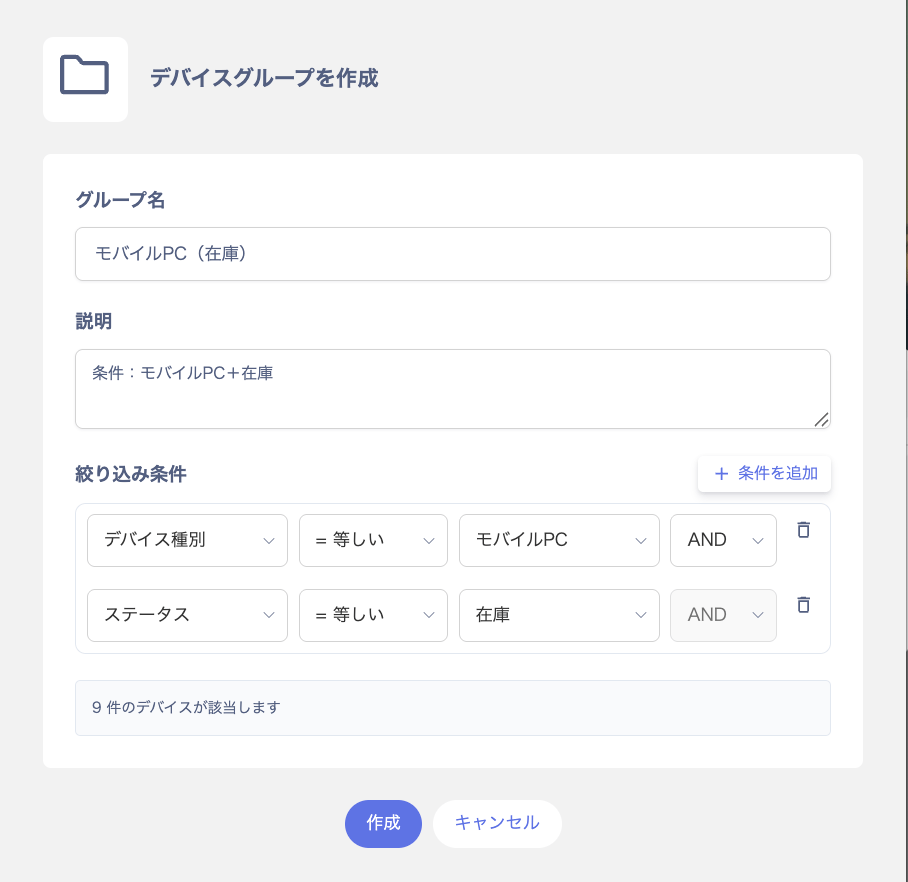
 4. The number of matching devices appears, for example "X devices match." Check the settings, then click **Create**.
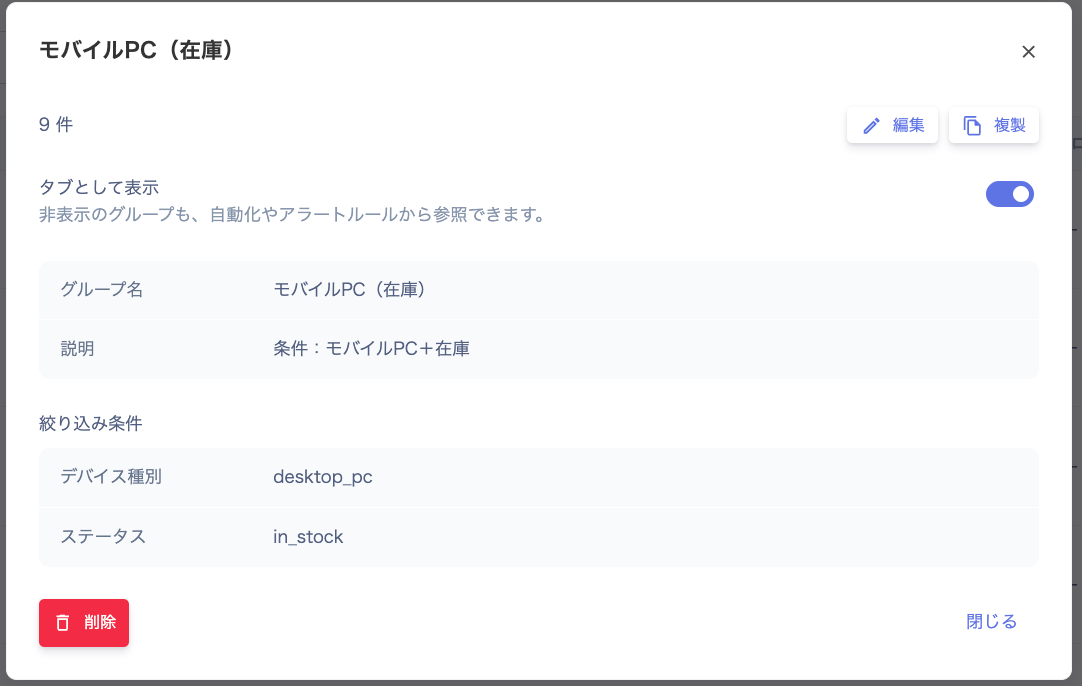
 5. A confirmation screen appears. Check the registered details, then click **Close**. After creation, a new tab and group appear on the list screen.
 You must set at least one filter condition when creating a group.
## Manage Groups
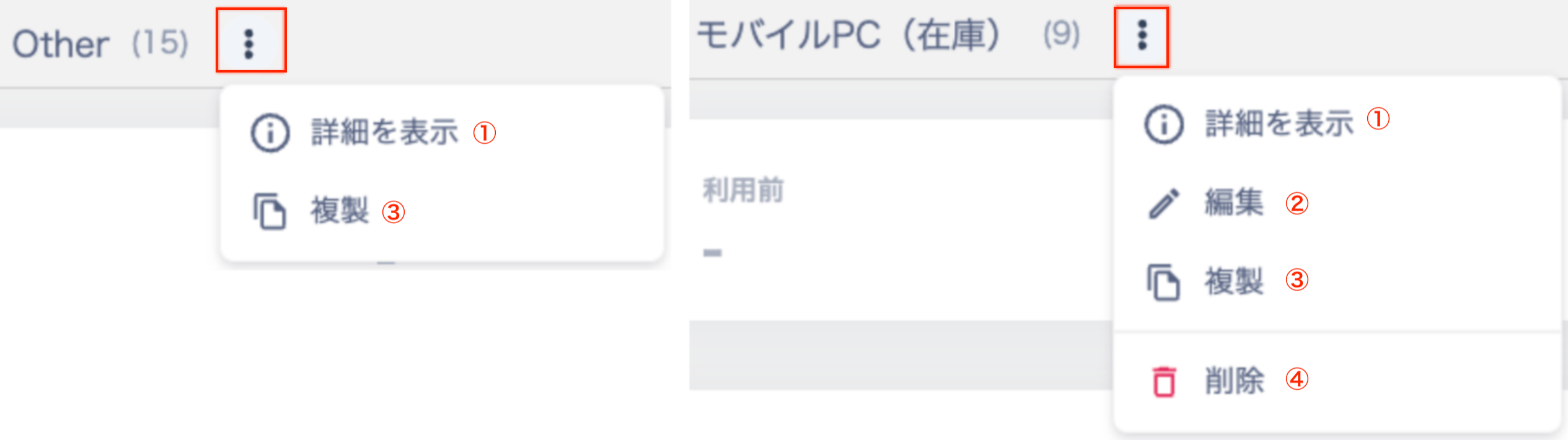
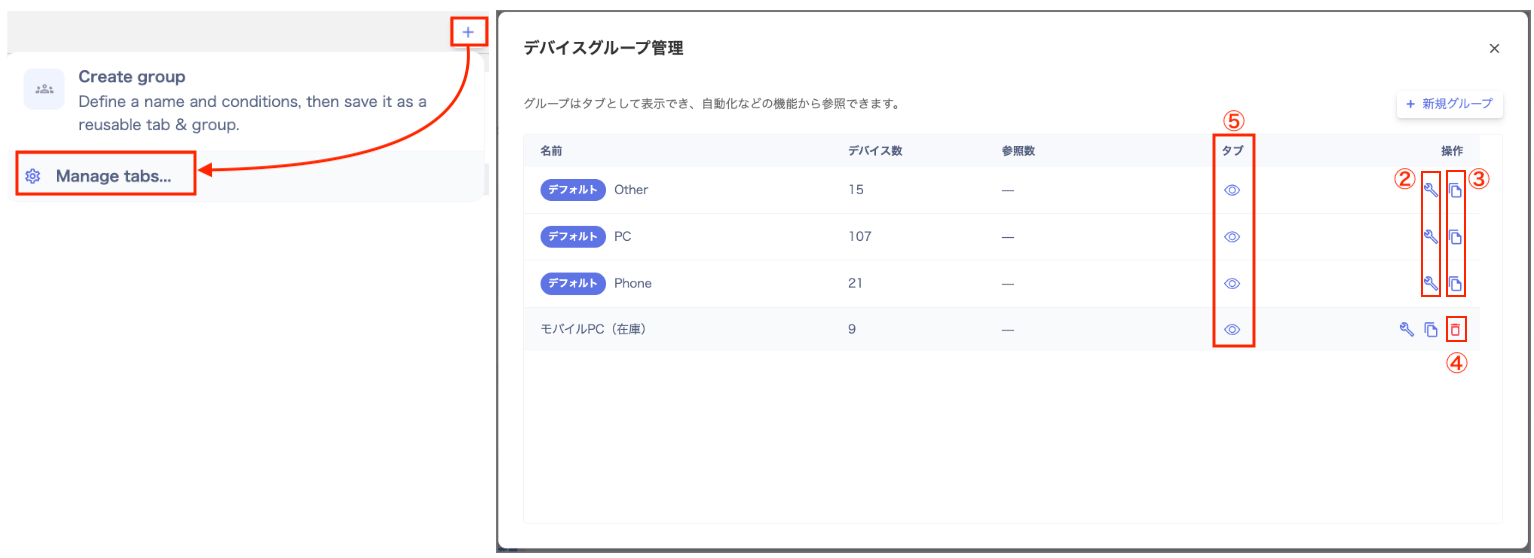
From the menu on a created group's tab (or **Manage groups**), you can perform the following actions.
You must set at least one filter condition when creating a group.
## Manage Groups
From the menu on a created group's tab (or **Manage groups**), you can perform the following actions.
 | No. | Action | Description |
| --- | ----------------- | ---------------------------------------------------------------------- |
| 1 | View details | Check the group's registered information and applied conditions. |
| 2 | Edit | Change the group name, description, or filter conditions. |
| 3 | Duplicate | Copy an existing group's conditions to efficiently create a new group. |
| 4 | Delete | Delete a group you no longer need. |
| 5 | Toggle visibility | Toggle whether the tab appears in the tab bar. |
| No. | Action | Description |
| --- | ----------------- | ---------------------------------------------------------------------- |
| 1 | View details | Check the group's registered information and applied conditions. |
| 2 | Edit | Change the group name, description, or filter conditions. |
| 3 | Duplicate | Copy an existing group's conditions to efficiently create a new group. |
| 4 | Delete | Delete a group you no longer need. |
| 5 | Toggle visibility | Toggle whether the tab appears in the tab bar. |
 * You cannot change the name or conditions, or delete, the default groups (PC / Phone / Other). You can only edit their description.
* You cannot delete a group that other features, such as automations, alert rules, or the Directory, reference. To delete it, first update or remove the reference in the referencing feature's settings.
* Setting a group to hidden only hides its tab on the screen. Automations, alert rules, and other references to it remain in place.
* You cannot change the name or conditions, or delete, the default groups (PC / Phone / Other). You can only edit their description.
* You cannot delete a group that other features, such as automations, alert rules, or the Directory, reference. To delete it, first update or remove the reference in the referencing feature's settings.
* Setting a group to hidden only hides its tab on the screen. Automations, alert rules, and other references to it remain in place.