> ## Documentation Index
> Fetch the complete documentation index at: https://support.i.moneyforward.com/llms.txt
> Use this file to discover all available pages before exploring further.
# Registering Multiple Licenses and Roles in a Custom App
> To register a custom app, see [Custom App] Manually Register a Cloud Service. This article explains how to register multiple licenses and roles in a custom app.
To register a custom app, see [\[Custom App\] Manually Register a Cloud Service](/en/it-management/saas-management/jbzpcipgo5-custome-app).
#### How to Register Multiple Licenses and Roles in a Custom App
Follow these steps to import a CSV file with multiple licenses and roles.
1. Prepare a CSV file for import. For details, see [bulk operations](/en/it-management/saas-management/jbzpcipgo5-custome-app).
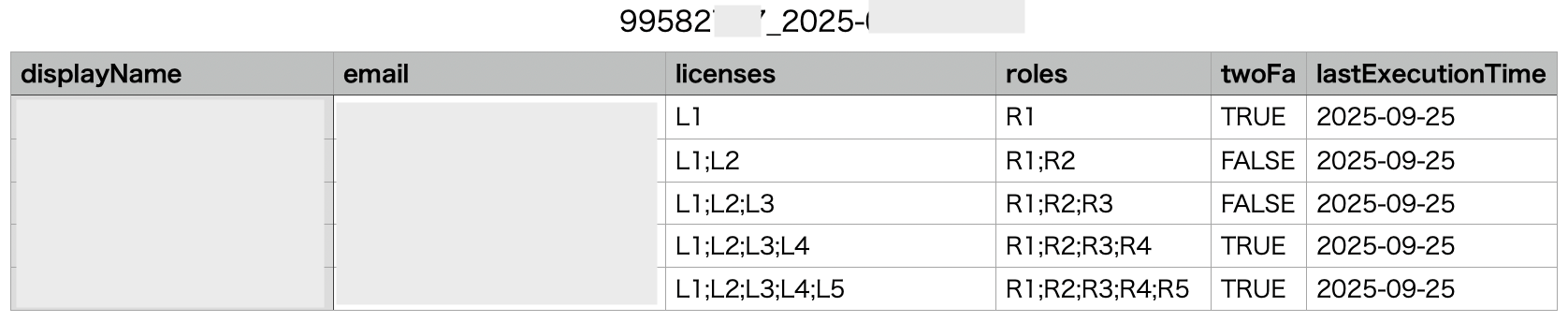
2. In the `licenses` and `roles` columns of the CSV, enter multiple values separated by **;**.
Example: to register licenses L1, L2, and L3 in the `licenses` column, enter L1\*\*;**L2**;\*\*L3.
To register roles R1 and R2 in the `roles` column, enter R1\*\*;\*\*R2.
 3. Save the CSV file to the designated location.
4. Go to Services > Custom App > Info, then click **︙** (three-dot menu) and select **Accounts**. Import the CSV file from the "Import Account List" screen.
5. After importing, verify that the multiple licenses and roles appear correctly.
#### Verifying Registered Licenses and Roles
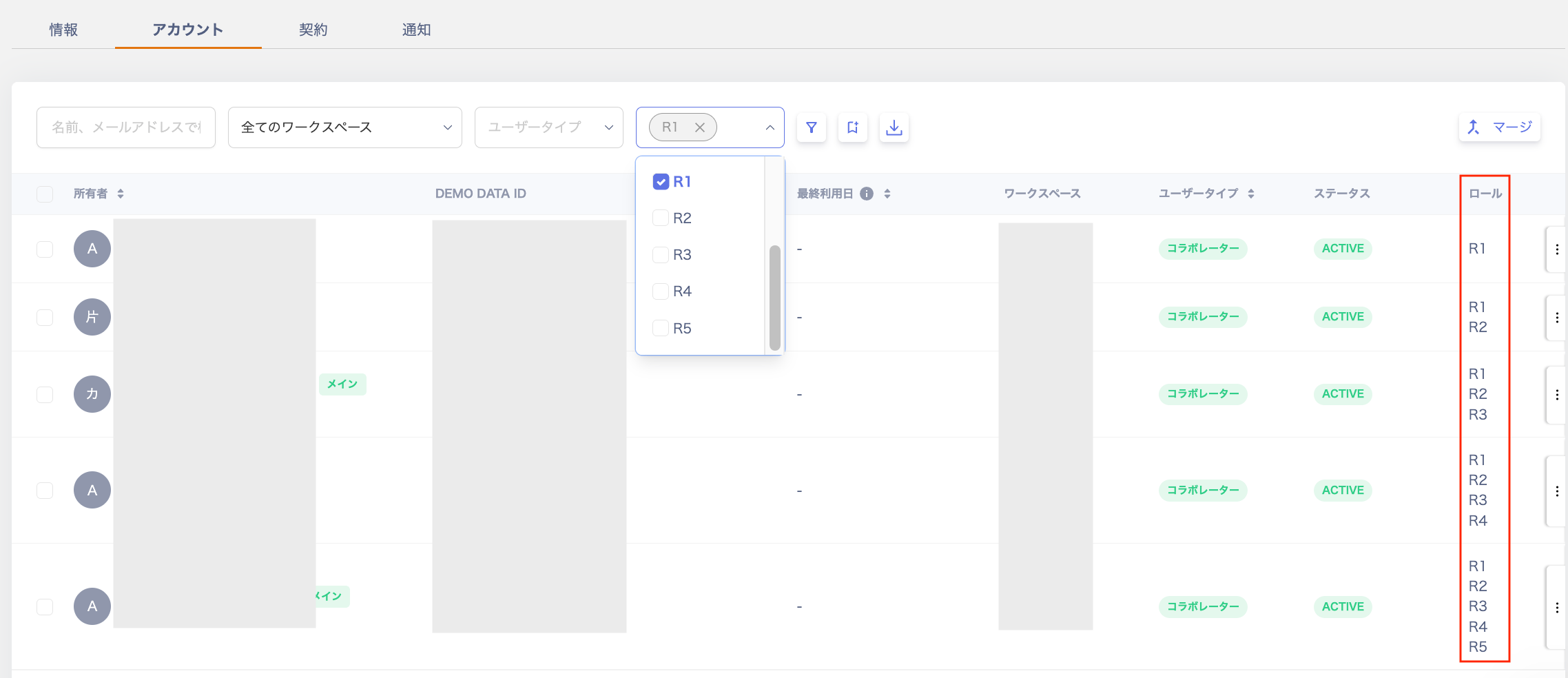
Go to Services > Custom App > Accounts and check the registered roles in the "Role" column.
You can also filter accounts by role using the "Role" filter at the top of the screen.
3. Save the CSV file to the designated location.
4. Go to Services > Custom App > Info, then click **︙** (three-dot menu) and select **Accounts**. Import the CSV file from the "Import Account List" screen.
5. After importing, verify that the multiple licenses and roles appear correctly.
#### Verifying Registered Licenses and Roles
Go to Services > Custom App > Accounts and check the registered roles in the "Role" column.
You can also filter accounts by role using the "Role" filter at the top of the screen.
 Go to Services > Custom App > Accounts and check the registered licenses in the "License" column.
You can also filter accounts by license using the "License" filter at the top of the screen.
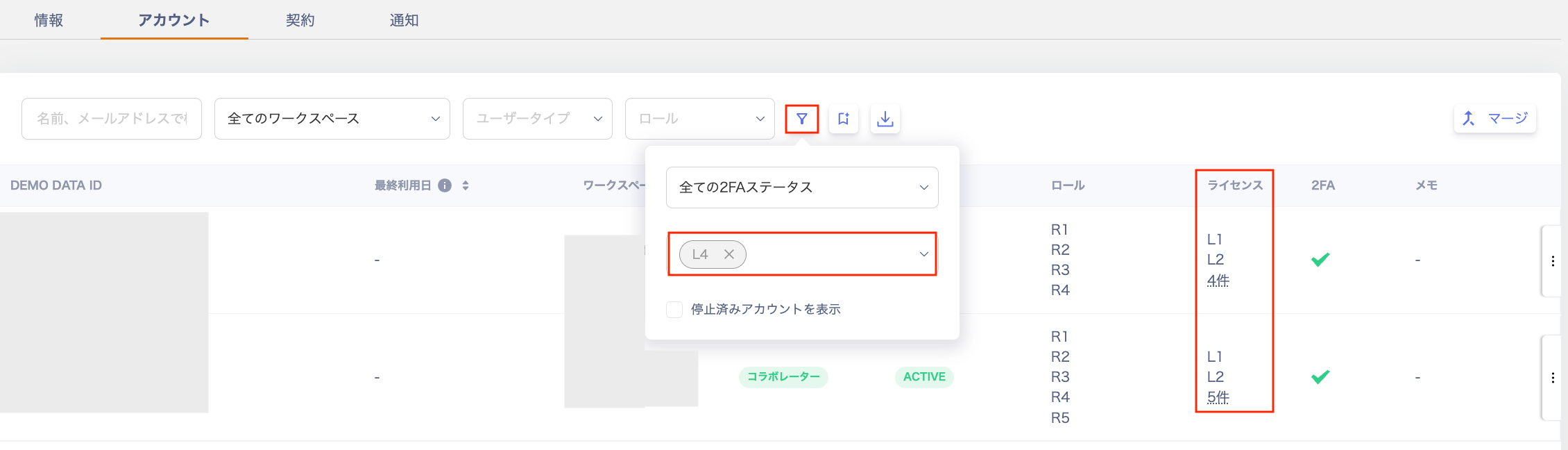
Go to Services > Custom App > Accounts and check the registered licenses in the "License" column.
You can also filter accounts by license using the "License" filter at the top of the screen.