> ## Documentation Index
> Fetch the complete documentation index at: https://support.i.moneyforward.com/llms.txt
> Use this file to discover all available pages before exploring further.
# Using the Public API
> We provide a public API so you can freely use the data you collect.
We provide a public API so you can freely use the data you collect.
For details on the available Public API endpoints, see the [documentation](/en/api-reference/it-management).
You can also open it from **Settings** > **API Key List** by clicking "API Documentation".

Finding your Organization ID
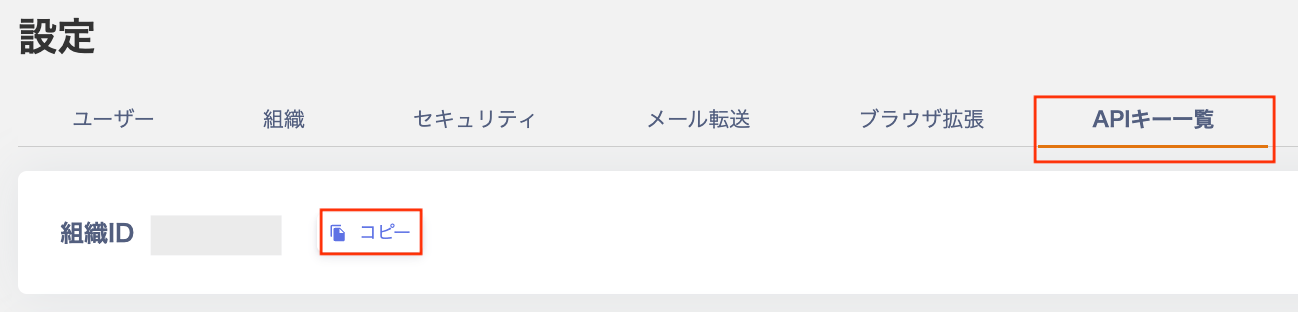
Your **Organization ID** is shown as **Organization ID** under **Settings** > **API Key List**. Copy it for use in API calls.
 ## Setting the Organization ID in the Public API
When setting Path Params > **organizationId** in the Public API, enter the value you copied [above](#organization-id).
## Setting the Organization ID in the Public API
When setting Path Params > **organizationId** in the Public API, enter the value you copied [above](#organization-id).

Generating an API Key
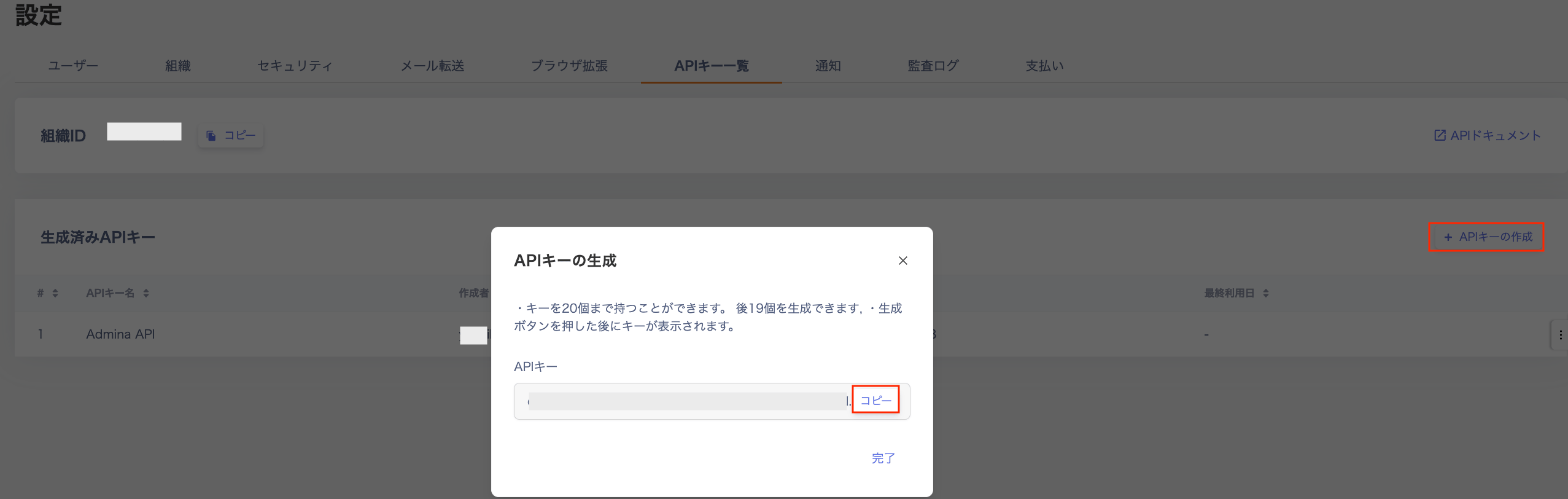
1. Go to Settings > API Key List and click the **Generate API Key** button.
2. On the "Generate API Key" screen, enter a name for the API key and click **Generate**.
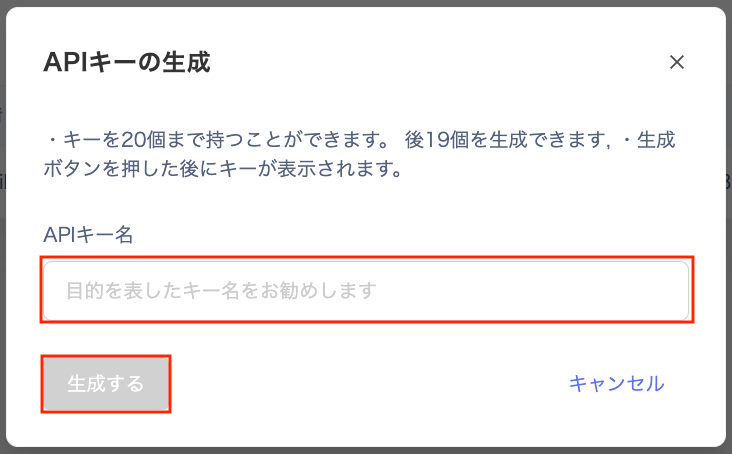 3. An API key is issued. Copy and save it.
Note: You need this key to call the Public API. It is shown only once, so keep it somewhere safe.
3. An API key is issued. Copy and save it.
Note: You need this key to call the Public API. It is shown only once, so keep it somewhere safe.
 ## Setting the API Key in the Public API
When setting Credentials > Bearer in the Public API, enter the value you copied [above](#generate-api-key).
## Setting the API Key in the Public API
When setting Credentials > Bearer in the Public API, enter the value you copied [above](#generate-api-key).
 ## Finding a Service ID
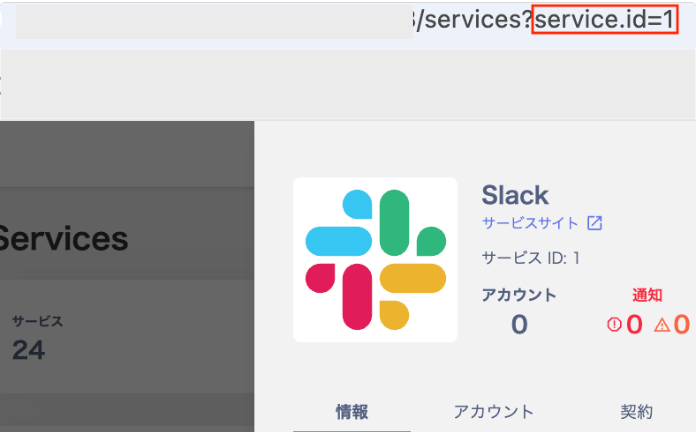
"serviceId": Go to Services > the target SaaS (e.g. GitHub) > Service ID.
## Finding a Service ID
"serviceId": Go to Services > the target SaaS (e.g. GitHub) > Service ID.
 ## When the Public API returns an error
If you see an error while using the Public API, contact Support with the following information.
For how to contact support, see [Contacting Support](/en/it-management/changelog/3e6sz4xzsx-support).
* The name or URL of the Public API you are using
* Details of the error
## FAQ
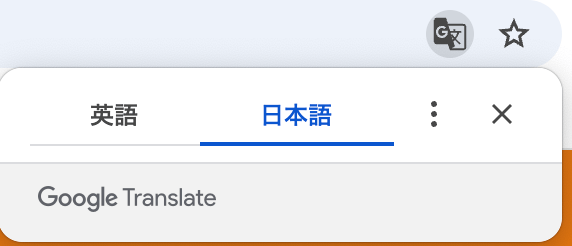
### Q. Can I switch the API to Japanese?
A. The UI does not support language switching. Use your browser's language settings to view the page in a different language.
## When the Public API returns an error
If you see an error while using the Public API, contact Support with the following information.
For how to contact support, see [Contacting Support](/en/it-management/changelog/3e6sz4xzsx-support).
* The name or URL of the Public API you are using
* Details of the error
## FAQ
### Q. Can I switch the API to Japanese?
A. The UI does not support language switching. Use your browser's language settings to view the page in a different language.
 ### Q. Are there rules for the "Field ID Name" in API custom fields?
A. Custom field names may only use `lowercase alphanumeric characters and _ (underscore)`.
For details on configuring custom fields, see the [Device](/en/it-management/device/2gdbiob664-device-itme#add-a-custom-field) and [Directory](/en/it-management/directory/gqqdb2621q-edit-uid#add-custom-fields) help pages.
### Q. Can I specify a registration time with the API?
A. Yes. The API accepts the `createdAt` parameter, which lets you specify the **date**, **hour**, and **minute**.
### Q. The timestamps in data retrieved via the API do not match what is shown in the admin panel. Why?
A. The Public API returns all timestamps in UTC (Coordinated Universal Time). The admin panel displays times in your local timezone (e.g. Japan Standard Time / JST). The API uses UTC to ensure reliable integration between systems.
### Q. How do I convert API timestamps to Japan Standard Time (JST)?
A. Convert the timestamp from UTC to your local timezone on your end. All date strings sent and received by the API are interpreted as UTC. For example, Japan Standard Time (JST) is 9 hours ahead of UTC, so `00:00:00Z` in the API corresponds to `09:00:00` in JST.
### Q. How should I specify the timezone when sending data (POST/PATCH) via the API?
A. Always send timestamps in UTC. The Public API interprets all incoming date strings as UTC and stores them as such. If you send a local time without converting it first, the data may be stored with an unintended timestamp. Convert to UTC before sending.
### Q. Are there rules for the "Field ID Name" in API custom fields?
A. Custom field names may only use `lowercase alphanumeric characters and _ (underscore)`.
For details on configuring custom fields, see the [Device](/en/it-management/device/2gdbiob664-device-itme#add-a-custom-field) and [Directory](/en/it-management/directory/gqqdb2621q-edit-uid#add-custom-fields) help pages.
### Q. Can I specify a registration time with the API?
A. Yes. The API accepts the `createdAt` parameter, which lets you specify the **date**, **hour**, and **minute**.
### Q. The timestamps in data retrieved via the API do not match what is shown in the admin panel. Why?
A. The Public API returns all timestamps in UTC (Coordinated Universal Time). The admin panel displays times in your local timezone (e.g. Japan Standard Time / JST). The API uses UTC to ensure reliable integration between systems.
### Q. How do I convert API timestamps to Japan Standard Time (JST)?
A. Convert the timestamp from UTC to your local timezone on your end. All date strings sent and received by the API are interpreted as UTC. For example, Japan Standard Time (JST) is 9 hours ahead of UTC, so `00:00:00Z` in the API corresponds to `09:00:00` in JST.
### Q. How should I specify the timezone when sending data (POST/PATCH) via the API?
A. Always send timestamps in UTC. The Public API interprets all incoming date strings as UTC and stores them as such. If you send a local time without converting it first, the data may be stored with an unintended timestamp. Convert to UTC before sending.