> ## Documentation Index
> Fetch the complete documentation index at: https://support.i.moneyforward.com/llms.txt
> Use this file to discover all available pages before exploring further.
# [Microsoft 365 / EntraID (Azure AD)] Managing accounts with multiple email addresses as the same employee
> If the same person uses multiple accounts, the sub-account's SaaS accounts may be treated as resigned or guest accounts (labeled External). This article explains how to fix that.
#### **Managing multiple accounts in Microsoft 365 / EntraID (Azure AD)**
When the same person uses multiple accounts as shown below, the sub-account SaaS accounts may be affected. They may be treated as resigned, or as guest accounts labeled "**External**".
* Main account: @abc.co.jp (employee master)
* Sub-account: @xyz.co.jp
This guide explains how to assign the **"Employee" label** to the sub-account as well.
#### **Steps in EntraID (Azure AD)**
1. Go to the [Azure Active Directory site](https://azure.microsoft.com/en-us/products/active-directory), click **Sign in**, and log in to Azure AD.
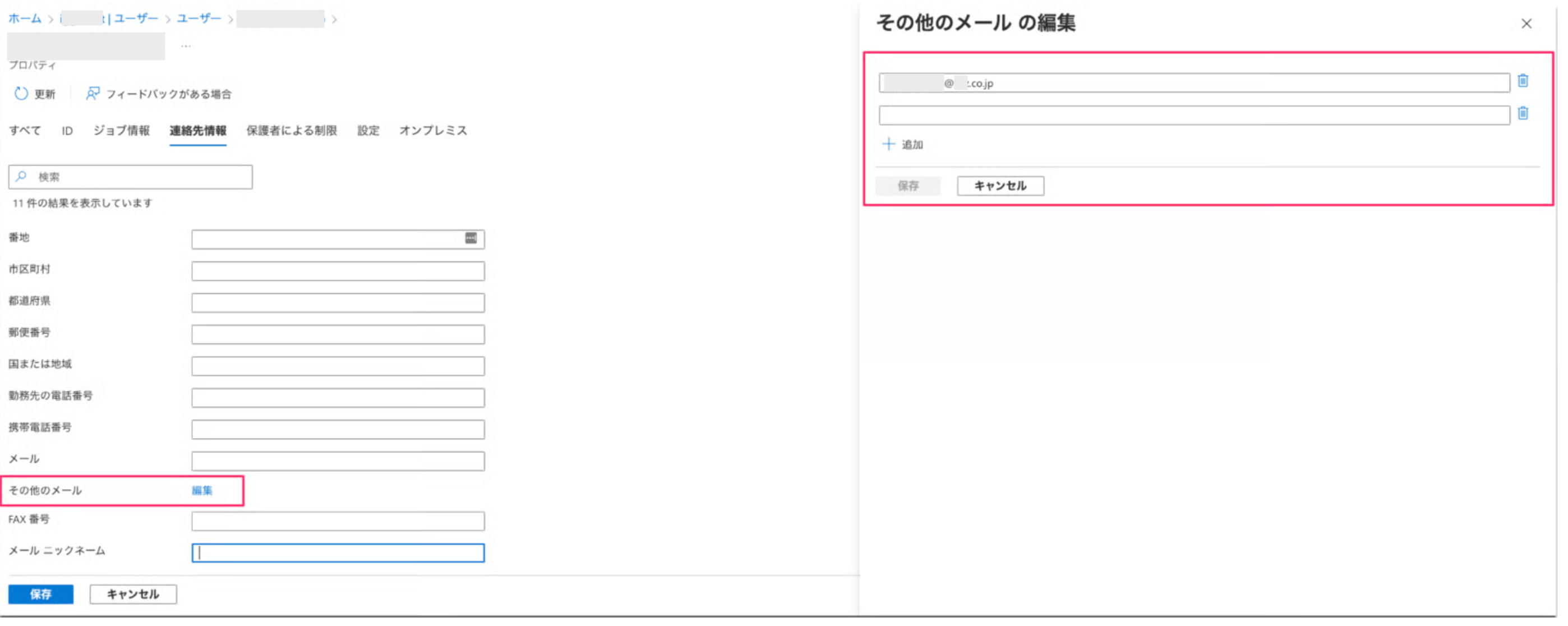
2. Open the user's properties, go to **Contact info**, and edit `Other email` to add the sub-account's email address. If the user has three or more email addresses, add them the same way.
 #### **Steps in Microsoft 365**
The Microsoft 365 admin center allows you to add only one email address. EntraID supports adding multiple addresses, so we recommend using EntraID if you are a Microsoft 365 customer.
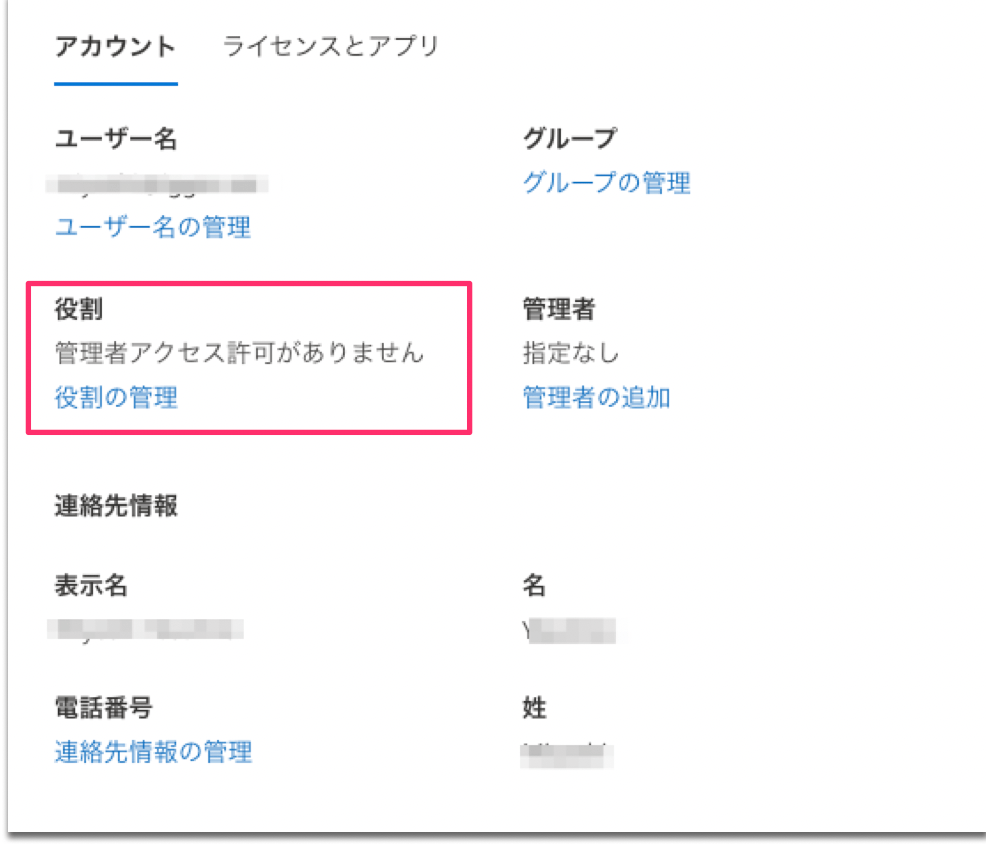
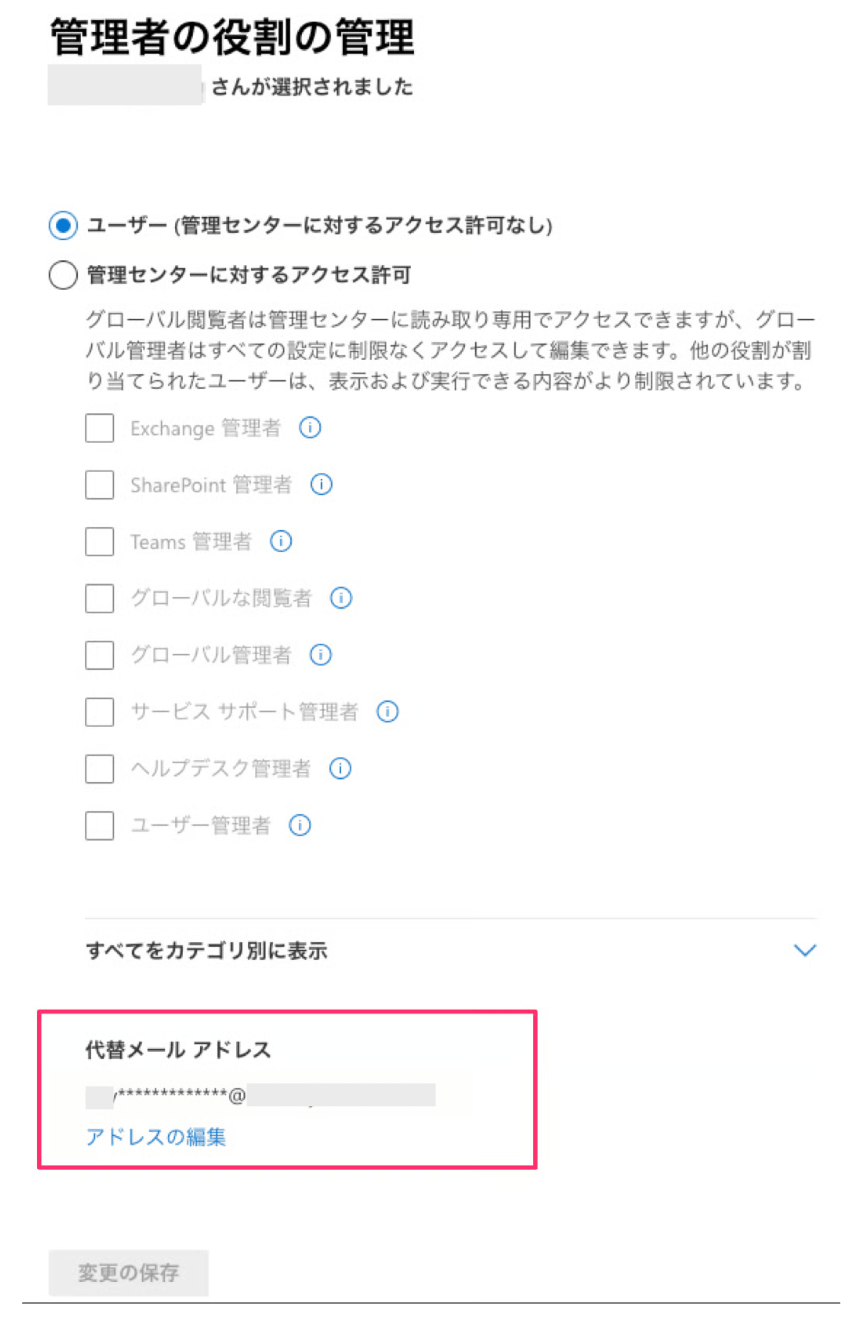
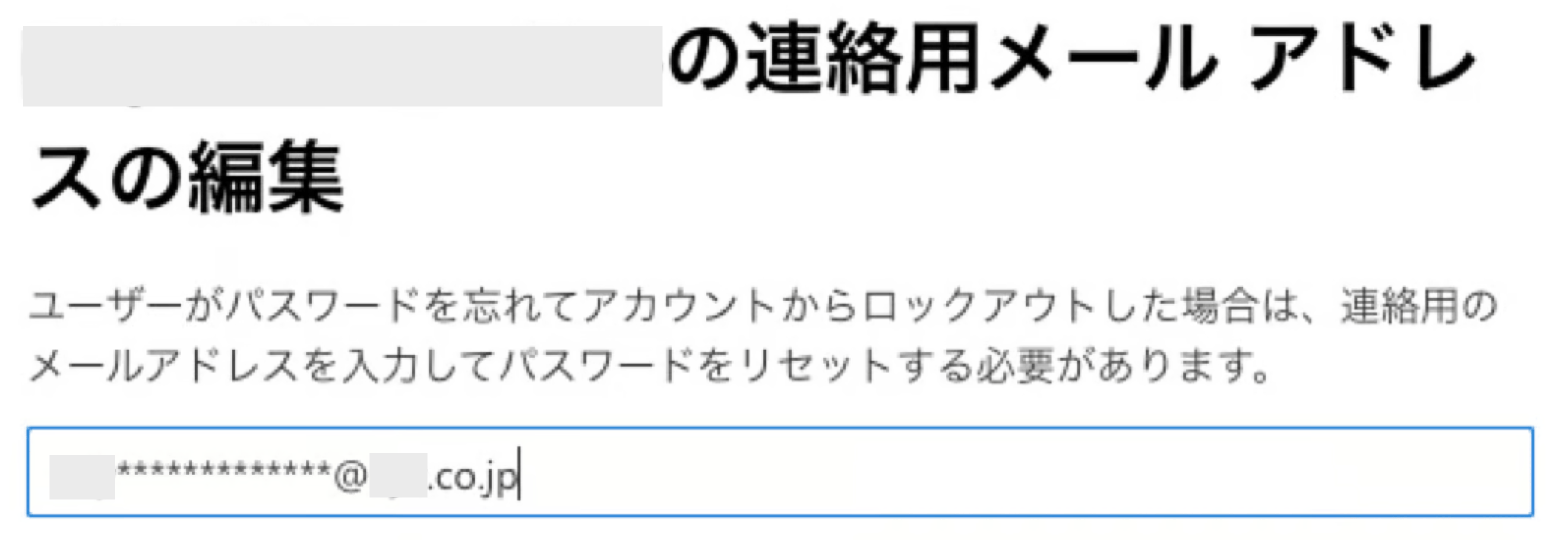
Go to **Manage user roles** and edit `Alternate email address`.
#### **Steps in Microsoft 365**
The Microsoft 365 admin center allows you to add only one email address. EntraID supports adding multiple addresses, so we recommend using EntraID if you are a Microsoft 365 customer.
Go to **Manage user roles** and edit `Alternate email address`.
 #### **Re-synchronizing**
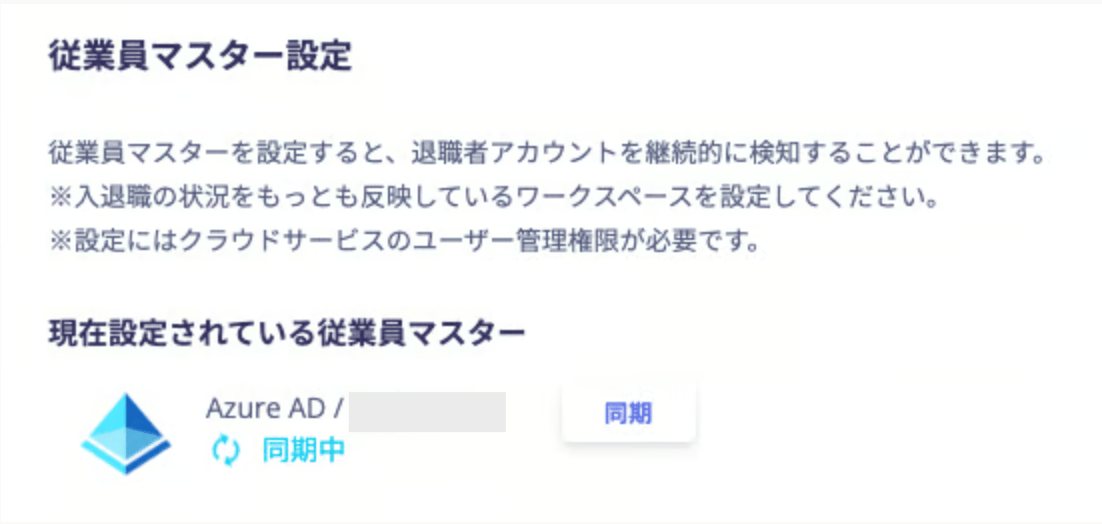
After adding the email address in each service, perform a re-sync with Microsoft 365 or EntraID in this service.
#### **Re-synchronizing**
After adding the email address in each service, perform a re-sync with Microsoft 365 or EntraID in this service.
 From the left menu, search for the main account under **Accounts** and confirm that the sub-account address is linked.