> ## Documentation Index
> Fetch the complete documentation index at: https://support.i.moneyforward.com/llms.txt
> Use this file to discover all available pages before exploring further.
# Assigning and unassigning apps for Entra ID-managed users
> Steps to assign and unassign SaaS apps for users managed in Microsoft Entra ID (Azure AD).
This page explains how to assign SaaS apps to Microsoft Entra ID (Azure AD) users, and how to unassign them.
#### Prerequisites
Apps and services must already be linked via the [Identity Provider Function (Microsoft Entra ID / Azure AD)](/en/integrations/4l37o2sowt-idp-entraid).
Currently, Microsoft Entra ID (Azure AD) is the only supported identity provider. Only users managed in Microsoft Entra ID (Azure AD) can be added to a workspace. This feature supports individual assignment by user and app only — group assignment and conditional access assignment are not supported.
Assign a user to an app
1. In the service list, click **Add account** on the "Microsoft Entra ID (Azure AD)" row.
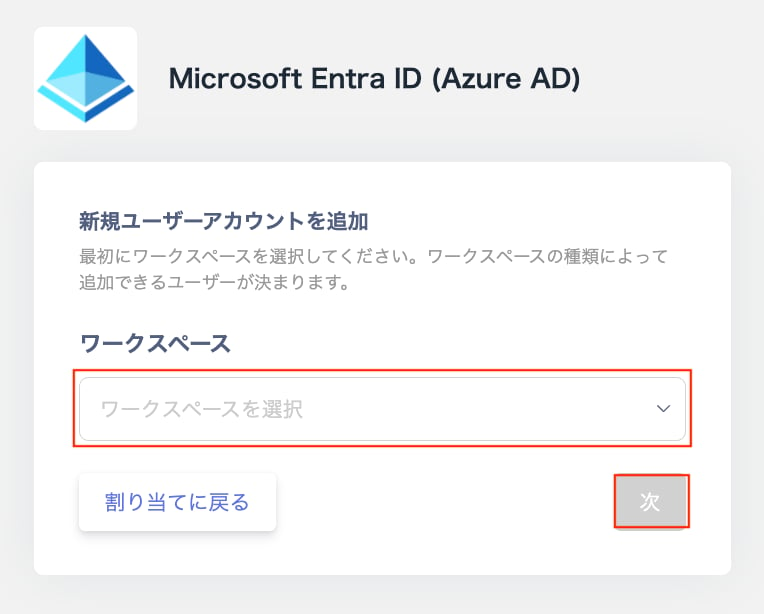
 2. On the "Add new user account" screen, select a workspace and click **Next**.
 3. Select the employee to add.\
**Existing user:** Search by name or email.\
**New user:** Select **Register a new user in Microsoft Entra ID (Azure AD)**. Enter the display name, email address (UPN), and department (optional).\
**App role (optional):** Set an app role if one is configured for the app.
3. Select the employee to add.\
**Existing user:** Search by name or email.\
**New user:** Select **Register a new user in Microsoft Entra ID (Azure AD)**. Enter the display name, email address (UPN), and department (optional).\
**App role (optional):** Set an app role if one is configured for the app.
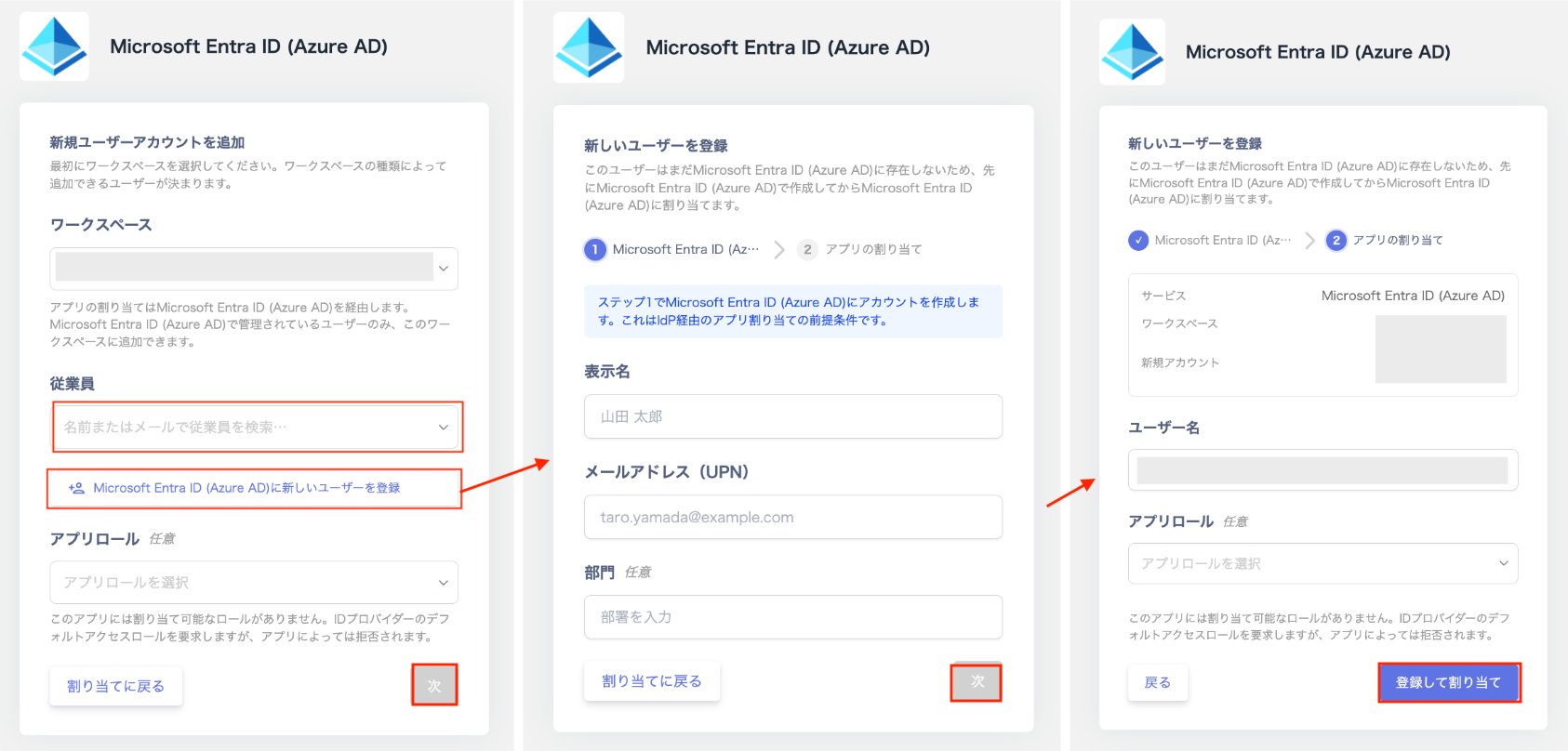 4. Click **Register and assign** (or **Next** if you selected an existing user).
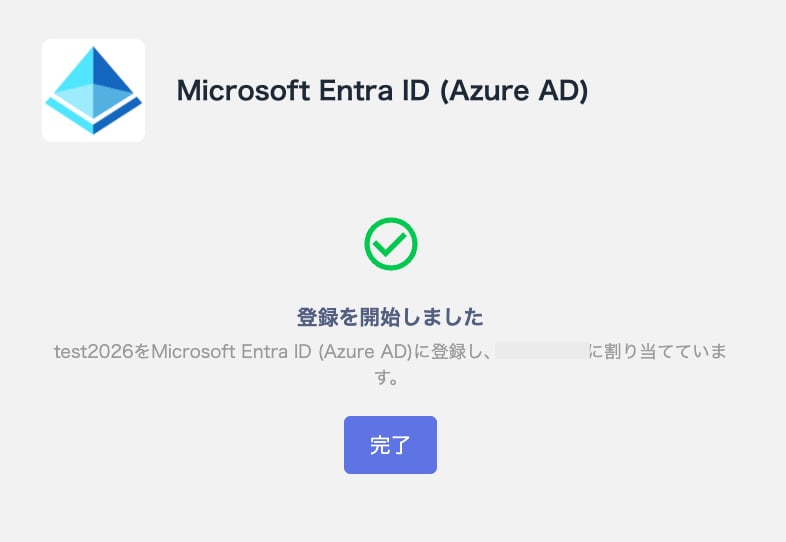
5. Once "Registration started" appears, the operation is complete. Click **Done** to close the screen.
4. Click **Register and assign** (or **Next** if you selected an existing user).
5. Once "Registration started" appears, the operation is complete. Click **Done** to close the screen.
How long assignment takes to reflect
Assigning a user does not take effect immediately. The expected time and required follow-up differ by app type.
| App type | Expected time | Required action |
| ------------------- | ----------------------------------------------- | ---------------------------------------------------------------- |
| SCIM-supported apps | Up to about 50 minutes | None (reflected automatically based on Entra ID's sync behavior) |
| Non-SCIM apps | No automatic sync (create/delete not supported) | Manual setup is required separately |
You can check the assignment sync status in real time on the "Info" tab of the service detail screen.
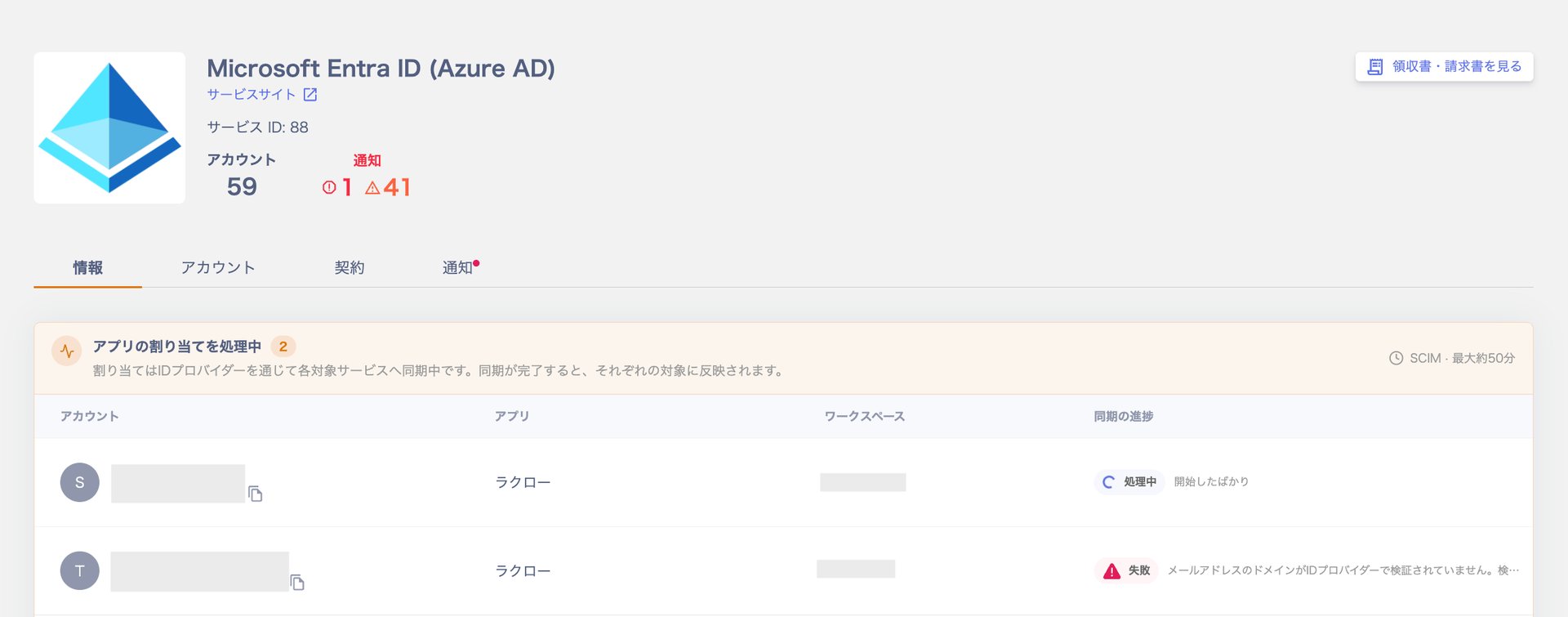 For details on how to read the status and how to resolve errors, see [Checking assignment status and errors](/en/it-management/idp-account-management/entraid-assignment-status).
Unassign an app
This revokes only the IdP-side assignment, removing access to a specific SaaS app. The user's identity provider account itself is not deleted.
1. You can unassign an app using either of the following two methods.
a. Go to **Services** > select the SaaS > open the "Accounts" tab. Click the ⋮ menu next to the target account, then click **Delete**.
 b. Go to **Directory** > select the account to unassign > open the "Services" tab. In the "Actions" column for the target service, click **Delete**.
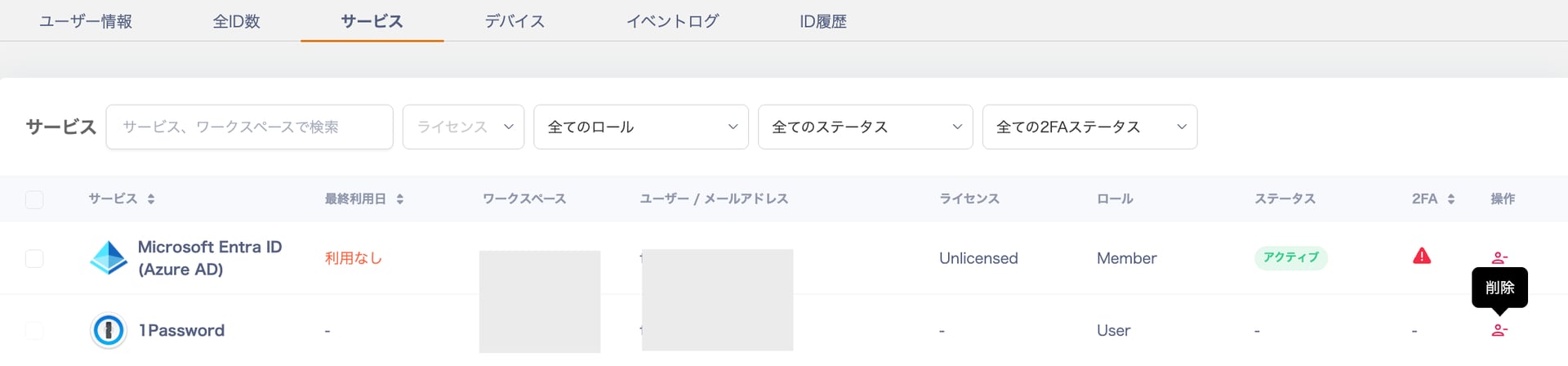 2. On the "Unassign app" screen, confirm the target user and click **Delete**. It can take up to about 50 minutes for this to take effect.
 If the target user is also assigned to other apps through this identity provider, this action does not unassign those apps. Handle them individually if needed.
3. Once "Account deletion complete" appears, click **Close**.
If the target user is also assigned to other apps through this identity provider, this action does not unassign those apps. Handle them individually if needed.
3. Once "Account deletion complete" appears, click **Close**.
 ## Related pages
* [Identity Provider Function (Microsoft Entra ID / Azure AD)](/en/integrations/4l37o2sowt-idp-entraid)
* [Disabling and deleting an Entra ID](/en/it-management/idp-account-management/entraid-id-lifecycle)
* [Checking assignment status and errors](/en/it-management/idp-account-management/entraid-assignment-status)
## Related pages
* [Identity Provider Function (Microsoft Entra ID / Azure AD)](/en/integrations/4l37o2sowt-idp-entraid)
* [Disabling and deleting an Entra ID](/en/it-management/idp-account-management/entraid-id-lifecycle)
* [Checking assignment status and errors](/en/it-management/idp-account-management/entraid-assignment-status)