> ## Documentation Index
> Fetch the complete documentation index at: https://support.i.moneyforward.com/llms.txt
> Use this file to discover all available pages before exploring further.
# Disabling and deleting an Entra ID
> Steps to disable and delete a user's Entra ID-linked account, and what to consider before doing so.
Sometimes you need to revoke a user's access all at once — for example, after they leave the company or change roles. In that case, disable or delete the user account linked to Microsoft Entra ID (Azure AD).
**Disabling** and **deleting** have different effects. Disabling temporarily suspends access; re-enabling the ID restores it. Deleting removes the Entra ID-linked account itself — it can be restored within 30 days of deletion, but not after that. Choose the option that matches your goal.
Currently, Microsoft Entra ID (Azure AD) is the only supported identity provider. For details on scope, see [Assigning and unassigning apps for Entra ID-managed users](/en/it-management/idp-account-management/entraid-app-assignment).
Open the action screen
You can open the disable/delete screen for an Entra ID-linked account using either of the following two methods.
a. Go to **Services** > select Microsoft Entra ID (Azure AD) > open the "Accounts" tab.\
Click the ⋮ menu next to the target account, then click **Delete**.
 b. Go to **Directory** > select the account to disable or delete > open the "Services" tab.\
In the "Actions" column for the target service, click **Delete**.
b. Go to **Directory** > select the account to disable or delete > open the "Services" tab.\
In the "Actions" column for the target service, click **Delete**.
 The "Delete Microsoft Entra ID (Azure AD)" screen opens, where you choose either **Disable this ID** or **Delete this ID**.
Disable an Entra ID-linked account
This revokes access, but data in Microsoft Entra ID (Azure AD) and in the app itself is retained. Re-enabling the ID restores access. App assignments to Microsoft Entra ID (Azure AD)-managed services are kept as they are.
1. Select **Disable this ID**. To also unassign all apps at the same time, check **Also unassign all apps**.\
This checkbox unassigns only direct assignments — group assignments and conditional access assignments are not affected.
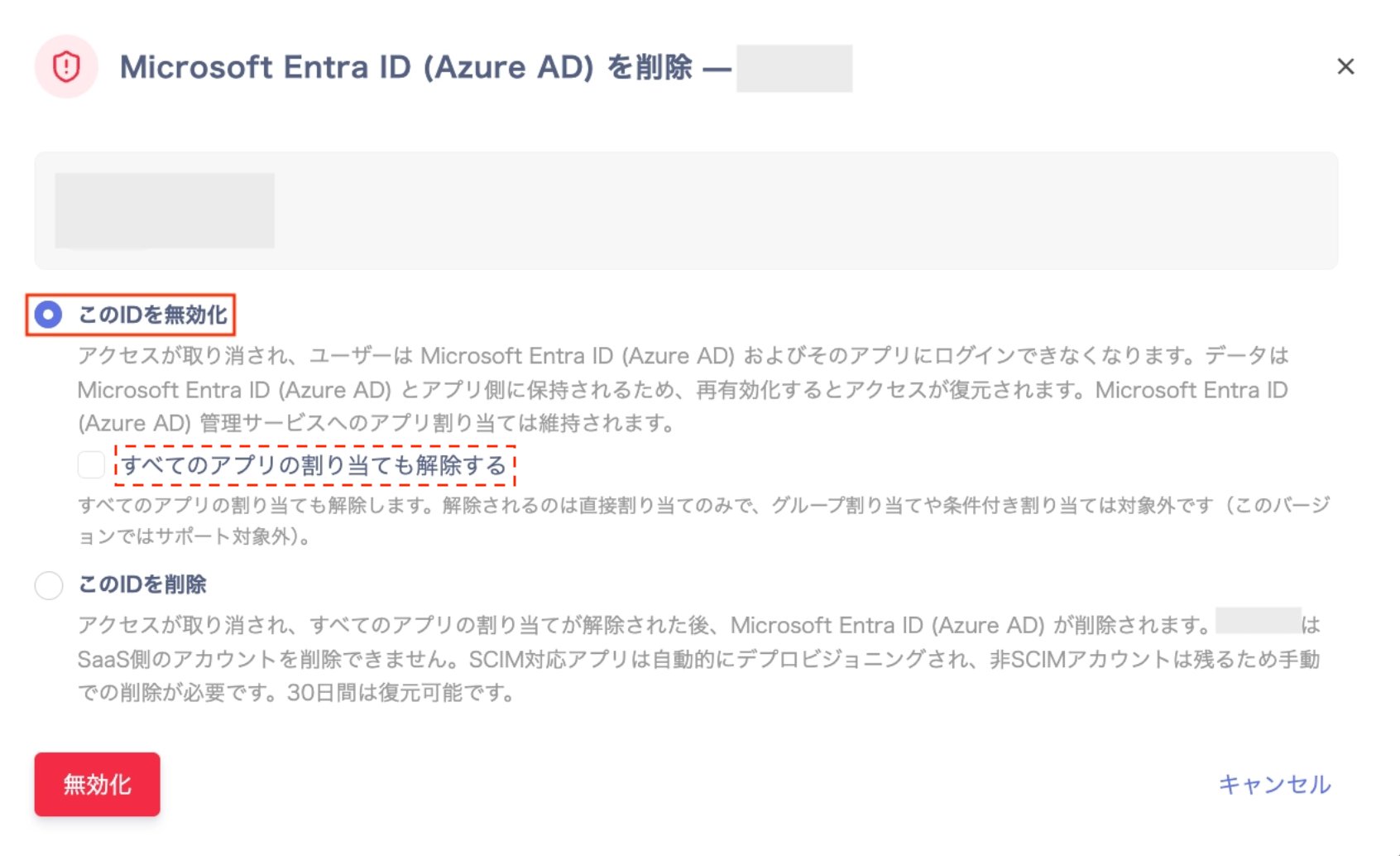 2. Click **Disable**. If you checked "Also unassign all apps," enter the target user's email address as a safety check. Then click **Disable**.
 3. Once "Microsoft Entra ID (Azure AD) disabled" appears, the operation is complete.\
Login to Microsoft Entra ID (Azure AD) and its apps is blocked once processing finishes, which can take a few minutes.\
Click **Done** to close the screen.
3. Once "Microsoft Entra ID (Azure AD) disabled" appears, the operation is complete.\
Login to Microsoft Entra ID (Azure AD) and its apps is blocked once processing finishes, which can take a few minutes.\
Click **Done** to close the screen.
 A "Unassigned apps — needs review" entry is created for each app that was unassigned. For details, see [Checking assignment status and errors](/en/it-management/idp-account-management/entraid-assignment-status#unassigned-apps-need-review).
Delete an Entra ID-linked account
This action revokes access and can result in data loss. Login is blocked as soon as it's applied, and the account may remain on the app side even after its assignment is unassigned.
Access is revoked, all app assignments are unassigned, and then Microsoft Entra ID (Azure AD) is deleted. Accounts on the SaaS side cannot be deleted directly. SCIM-supported apps are deprovisioned automatically; non-SCIM apps leave the account and need manual deletion. You can restore the ID within 30 days.
1. Select **Delete this ID**. A list of apps whose assignments will be unassigned is shown — review it.
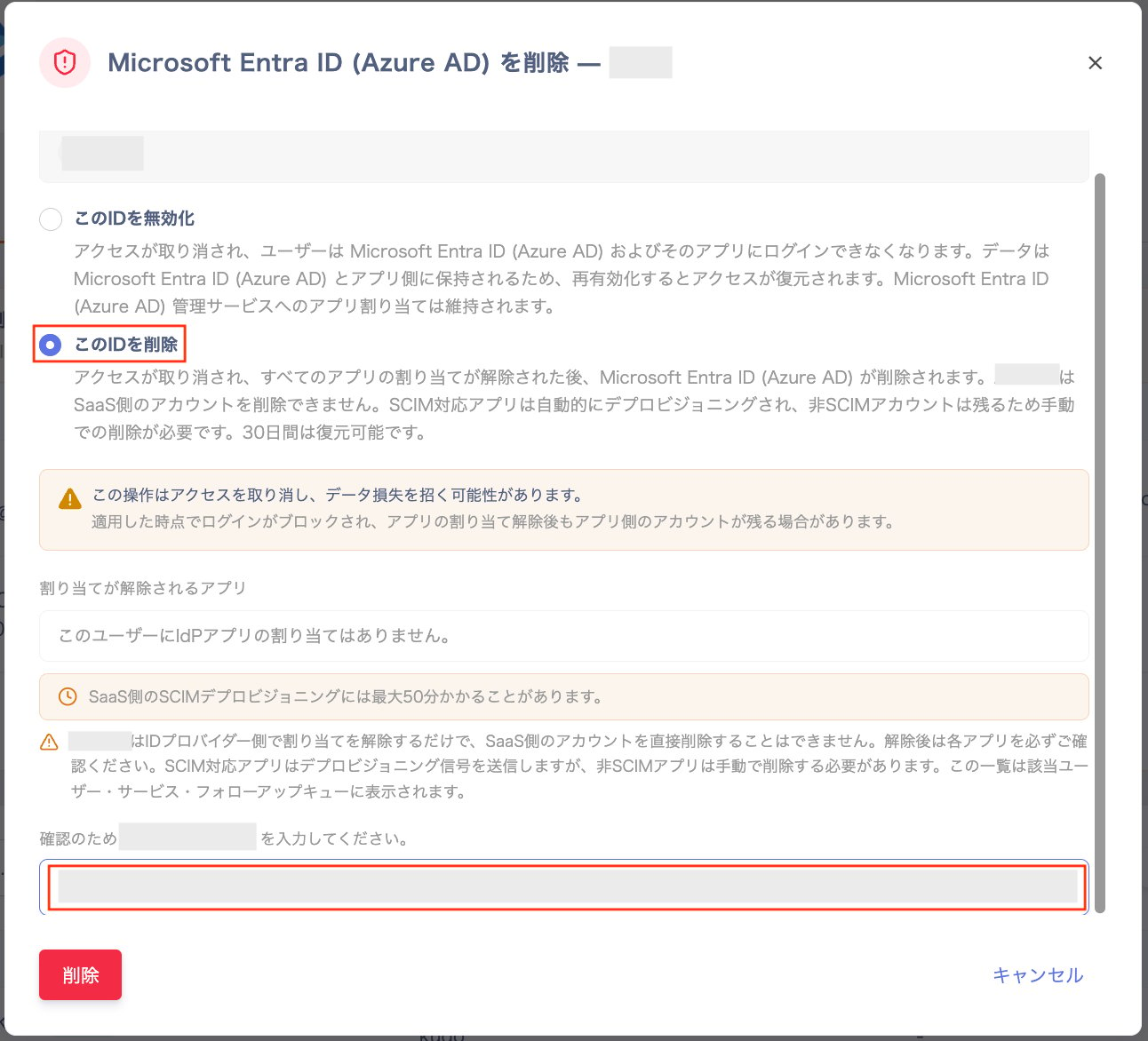 2. As a safety confirmation, enter the target user's email address in the confirmation field, then click **Delete**.
3. Once "Microsoft Entra ID (Azure AD) deleted" appears, the operation is complete. Click **Done** to close the screen.\
You can restore it within 30 days, but restoring does not re-assign apps — you'll need to provision them again.
2. As a safety confirmation, enter the target user's email address in the confirmation field, then click **Delete**.
3. Once "Microsoft Entra ID (Azure AD) deleted" appears, the operation is complete. Click **Done** to close the screen.\
You can restore it within 30 days, but restoring does not re-assign apps — you'll need to provision them again.
 A "Unassigned apps — needs review" entry is created for each app that was unassigned. For details, see [Checking assignment status and errors](/en/it-management/idp-account-management/entraid-assignment-status#unassigned-apps-need-review).
## Related pages
* [Assigning and unassigning apps for Entra ID-managed users](/en/it-management/idp-account-management/entraid-app-assignment)
* [Checking assignment status and errors](/en/it-management/idp-account-management/entraid-assignment-status)
A "Unassigned apps — needs review" entry is created for each app that was unassigned. For details, see [Checking assignment status and errors](/en/it-management/idp-account-management/entraid-assignment-status#unassigned-apps-need-review).
## Related pages
* [Assigning and unassigning apps for Entra ID-managed users](/en/it-management/idp-account-management/entraid-app-assignment)
* [Checking assignment status and errors](/en/it-management/idp-account-management/entraid-assignment-status)