> ## Documentation Index
> Fetch the complete documentation index at: https://support.i.moneyforward.com/llms.txt
> Use this file to discover all available pages before exploring further.
# Clean Up Retired Accounts
> Learn how to clean up accounts smoothly using the employee offboarding flow.
#### Streamlining Account Management
#### The Traditional Approach
Using retired employee accounts as an example, the typical process looked like this:
1. Receive information about the retired employee
2. After the retirement date, check whether accounts remain in each SaaS.
(You have no way of knowing which SaaS services hold an account.)
3. Delete any remaining accounts
4. Repeat for every managed SaaS service
#### The Streamlined Approach
Once you integrate this service, the process becomes:
1. Review alert notifications for retired accounts remaining in SaaS services
2. Delete only the accounts you need to remove, directly within each SaaS\*
For SaaS services that support the account deletion feature\*, you can **delete accounts directly**. See [Delete/Suspend Accounts](/en/it-management/retired/zw9trbb1wm-deprovisioning) for details.
Alert Notification Workflow
1. Review alert notifications. You can check alerts in two ways: (a) and (b).
1. Go to **Services** > the relevant service > **Notifications** to review retired accounts. For details, see [Alerts for Services](/en/it-management/saas-management/q6jgukpnvh-alert).
 2. You can also review notifications delivered to Slack by following the **message link**. See [Slack Notification Settings](/en/it-management/retired/76lzcncxyx-slack-notification) for details.
 2. Click the **link to the cloud service** on the web screen to go to the SaaS and delete the displayed account.
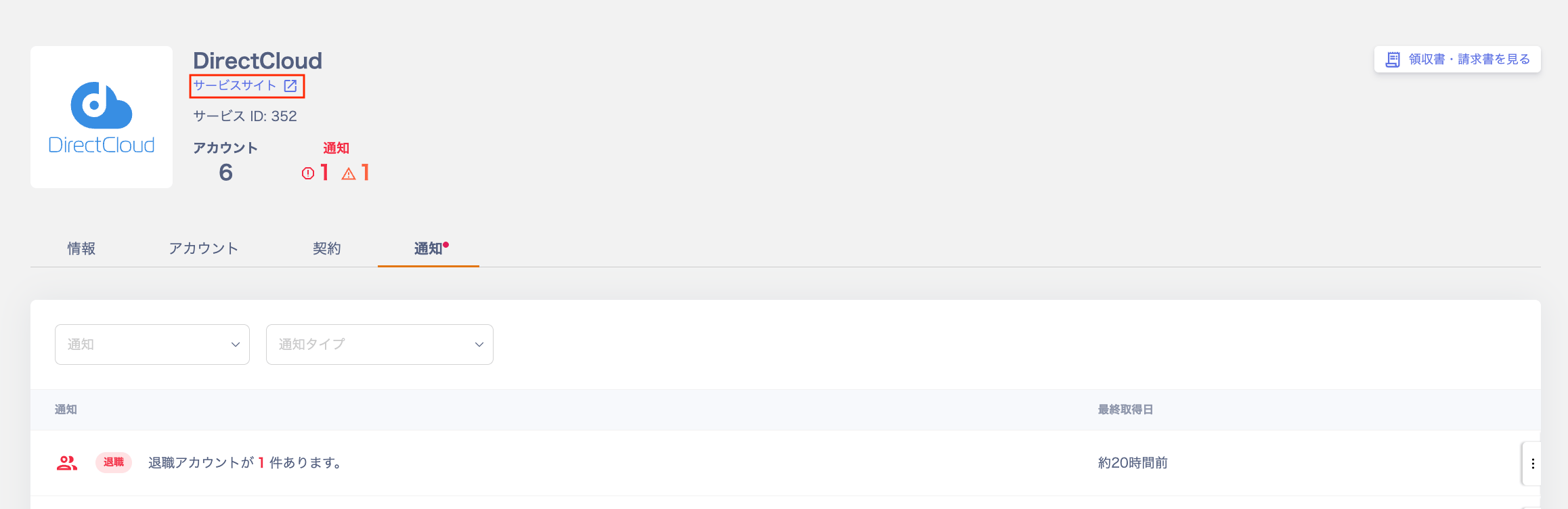 * For services that support the account deletion feature, you can delete accounts directly from this service.
3. Once you have addressed all accounts and the sync completes, the latest information is reflected. The alerts are then resolved.
* For services that support the account deletion feature, you can delete accounts directly from this service.
3. Once you have addressed all accounts and the sync completes, the latest information is reflected. The alerts are then resolved.
