> ## Documentation Index
> Fetch the complete documentation index at: https://support.i.moneyforward.com/llms.txt
> Use this file to discover all available pages before exploring further.
# 2-1. Connect a SaaS
> For SaaS listed in the supported integrations, you can connect directly with our service to automatically retrieve data.
For SaaS listed in the [supported integrations](/en/integrations/ey32ki15er-function), you can connect directly with our service to automatically retrieve data.
## Connect a SaaS
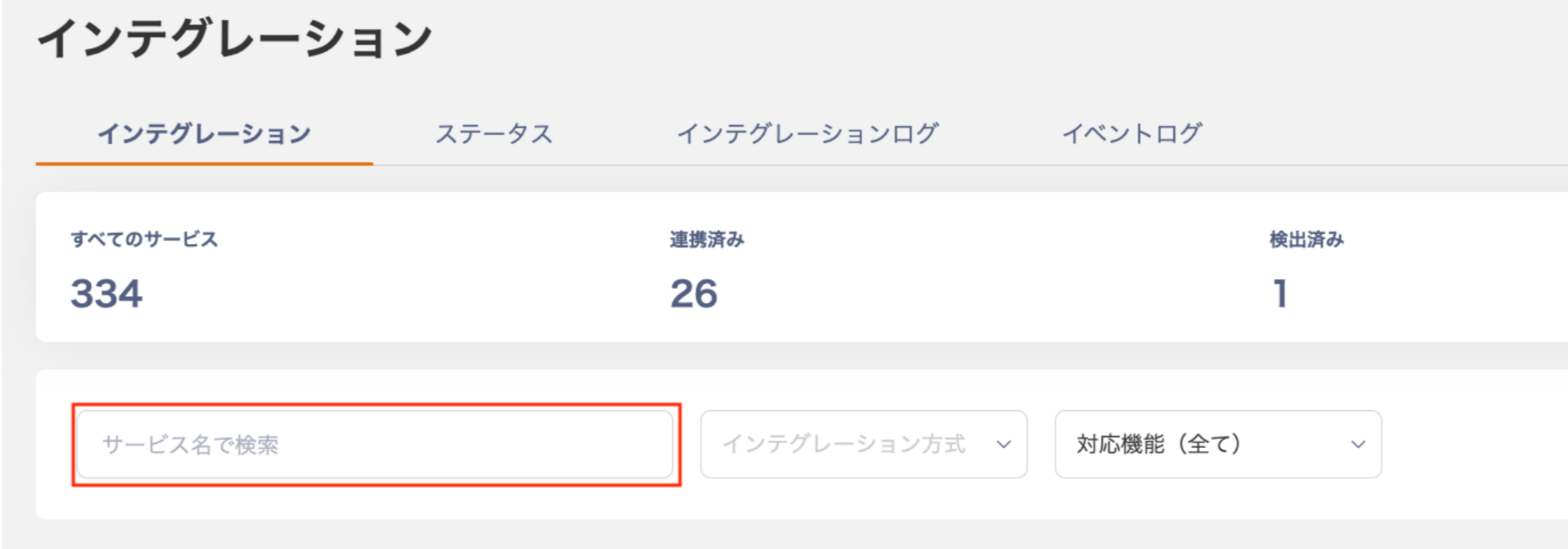
1. Go to Integration > **Integration**.
2. Search for the SaaS name you want to connect, or click its icon.
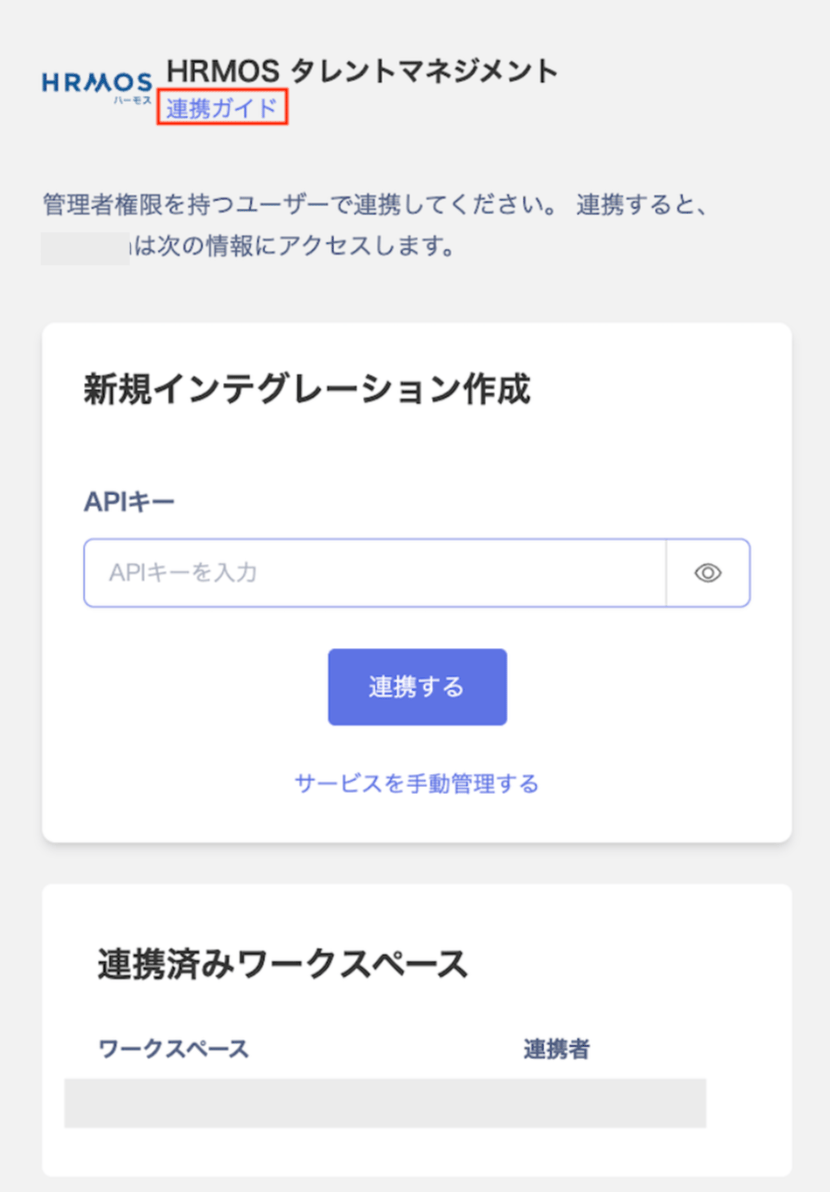
 3. A "Create New Integration" panel appears on the right. Enter the required fields and click **Connect**.
Refer to the Integration Guide for details on each required field.
3. A "Create New Integration" panel appears on the right. Enter the required fields and click **Connect**.
Refer to the Integration Guide for details on each required field.
 1. **The connection method varies by SaaS.** For details, see the [SaaS integration guides](/en/integrations) and [SaaS connection patterns](/en/it-management/saas-management/8iscw8ce8k-saa-s).
2. Connection speed depends on the integration type:
1. **The connection method varies by SaaS.** For details, see the [SaaS integration guides](/en/integrations) and [SaaS connection patterns](/en/it-management/saas-management/8iscw8ce8k-saa-s).
2. Connection speed depends on the integration type:
API and OAuth ... a few seconds
ID/Password\* ... 1 to 5 minutes
3. \***ID / Password connections are not available in the following situations:**
* The service forces login via a third-party provider (e.g. Google Login) or single sign-on (SSO).
* Connecting an employee account is not acceptable from a security standpoint.
In these cases, [create a dedicated system integration account on the SaaS side](/en/it-management/faq/7gbneu0vz5-auth-error) and use that to connect.
4. The connection starts. Wait for it to complete.
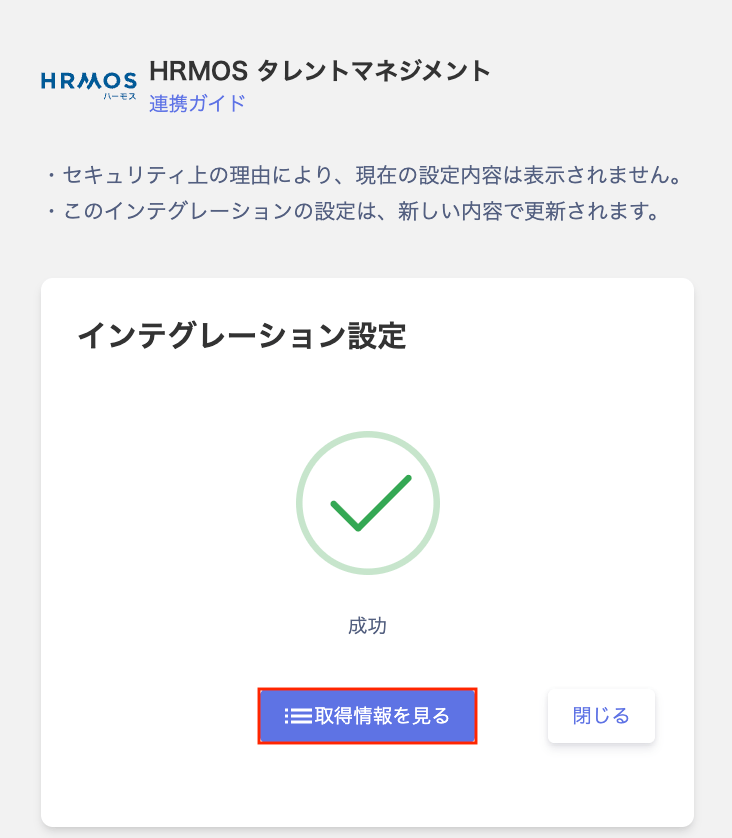
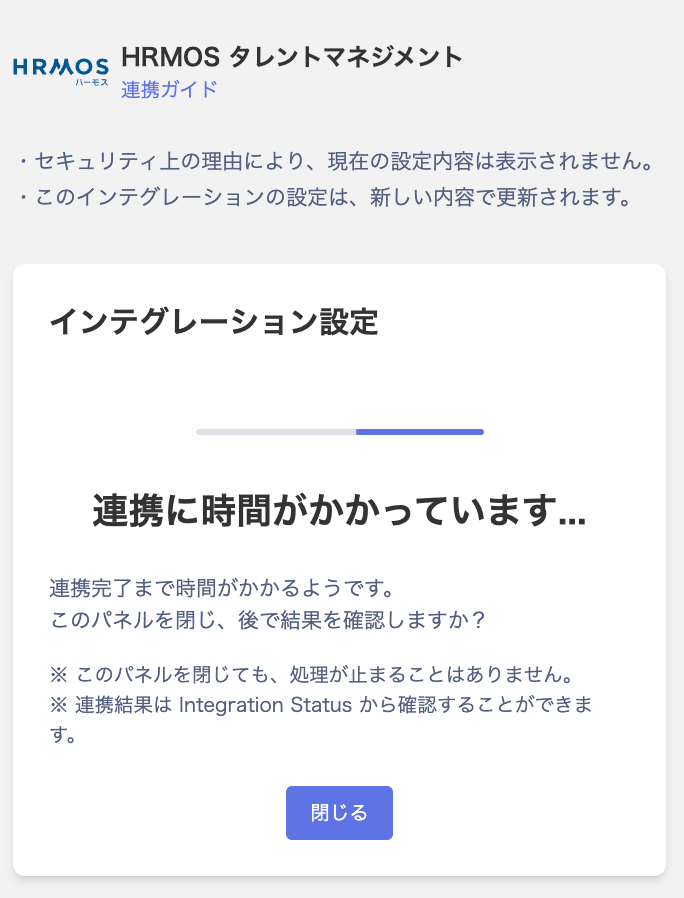 5. When the connection succeeds, the Integration Settings page shows a success status.
You can view the connected SaaS by clicking **View retrieved data** or from the service screen.
If the connection fails, see [Troubleshooting SaaS connection failures](/en/it-management/saas-management/93nahw45is-trouble).
5. When the connection succeeds, the Integration Settings page shows a success status.
You can view the connected SaaS by clicking **View retrieved data** or from the service screen.
If the connection fails, see [Troubleshooting SaaS connection failures](/en/it-management/saas-management/93nahw45is-trouble).
 ## FAQ
## **Q.** [**I have already connected a SaaS listed in the supported integrations.**](/en/integrations/ey32ki15er-function) **Can I add a custom app to manage alongside the connected SaaS?**
A. You can add a custom app within the same SaaS. Create it under Integration > Integration using the same SaaS name.
Here is an example using BOX.
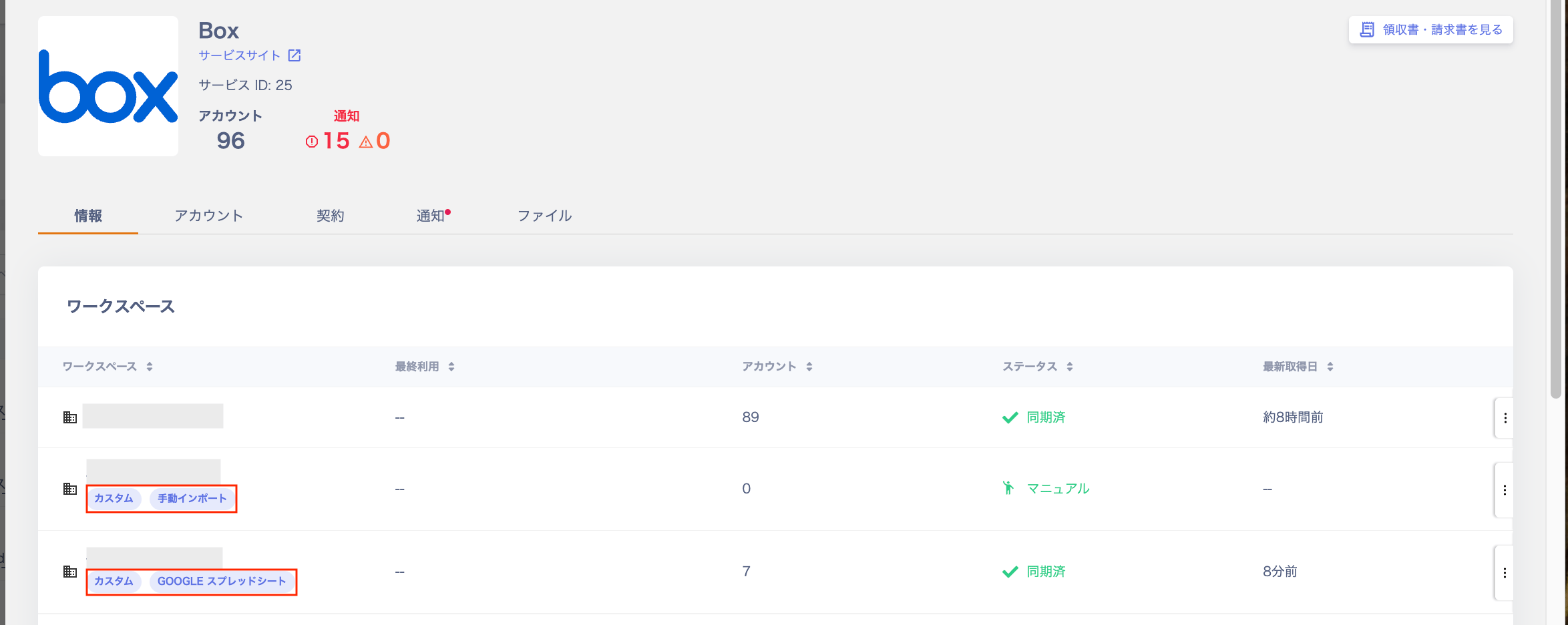
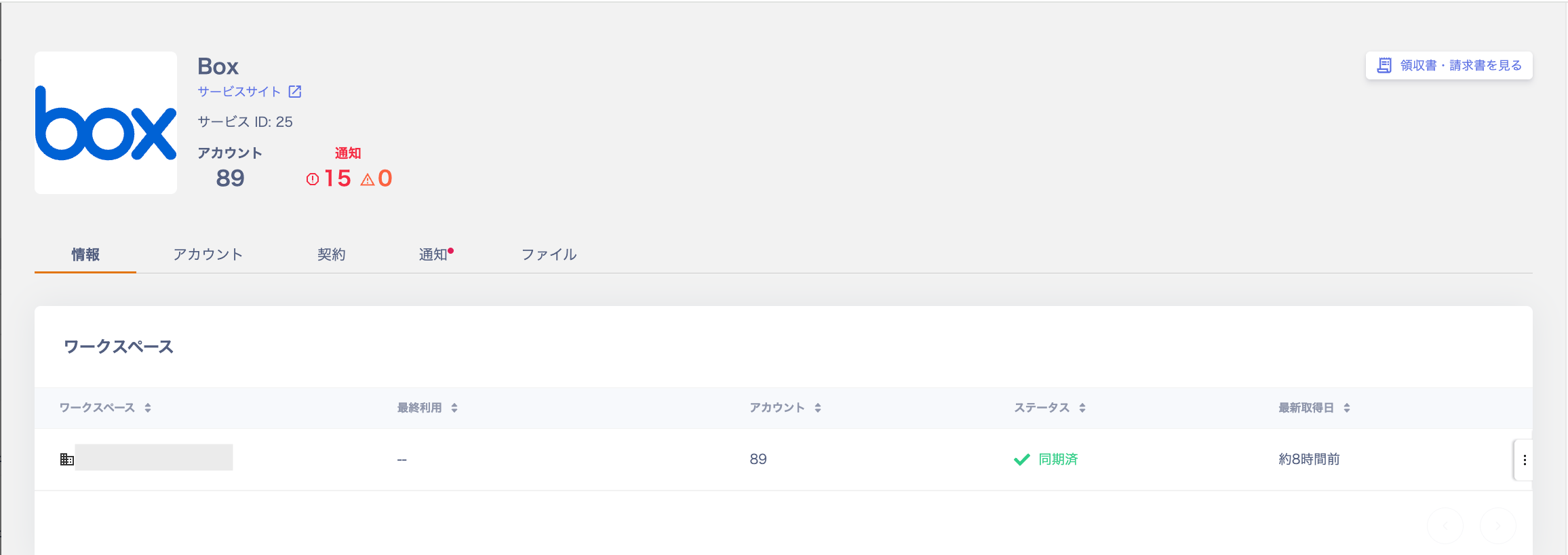
1. Check the registered SaaS. Go to Services > BOX > Info > Workspace to see the connected workspaces.
## FAQ
## **Q.** [**I have already connected a SaaS listed in the supported integrations.**](/en/integrations/ey32ki15er-function) **Can I add a custom app to manage alongside the connected SaaS?**
A. You can add a custom app within the same SaaS. Create it under Integration > Integration using the same SaaS name.
Here is an example using BOX.
1. Check the registered SaaS. Go to Services > BOX > Info > Workspace to see the connected workspaces.
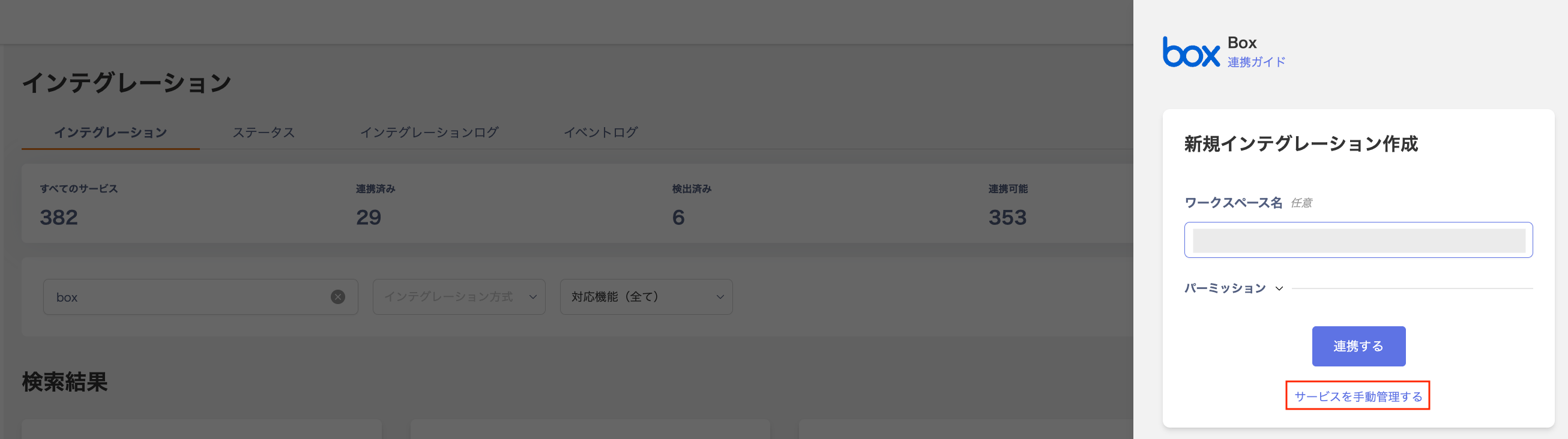
 2. Next, search for "BOX" under Integration > Integration and click **Manage service manually**.
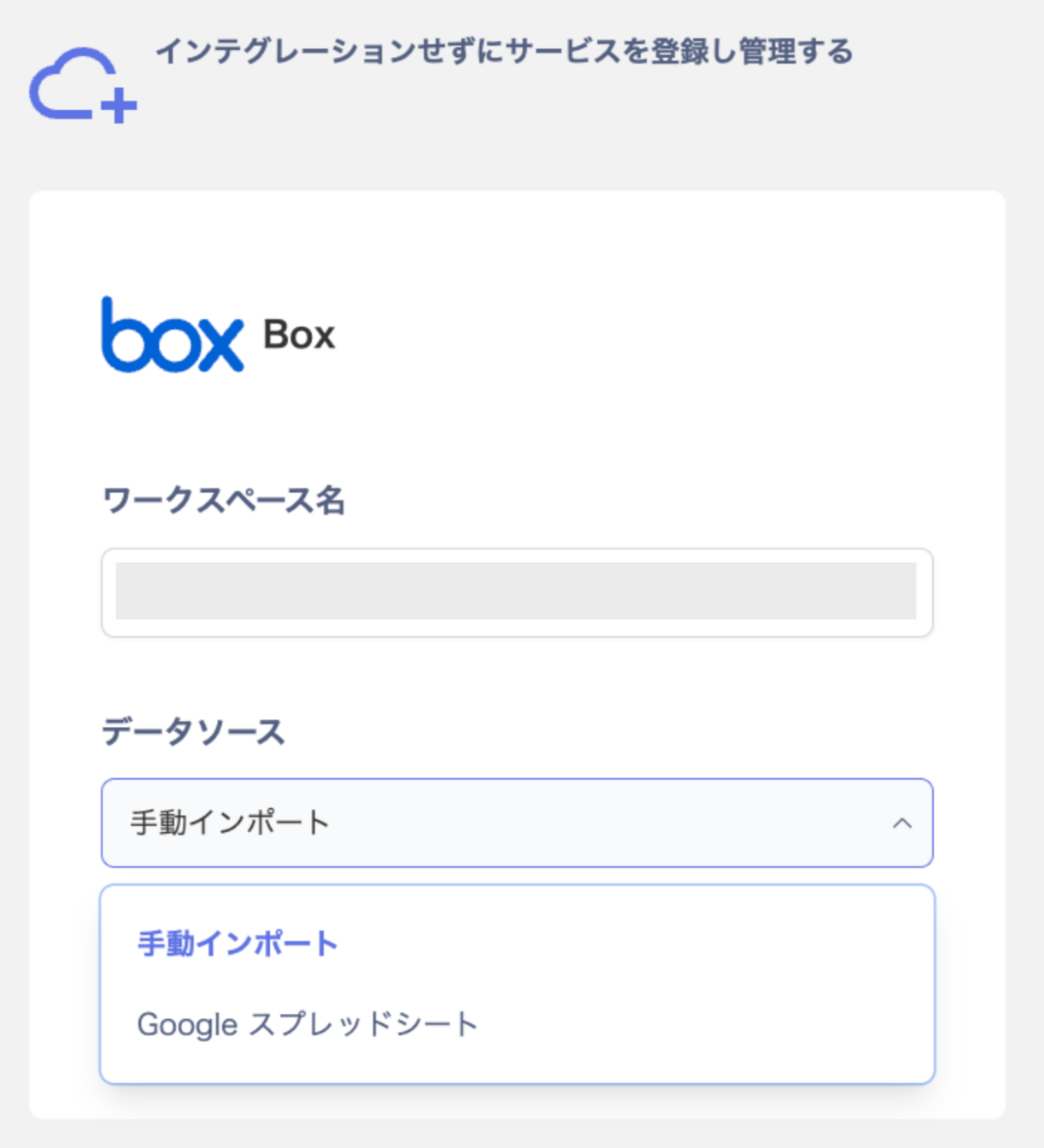
 3. Enter the **Workspace name**, select a data source — **Manual import / Google Sheets** — and register.
For details on registering custom apps, see [Register a service manually](/en/it-management/saas-management/jbzpcipgo5-custome-app) and [Connect a SaaS via Google Sheets](/en/it-management/saas-management/iwb7akg6zp-saa-s-spreadsheet).
3. Enter the **Workspace name**, select a data source — **Manual import / Google Sheets** — and register.
For details on registering custom apps, see [Register a service manually](/en/it-management/saas-management/jbzpcipgo5-custome-app) and [Connect a SaaS via Google Sheets](/en/it-management/saas-management/iwb7akg6zp-saa-s-spreadsheet).
 4. After registration, go to Services > BOX > Info > Workspace to see the newly added custom app.
Custom apps are labeled **Custom**.
4. After registration, go to Services > BOX > Info > Workspace to see the newly added custom app.
Custom apps are labeled **Custom**.