> ## Documentation Index
> Fetch the complete documentation index at: https://support.i.moneyforward.com/llms.txt
> Use this file to discover all available pages before exploring further.
# 2-4. [Custom App] Edit the Icon
> Learn how to edit the icon of a custom app.
Here is how to edit the icon of a custom app.
1. Go to **Service** > select the custom app, then click \[**Edit icon**] at the top right of the screen.
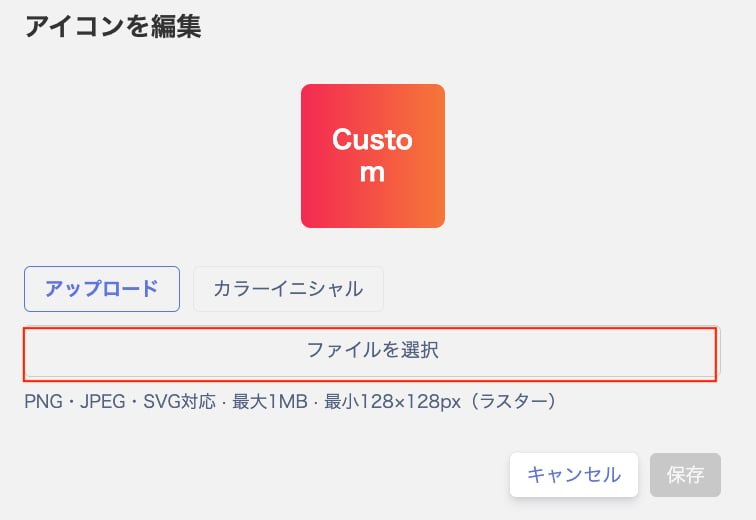
 2. On the "Edit icon" screen, click \[**Select file**] and choose the image file to use as the icon.
The supported file formats and requirements are as follows.
| Item | Details |
| ----------------- | --------------------- |
| Supported formats | PNG / JPEG / SVG |
| File size | Up to 1 MB |
| Resolution | At least 128 x 128 px |
2. On the "Edit icon" screen, click \[**Select file**] and choose the image file to use as the icon.
The supported file formats and requirements are as follows.
| Item | Details |
| ----------------- | --------------------- |
| Supported formats | PNG / JPEG / SVG |
| File size | Up to 1 MB |
| Resolution | At least 128 x 128 px |
 3. After selecting the file, click \[**Save**] to apply the icon change.