> ## Documentation Index
> Fetch the complete documentation index at: https://support.i.moneyforward.com/llms.txt
> Use this file to discover all available pages before exploring further.
# Transfer Data in Google Workspace
> Learn how to migrate account data in Google Workspace.
To transfer data in Google Workspace, you need **super admin privileges**.
## Overview
The Google Workspace data transfer feature lets you move data from one Google Workspace account to another. This transfer takes place within your organization. You can securely and efficiently move a user's calendars, documents, and Drive files to a new account.
This feature reduces the complexity of manual data migration during organizational restructuring. It also simplifies domain name changes and user account consolidation.
## Data Migration Steps
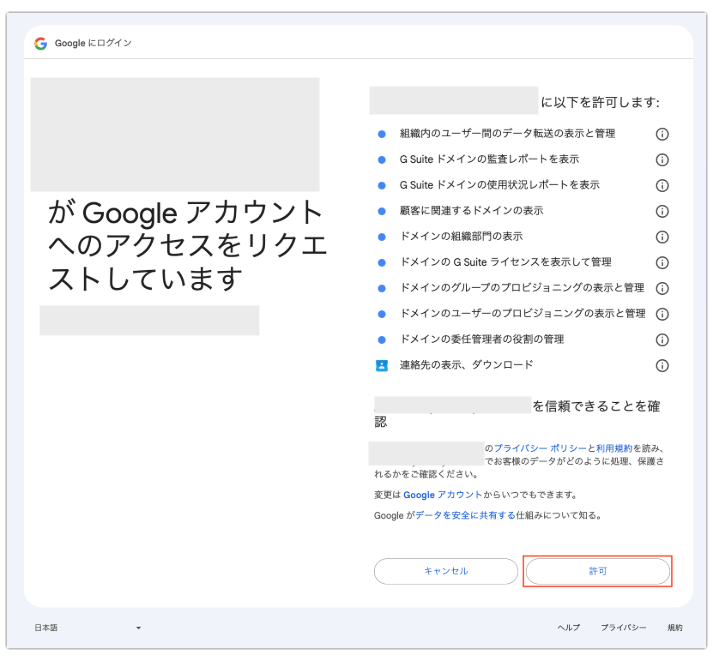
1. Go to Services > Google Workspace > Info > Re-link and run the re-link process. For details, see the [**Re-link section**](/en/it-management/saas-management/93nahw45is-trouble#re-linking).
When re-linking, a prompt saying "Requesting access to your Google Account" appears — review it and click **Allow**.
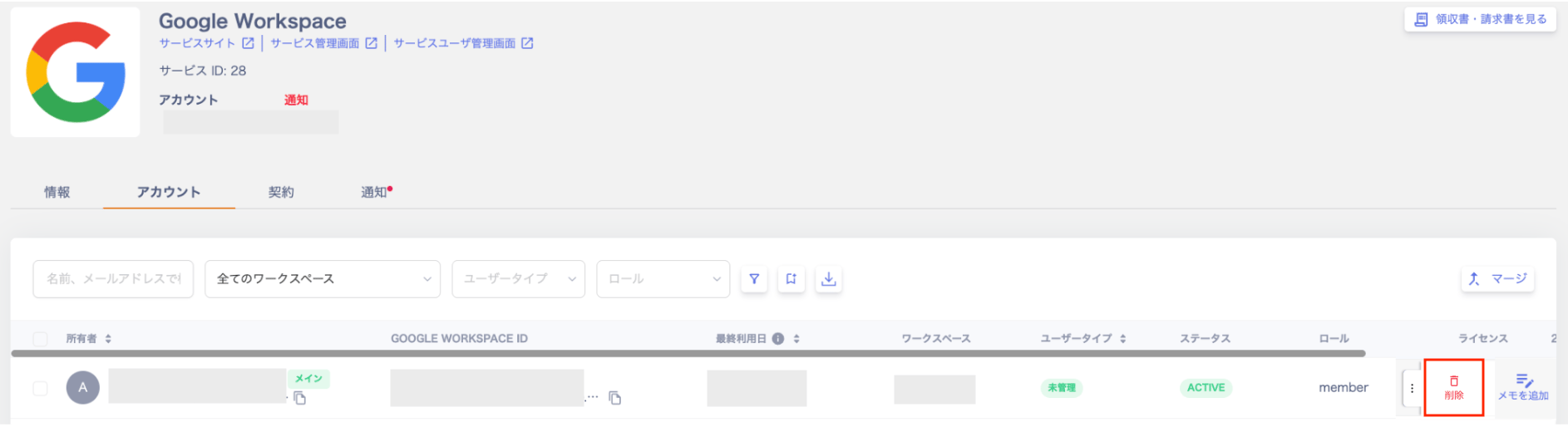
 2. Go to Services > Google Workspace > Accounts.
Select **Delete** from the three-dot menu at the right end of the account you want to migrate.
2. Go to Services > Google Workspace > Accounts.
Select **Delete** from the three-dot menu at the right end of the account you want to migrate.
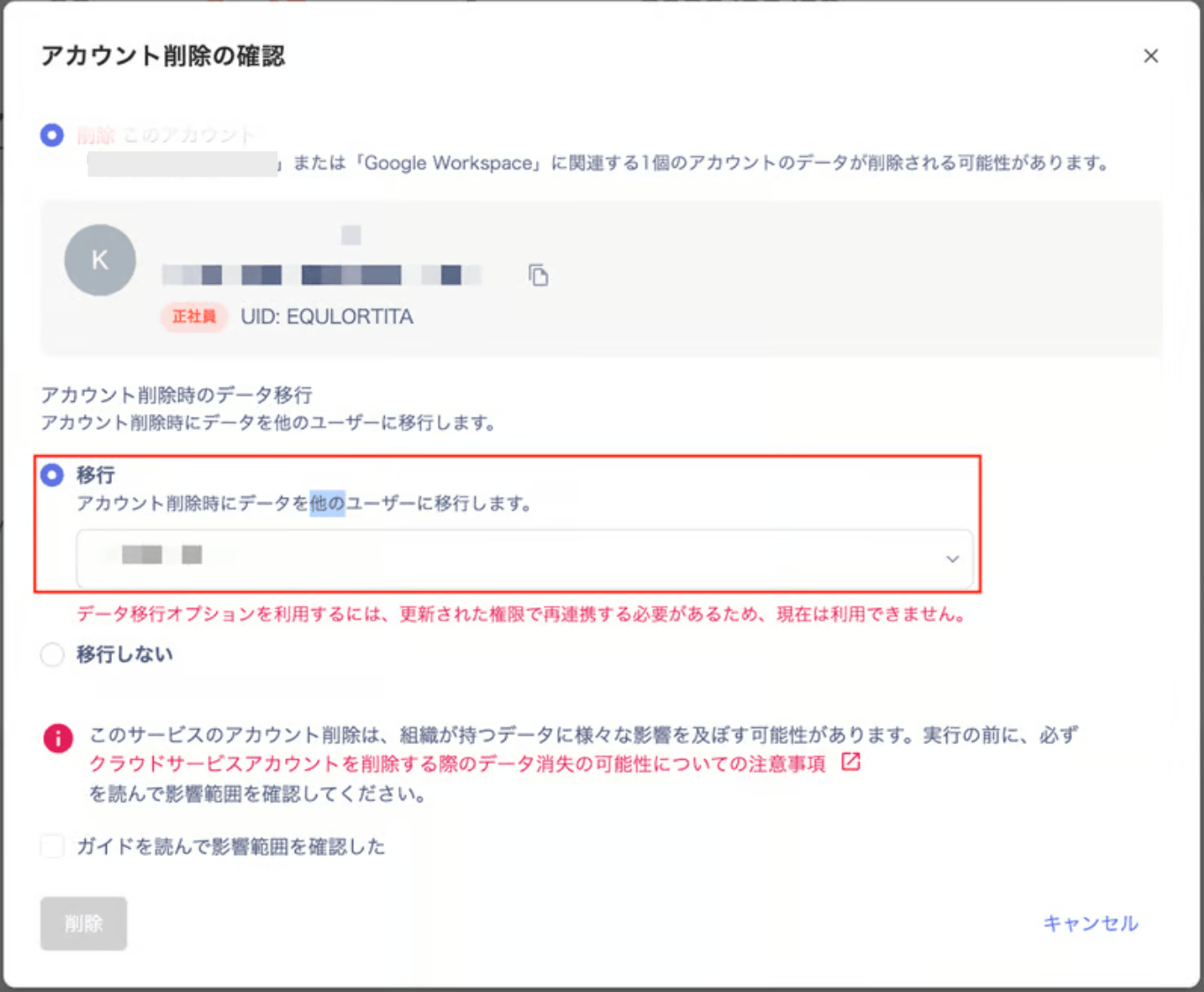
 3. On the "Confirm account deletion" screen, select **Transfer** and choose the user to transfer data to.
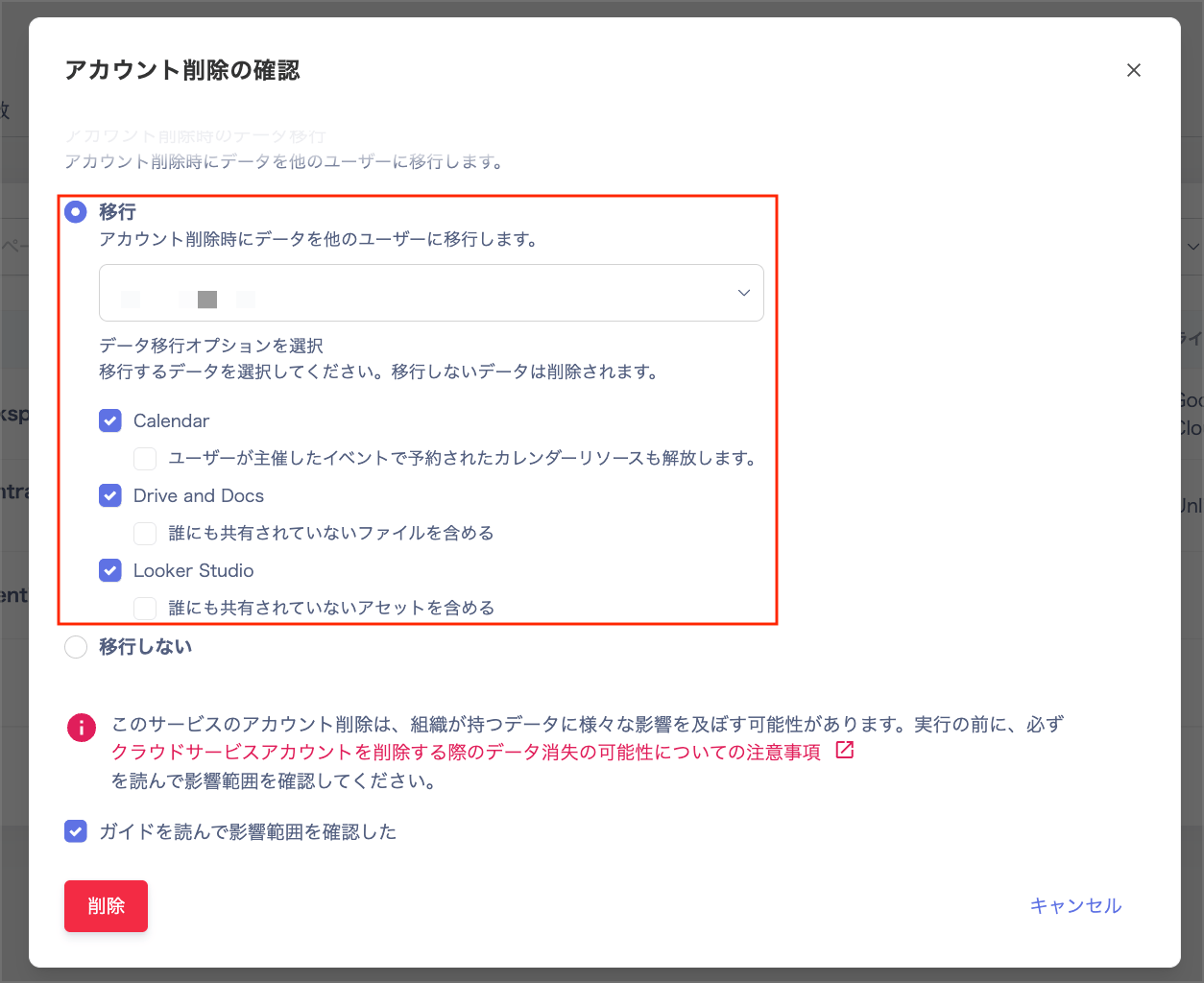
 4. The following checkboxes appear — select what you want to transfer:
* Calendar
* Drive and Docs
* Looker Studio
4. The following checkboxes appear — select what you want to transfer:
* Calendar
* Drive and Docs
* Looker Studio
 5. Click **Delete**.
When the transfer completes, a message appears. It reads: "Google Workspace data transfer from (account name) to (account name) completed successfully."
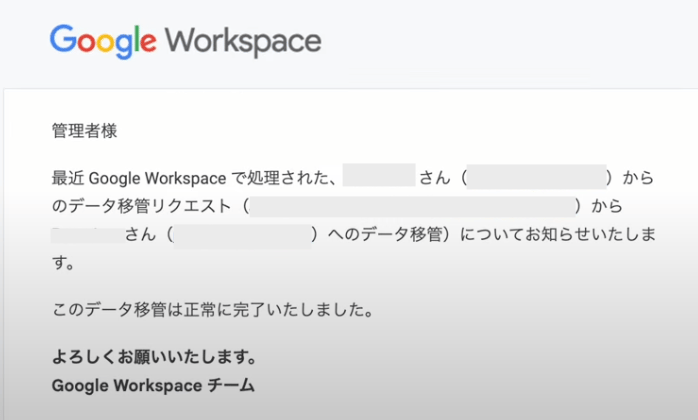
You will also receive the following email from Google Workspace.
5. Click **Delete**.
When the transfer completes, a message appears. It reads: "Google Workspace data transfer from (account name) to (account name) completed successfully."
You will also receive the following email from Google Workspace.
 ## References
[Remove a user from your organization](https://support.google.com/a/answer/33314) (external site)
[Options for retaining data from a departed employee](https://support.google.com/a/answer/11524030) (external site)
## References
[Remove a user from your organization](https://support.google.com/a/answer/33314) (external site)
[Options for retaining data from a departed employee](https://support.google.com/a/answer/11524030) (external site)