> ## Documentation Index
> Fetch the complete documentation index at: https://support.i.moneyforward.com/llms.txt
> Use this file to discover all available pages before exploring further.
# Integration Steps When Two-Factor Authentication (2FA) Is Enabled
> Steps to integrate with a SaaS service when two-factor authentication (2FA) is enabled.
#### When Two-Factor Authentication (2FA) Is Enabled on the SaaS Side
Some SaaS services require two-factor authentication (2FA) — such as scanning a QR code — in addition to an ID and password.
This page explains how to connect such services with our service.
#### What You Need
Prepare one of the following:
* **An image file of the QR code displayed during authentication (.jpeg, .png, etc.)**
* **A secret key (the text code shown when you cannot scan the QR code)**
If you have already set up two-factor authentication, you need to disable 2FA and re-enable it to obtain the information above.
If you are not using two-factor authentication, connect the service without entering 2FA credentials.
#### Sample
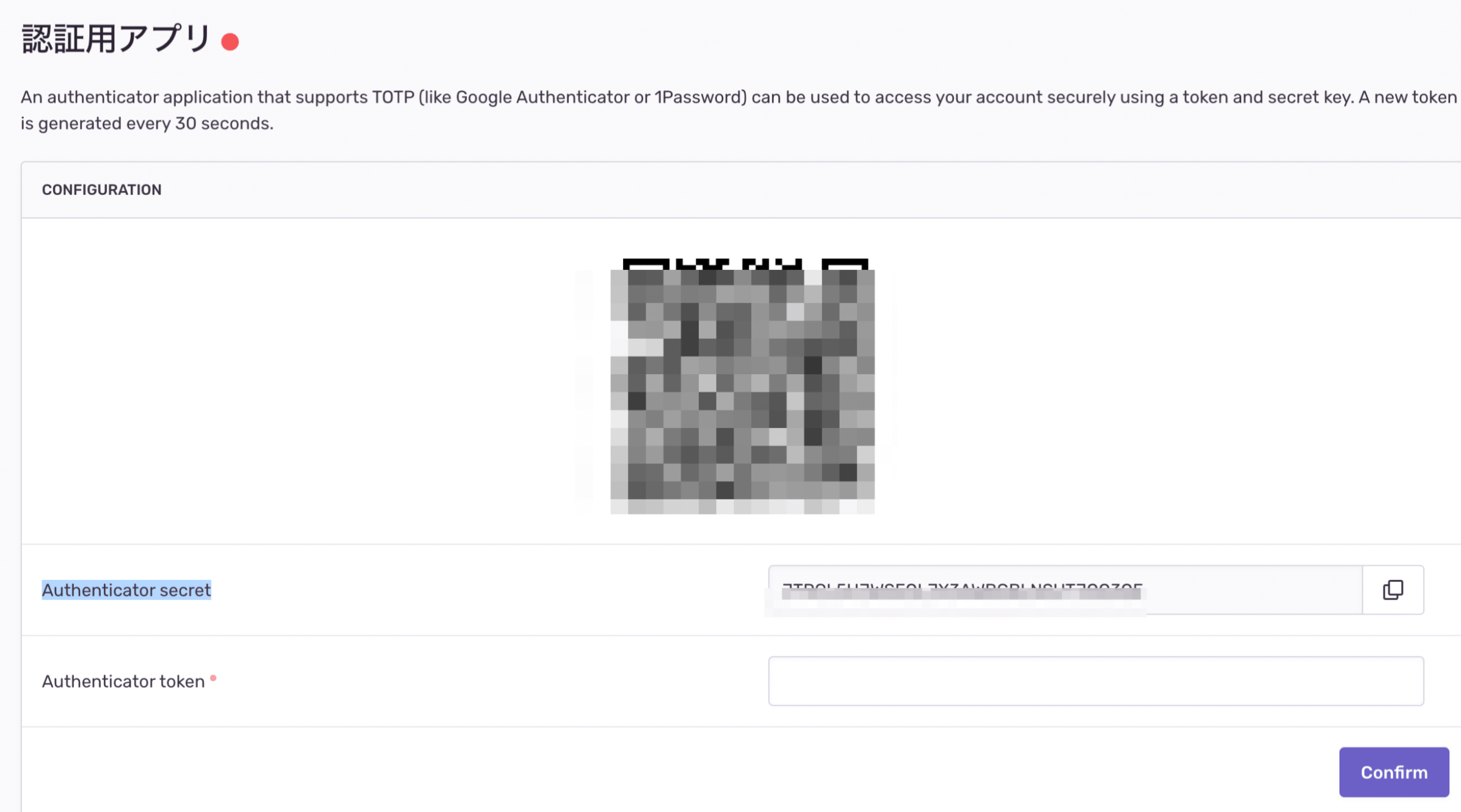
* The image file of the QR code area or the Authentication Secret value serves as the secret key.
 * For MoneyForward ID
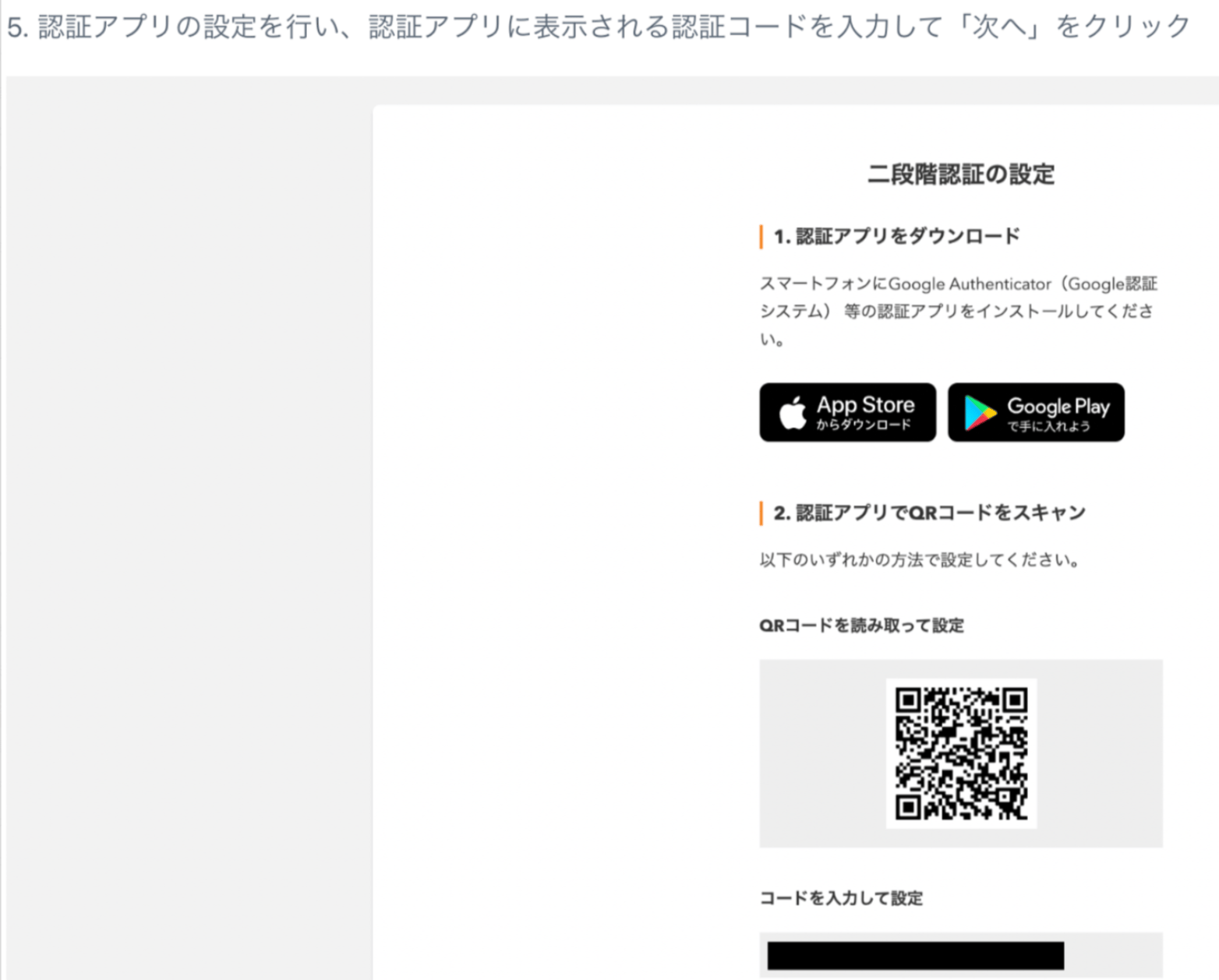
Set the QR code image or code (secret key) from step 5 of the [two-factor authentication](https://support.me.moneyforward.com/hc/ja/articles/7359917171481-%E4%BA%8C%E6%AE%B5%E9%9A%8E%E8%AA%8D%E8%A8%BC%E3%81%AE%E8%A8%AD%E5%AE%9A%E6%96%B9%E6%B3%95) setup guide.
* For MoneyForward ID
Set the QR code image or code (secret key) from step 5 of the [two-factor authentication](https://support.me.moneyforward.com/hc/ja/articles/7359917171481-%E4%BA%8C%E6%AE%B5%E9%9A%8E%E8%AA%8D%E8%A8%BC%E3%81%AE%E8%A8%AD%E5%AE%9A%E6%96%B9%E6%B3%95) setup guide.
 #### Integration Steps
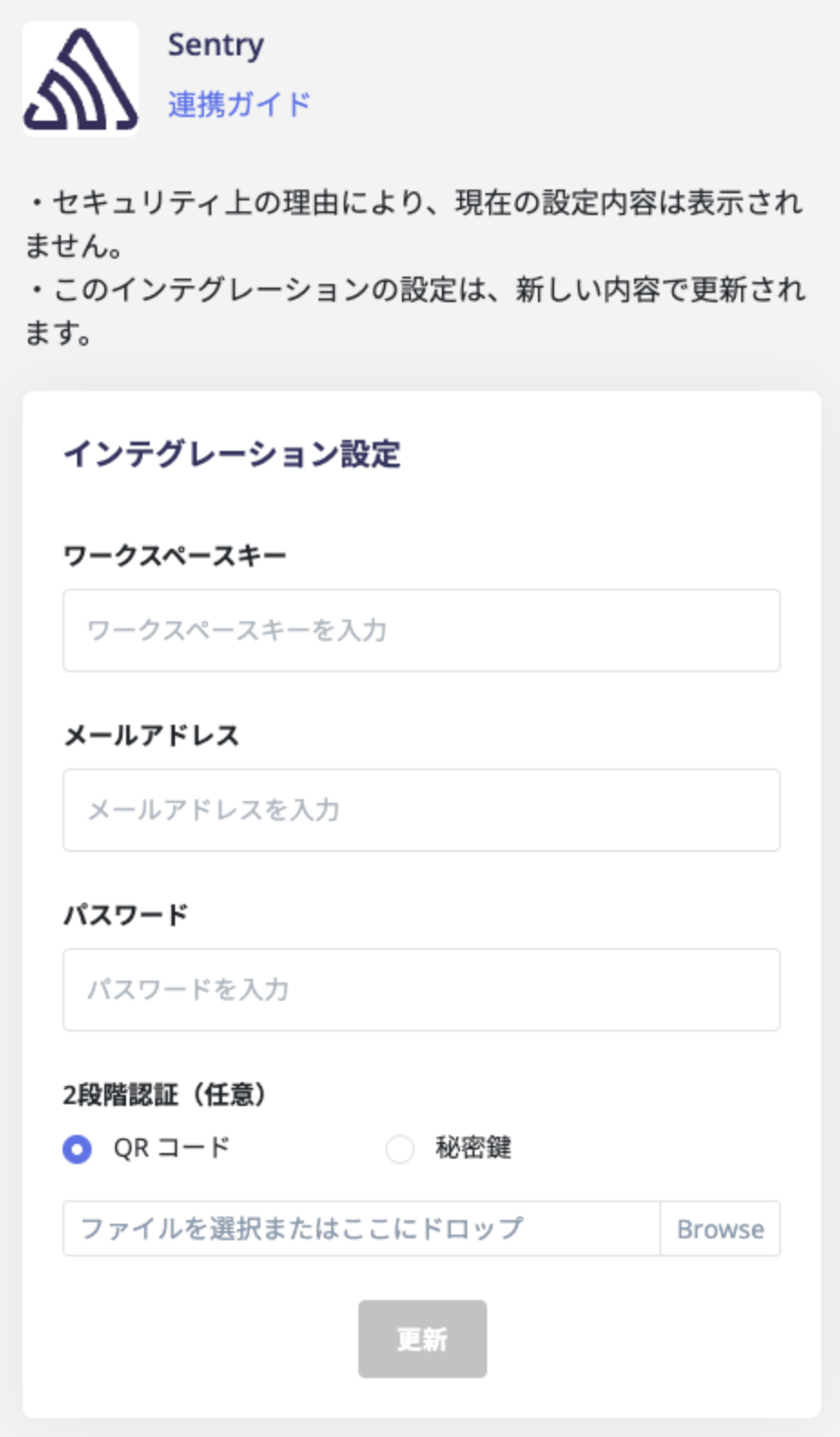
When connecting a SaaS service, enter your ID and password along with the **QR code image** or **secret key** you prepared above, then click **Connect**.
#### Integration Steps
When connecting a SaaS service, enter your ID and password along with the **QR code image** or **secret key** you prepared above, then click **Connect**.
 #### FAQ
Q. An error appears when I try to connect a SaaS service using two-factor authentication. How do I fix this?
A. If you are connecting with a QR code, try connecting with the secret key instead to see if that resolves the issue. If the secret key does not resolve it, contact [support](/en/it-management/changelog/3e6sz4xzsx-support) with a description of the problem.
#### FAQ
Q. An error appears when I try to connect a SaaS service using two-factor authentication. How do I fix this?
A. If you are connecting with a QR code, try connecting with the secret key instead to see if that resolves the issue. If the secret key does not resolve it, contact [support](/en/it-management/changelog/3e6sz4xzsx-support) with a description of the problem.