> ## Documentation Index
> Fetch the complete documentation index at: https://support.i.moneyforward.com/llms.txt
> Use this file to discover all available pages before exploring further.
# Require multi-factor authentication (MFA) for login
> Steps to require MFA for logging in to this service.
#### Feature Overview
This feature is only available for domestic users who use Money Forward ID.
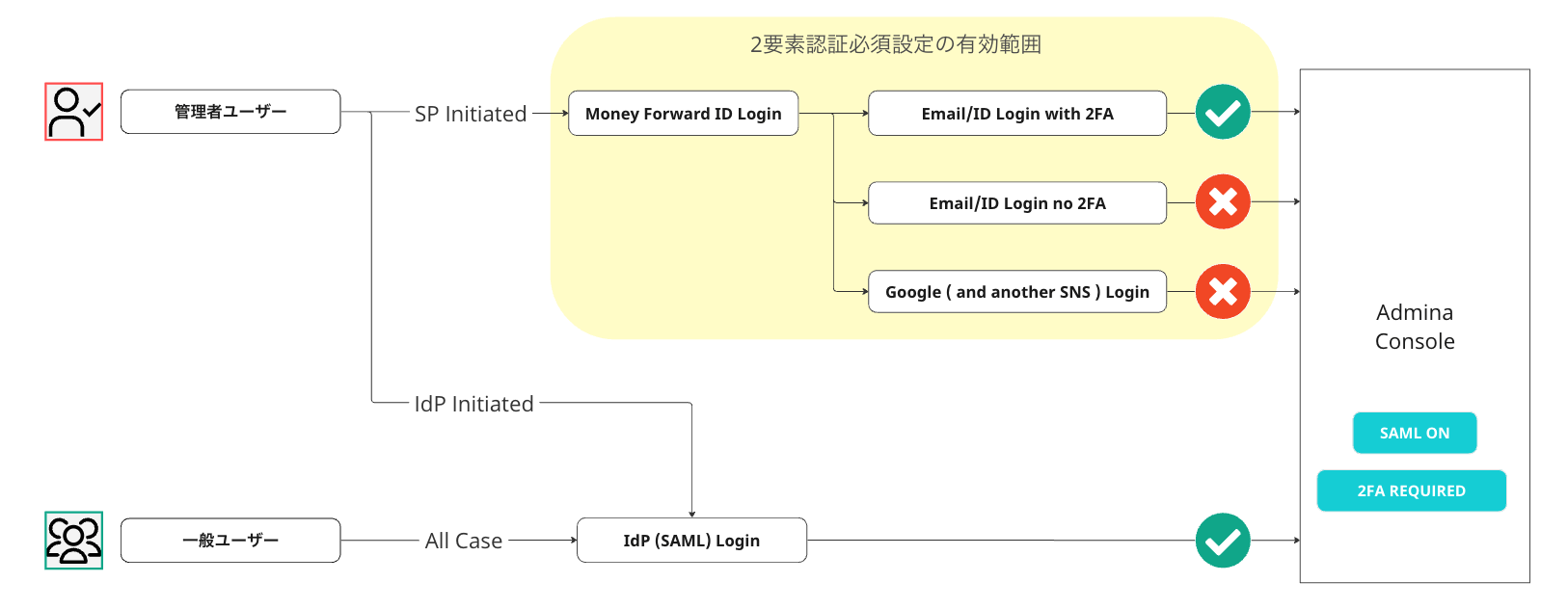
This service supports two login methods: login via Money Forward ID, and login via an IdP using SAML.
For administrators, even with SAML enabled, IdP-initiated login uses SAML. SP-initiated login continues to allow Money Forward ID login.
This guide describes the "**Require MFA login with Money Forward ID for this service**" option. Enabling it rejects logins from admins or employees using Money Forward ID without MFA configured.
This restricts all users to logins that meet a minimum security standard. Because this feature operates independently from SAML (SSO), you can enable it even when not using SAML.
 #### Setup Steps
1. Enable multi-factor authentication in Money Forward ID.
Refer to this [guide](https://biz.moneyforward.com/support/guide/g003.html). Access the following URL to enable it: [https://id.moneyforward.com/two\_factor\_auth\_setting](https://id.moneyforward.com/two_factor_auth_setting)
Once MFA is enabled, return to this service to continue.
2. Enable forced MFA in this service.
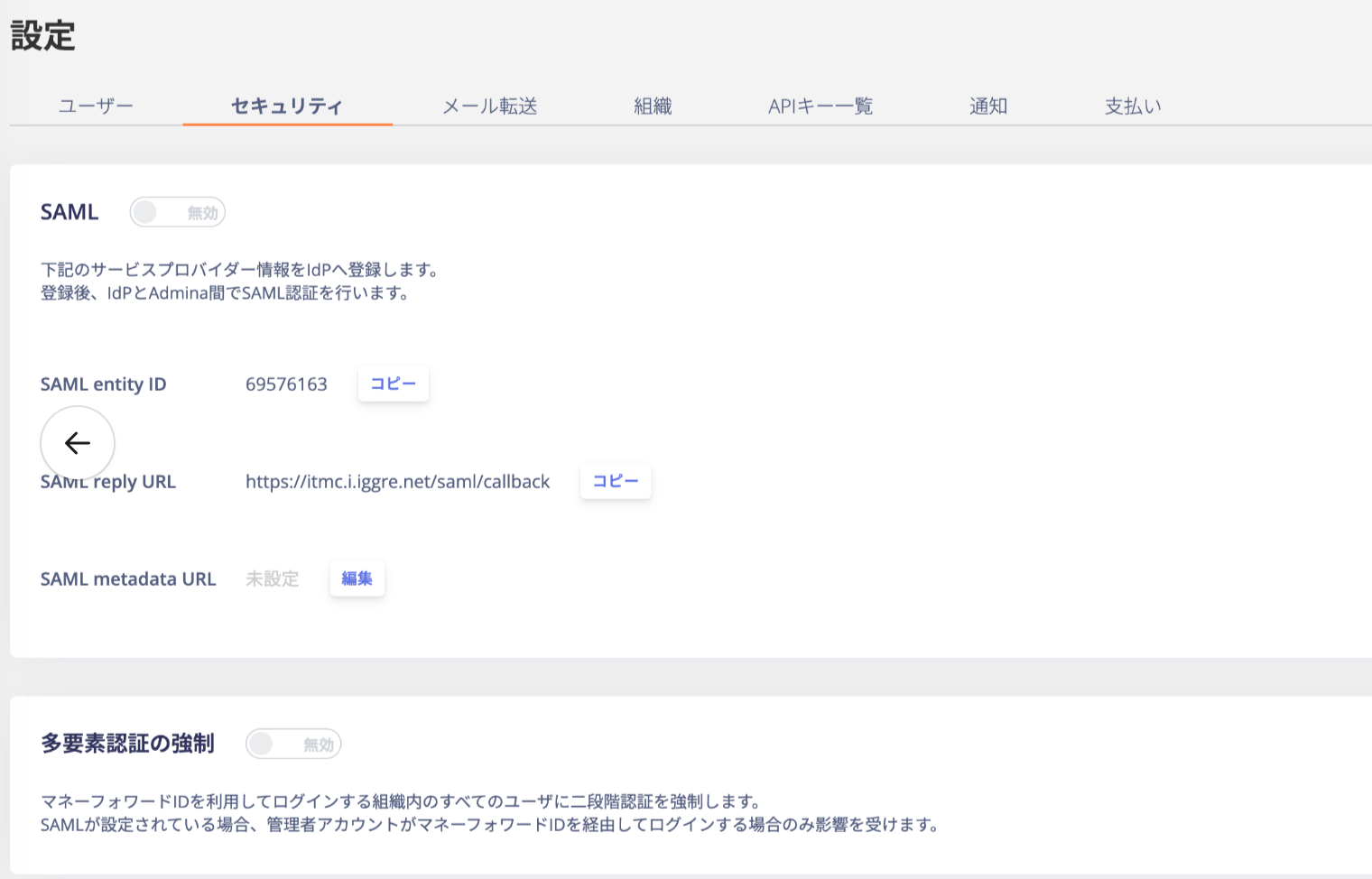
Go to **Settings > Security tab** and enable **Force multi-factor authentication**.
#### Setup Steps
1. Enable multi-factor authentication in Money Forward ID.
Refer to this [guide](https://biz.moneyforward.com/support/guide/g003.html). Access the following URL to enable it: [https://id.moneyforward.com/two\_factor\_auth\_setting](https://id.moneyforward.com/two_factor_auth_setting)
Once MFA is enabled, return to this service to continue.
2. Enable forced MFA in this service.
Go to **Settings > Security tab** and enable **Force multi-factor authentication**.
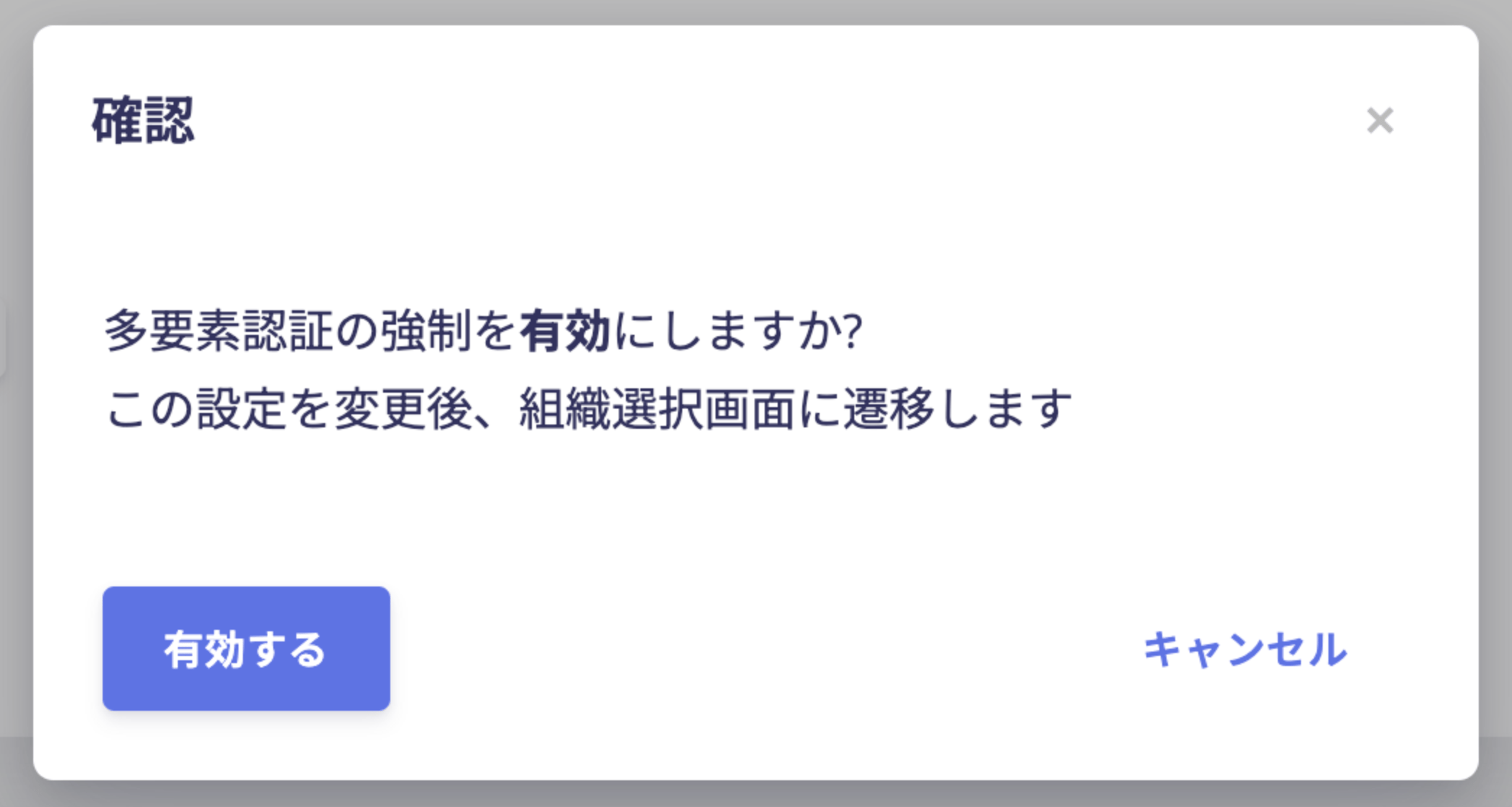 3. Log in again from the organization selection screen.
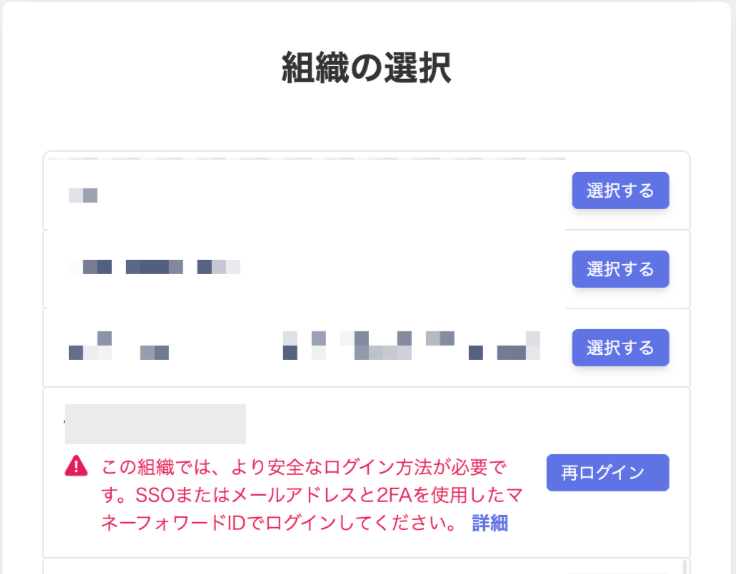
The feature activates immediately after you turn it on. Users already logged in with MFA are not affected. Users logged in without MFA, or via a method like Google Login, are redirected to the organization selection screen. There, they must log in again with MFA.
4. Log in to Money Forward ID using `ID + password + MFA`.
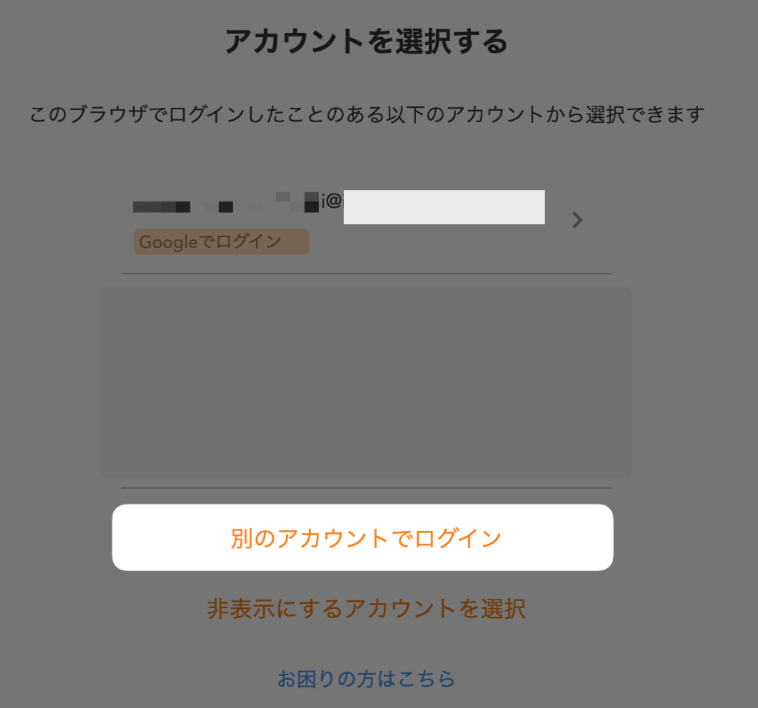
When the screen below appears, click the **"Re-login"** button to log in again.
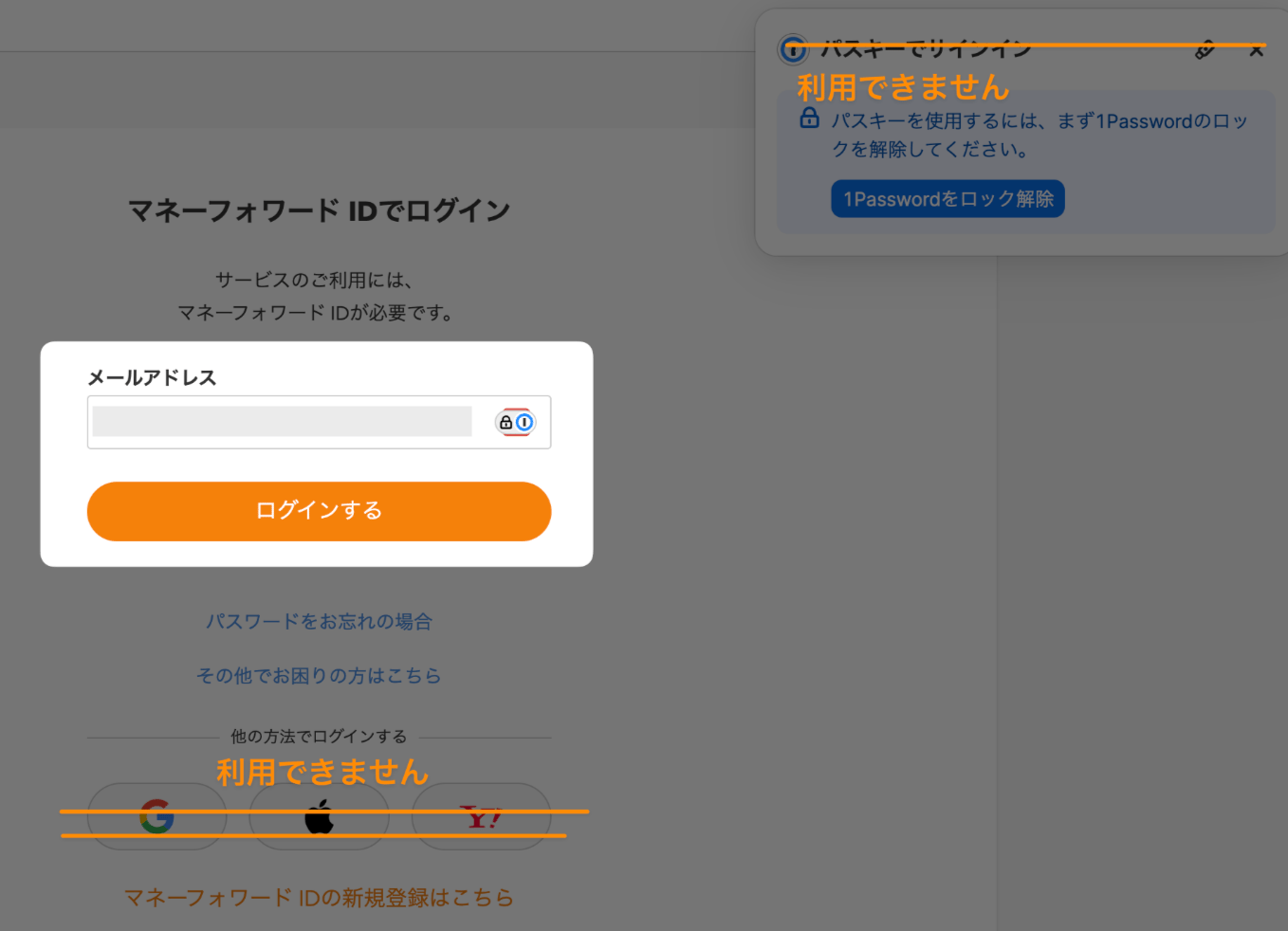
The login screen for this service appears, followed by a request to log in to Money Forward ID again.
Click **"Sign in with a different account"** and log in with your ID/password + MFA.
**Google Login, passkeys, and similar methods are not available.**
3. Log in again from the organization selection screen.
The feature activates immediately after you turn it on. Users already logged in with MFA are not affected. Users logged in without MFA, or via a method like Google Login, are redirected to the organization selection screen. There, they must log in again with MFA.
4. Log in to Money Forward ID using `ID + password + MFA`.
When the screen below appears, click the **"Re-login"** button to log in again.
The login screen for this service appears, followed by a request to log in to Money Forward ID again.
Click **"Sign in with a different account"** and log in with your ID/password + MFA.
**Google Login, passkeys, and similar methods are not available.**
 5. Setup complete.
Setup is now complete. You are automatically logged back in to this service and can resume using it.
If other members also need to configure this, they can set up MFA in Money Forward ID. Then, they follow the same re-login steps in this service.
#### Effects of This Setting
The following Money Forward ID login methods cannot verify whether MFA is in use. Logins using these methods will be blocked.
* **Google Login (blocked even if MFA is enabled in Google)**
* **Apple ID Login**
* **Yahoo Login**
* **Passkeys**
#### How to Recover a Locked-Out User
After setting up 2FA in Money Forward ID, sign out of this service and try logging in again.
[https://itmc.i.moneyforward.com/login](https://itmc.i.moneyforward.com/login)
[How to set up 2FA in Money Forward ID](https://biz.moneyforward.com/support/guide/g003.html#:~:text=%E3%83%9E%E3%83%8D%E3%83%BC%E3%83%95%E3%82%A9%E3%83%AF%E3%83%BC%E3%83%89%20ID%E3%81%AB%E3%83%AD%E3%82%B0%E3%82%A4%E3%83%B3,%E5%86%8D%E5%BA%A6%E3%83%AD%E3%82%B0%E3%82%A4%E3%83%B3%E3%81%97%E3%81%A6%E3%81%8F%E3%81%A0%E3%81%95%E3%81%84%E3%80%82)
5. Setup complete.
Setup is now complete. You are automatically logged back in to this service and can resume using it.
If other members also need to configure this, they can set up MFA in Money Forward ID. Then, they follow the same re-login steps in this service.
#### Effects of This Setting
The following Money Forward ID login methods cannot verify whether MFA is in use. Logins using these methods will be blocked.
* **Google Login (blocked even if MFA is enabled in Google)**
* **Apple ID Login**
* **Yahoo Login**
* **Passkeys**
#### How to Recover a Locked-Out User
After setting up 2FA in Money Forward ID, sign out of this service and try logging in again.
[https://itmc.i.moneyforward.com/login](https://itmc.i.moneyforward.com/login)
[How to set up 2FA in Money Forward ID](https://biz.moneyforward.com/support/guide/g003.html#:~:text=%E3%83%9E%E3%83%8D%E3%83%BC%E3%83%95%E3%82%A9%E3%83%AF%E3%83%BC%E3%83%89%20ID%E3%81%AB%E3%83%AD%E3%82%B0%E3%82%A4%E3%83%B3,%E5%86%8D%E5%BA%A6%E3%83%AD%E3%82%B0%E3%82%A4%E3%83%B3%E3%81%97%E3%81%A6%E3%81%8F%E3%81%A0%E3%81%95%E3%81%84%E3%80%82)