> ## Documentation Index
> Fetch the complete documentation index at: https://support.i.moneyforward.com/llms.txt
> Use this file to discover all available pages before exploring further.
# 2-2. Distributing the Chrome Extension via Google Workspace Admin Console
> Steps to distribute the Chrome extension via the Google Workspace Admin Console.
### Overview
This page explains how to distribute the Chrome extension using the Google Workspace Admin Console.
For details on what the extension does, see [Distribute the Browser Extension to Collect SaaS Activity](/en/it-management/shadow-it/7q1wryx3dk-extension). This page also describes its full specifications.
#### Prerequisites (Chrome)
* You must have a Google Workspace subscription (business plans only; personal accounts are not supported).
Reference: [Google Workspace Pricing](https://workspace.google.com/pricing.html)
* Chrome browser management must be enabled in Google Workspace.
Reference: [Enable Chrome browser management (user policies only)](https://support.google.com/chrome/a/answer/6304822)
* Users must be signed into Google Chrome in the browser with sync turned on.
Apps > Google Workspace > Additional Google Services > **Google Chrome Sync** `On`
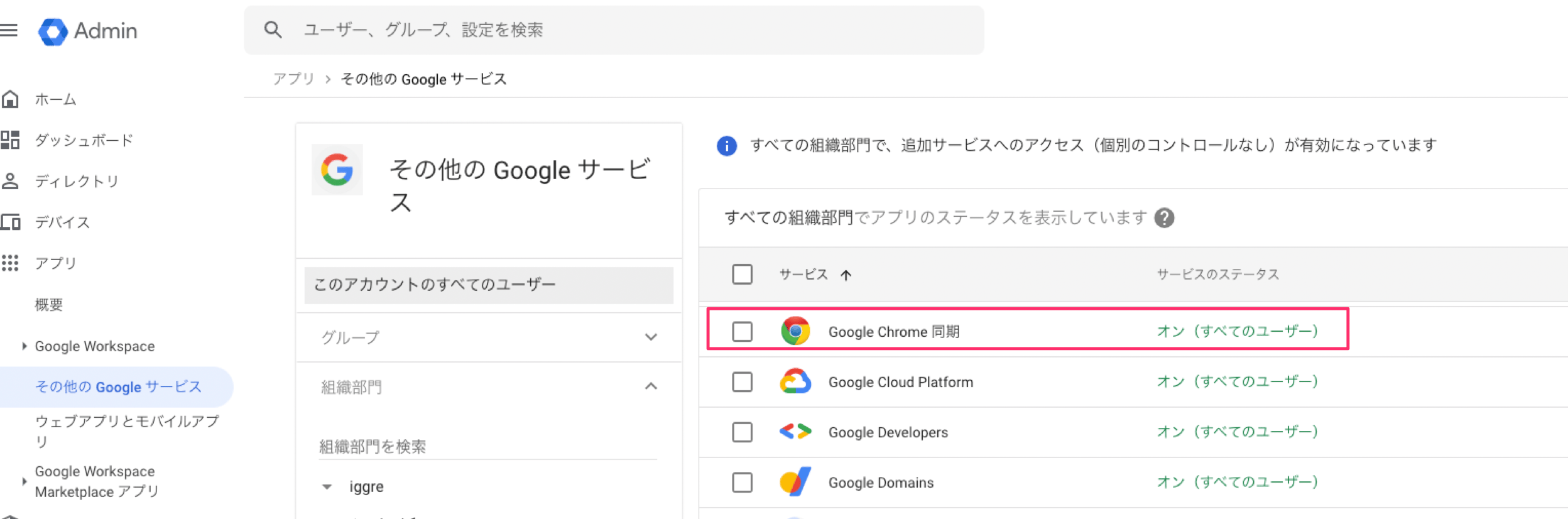 Reference: [Force users to sign in to Chrome browser (user policies only)](https://support.google.com/chrome/a/answer/7572556)
If a browser extension is forcibly installed by Skysea Client View, Lanscope Cat, or other security software, Chrome policies may conflict and prevent installation from the Admin Console. In that case, distribute the extension using a method that does not rely on the Admin Console, such as Windows Group Policy. For details, see [Browser extension setup guide (Windows)](/en/it-management/shadow-it/a496chhkbm-2-7-windows-bat).
#### Distributing to Devices
#### Configuration and Installation in the Google Admin Console
1. Sign in to [Google Admin](https://admin.google.com).
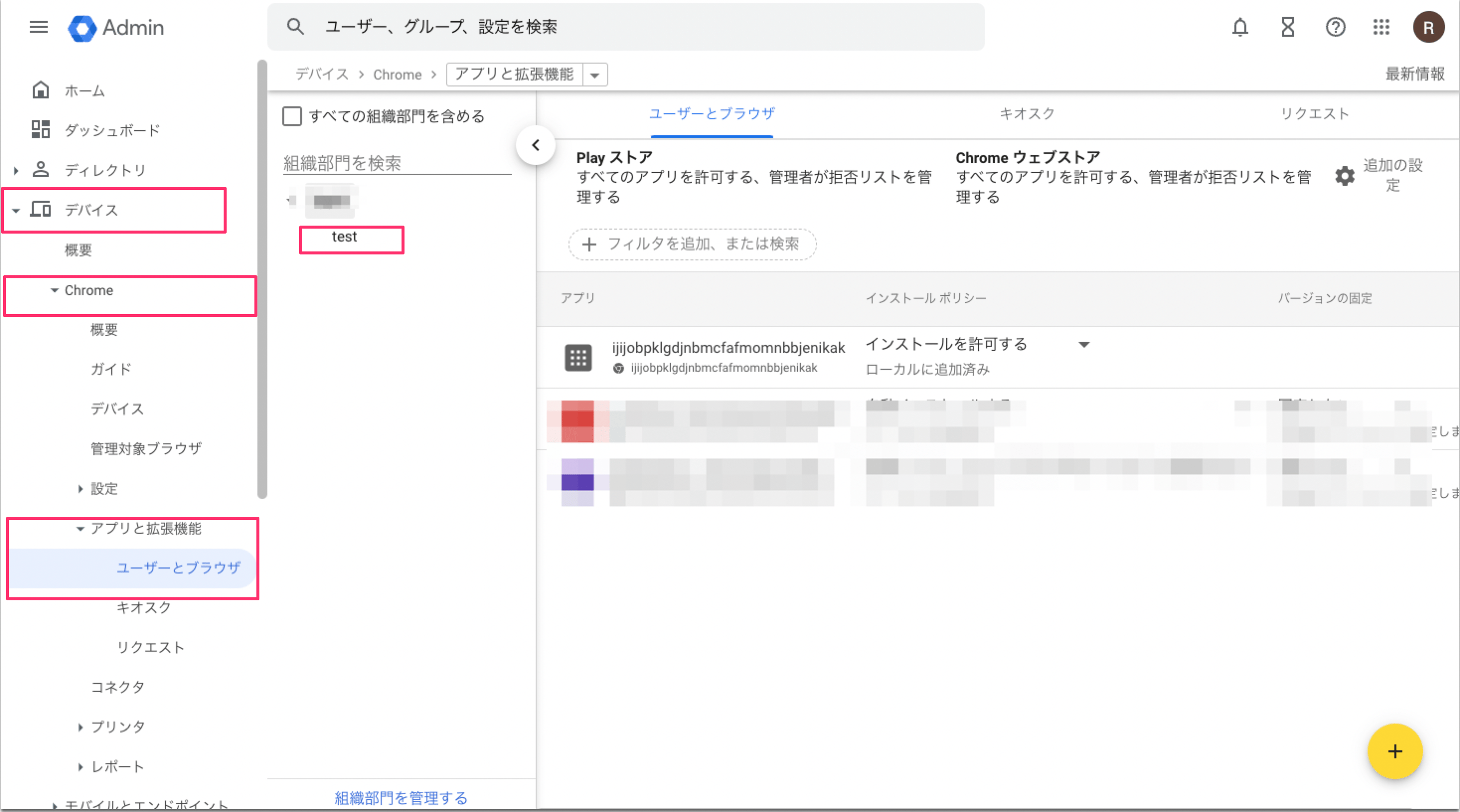
2. Navigate to **Devices > Chrome > Apps & extensions > Users and browsers**.
3. Select the group or organizational unit you want to distribute the extension to.
To distribute to a specific department only, select a specific group or a child organizational unit.
Example) Assigning to an organizational unit
Reference: [Force users to sign in to Chrome browser (user policies only)](https://support.google.com/chrome/a/answer/7572556)
If a browser extension is forcibly installed by Skysea Client View, Lanscope Cat, or other security software, Chrome policies may conflict and prevent installation from the Admin Console. In that case, distribute the extension using a method that does not rely on the Admin Console, such as Windows Group Policy. For details, see [Browser extension setup guide (Windows)](/en/it-management/shadow-it/a496chhkbm-2-7-windows-bat).
#### Distributing to Devices
#### Configuration and Installation in the Google Admin Console
1. Sign in to [Google Admin](https://admin.google.com).
2. Navigate to **Devices > Chrome > Apps & extensions > Users and browsers**.
3. Select the group or organizational unit you want to distribute the extension to.
To distribute to a specific department only, select a specific group or a child organizational unit.
Example) Assigning to an organizational unit
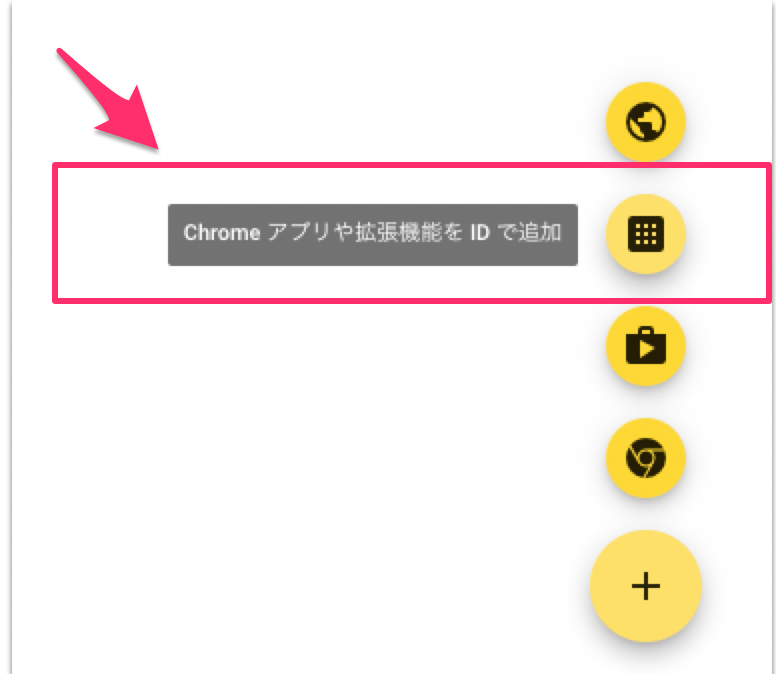
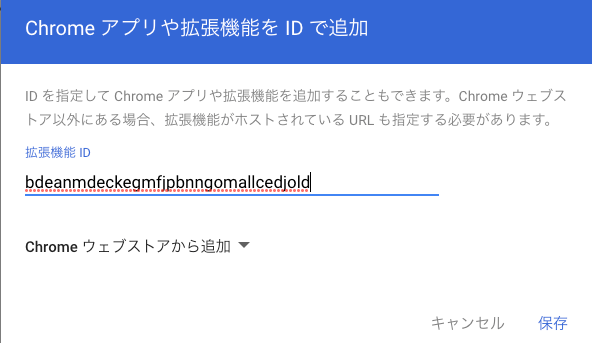
 4. Click the **+** button in the lower right, then click **\[Add Chrome app or extension by ID]**.
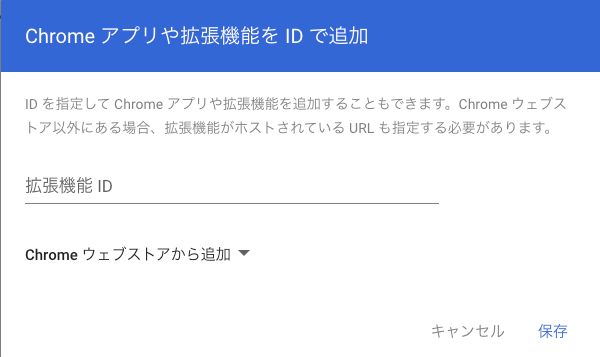
 5. Select **Add from Chrome Web Store**.
 6. Sign in and go to **Settings** > **Browser Extension**.
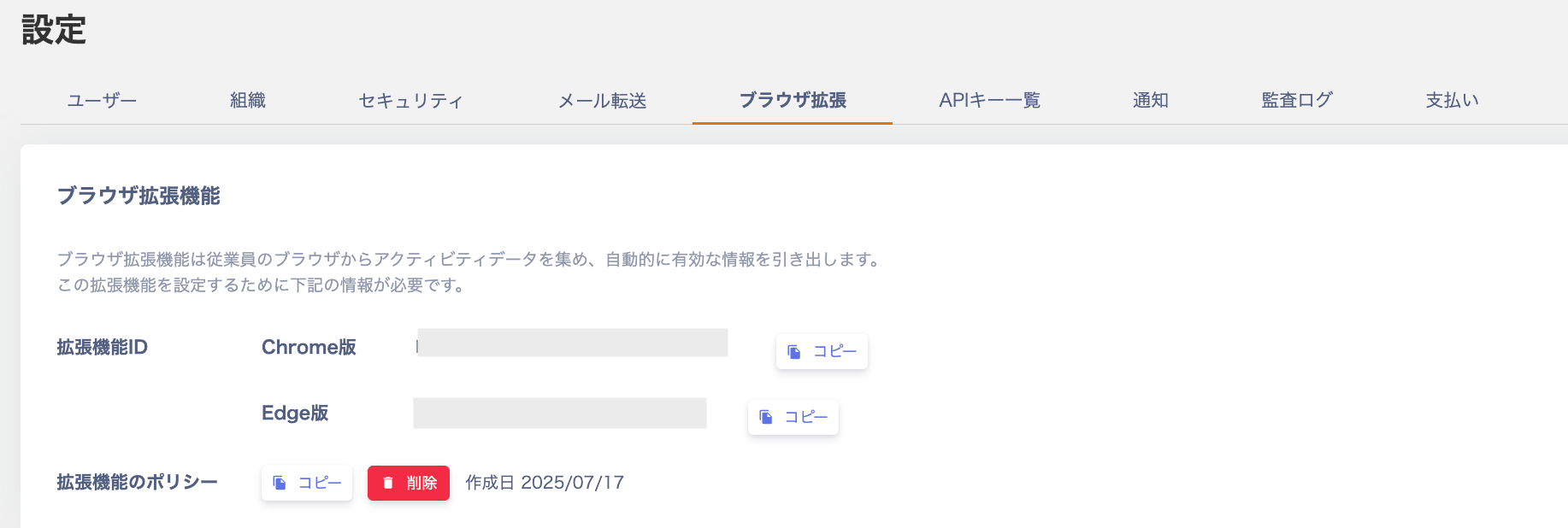 7. **Copy the Extension ID**, paste it into the `Extension ID` field in Google Chrome, and click **Save**.
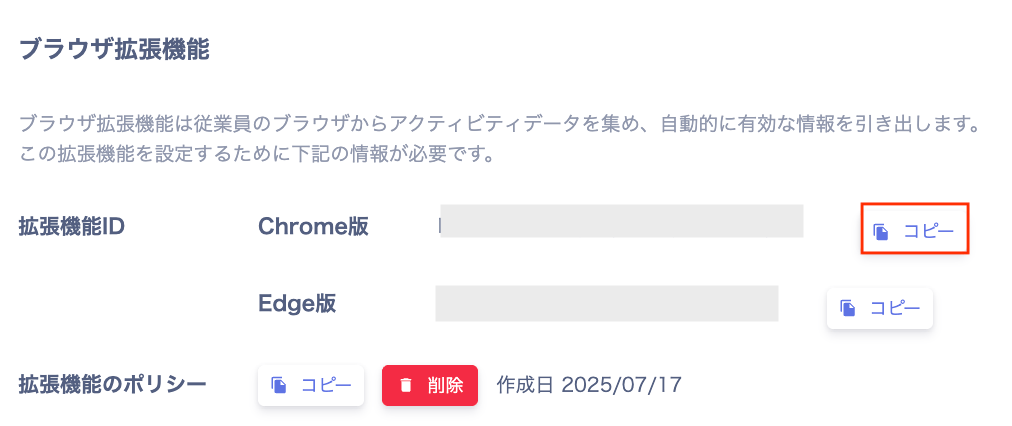
 8. Sign in and go to **Settings** > **Browser Extension**, then click **\[Copy]** in the extension policy section.
 9. Paste the copied policy value into the **\[Extension policy]** field for the extension created in the Google Admin Console.
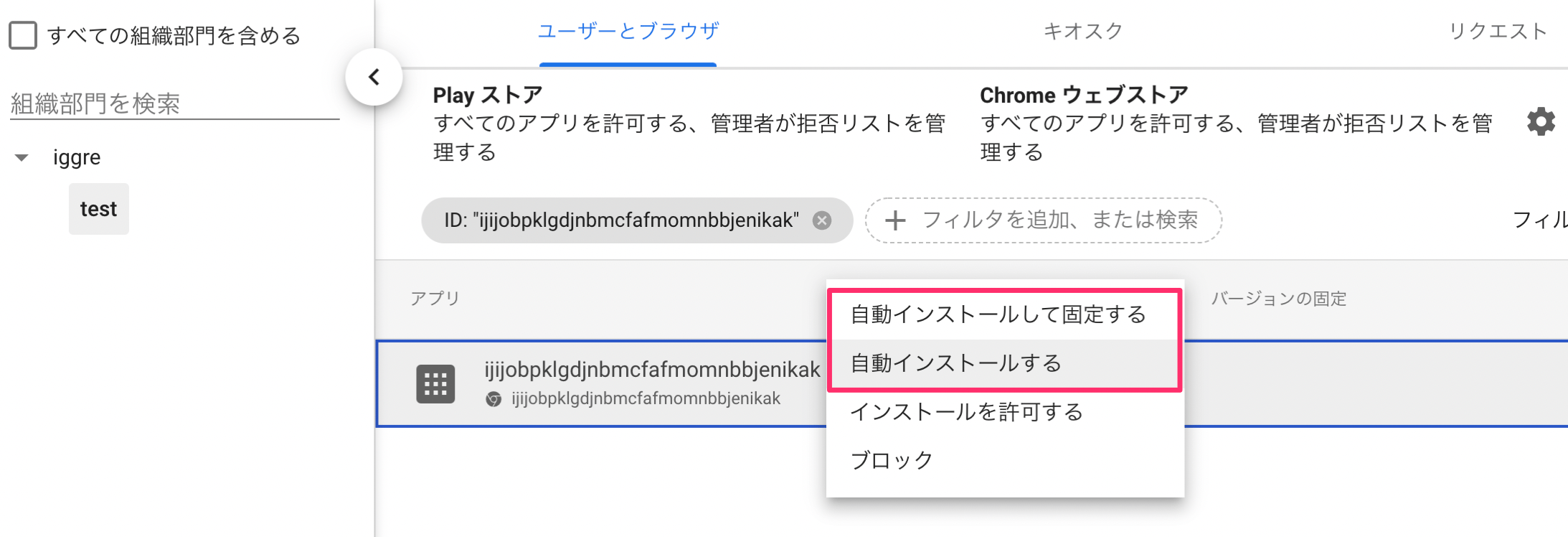
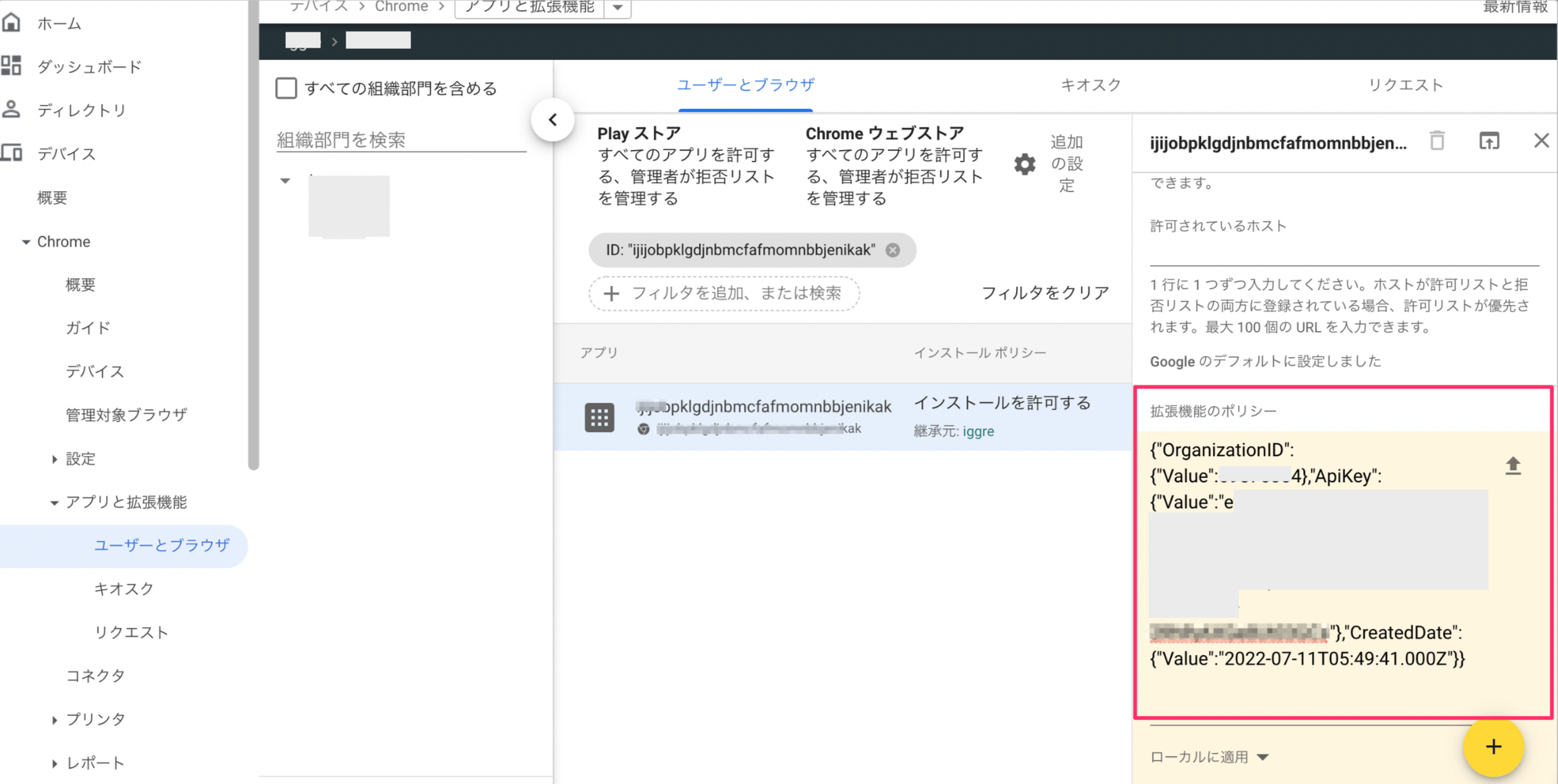 10. Set the installation policy to **\[Force install]** or **\[Force install + pin]**.
* **Force install**: Installs the extension automatically so users cannot remove it.
* **Force install + pin**: Same as **Force install**, and also pins the extension icon to the taskbar.
10. Set the installation policy to **\[Force install]** or **\[Force install + pin]**.
* **Force install**: Installs the extension automatically so users cannot remove it.
* **Force install + pin**: Same as **Force install**, and also pins the extension icon to the taskbar.
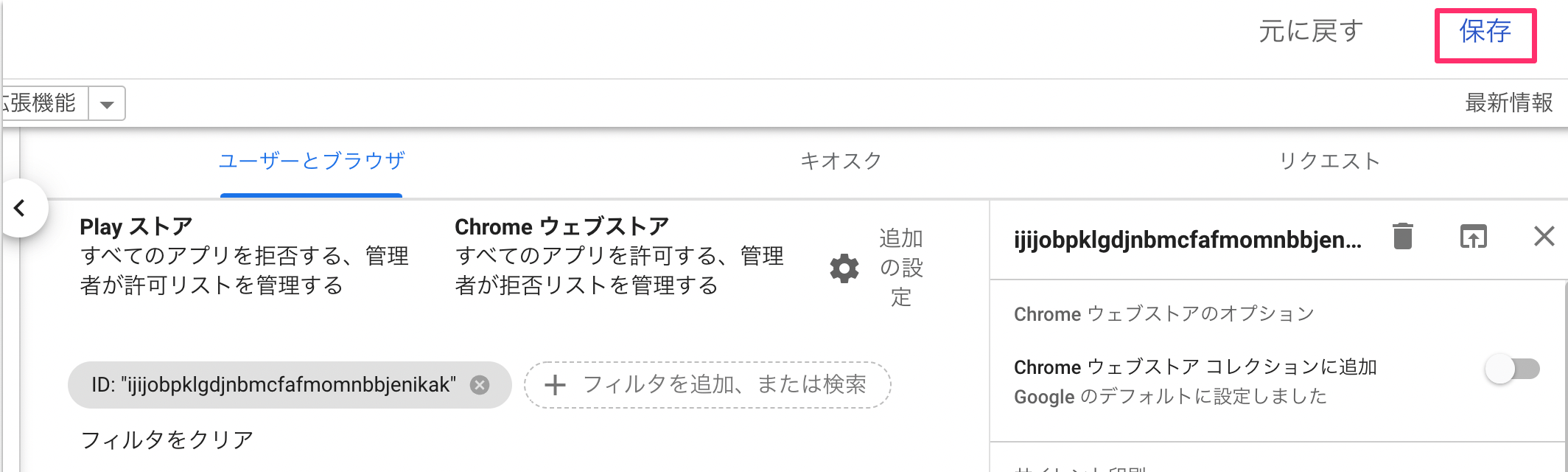
 11. After completing all settings, click the **Save** button in the upper right. The distribution setup is now complete.
 #### Verifying Installation on Devices (Browser)
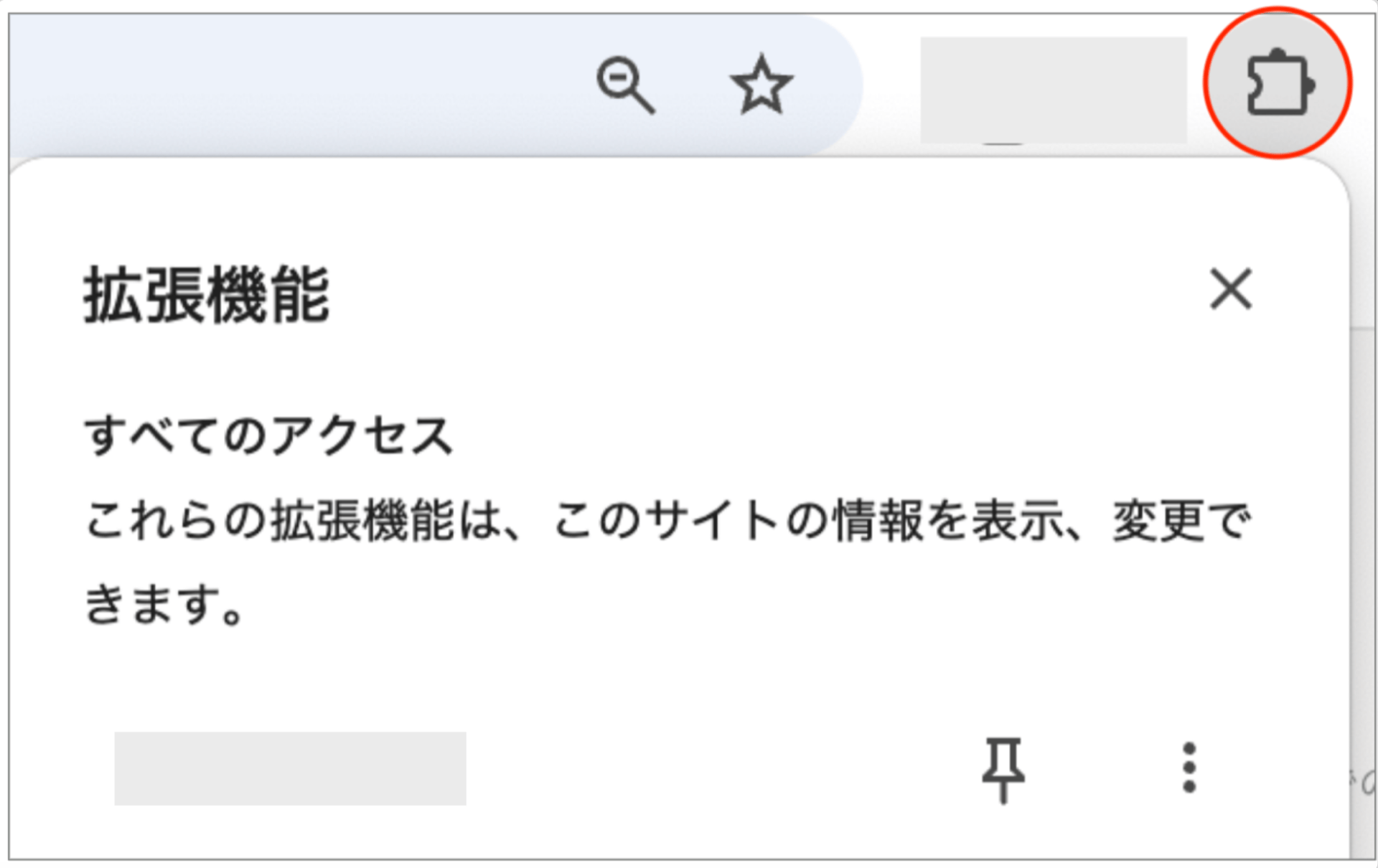
Installation happens automatically. When the extension is force-installed and pinned, the icon appears as shown below.
#### Verifying Installation on Devices (Browser)
Installation happens automatically. When the extension is force-installed and pinned, the icon appears as shown below.
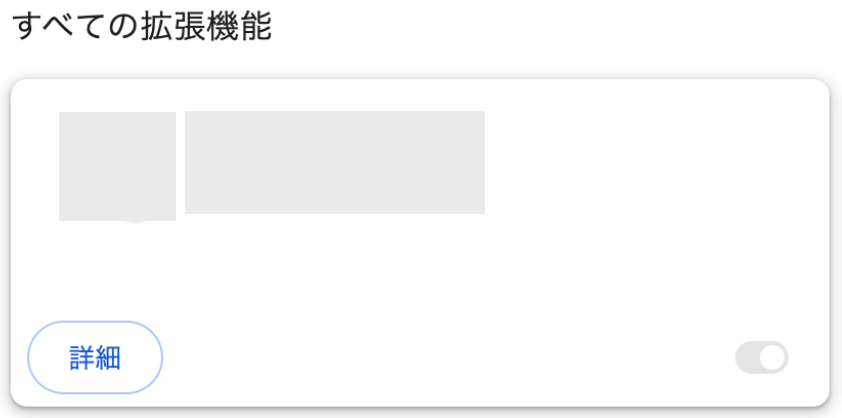
 You can verify the installation for this service in [Chrome Extensions](chrome://extensions/).
 #### If the Extension Does Not Install
1. Confirm that the user is signed into Google on Chrome and that Sync is turned on.
#### If the Extension Does Not Install
1. Confirm that the user is signed into Google on Chrome and that Sync is turned on.
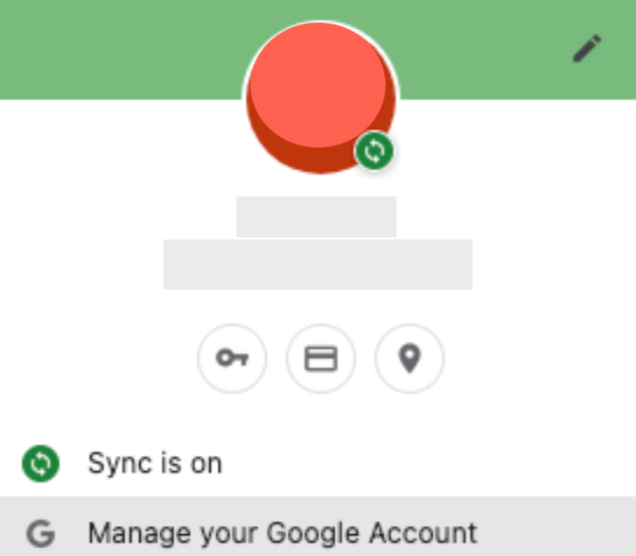 2. If sync is enabled but the extension still does not install, check the following settings as well.
Details
**Enable Chrome browser management**
1. Open the Admin Console.
2. Go to \[Devices] > \[Chrome] > \[Settings] > \[Users and browsers].
3. On the left, select the organizational unit where the issue is occurring.
4. Scroll to the bottom to find \[Chrome management for signed-in users].
Confirm that \[Apply all user policies when users sign in to Chrome and provide a managed Chrome experience] is selected. If it is not set, click \[Edit], make the change, and click \[Save].
\* After this setting, users must re-sign in for the policy to take effect.
Reference: [Enable Chrome browser management (user policies only)](https://support.google.com/chrome/a/answer/6304822)
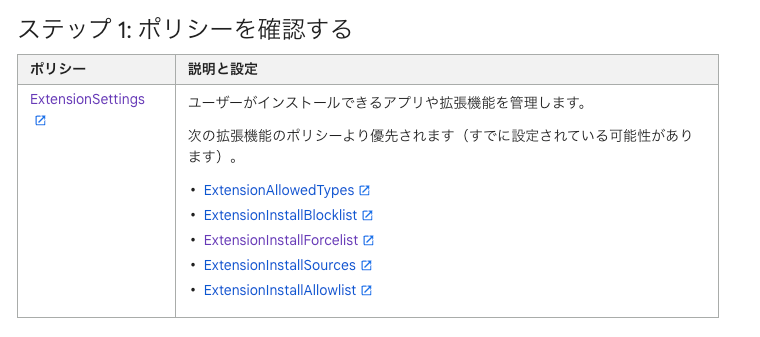
3. Check existing policies
Another policy may be overriding the settings required to distribute the Chrome extension.
Go to `chrome://policy` and check whether the policy is being overridden.
Reference: [Check whether policies are applied to managed Chrome devices](https://support.google.com/chrome/a/answer/7532015)
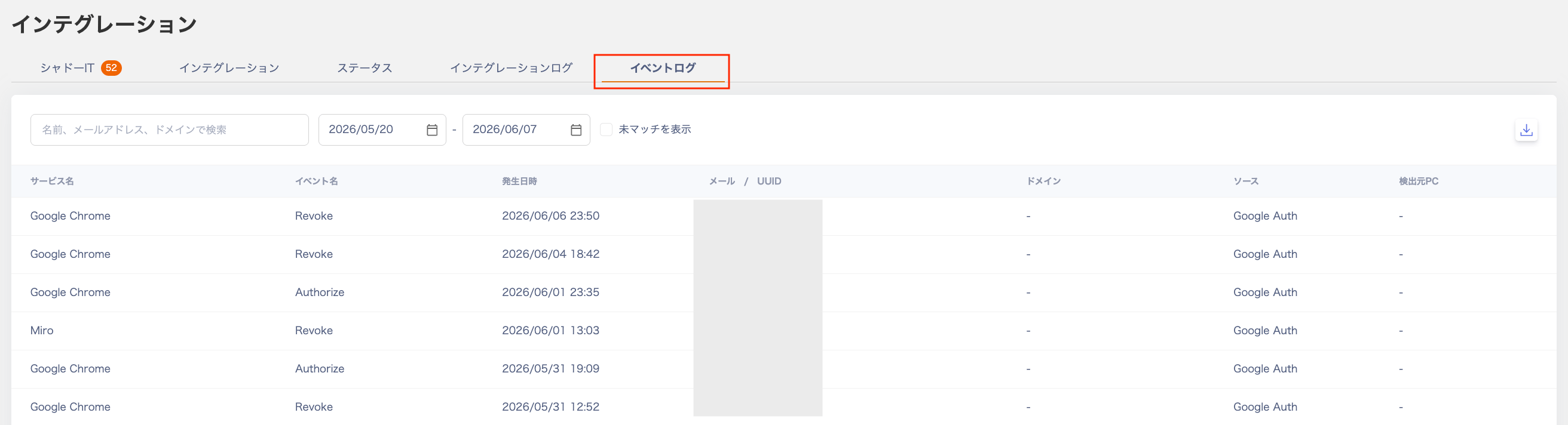
 #### Verifying Activity
Data is collected approximately every 30 minutes and displayed in the event log.
1. **Check the event log**
Go to Integrations > Event Log and confirm that `Chrome Extention` history appears.
Chrome (Edge) Extention history does not appear under "Show unmatched data." For details on the event log, see [3. Checking SaaS Usage in the Event Log](/en/it-management/shadow-it/oepl0j5y5g-eventlog).
#### Verifying Activity
Data is collected approximately every 30 minutes and displayed in the event log.
1. **Check the event log**
Go to Integrations > Event Log and confirm that `Chrome Extention` history appears.
Chrome (Edge) Extention history does not appear under "Show unmatched data." For details on the event log, see [3. Checking SaaS Usage in the Event Log](/en/it-management/shadow-it/oepl0j5y5g-eventlog).
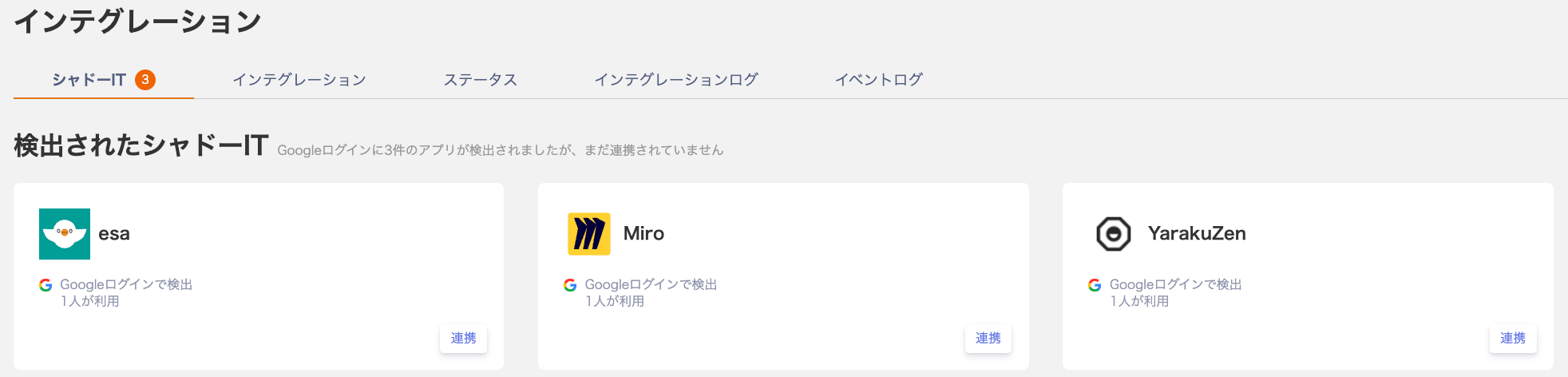
 2. **Check the Shadow IT tab**
When the extension detects a connectable SaaS, it appears under the **Shadow IT** tab in Integrations.
The system syncs overnight, so detections appear the following day or later.
2. **Check the Shadow IT tab**
When the extension detects a connectable SaaS, it appears under the **Shadow IT** tab in Integrations.
The system syncs overnight, so detections appear the following day or later.
 3. **Check the last used date for SaaS**
In Services > Accounts, confirm that the `Last Used` date is populated for each SaaS. [Custom apps (manually registered services)](/en/it-management/saas-management/jbzpcipgo5-custome-app) can also have their last used date recorded.
The conditions for recording the last used date for custom apps are:
* The extension must be installed correctly and access logs must be recorded in Integrations > Event Log.
* The URL of the accessed service must match the service domain. This causes the custom app service name to be recorded in the event log.
* The custom app must be [registered by searching the service list and selecting a service name](/en/it-management/saas-management/jbzpcipgo5-custome-app). (Custom apps registered with a free-form name will not have their last used date recorded.)
This also applies to connectable SaaS services that do not include Last Activity in their acquirable data. To check which SaaS services provide the last used date on integration, see the [Supported integrations list](/en/integrations/ey32ki15er-function). Refer to the Last Activity column in its acquirable data.
#### Uninstall Steps
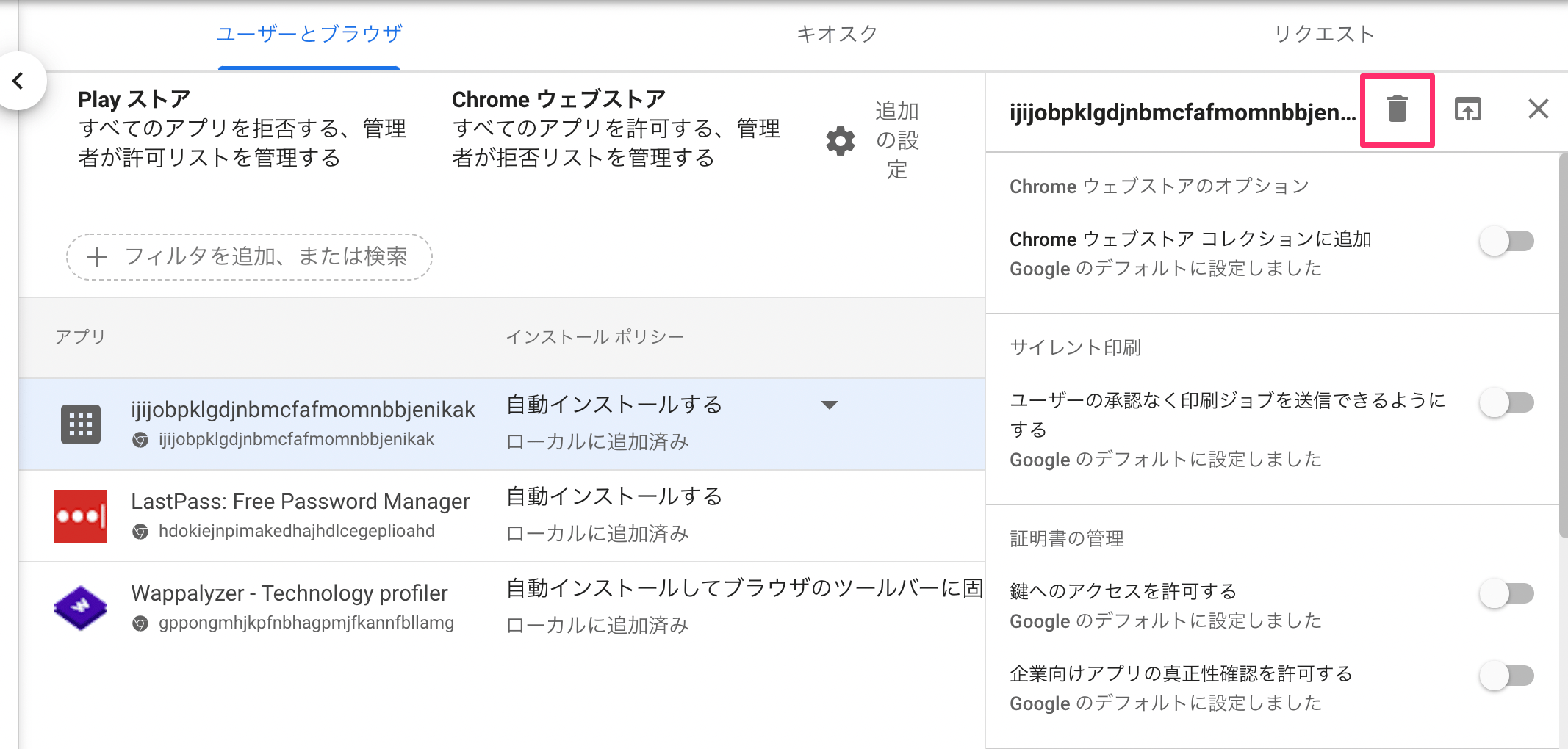
1. In Google Admin, delete the application you added by clicking the trash icon.
3. **Check the last used date for SaaS**
In Services > Accounts, confirm that the `Last Used` date is populated for each SaaS. [Custom apps (manually registered services)](/en/it-management/saas-management/jbzpcipgo5-custome-app) can also have their last used date recorded.
The conditions for recording the last used date for custom apps are:
* The extension must be installed correctly and access logs must be recorded in Integrations > Event Log.
* The URL of the accessed service must match the service domain. This causes the custom app service name to be recorded in the event log.
* The custom app must be [registered by searching the service list and selecting a service name](/en/it-management/saas-management/jbzpcipgo5-custome-app). (Custom apps registered with a free-form name will not have their last used date recorded.)
This also applies to connectable SaaS services that do not include Last Activity in their acquirable data. To check which SaaS services provide the last used date on integration, see the [Supported integrations list](/en/integrations/ey32ki15er-function). Refer to the Last Activity column in its acquirable data.
#### Uninstall Steps
1. In Google Admin, delete the application you added by clicking the trash icon.
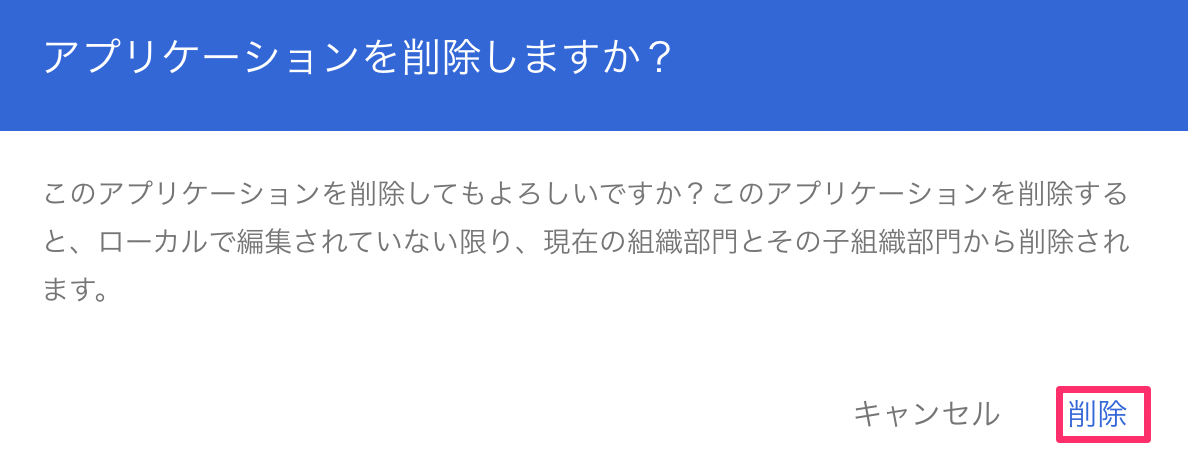
 2. A confirmation message appears. Click **Delete**.
 3. Confirm the extension has been removed from [Chrome Extensions](chrome://extensions/).
#### FAQ
#### Q. What data does the extension collect?
A. The extension inspects the URLs and domains of pages accessed in Chrome or Edge. This includes browser history at the time of installation. The event log records the following information.
For event log details, see [Event Log: Checking SaaS Usage](/en/it-management/shadow-it/oepl0j5y5g-eventlog).
#### Q. Can I view application usage history?
A. Application usage history is not collected. Only browser-based access is recorded.
#### Q. Does the extension overwrite the last used date obtained via API?
A. No. The last used date obtained directly from a SaaS API is not updated by the extension.
#### Q. How long are event logs retained?
A. Logs are retained for one year and viewable for one year.
3. Confirm the extension has been removed from [Chrome Extensions](chrome://extensions/).
#### FAQ
#### Q. What data does the extension collect?
A. The extension inspects the URLs and domains of pages accessed in Chrome or Edge. This includes browser history at the time of installation. The event log records the following information.
For event log details, see [Event Log: Checking SaaS Usage](/en/it-management/shadow-it/oepl0j5y5g-eventlog).
#### Q. Can I view application usage history?
A. Application usage history is not collected. Only browser-based access is recorded.
#### Q. Does the extension overwrite the last used date obtained via API?
A. No. The last used date obtained directly from a SaaS API is not updated by the extension.
#### Q. How long are event logs retained?
A. Logs are retained for one year and viewable for one year.