> ## Documentation Index
> Fetch the complete documentation index at: https://support.i.moneyforward.com/llms.txt
> Use this file to discover all available pages before exploring further.
# 1-2. Mute a Detected Shadow IT Service
> For services detected as Shadow IT, you can mute services that are out of scope for integration or that you want to review later.
For services detected as Shadow IT, you can mute the ones that are out of scope for integration. You can also mute services you want to review later.
Muted services remain in the list, but they are no longer counted in the Shadow IT detection count. You can unmute a service at any time.
## Mute a service
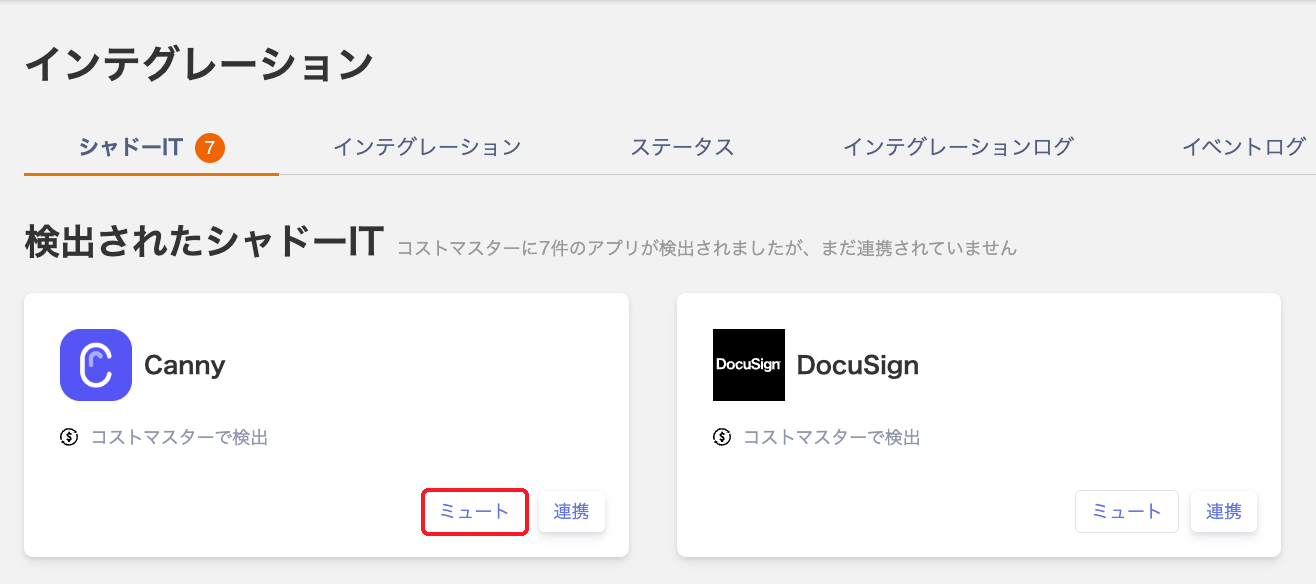
1. Under Integrations > **Shadow IT**, in "Detected Shadow IT," click **Mute** on the target service.
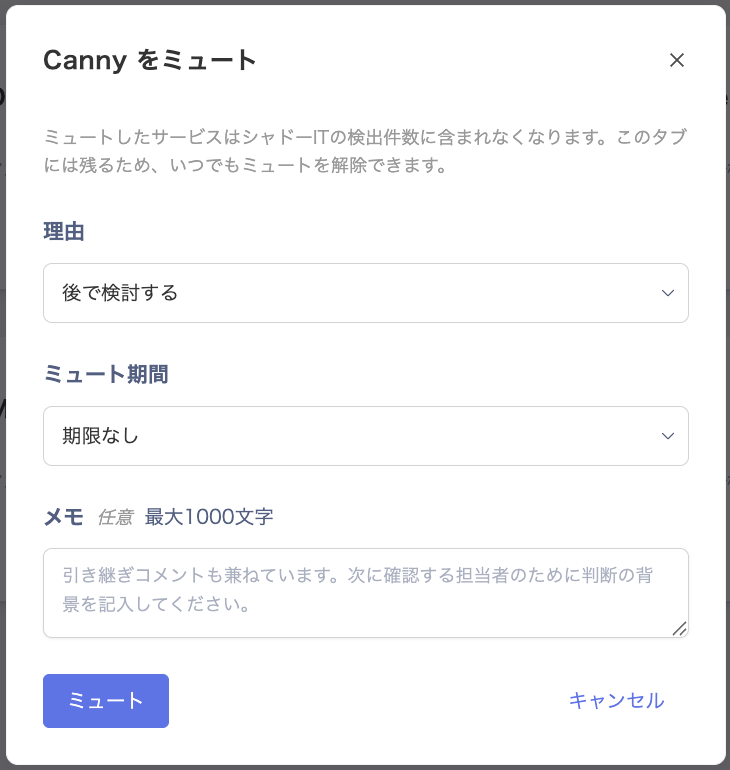
 2. On the "Mute \" screen, set the following items, then click **Mute**.
| Field | Details |
| ------------- | ------------------------------------------------------------------------------------------------------------------------------------------------------------------------------- |
| Reason | Select a reason for muting: "Out of scope / false positive," "Integration attempted but failed," "Temporary use / trial," "Review later," "No intent to integrate," or "Other." |
| Mute duration | Select a duration: "6 months," "1 year," "Specify an end date," or "No expiration." |
| Notes | Optionally enter context for your decision or handover notes. Up to 1,000 characters. |
2. On the "Mute \" screen, set the following items, then click **Mute**.
| Field | Details |
| ------------- | ------------------------------------------------------------------------------------------------------------------------------------------------------------------------------- |
| Reason | Select a reason for muting: "Out of scope / false positive," "Integration attempted but failed," "Temporary use / trial," "Review later," "No intent to integrate," or "Other." |
| Mute duration | Select a duration: "6 months," "1 year," "Specify an end date," or "No expiration." |
| Notes | Optionally enter context for your decision or handover notes. Up to 1,000 characters. |
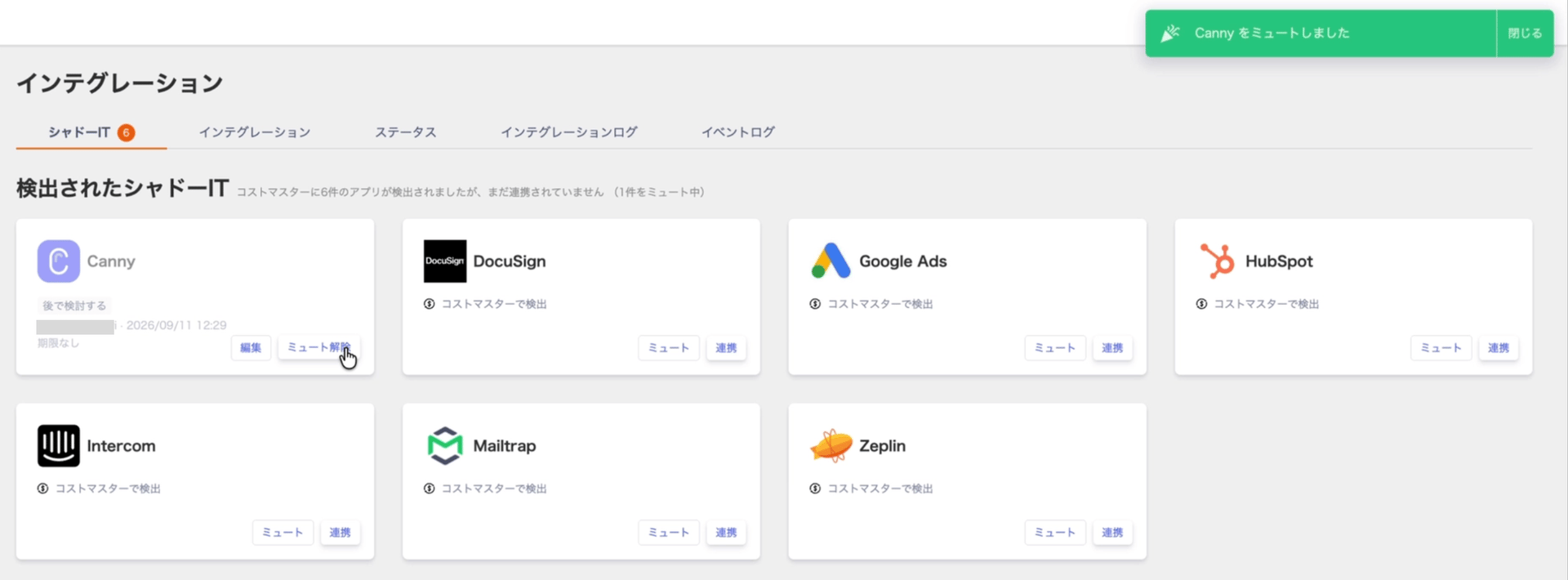
 3. Once muted, the service's card appears grayed out with **Edit** and **Unmute** options. The card shows the selected reason, who performed the action, when, and the mute duration.
 ## Check the muted count
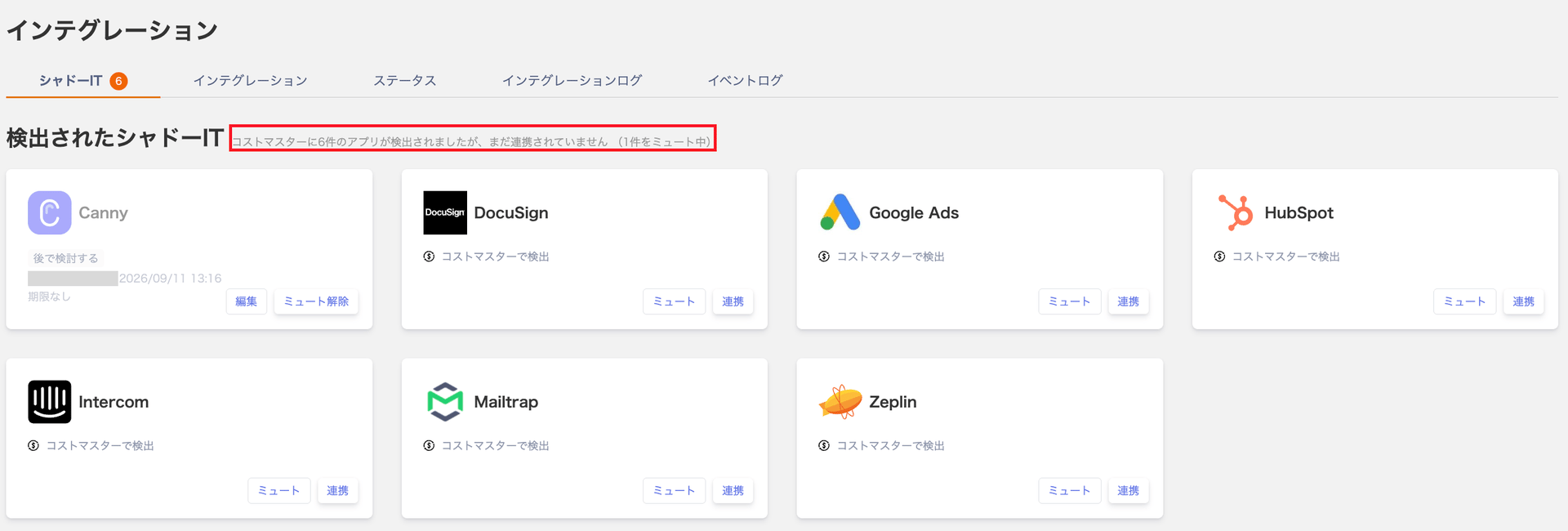
"Detected Shadow IT" also shows the number of currently muted services.
Example: `6 apps detected (1 muted)`
## Check the muted count
"Detected Shadow IT" also shows the number of currently muted services.
Example: `6 apps detected (1 muted)`
 ## Edit a mute
1. On a muted service card, click **Edit**.
## Edit a mute
1. On a muted service card, click **Edit**.
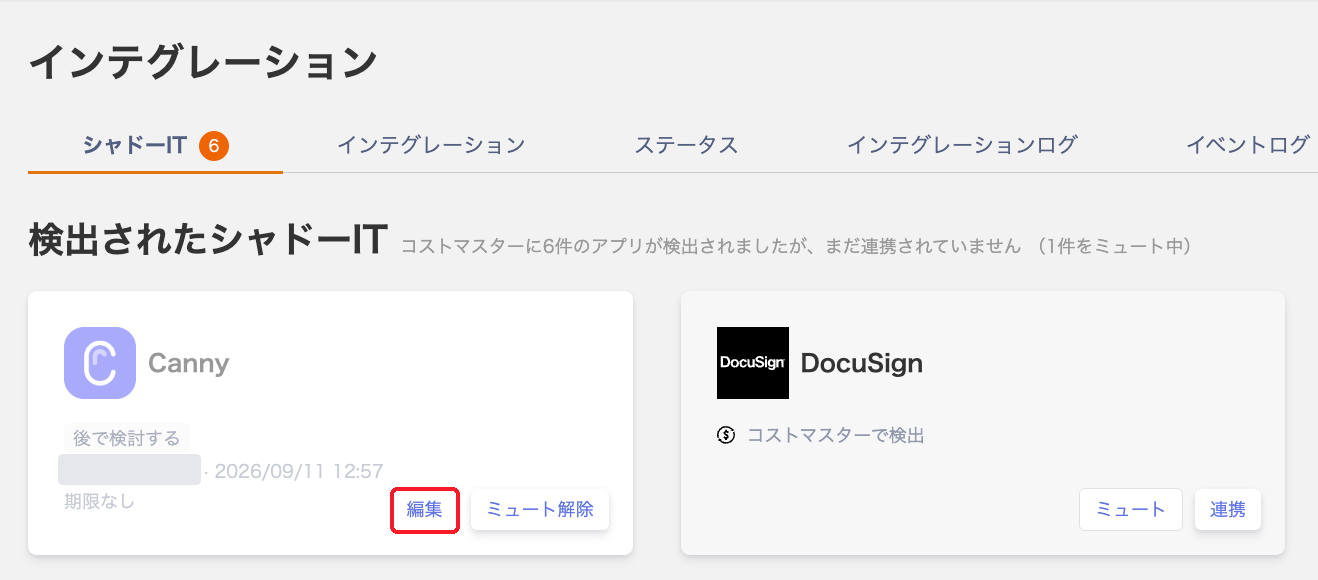 2. On the "Mute \" screen, change the reason, mute duration, or notes.
3. Save your changes.
## Unmute a service
1. On a muted service card, click **Unmute**.
2. On the confirmation screen, click **Unmute**.
2. On the "Mute \" screen, change the reason, mute duration, or notes.
3. Save your changes.
## Unmute a service
1. On a muted service card, click **Unmute**.
2. On the confirmation screen, click **Unmute**.
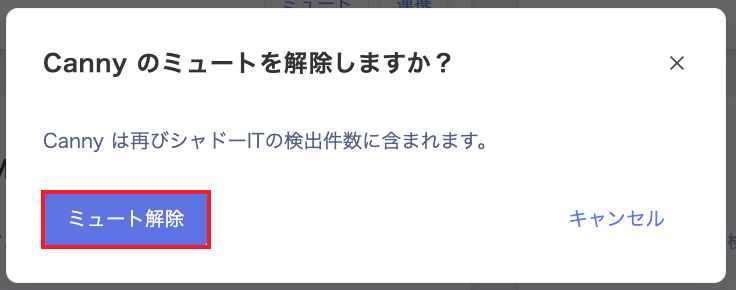 Unmuted services are counted in the Shadow IT detection count again.