> ## Documentation Index
> Fetch the complete documentation index at: https://support.i.moneyforward.com/llms.txt
> Use this file to discover all available pages before exploring further.
# 2-7. Set Up Survey Types
> Add, check, edit, and delete custom categories (types) from the "Survey types" screen.
This feature requires **Admin** permission or the **Survey Manager** role to operate, and **Member** permission or the **Survey Viewer** role to view.
See [Admin Users and Role Settings](/en/it-management/settings/yne7fl2lcy-role-new) for details.
## Add a survey type
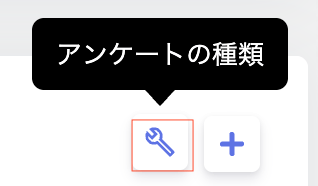
1. Click the settings icon (the wrench icon) at the top right of the survey screen, then select **Survey types**.
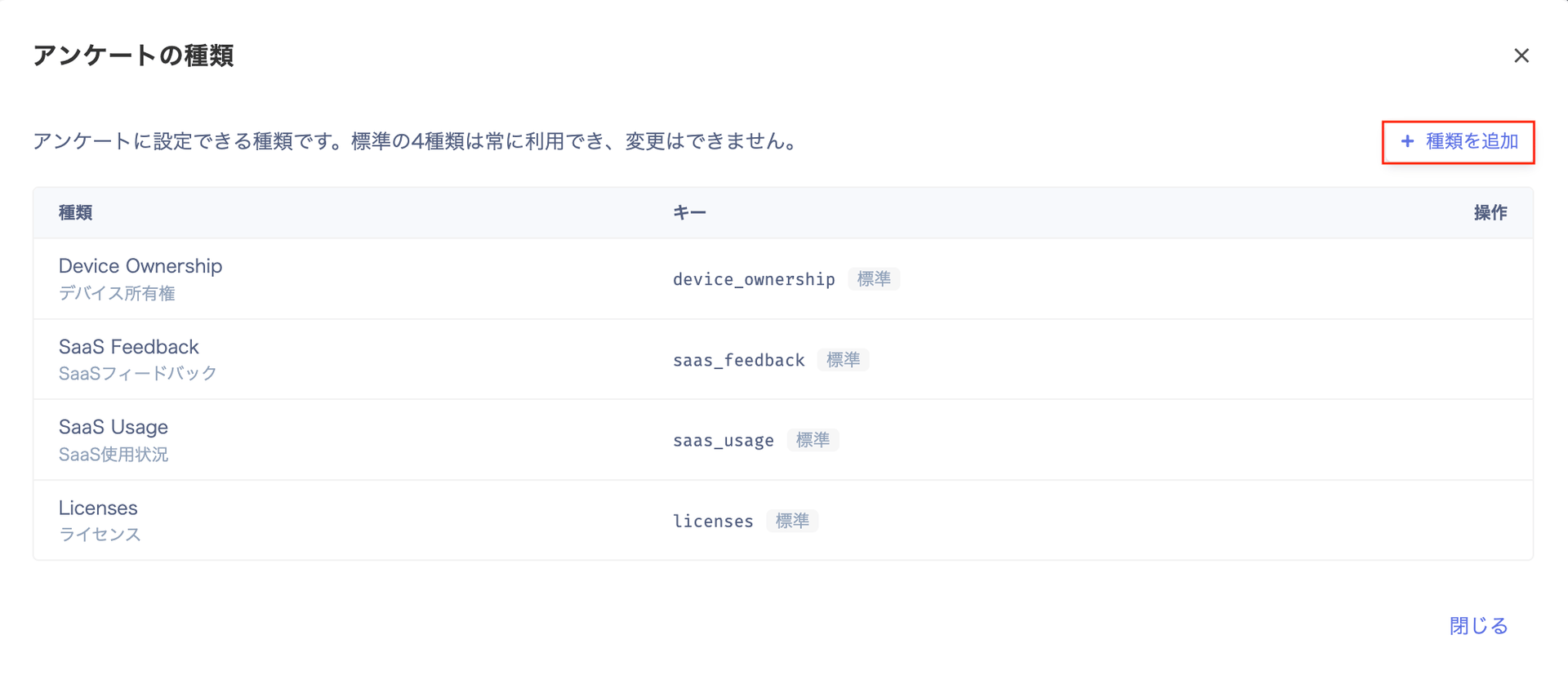
 2. On the "Survey types" screen, click **\[+ Add type]**.
There are 4 standard types: Device Ownership, SaaS Feedback, SaaS Usage, and Licenses. They're always available across all organizations, and can't be changed or deleted.
2. On the "Survey types" screen, click **\[+ Add type]**.
There are 4 standard types: Device Ownership, SaaS Feedback, SaaS Usage, and Licenses. They're always available across all organizations, and can't be changed or deleted.
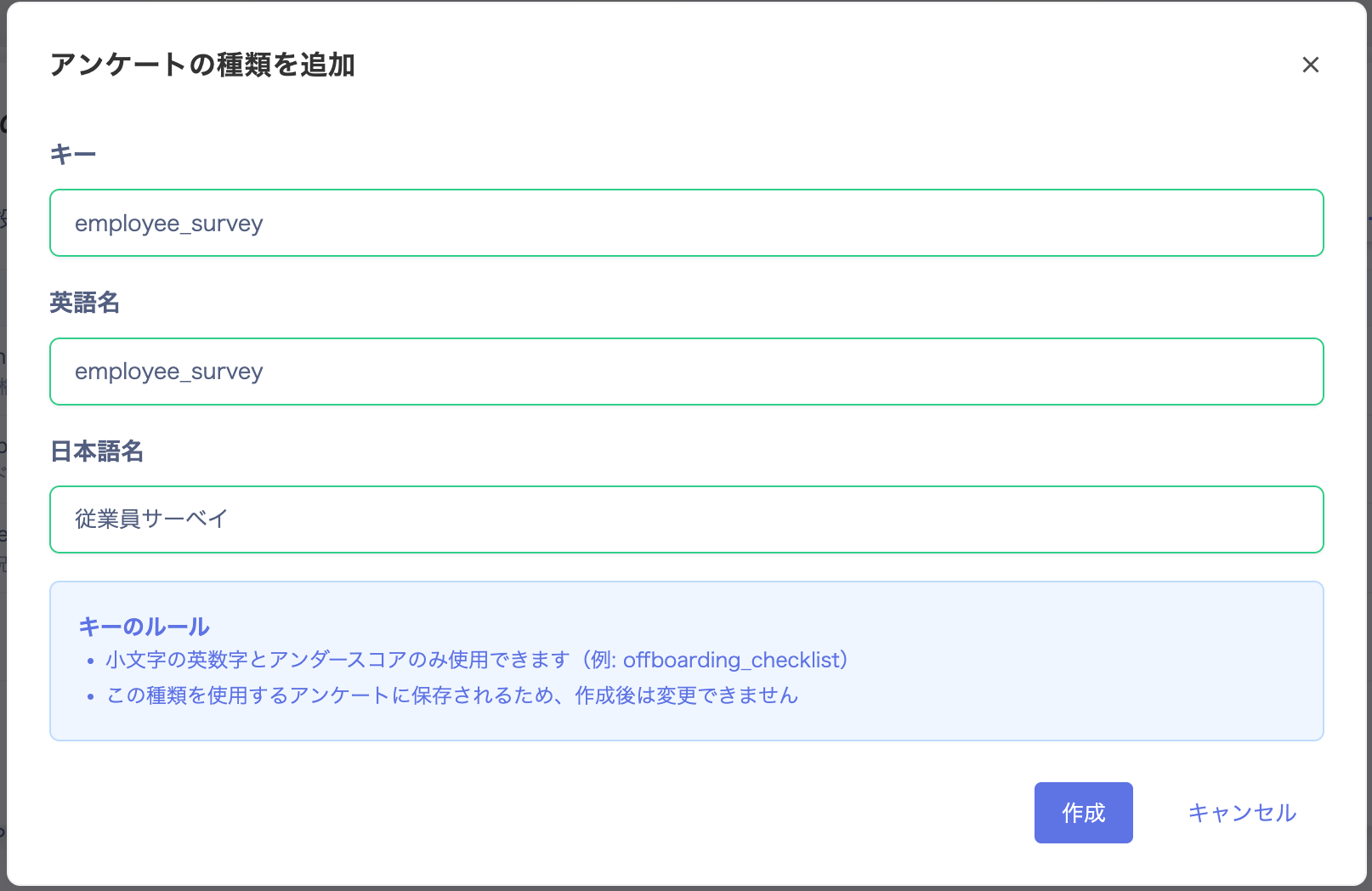
 3. On the "Add survey type" screen, enter a **Key**, **English name**, and **Japanese name**, then click **\[Create]**.
| Item | Description |
| ---------------------------- | ---------------------------------------------------------------------------------------------------------------------------------------------------------------------------------- |
| Key | Lowercase letters, numbers, and underscores only (for example, `offboarding_checklist`). This can't be changed after creation, since it's saved to any survey that uses this type. |
| English name / Japanese name | Can be changed later. Once changed, the update also appears in the survey list, survey details, and filters. |
3. On the "Add survey type" screen, enter a **Key**, **English name**, and **Japanese name**, then click **\[Create]**.
| Item | Description |
| ---------------------------- | ---------------------------------------------------------------------------------------------------------------------------------------------------------------------------------- |
| Key | Lowercase letters, numbers, and underscores only (for example, `offboarding_checklist`). This can't be changed after creation, since it's saved to any survey that uses this type. |
| English name / Japanese name | Can be changed later. Once changed, the update also appears in the survey list, survey details, and filters. |
 4. Once created, "Survey type created" appears.
 ## Check your survey types
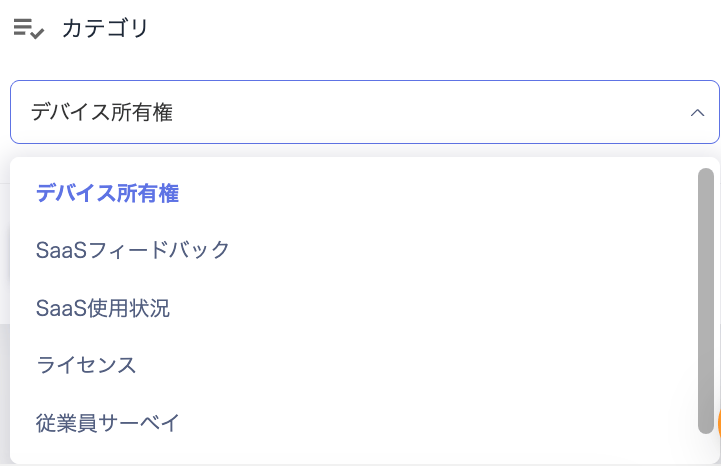
You can check your survey types from the **Category** dropdown at the bottom right of the "Create survey" screen. The same dropdown also appears on the "Edit survey" screen.
## Check your survey types
You can check your survey types from the **Category** dropdown at the bottom right of the "Create survey" screen. The same dropdown also appears on the "Edit survey" screen.
 ## Edit a survey type
1. On the "Survey types" screen, click **\[Edit]** (the pencil icon) for the type you want to edit.
The 4 standard types can't be edited.
## Edit a survey type
1. On the "Survey types" screen, click **\[Edit]** (the pencil icon) for the type you want to edit.
The 4 standard types can't be edited.
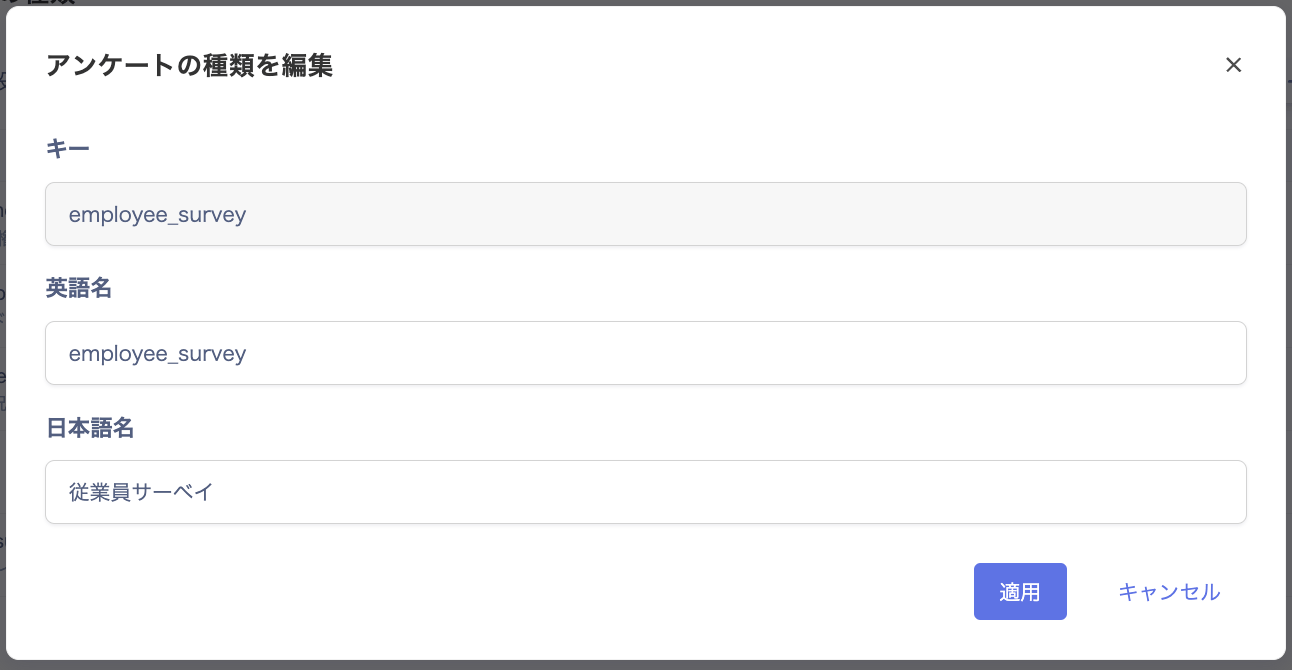
 2. On the "Edit survey type" screen, edit the English name and Japanese name, then click **\[Apply]**.
The key can't be changed after creation.
2. On the "Edit survey type" screen, edit the English name and Japanese name, then click **\[Apply]**.
The key can't be changed after creation.
 ## Delete a survey type
1. On the "Survey types" screen, click **\[Delete]** (the trash icon) for the type you want to delete.
The 4 standard types can't be deleted.
## Delete a survey type
1. On the "Survey types" screen, click **\[Delete]** (the trash icon) for the type you want to delete.
The 4 standard types can't be deleted.
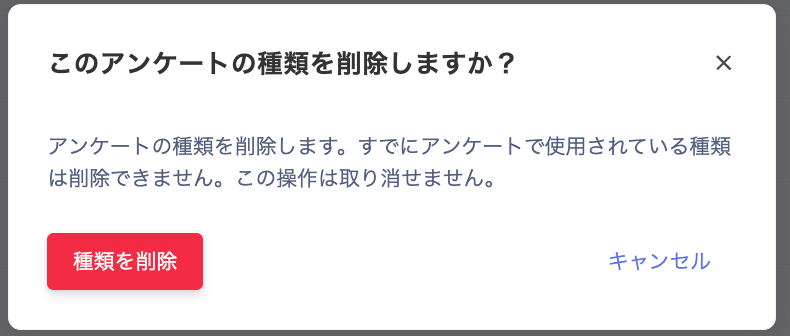
 2. "Delete this survey type?" appears. Check the details, then click **\[Delete type]**.
A type that's already in use by a survey can't be deleted. This action can't be undone.
2. "Delete this survey type?" appears. Check the details, then click **\[Delete type]**.
A type that's already in use by a survey can't be deleted. This action can't be undone.