> ## Documentation Index
> Fetch the complete documentation index at: https://support.i.moneyforward.com/llms.txt
> Use this file to discover all available pages before exploring further.
# 3. Responding to a Survey
> How to respond to a survey you have received.
All operations in this feature require **Admin** permission or the **Survey Manager** role. Viewing requires **Member** permission or the **Survey Viewer** role. For details, see [Basic Roles](/en/it-management/settings/yne7fl2lcy-role-new#basic-roles).
To use the "Device" target type, you need to add the "Device" feature separately.
Your company conducts surveys periodically. You will receive surveys — please respond by the deadline.
## Responding to a Survey
When you receive a survey, follow the on-screen instructions to complete your response.
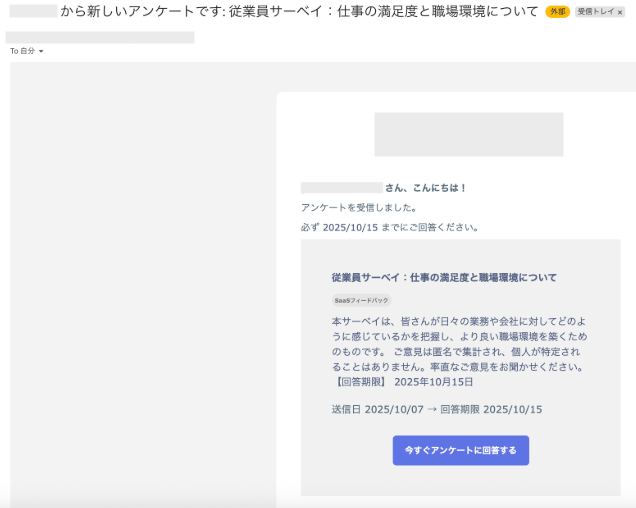
1. Check the email from the sender below and click **Answer the survey now**.
| Item | Content |
| ------- | ----------------------------------------- |
| From | service@\[domain] |
| Subject | New survey from \[this service]: `+title` |
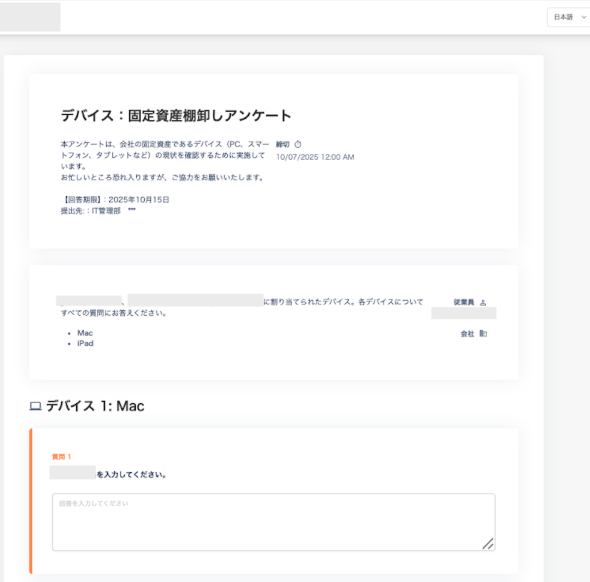
 2. The survey form appears. Fill in each field.
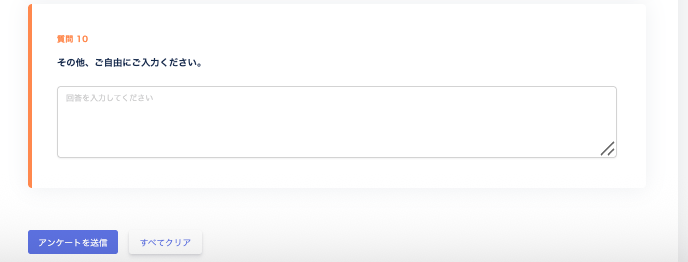
 3. After filling in the form, click **Submit survey**.
To clear your entries, click **Clear all**.
3. After filling in the form, click **Submit survey**.
To clear your entries, click **Clear all**.
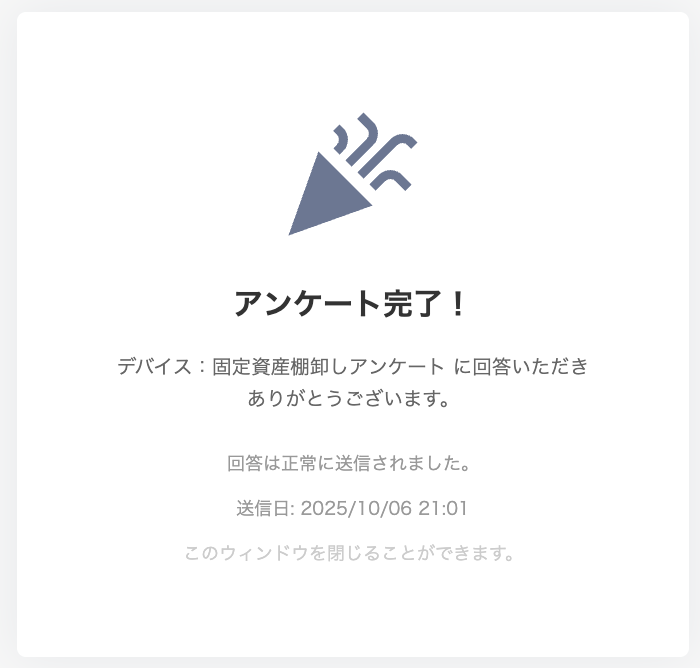
 4. When your response is submitted successfully, "Survey complete!" appears. Your response is now recorded — close the page.
 ## FAQ
**Q. I need to respond to a survey, but I have not received the email.**
A. Search all mail folders — including your spam or junk folder — for `service@`.
If the email is in your spam or junk folder, move it back to your inbox by clicking "Not spam" or an equivalent button.
**Q. I want to check the sender information for the email.**
A. You can find the sender information in the email you received, or refer to the details below.
From: service@\[domain]
Subject: New survey from \[service name]: `+title`
**Q. Can I share the survey URL with someone who lost their email?**
A. Each survey URL is unique to the individual recipient. Do not share or reuse URLs.
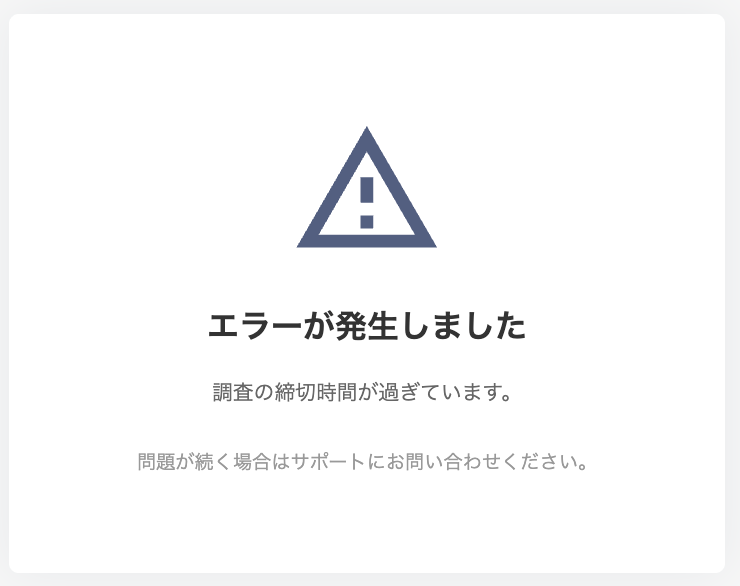
**Q. I want to respond to a survey I received, but I see the error "An error occurred. The survey deadline has passed."**
A. If you click **Answer the survey now** in the email and see the error below, the deadline has passed. You can no longer respond.
If you need to respond to the survey after the deadline, contact the team that conducted the survey.
## FAQ
**Q. I need to respond to a survey, but I have not received the email.**
A. Search all mail folders — including your spam or junk folder — for `service@`.
If the email is in your spam or junk folder, move it back to your inbox by clicking "Not spam" or an equivalent button.
**Q. I want to check the sender information for the email.**
A. You can find the sender information in the email you received, or refer to the details below.
From: service@\[domain]
Subject: New survey from \[service name]: `+title`
**Q. Can I share the survey URL with someone who lost their email?**
A. Each survey URL is unique to the individual recipient. Do not share or reuse URLs.
**Q. I want to respond to a survey I received, but I see the error "An error occurred. The survey deadline has passed."**
A. If you click **Answer the survey now** in the email and see the error below, the deadline has passed. You can no longer respond.
If you need to respond to the survey after the deadline, contact the team that conducted the survey.