> ## Documentation Index
> Fetch the complete documentation index at: https://support.i.moneyforward.com/llms.txt
> Use this file to discover all available pages before exploring further.
# 2. Configure Employee Master and Domains
> This setup lets you identify when employees have left the company or determine whether an account is a guest account.
# 2. Configure Employee Master and Domains
## Choose a SaaS for the Employee Master
Start by deciding which SaaS to use as your employee master.
### When you configure an employee master (recommended)
Integrating with a SaaS that supports the employee master feature assigns ID type and status labels shown in the [Quick Reference](/en/it-management/directory/dcrxyhzb39-user-type).
Accounts that have left the company also receive a **Former Employee** label, making it possible to detect departed users.
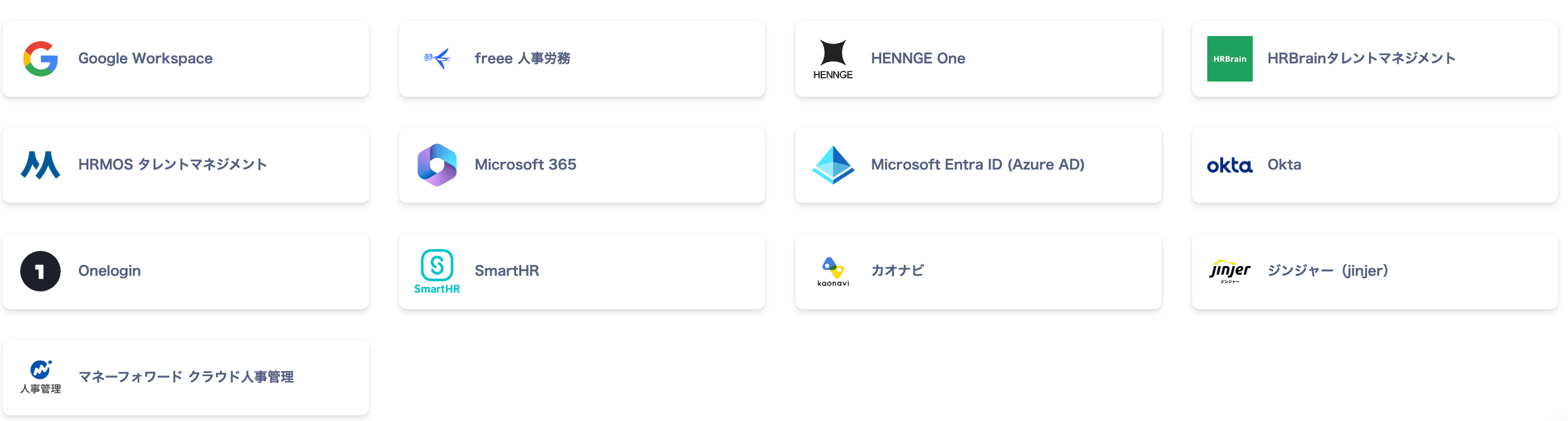
You can view the available employee master options under Settings > Organization > Employee Master Settings.
 ### When you do not configure an employee master
You can still build a directory ledger using the following methods:
* Create a directory ledger via CSV: [Import a Directory Ledger CSV](/en/it-management/directory/1xtq0cxipa-directory-csv-import)
* Integrate SaaS without an employee master: [SaaS Integrations](/en/it-management/tutorial/tdxtlisu9v-4). See [Integration & Feature Support List](/en/integrations/ey32ki15er-function) for supported SaaS.
## Employee Master Settings
Go to **Settings** > **Organization** > **Employee Master Settings** to integrate and configure the SaaS you want to use as the employee master.
The integration applies account aggregation technology (similar to MoneyForward ME) to connect securely without affecting each SaaS.
### When you do not configure an employee master
You can still build a directory ledger using the following methods:
* Create a directory ledger via CSV: [Import a Directory Ledger CSV](/en/it-management/directory/1xtq0cxipa-directory-csv-import)
* Integrate SaaS without an employee master: [SaaS Integrations](/en/it-management/tutorial/tdxtlisu9v-4). See [Integration & Feature Support List](/en/integrations/ey32ki15er-function) for supported SaaS.
## Employee Master Settings
Go to **Settings** > **Organization** > **Employee Master Settings** to integrate and configure the SaaS you want to use as the employee master.
The integration applies account aggregation technology (similar to MoneyForward ME) to connect securely without affecting each SaaS.
 ### Supported SaaS for Employee Master
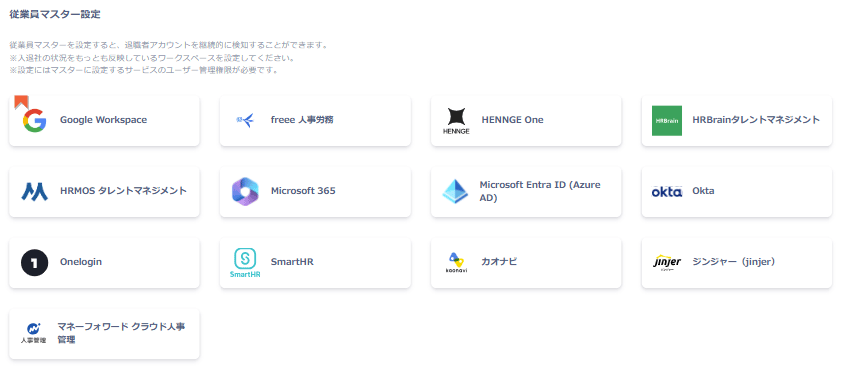
The following SaaS can be configured as an employee master. Refer to each SaaS link for integration steps.
After completing the employee master setup, [ID type](/en/it-management/directory/nqxa0so8wh-admina-directory) and status labels from the [Quick Reference](/en/it-management/directory/dcrxyhzb39-user-type) are assigned. (Conditions vary by employee master.)
| | | | | | | |
| :--------------------------------------------------------------- | :-------------------------------------------------------------------- | :----------------------------------------------------------- | :---------------------------------------------- | :------------------------------------------------------------------------- | :----------------------------------------------- | :--------------------------------------- |
| [Google Workspace](/en/integrations/n0zl359vup-google-workspace) | [Microsoft Entra ID (Azure AD)](/en/integrations/3fyaqnp8nn-azure-ad) | [Microsoft 365](/en/integrations/yp7xi6xpuk-microsoft-365) | [SmartHR](/en/integrations/zyl6g8sbgx-smart-hr) | [MoneyForward Cloud HR](/en/integrations/boroq0cc60-moneyforward-employee) | [OneLogin](/en/integrations/mfo3ap26rr-onelogin) | [Okta](/en/integrations/5rad7jk230-okta) |
| [HENNGE One](/en/integrations/6js8u23p28-hennge-one) | [freee HR](/en/integrations/phy5i4jwnu-freeehr) | [HRMOS Talent Management](/en/integrations/4cn6z4acaw-hrmos) | [Kaonavi](/en/integrations/hsz8p8i38g-kaonavi) | [HRBrain Talent Management](/en/integrations/aegf3040lo-hrbrain) | [Jinjer](/en/integrations/zasbaln1b1-jinjer) | |
### Supported SaaS for Employee Master
The following SaaS can be configured as an employee master. Refer to each SaaS link for integration steps.
After completing the employee master setup, [ID type](/en/it-management/directory/nqxa0so8wh-admina-directory) and status labels from the [Quick Reference](/en/it-management/directory/dcrxyhzb39-user-type) are assigned. (Conditions vary by employee master.)
| | | | | | | |
| :--------------------------------------------------------------- | :-------------------------------------------------------------------- | :----------------------------------------------------------- | :---------------------------------------------- | :------------------------------------------------------------------------- | :----------------------------------------------- | :--------------------------------------- |
| [Google Workspace](/en/integrations/n0zl359vup-google-workspace) | [Microsoft Entra ID (Azure AD)](/en/integrations/3fyaqnp8nn-azure-ad) | [Microsoft 365](/en/integrations/yp7xi6xpuk-microsoft-365) | [SmartHR](/en/integrations/zyl6g8sbgx-smart-hr) | [MoneyForward Cloud HR](/en/integrations/boroq0cc60-moneyforward-employee) | [OneLogin](/en/integrations/mfo3ap26rr-onelogin) | [Okta](/en/integrations/5rad7jk230-okta) |
| [HENNGE One](/en/integrations/6js8u23p28-hennge-one) | [freee HR](/en/integrations/phy5i4jwnu-freeehr) | [HRMOS Talent Management](/en/integrations/4cn6z4acaw-hrmos) | [Kaonavi](/en/integrations/hsz8p8i38g-kaonavi) | [HRBrain Talent Management](/en/integrations/aegf3040lo-hrbrain) | [Jinjer](/en/integrations/zasbaln1b1-jinjer) | |
## Employee Master — Auto-Synced Directory Data Fields
The fields automatically synced to Admina's directory data vary by SaaS.
For details on the directory, see [Admina Directory](/en/it-management/directory/nqxa0so8wh-admina-directory).
To specify a data source, see [Set or Change a Data Source in Directory Settings](/en/it-management/directory/gqqdb2621q-edit-uid).
If the SaaS configured as the employee master has a value, it overwrites the directory data.
If the SaaS configured as the employee master has no data (empty or null), the directory data is overwritten with empty data.
Manual edits to directory data will be rolled back, so make corrections on the SaaS side designated as the employee master.
## Domain Settings
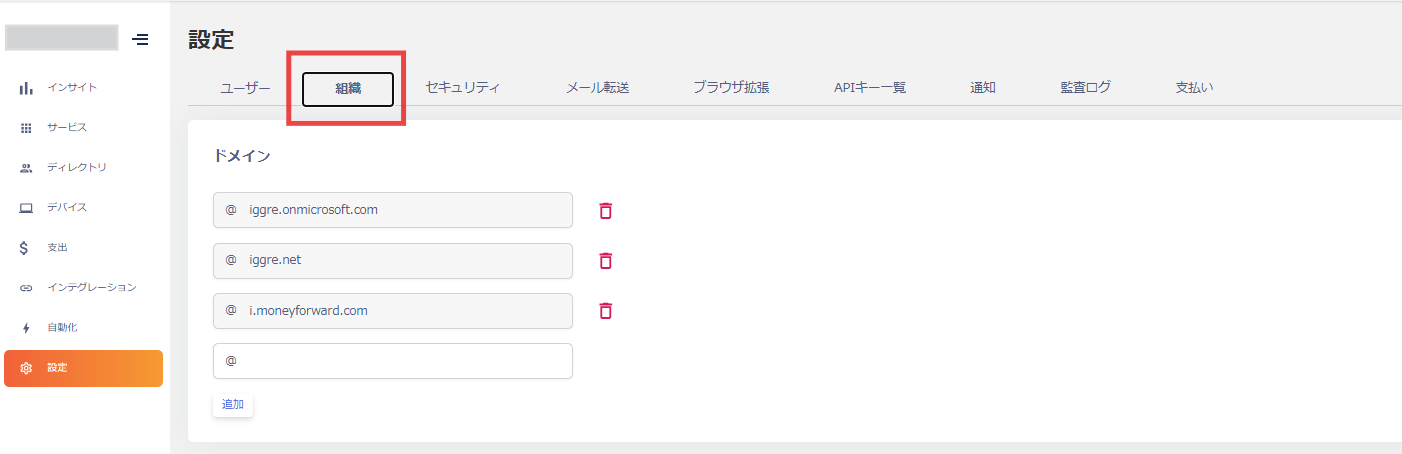
View the domain information for Admina under Settings > Organization. When you create your organization, the primary domain is registered as the default.
 For ID types and statuses when integrated with an employee master, see the [Quick Reference](/en/it-management/directory/dcrxyhzb39-user-type).
Adding a domain lets you change the ID type in the directory. For details, see [Types](/en/it-management/directory/nqxa0so8wh-admina-directory) in the directory documentation.
Integrating any of the following SaaS as the employee master automatically adds the domains registered in that SaaS to Admina:
* [Google Workspace](/en/integrations/n0zl359vup-google-workspace)
* [Microsoft Entra ID (Azure AD)](/en/integrations/3fyaqnp8nn-azure-ad)
* [Microsoft 365](/en/integrations/yp7xi6xpuk-microsoft-365)
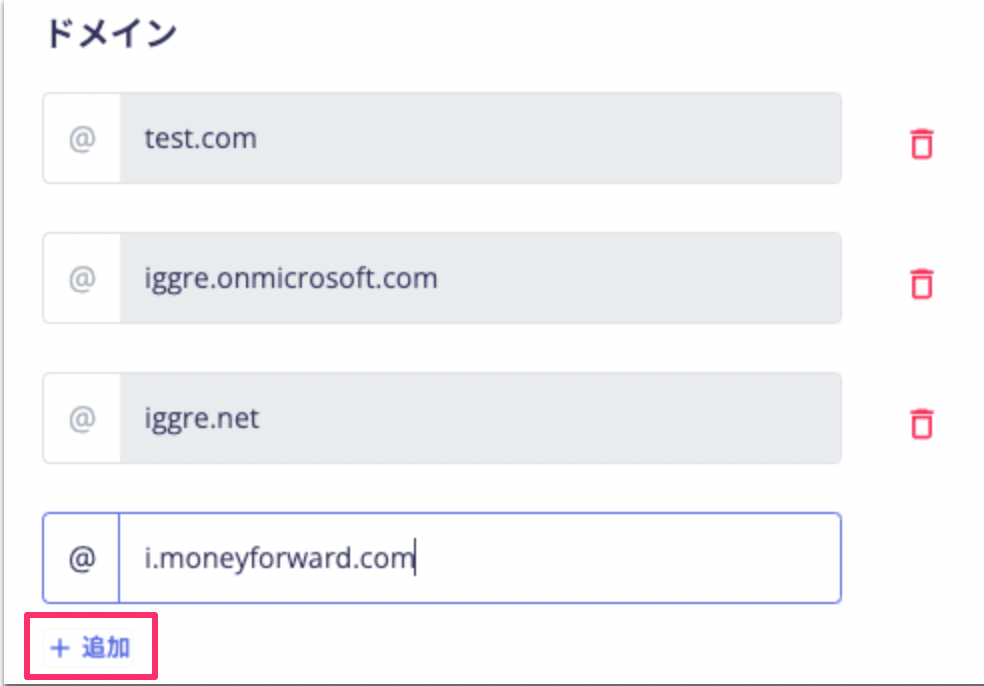
For other cloud services, if you need to add a domain, enter the domain name and click \[Add]. To remove a domain, click the delete button.
 ## Next Step
Next, [integrate your SaaS!](/en/it-management/tutorial/tdxtlisu9v-4)
## Next Step
Next, [integrate your SaaS!](/en/it-management/tutorial/tdxtlisu9v-4)