> ## Documentation Index
> Fetch the complete documentation index at: https://support.i.moneyforward.com/llms.txt
> Use this file to discover all available pages before exploring further.
# 4. Run a Workflow Manually from the Directory Screen
> Learn how to run a workflow immediately from the Directory screen.
**Required permissions for this service:** You need **Admin** or **Automation Manager** permissions to use this feature.
**SaaS connection status:** The target SaaS must be connected with administrator privileges (including API permissions) required for account creation and deletion.
## Workflow Execution Methods
Automation lets you run created workflows either automatically or manually. Choose the method that fits your operations.
| Method | Timing | Details |
| ------------- | ------------------------------------------------------------- | -------------------------------------------------------------------------------------------------------------------------------------------------------------------------------------------------------------------------------------------------------------------------- |
| **Automatic** | Contract start/end date: same day = 23:59, future date = 0:00 | Trigger conditions are evaluated when user information is registered or updated in the Directory. If conditions are met, the workflow is scheduled and added to the queue described in [5. How Automation Runs](/en/it-management/workflows/n2msl3q9um-admina-automation). |
| **Manual** | Immediate | Run a workflow immediately from the Directory screen. (See [Run a Workflow Manually](#run-workflow-manually).) |
Run a Workflow Manually
Follow these steps to run a workflow immediately from the Directory screen.
Note: Workflows run immediately and cannot be undone. Review the details before proceeding.
1. In the directory list, click the **︙** (three-dot menu) to the right of the target user, then click **Run Workflow**.
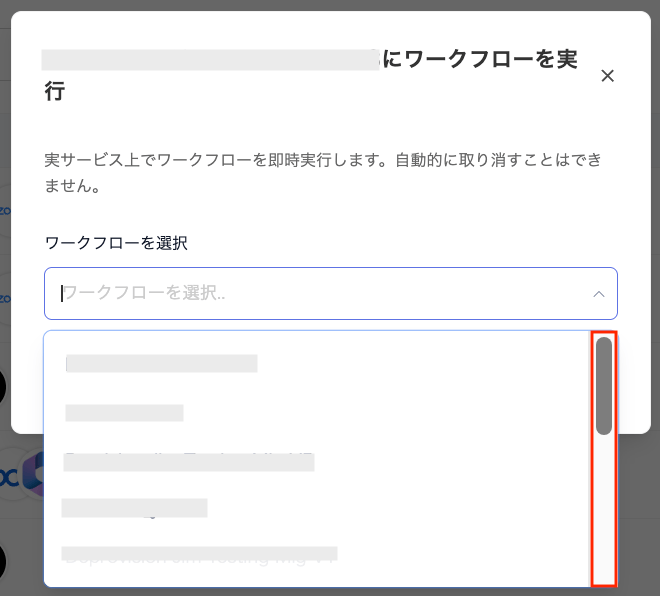
 2. On the "Run Workflow" screen, select the workflow you want to run from the **Select Workflow** dropdown menu.
Note: Before running a workflow, complete steps ① through ③ described in [How Automation Runs](/en/it-management/workflows/n2msl3q9um-admina-automation).
Note: Confirm the workflow name registered under Automation > **Automation** tab > **Automation Name** in advance.
2. On the "Run Workflow" screen, select the workflow you want to run from the **Select Workflow** dropdown menu.
Note: Before running a workflow, complete steps ① through ③ described in [How Automation Runs](/en/it-management/workflows/n2msl3q9um-admina-automation).
Note: Confirm the workflow name registered under Automation > **Automation** tab > **Automation Name** in advance.
 3. Review your selection on the "Run Workflow" screen, then click **Run Now** to start processing immediately.
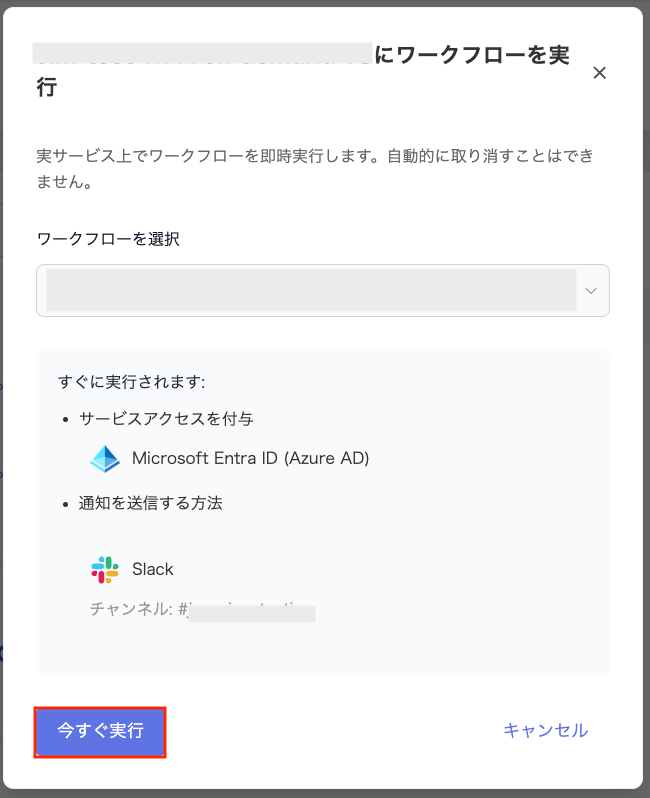
Note: Once a workflow runs, it cannot be cancelled from the system. Verify the details before running the workflow.
3. Review your selection on the "Run Workflow" screen, then click **Run Now** to start processing immediately.
Note: Once a workflow runs, it cannot be cancelled from the system. Verify the details before running the workflow.