> ## Documentation Index
> Fetch the complete documentation index at: https://support.i.moneyforward.com/llms.txt
> Use this file to discover all available pages before exploring further.
# 4-0. Running a Dry Run
> Steps to test a workflow's behavior with a dry run before publishing it to production.
Once every check in the workflow **Builder** turns green, run a dry run before you publish to production.
## Dry Run Steps
1. Click **Dry Run**.
 2. The **Dry Run** screen appears. Review the details, then click **Start Dry Run**.
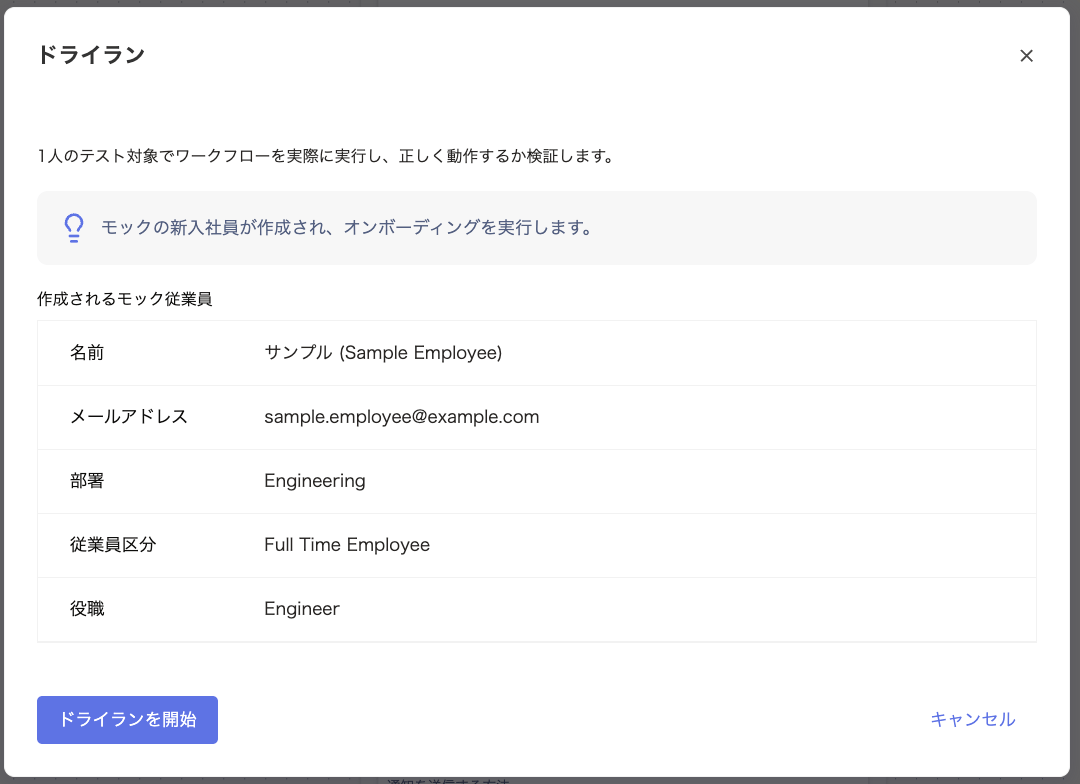 3. In the results list, each step lights up in real time as it runs. Review the results, then click **Rerun** or **Publish**.
If you select a real user, the dry run affects real data. In that case, the run executes against production data rather than a simulation.
If you do not want to affect actual employee accounts or production data, be sure to select a mock user.
3. In the results list, each step lights up in real time as it runs. Review the results, then click **Rerun** or **Publish**.
If you select a real user, the dry run affects real data. In that case, the run executes against production data rather than a simulation.
If you do not want to affect actual employee accounts or production data, be sure to select a mock user.
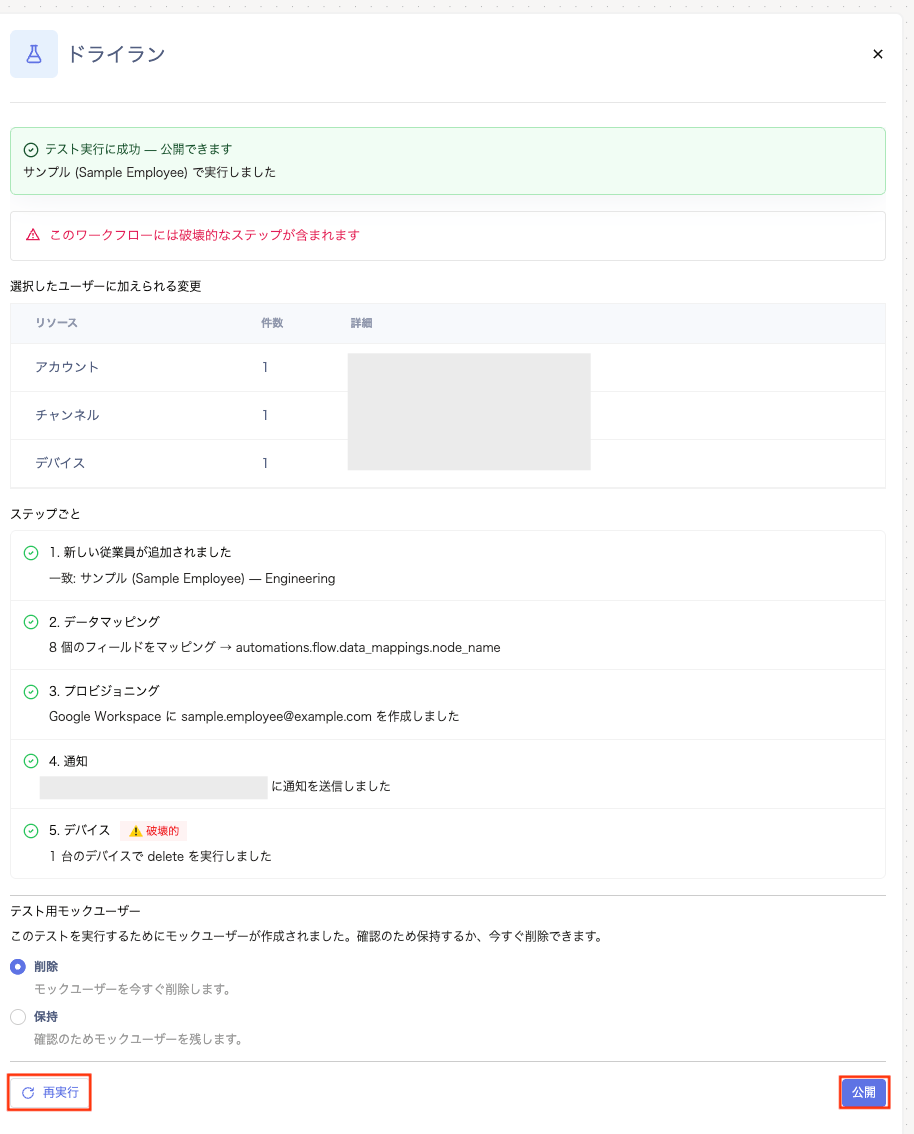 4. When the test finishes, the results appear in a banner at the top of the screen, along with a per-step results list.
If a mock user (test account) was created, choose **Delete** or **Keep**.
If the test succeeds, click **Publish**. If it fails, fix the issue and run the test again.
## Troubleshooting
| Symptom / Error | Likely Cause | Solution |
| -------------------------------------------------------------------------------- | ----------------------------------------------------------------------------------------------------------- | -------------------------------------------------------------------------------------------------------------------------- |
| The Dry Run button is grayed out | A node is invalid or unconfigured, or the workflow is archived. | Finish configuring every node (no red marks), and restore the workflow if it is archived. |
| Start dry run is disabled | Running against a real user requires a confirmation check, or the target service does not support dry runs. | Check "I understand this will really run on `{name}`," or switch to a different target SaaS. |
| `{service}` can't be tested automatically | The SaaS does not support dry runs. | Test manually, or continue with a different SaaS. Connect the SaaS separately. |
| Couldn't start the test run on the server | The backend trigger failed to start. | The local preview keeps displaying. Retry once the issue is resolved, or contact support. |
| An automation named "Dry Run draft `{timestamp}`" appears in the automation list | An unsaved workflow was auto-saved as an invalid draft before you ran a dry run. | Either publish it to production or delete it once testing is complete. It does not run on production events while invalid. |
## FAQ
### Q. Does a dry run affect real data?
A. If you select a real user, the dry run affects real data. In that case, the run executes against production data rather than a simulation.
If you do not want to affect actual employee accounts or production data, be sure to select a mock user.
### Q. What happens to the mock user created for a dry run after the test?
A. After the test finishes, you can choose to **Delete** or **Keep** the mock user created for the dry run. **Delete** is selected by default, so the test data is removed immediately.
### Q. Why doesn't a new-hire dry run offer a choice between a real user and a mock user?
A. Testing onboarding always requires a new account, so a mock user is created automatically every time. Selecting a target user isn't necessary in this case.
### Q. Can I run a workflow dry run more than once?
A. Yes, you can run it as often as you like before publishing. As long as every node is configured correctly and the workflow isn't archived, you can rerun the test. Use the header's **Dry Run** button or the **Rerun** option on the dry run screen.
### Q. What happens in production if I publish while some dry run steps are still failing?
A. If you click **Publish** while errors remain, those errors will continue to occur in production until you fix them.
4. When the test finishes, the results appear in a banner at the top of the screen, along with a per-step results list.
If a mock user (test account) was created, choose **Delete** or **Keep**.
If the test succeeds, click **Publish**. If it fails, fix the issue and run the test again.
## Troubleshooting
| Symptom / Error | Likely Cause | Solution |
| -------------------------------------------------------------------------------- | ----------------------------------------------------------------------------------------------------------- | -------------------------------------------------------------------------------------------------------------------------- |
| The Dry Run button is grayed out | A node is invalid or unconfigured, or the workflow is archived. | Finish configuring every node (no red marks), and restore the workflow if it is archived. |
| Start dry run is disabled | Running against a real user requires a confirmation check, or the target service does not support dry runs. | Check "I understand this will really run on `{name}`," or switch to a different target SaaS. |
| `{service}` can't be tested automatically | The SaaS does not support dry runs. | Test manually, or continue with a different SaaS. Connect the SaaS separately. |
| Couldn't start the test run on the server | The backend trigger failed to start. | The local preview keeps displaying. Retry once the issue is resolved, or contact support. |
| An automation named "Dry Run draft `{timestamp}`" appears in the automation list | An unsaved workflow was auto-saved as an invalid draft before you ran a dry run. | Either publish it to production or delete it once testing is complete. It does not run on production events while invalid. |
## FAQ
### Q. Does a dry run affect real data?
A. If you select a real user, the dry run affects real data. In that case, the run executes against production data rather than a simulation.
If you do not want to affect actual employee accounts or production data, be sure to select a mock user.
### Q. What happens to the mock user created for a dry run after the test?
A. After the test finishes, you can choose to **Delete** or **Keep** the mock user created for the dry run. **Delete** is selected by default, so the test data is removed immediately.
### Q. Why doesn't a new-hire dry run offer a choice between a real user and a mock user?
A. Testing onboarding always requires a new account, so a mock user is created automatically every time. Selecting a target user isn't necessary in this case.
### Q. Can I run a workflow dry run more than once?
A. Yes, you can run it as often as you like before publishing. As long as every node is configured correctly and the workflow isn't archived, you can rerun the test. Use the header's **Dry Run** button or the **Rerun** option on the dry run screen.
### Q. What happens in production if I publish while some dry run steps are still failing?
A. If you click **Publish** while errors remain, those errors will continue to occur in production until you fix them.