> ## Documentation Index
> Fetch the complete documentation index at: https://support.i.moneyforward.com/llms.txt
> Use this file to discover all available pages before exploring further.
# 3-5. Setting Up Device Workflows
> Step-by-step instructions for automatically triggering workflows and sending notifications when device information is updated.
## Overview
This feature automatically executes workflows and sends notifications when device information is updated.
It automatically detects OS version updates, asset number changes, MDM location updates, and more. This lets you start operations quickly without building workflows from scratch.
### What Triggers a Workflow
* Data updates via MDM integration (such as Jamf or Intune)
* Syncs from other integrated services
* Manual edits or updates on the device list page
### Execution Flow
Detects a change in device information > Evaluates filter conditions > Sends a notification if conditions are met.
## Use Cases
* Get instant alerts when a device's status, OS version, serial number, or location changes.
* Have your IT or security team receive device change audit logs via email or Slack.
* Automatically notify a specific Slack channel when an asset number is updated.
## Prerequisites
Before setting up automation, please confirm the following:
| Item | Requirement |
| -------------------- | -------------------------------------------------------------------- |
| Device sync | Devices must be synced (via MDM, manual, or integrated service) |
| Notification (Slack) | Your organization must have Slack connected as an integrated service |
| Notification (Email) | You must know the email address of the recipient |
## Template Overview and How to Choose
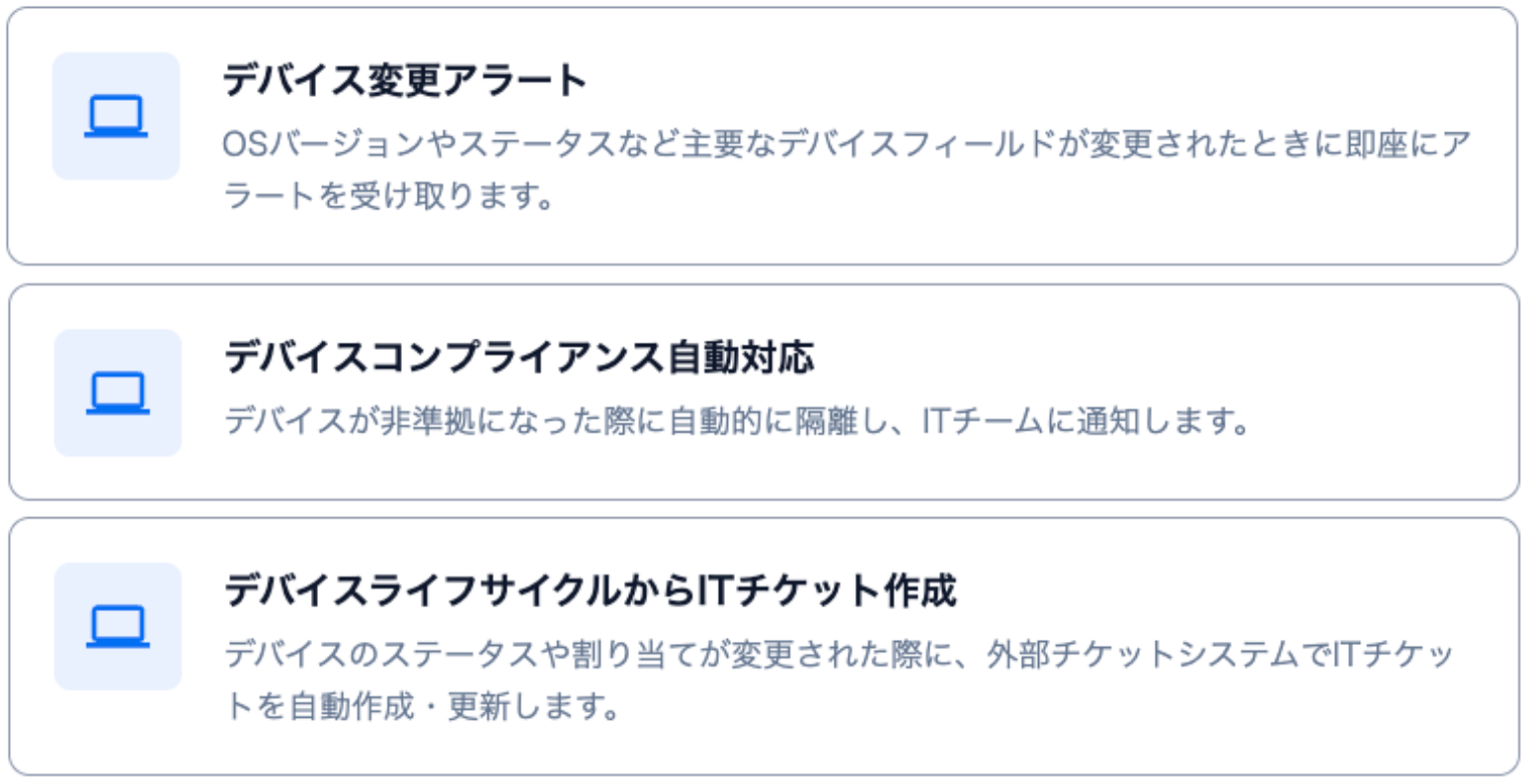
We offer three templates to match your needs.
| Template Name | Main Action |
| ------------------------------------------ | ------------------------------------------------------------------------------------------------------------------------- |
| **Device Change Alert** | Receive instant alerts when key device fields such as OS version or status are changed. |
| **Device Compliance Auto-Response** | Automatically quarantines a device when it becomes non-compliant and notifies the alert recipients. |
| **Create IT Ticket from Device Lifecycle** | Automatically creates or updates IT tickets in an external ticketing system when a device's status or assignment changes. |
 ## Setup Steps
1. Go to **Automation** > click **\[Create Automation]**.
2. Select a template from the dialog.
* Create IT Ticket from Device Lifecycle: Click **\[Create from Template]**.
* Device Change Alert: Click **\[Create from Template]**.
* Device Compliance Auto-Response: Click **\[Create from Template]**.
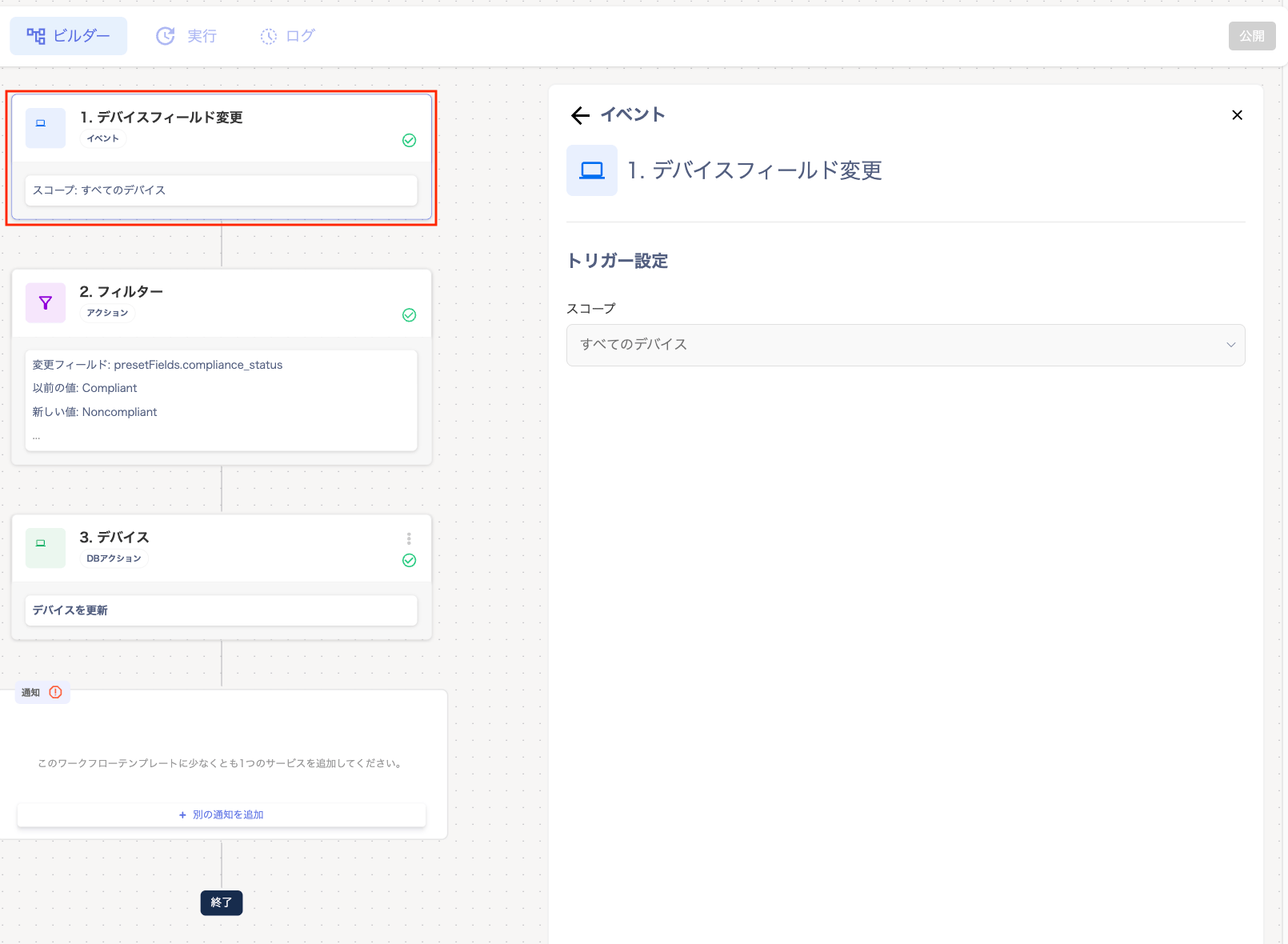
3. In the "Builder" screen, configure **"1. Device Field Change"**.
The scope "All Devices" is displayed under "Trigger Settings". At this time, "All Devices" is fixed as the monitoring target.
## Setup Steps
1. Go to **Automation** > click **\[Create Automation]**.
2. Select a template from the dialog.
* Create IT Ticket from Device Lifecycle: Click **\[Create from Template]**.
* Device Change Alert: Click **\[Create from Template]**.
* Device Compliance Auto-Response: Click **\[Create from Template]**.
3. In the "Builder" screen, configure **"1. Device Field Change"**.
The scope "All Devices" is displayed under "Trigger Settings". At this time, "All Devices" is fixed as the monitoring target.
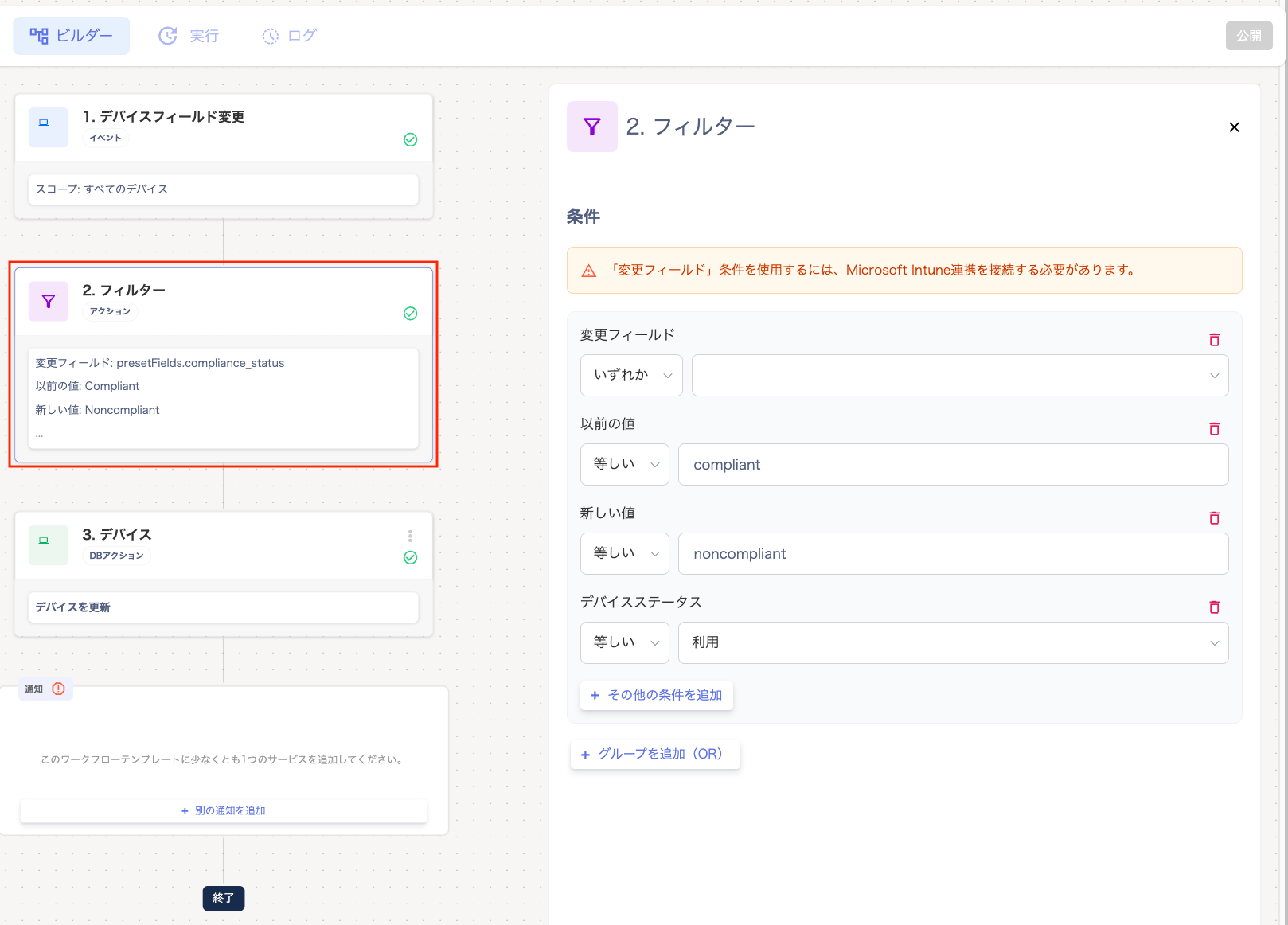
 4. In **"2. Filter"**, set the conditions for notifications. If multiple conditions are selected, a notification is sent when any one of them changes.
* Condition: From the "Changed Field" dropdown, select **\[Any / Not Equal To]**.
* Value: Select the field value to monitor (asset number, OS version, serial number, etc.) from the dropdown.
* \[+ Add Another Condition]: Adds a new condition within the same group. Only condition types not yet used in the group are displayed. The same condition type can only be added once per group. To reuse the same condition type, add a new group.
* \[+ Add Group (OR)]: Adds a new condition group. Groups are combined with "OR".
4. In **"2. Filter"**, set the conditions for notifications. If multiple conditions are selected, a notification is sent when any one of them changes.
* Condition: From the "Changed Field" dropdown, select **\[Any / Not Equal To]**.
* Value: Select the field value to monitor (asset number, OS version, serial number, etc.) from the dropdown.
* \[+ Add Another Condition]: Adds a new condition within the same group. Only condition types not yet used in the group are displayed. The same condition type can only be added once per group. To reuse the same condition type, add a new group.
* \[+ Add Group (OR)]: Adds a new condition group. Groups are combined with "OR".
 5. After "2. Filter", the screens displayed differ depending on the selected template. Please also refer to the linked instructions for details.
* Create IT Ticket from Device Lifecycle: ["3. HTTP Request"](#http) > [Notification](#notification)
* Device Change Alert: [Notification](#notification)
* Device Compliance Auto-Response: ["3. Device"](#device) > [Notification](#notification)
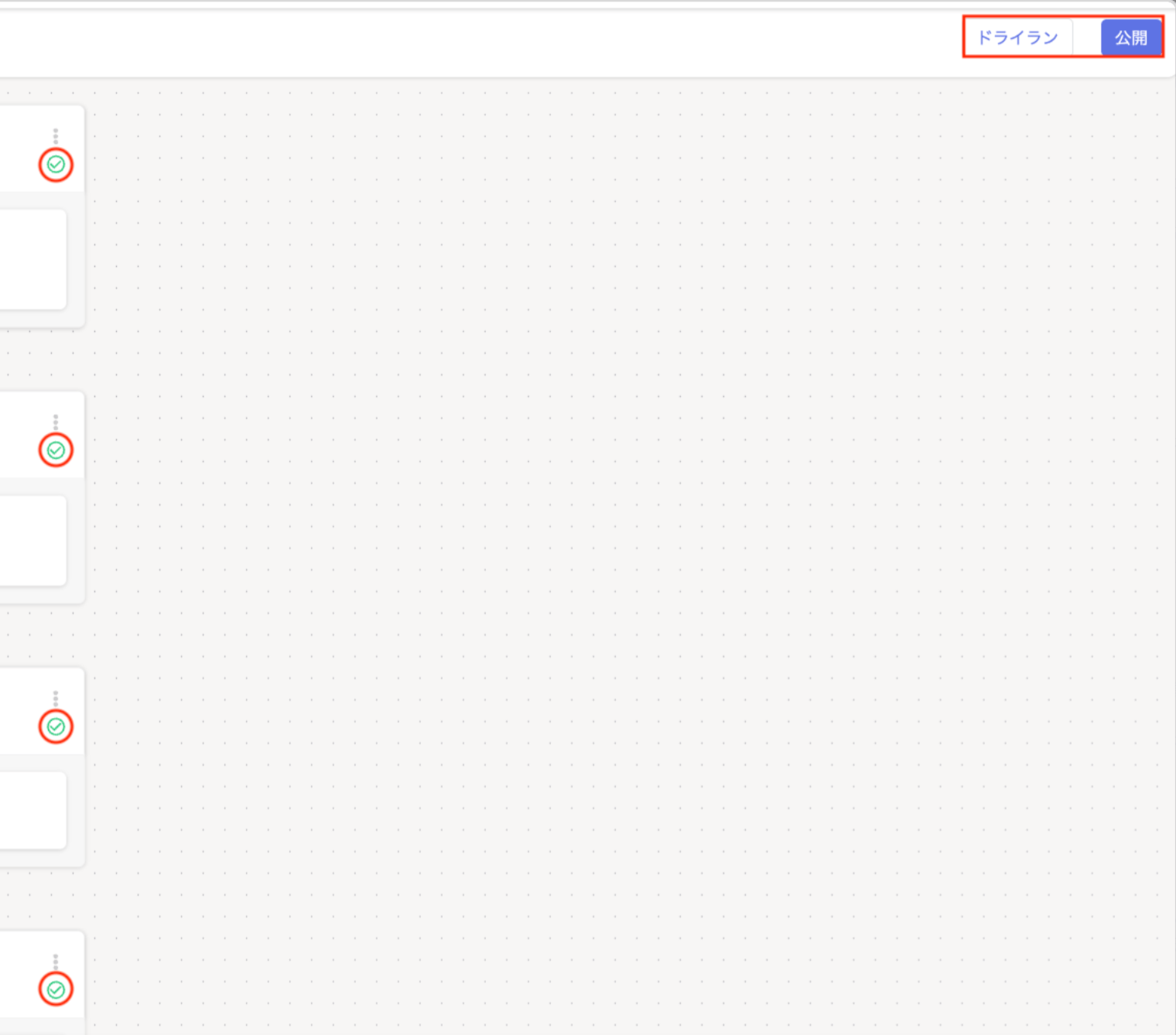
6. Once all checks in the "Builder" turn green, click **\[Publish]** or **\[Dry Run]**.
5. After "2. Filter", the screens displayed differ depending on the selected template. Please also refer to the linked instructions for details.
* Create IT Ticket from Device Lifecycle: ["3. HTTP Request"](#http) > [Notification](#notification)
* Device Change Alert: [Notification](#notification)
* Device Compliance Auto-Response: ["3. Device"](#device) > [Notification](#notification)
6. Once all checks in the "Builder" turn green, click **\[Publish]** or **\[Dry Run]**.
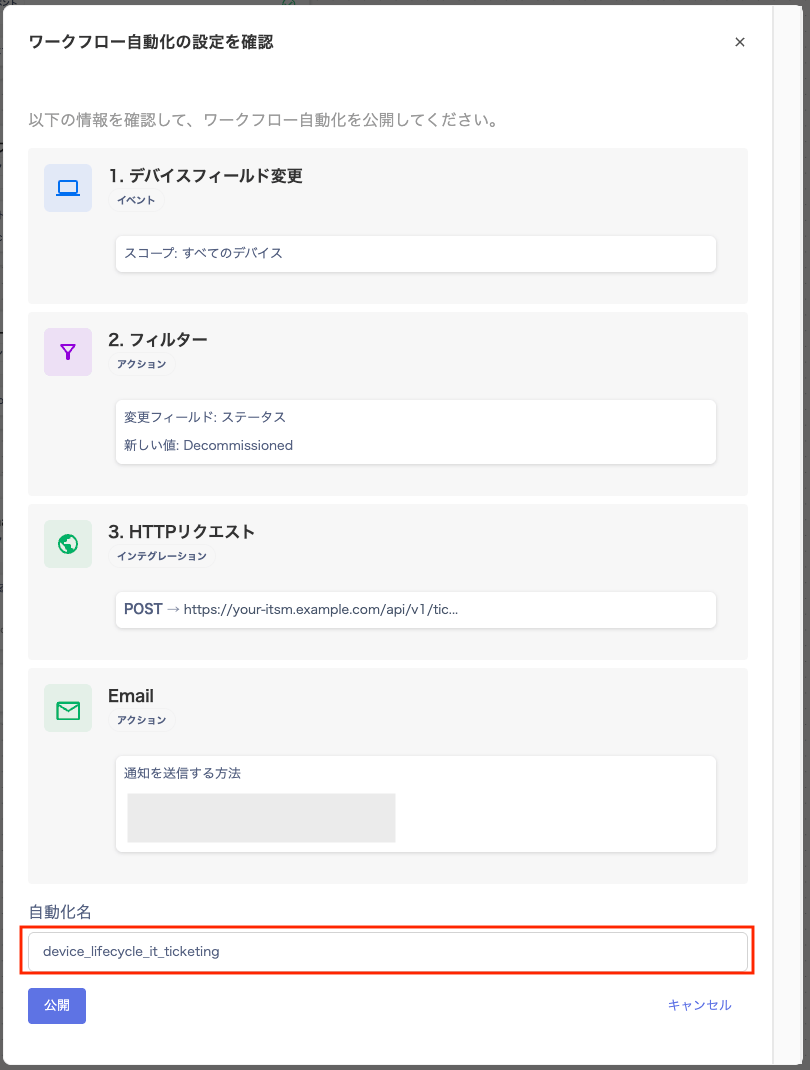
 7. The "Confirm Workflow Automation Settings" screen will appear. Enter an automation name and click **\[Publish]**.
A name that is already registered cannot be used for the automation name.
7. The "Confirm Workflow Automation Settings" screen will appear. Enter an automation name and click **\[Publish]**.
A name that is already registered cannot be used for the automation name.
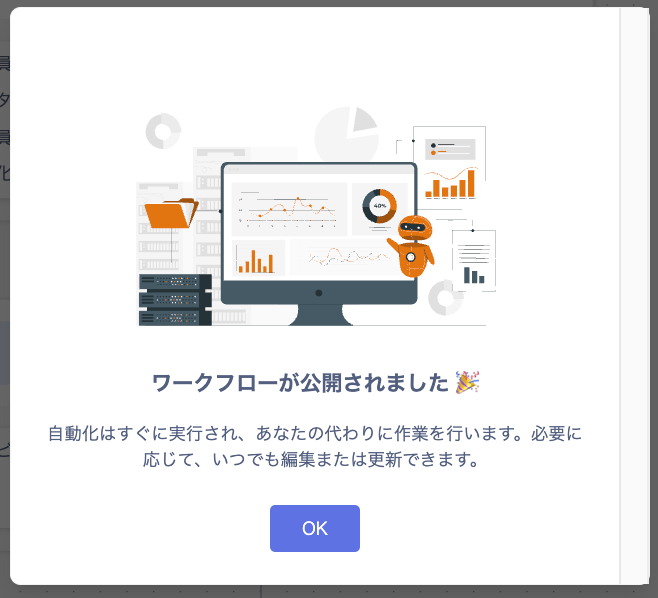
 8. When "Workflow has been published" is displayed, click **\[OK]**.
Notification
In the "Builder" screen, under "Notification", perform the following:
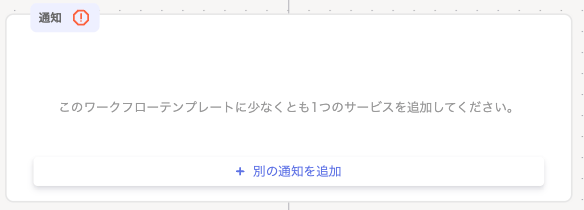
1. Under "Notification", click **\[+ Add Another Notification]**.
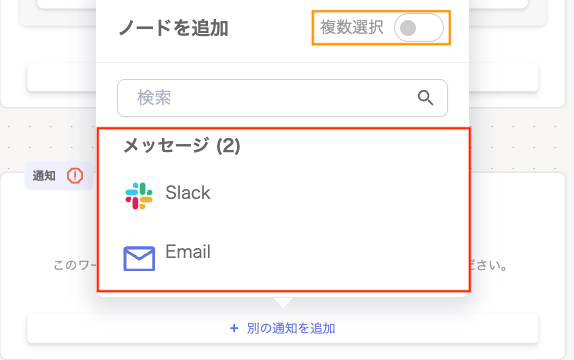
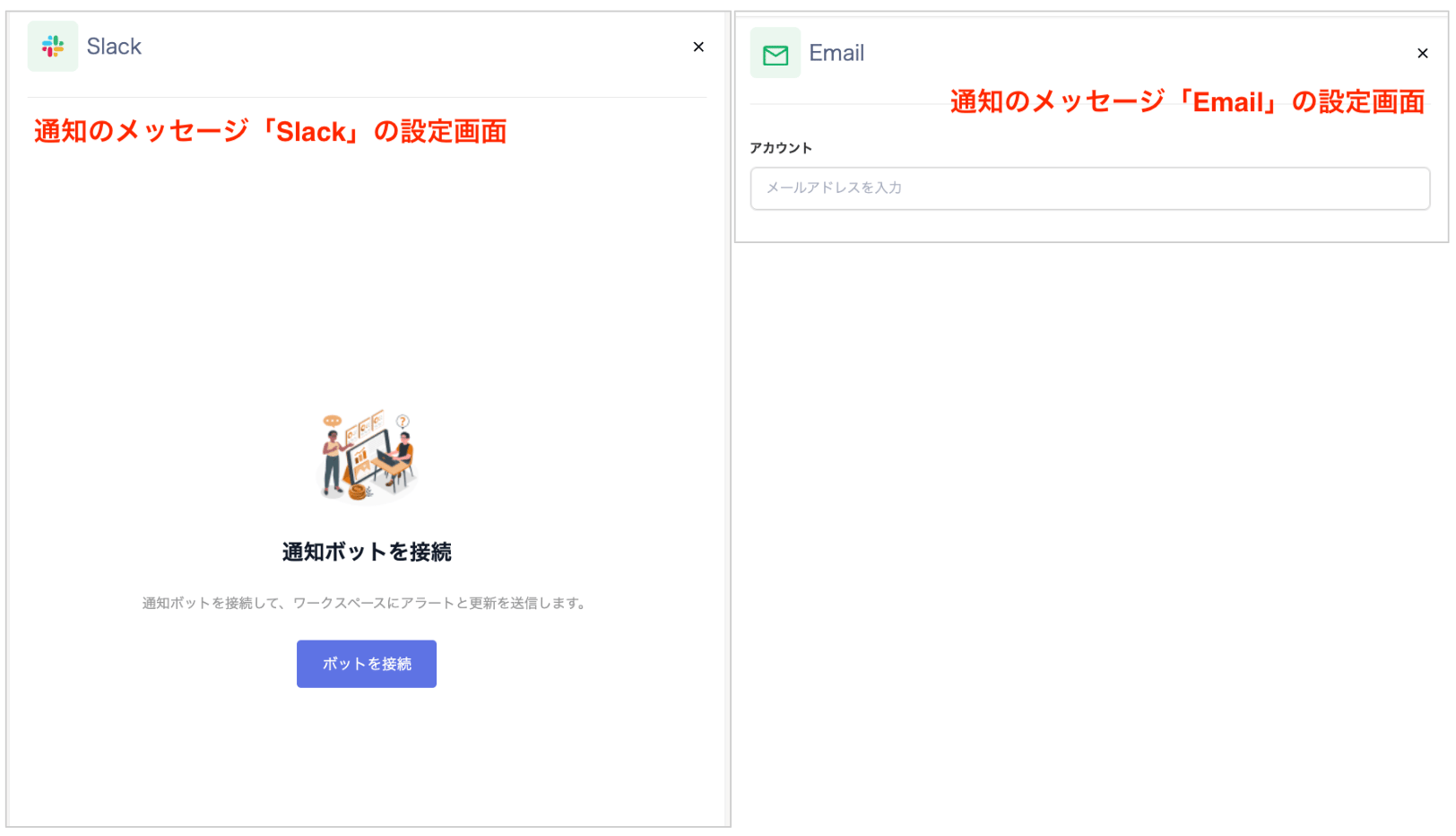
 2. On the "Message" screen, select the notification method **"Slack/Email"**. If you want to set up multiple notifications, turn on "Multiple Selection".
For Slack setup steps, see [Notification Method "Slack" Setup Instructions](/en/it-management/workflows/ygzni03g1c-admina-automation-wic-ggx#slack).
2. On the "Message" screen, select the notification method **"Slack/Email"**. If you want to set up multiple notifications, turn on "Multiple Selection".
For Slack setup steps, see [Notification Method "Slack" Setup Instructions](/en/it-management/workflows/ygzni03g1c-admina-automation-wic-ggx#slack).
 3. On the "Notification" screen, click the selected message to display the "Settings" panel on the right.
Device
In the "Builder" screen, under **"3. Device"**, perform the following:
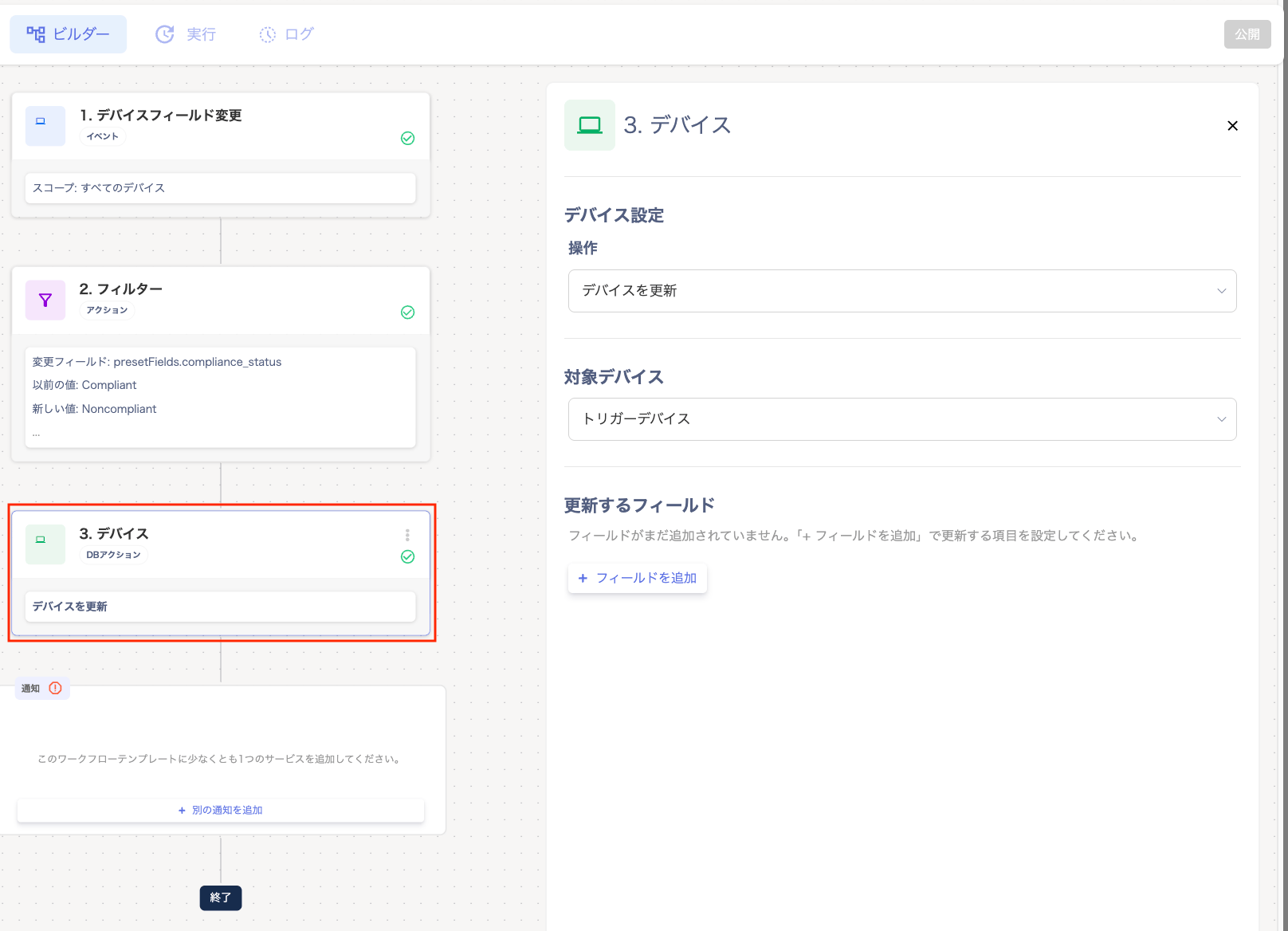 | Item | Setting |
| -------------------- | ---------------------------------------------------------------------------------------------------------------------------------------------------------------------------------------------------------------- |
| **Action** | From "Device Settings", select an action: "Update Device / Unassign Device / Update Device". |
| **Target Device** | Select from "Trigger Device / Another Device (Specified by Filter)". |
| **Fields to Update** | Click **\[+ Add Field]** to select the target items. Options include: "Keyboard Layout / Procurement Method / Fixed Asset / Type / Status / User Device / Custom Field Validation / Type Custom / Manufacturer". |
| Item | Setting |
| -------------------- | ---------------------------------------------------------------------------------------------------------------------------------------------------------------------------------------------------------------- |
| **Action** | From "Device Settings", select an action: "Update Device / Unassign Device / Update Device". |
| **Target Device** | Select from "Trigger Device / Another Device (Specified by Filter)". |
| **Fields to Update** | Click **\[+ Add Field]** to select the target items. Options include: "Keyboard Layout / Procurement Method / Fixed Asset / Type / Status / User Device / Custom Field Validation / Type Custom / Manufacturer". |
HTTP Request
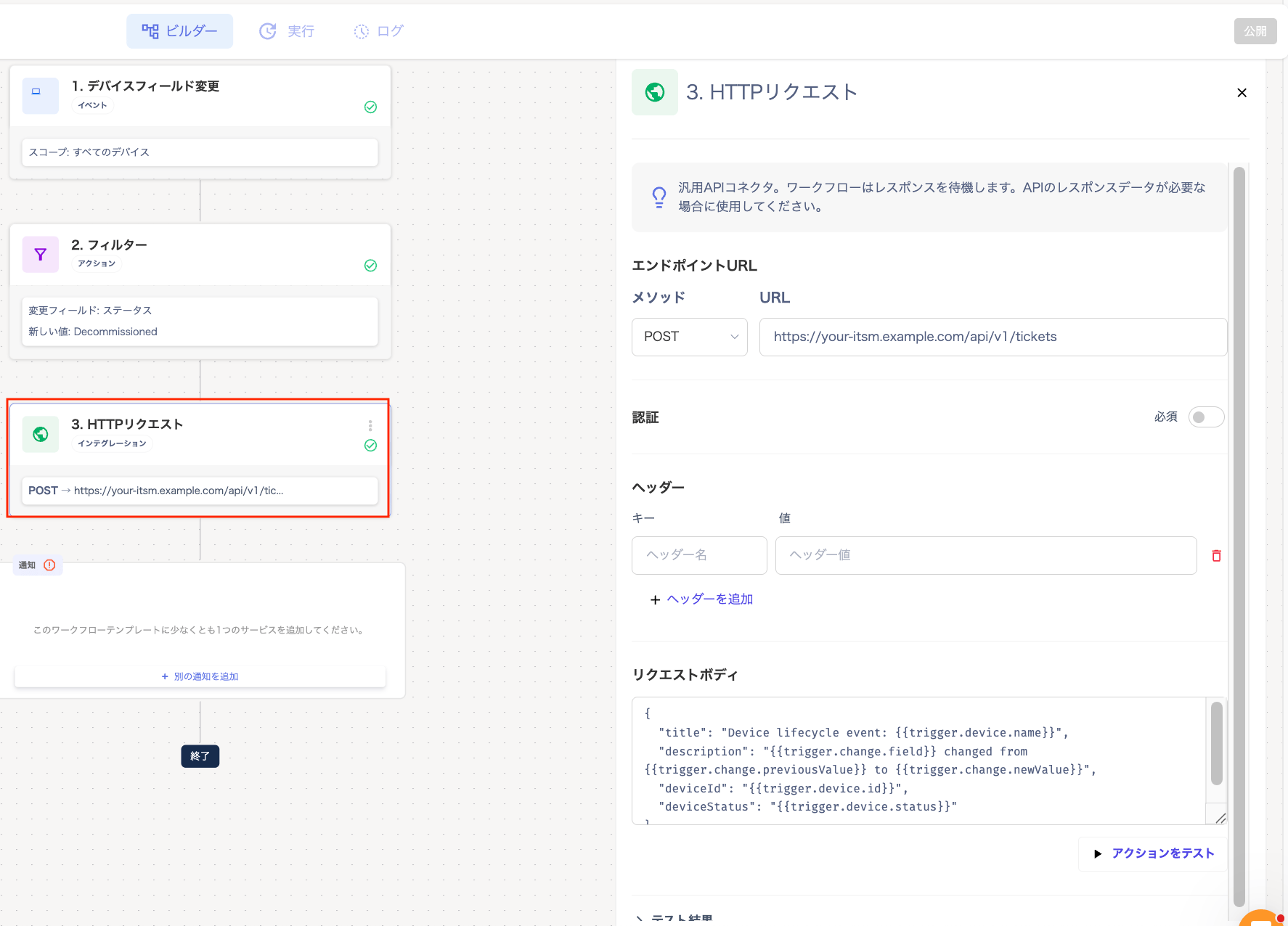
In **"3. HTTP Request"**, if a callback to an external API is needed, configure the method (POST, etc.) and endpoint URL.
Configure the sender to send in the following format:
| Item | Value / Requirement |
| --------------------------- | ---------------------------------------------------------------------------- |
| Endpoint URL | Set the endpoint URL. |
| Method | POST / GET / POST / PUT / PATCH / DELETE |
| Header: Content-Type | application/json |
| Header: X-Timestamp | Unix timestamp (milliseconds, string) |
| Header: X-Webhook-Signature | sha256=HMAC-SHA256(secret, "{ts}.{body}") |
| Request Body | Compact JSON (no spaces or indentation). The keys you send become variables. |
 ## Troubleshooting
| Symptom | Possible Cause | Solution |
| ------------------------------------- | ------------------------------------------------------------ | ---------------------------------------------------------------------- |
| Expected notification is not received | Filter is too strict, or workflow is not published | Loosen the filter, or check that the workflow is in "Published" state. |
| Too many notifications | Filter is too broad, matching all changes | Narrow down to a specific field (e.g., asset number). |
| Slack notification not received | Integration not connected, or bot has not joined the channel | Reconnect Slack, or invite the bot to the channel. |
| Email not received | Incorrect recipient address, or filtered as spam | Re-verify the address and configure domain allow settings. |
## FAQ
**Q. Can I monitor only a specific single device?**
A. This is not currently supported. The trigger is set to "All Devices", so please narrow down by specifying conditions in the "Changed Field" filter.
**Q. Will I be notified of past changes?**
A. No, only changes that occur after the workflow is published are targeted.
**Q. How quickly will I receive a notification?**
A. After the change is recorded in this service, notifications typically arrive within a few seconds.
**Q. Can I pause a workflow?**
A. Toggle off the target workflow in the automation list.
## Troubleshooting
| Symptom | Possible Cause | Solution |
| ------------------------------------- | ------------------------------------------------------------ | ---------------------------------------------------------------------- |
| Expected notification is not received | Filter is too strict, or workflow is not published | Loosen the filter, or check that the workflow is in "Published" state. |
| Too many notifications | Filter is too broad, matching all changes | Narrow down to a specific field (e.g., asset number). |
| Slack notification not received | Integration not connected, or bot has not joined the channel | Reconnect Slack, or invite the bot to the channel. |
| Email not received | Incorrect recipient address, or filtered as spam | Re-verify the address and configure domain allow settings. |
## FAQ
**Q. Can I monitor only a specific single device?**
A. This is not currently supported. The trigger is set to "All Devices", so please narrow down by specifying conditions in the "Changed Field" filter.
**Q. Will I be notified of past changes?**
A. No, only changes that occur after the workflow is published are targeted.
**Q. How quickly will I receive a notification?**
A. After the change is recorded in this service, notifications typically arrive within a few seconds.
**Q. Can I pause a workflow?**
A. Toggle off the target workflow in the automation list.