> ## Documentation Index
> Fetch the complete documentation index at: https://support.i.moneyforward.com/llms.txt
> Use this file to discover all available pages before exploring further.

# 6. How to Read Logs (Automations)

> Learn how to check the execution logs for automated workflows.

<Info>
  **Permissions for this service:** This feature requires **Admin** or **Automation Manager** permissions.
  **SaaS status:** The target SaaS must be connected and linked with the administrator permissions (including API permissions) required to create and delete accounts.
</Info>

You can use execution logs to see when and how automated workflows ran.

#### **How to Check Logs**

1. Select **Automations** from the left menu.
2. On the **Automations** tab, click the three-dot menu on the right side of a workflow and select **View logs**.
3. Check the workflow logs on the **Executions** and **Logs** screens.

#### **How to Read the "Executions" Screen**

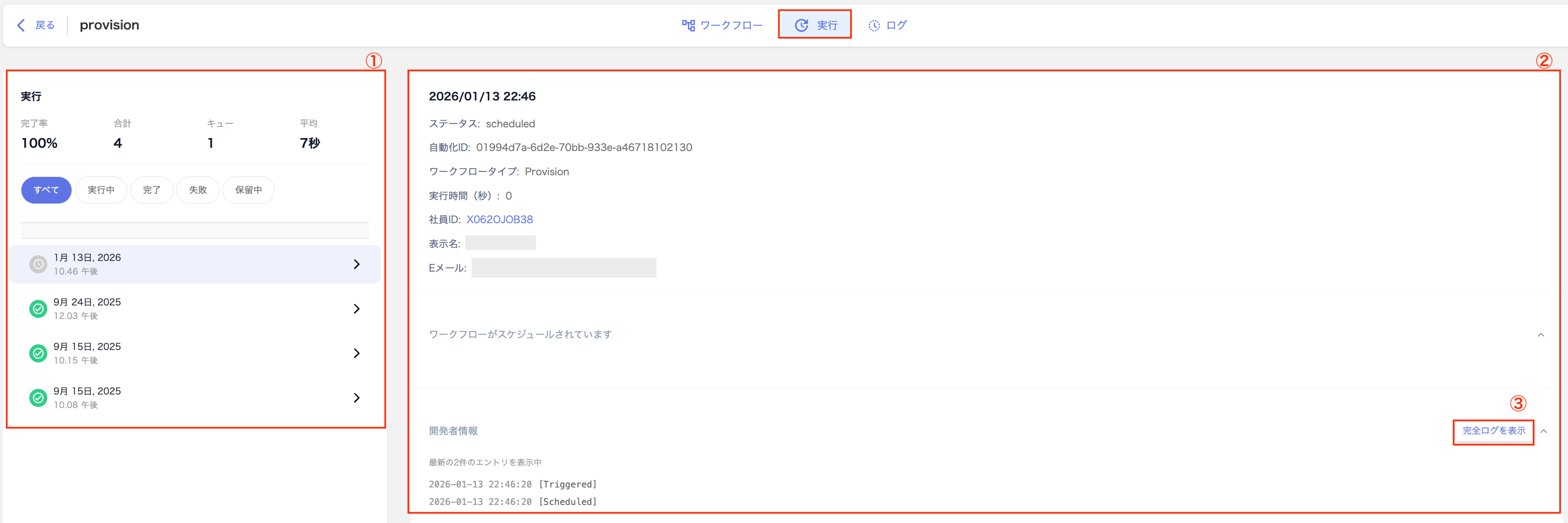
The **Executions** screen shows the execution list and detailed information for each workflow run.

<img src="https://mintcdn.com/moneyforwardi/ymUB0snpc69tjdrT/images/it-management/s3ecxu08jy/2026-01-13-22-54-43.png?fit=max&auto=format&n=ymUB0snpc69tjdrT&q=85&s=9667ae1c4bee8f14cb3fdbba141027aa" alt="Executions screen" width="2784" height="928" data-path="images/it-management/s3ecxu08jy/2026-01-13-22-54-43.png" />

<table>
  <thead><tr><th style={{width:"60px"}}>#</th><th>Item</th><th>Description</th></tr></thead>

  <tbody>
    <tr><td>1</td><td>**Execution list**</td><td>Displays a list of workflow executions. Use the filter to narrow results by All / Running / Completed / Failed / Pending.</td></tr>
    <tr><td>2</td><td>**Execution details**</td><td>Shows detailed information for the selected execution. Status values include Completed (green) / Completed with errors (orange) / Failed (red) / Running (blue) / Pending (yellow).</td></tr>
    <tr><td>3</td><td>**View full log**</td><td>Click **View full log** to navigate to the **Logs** screen.</td></tr>
  </tbody>
</table>

#### **How to Read the "Logs" Screen**

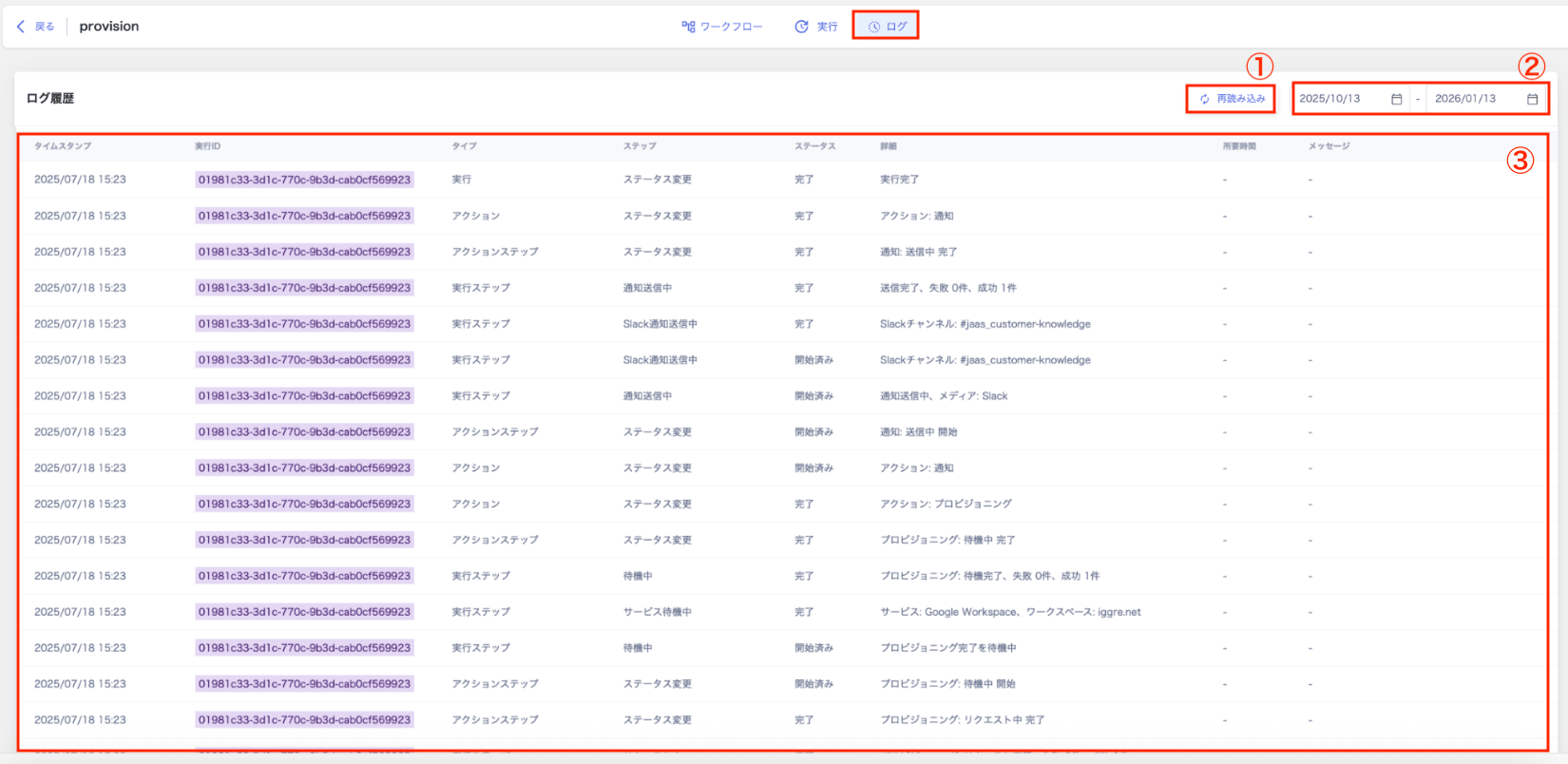
Navigate to Automations > **Automations** tab > select a workflow > **Logs** to view the log history for workflow executions.

<img src="https://mintcdn.com/moneyforwardi/ymUB0snpc69tjdrT/images/it-management/s3ecxu08jy/2026-01-13-23-25-49.png?fit=max&auto=format&n=ymUB0snpc69tjdrT&q=85&s=fe08bb5624d44d15fc2b777e9d243b21" alt="Logs screen" width="1650" height="804" data-path="images/it-management/s3ecxu08jy/2026-01-13-23-25-49.png" />

<table>
  <thead><tr><th style={{width:"60px"}}>#</th><th>Item</th><th>Description</th></tr></thead>

  <tbody>
    <tr><td>1</td><td>**Reload**</td><td>Click **Reload** to refresh the log.</td></tr>
    <tr><td>2</td><td>**Filter**</td><td>Use the date range filter to display only logs from a specific period.</td></tr>
    <tr><td>3</td><td>**Logs**</td><td>View the history of each step in chronological order for each workflow execution.</td></tr>
  </tbody>
</table>

#### **Log Field Descriptions**

| Field            | Description                                                                                                      |
| ---------------- | ---------------------------------------------------------------------------------------------------------------- |
| **Timestamp**    | The date and time each process ran.                                                                              |
| **Execution ID** | An ID assigned each time a workflow runs. The same ID indicates a series of related processes.                   |
| **Type**         | The type of process. Types include: trigger / run / action / action\_step / execution\_step.                     |
| **Step**         | The specific action that ran. (Examples: status change, sending notification)                                    |
| **Status**       | The state of each process. Status values include: triggered / scheduled / pending / running / finished / failed. |
| **Details**      | More detailed information about the status. (Example: which service performed what action)                       |
| **Duration**     | The time it took for each process to complete. (milliseconds)                                                    |
| **Message**      | Notifications about the result of each process, including detailed success or failure messages.                  |

For setup instructions, see [Getting Started with Automations](/en/it-management/workflows/90k8f1lee0-workflows).