> ## Documentation Index
> Fetch the complete documentation index at: https://support.i.moneyforward.com/llms.txt
> Use this file to discover all available pages before exploring further.

# 1. Screen Overview (Automations)

> This page explains how to read the Automations screen.

<Info>
  **Permission for this service:** This feature requires **Admin** or **Automation Manager** permissions.<br />
  **SaaS status:** The target SaaS must be connected with admin permissions (including API permissions) that allow account creation and deletion.
</Info>

#### Overview of Automations

Automations is a workflow feature for software and SaaS services. It automates account creation during onboarding and account deletion during offboarding.

It runs automatically based on user data according to pre-configured flows, reducing routine tasks for IT teams.

#### Screen description (Automations)

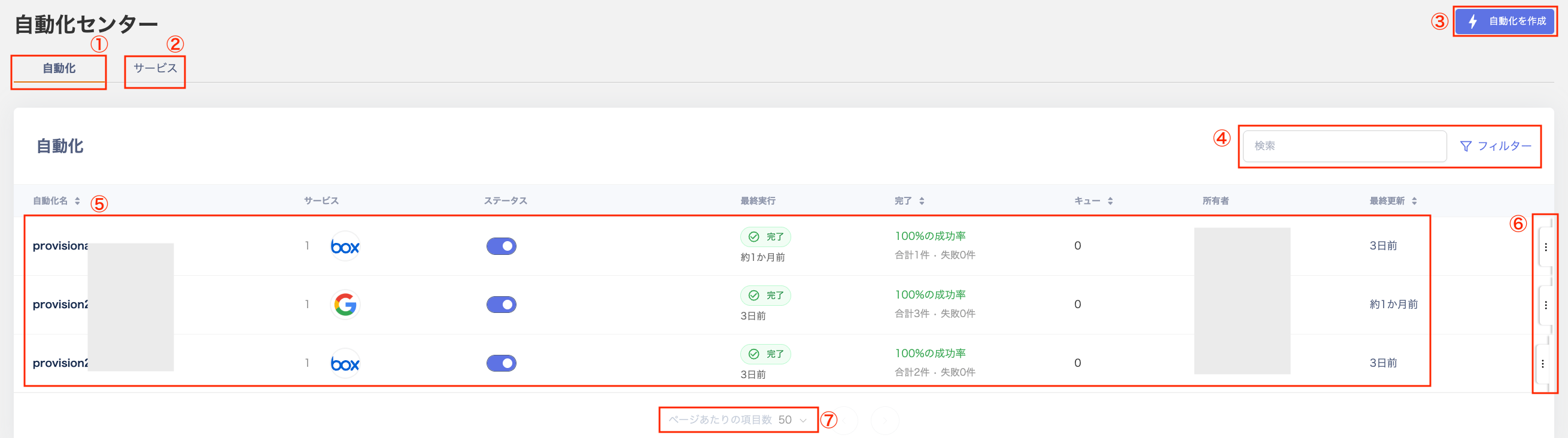
<img src="https://mintcdn.com/moneyforwardi/WCqGJo_jAUk99nXh/images/it-management/zkgzzy8dso/2026-01-18-16-42-43.png?fit=max&auto=format&n=WCqGJo_jAUk99nXh&q=85&s=fd9015736973a10fee9b87fbd13d0e39" alt="List of automation workflows, showing the workflow list and the menu for service mapping settings" width="2620" height="732" data-path="images/it-management/zkgzzy8dso/2026-01-18-16-42-43.png" />

<table>
  <thead>
    <tr>
      <th style={{ width: "60px" }}>#</th>
      <th>Item</th>
      <th>Description</th>
    </tr>
  </thead>

  <tbody>
    <tr>
      <td>1</td>
      <td><strong>Automations</strong></td>
      <td>View a list of configured workflows.</td>
    </tr>

    <tr>
      <td>2</td>
      <td><strong>Services</strong></td>
      <td>Configure service mappings to enable Provisioning and Deprovisioning workflows for each service.</td>
    </tr>

    <tr>
      <td>3</td>
      <td><strong>Create automation</strong></td>
      <td>Select a template to configure the workflow.</td>
    </tr>

    <tr>
      <td>4</td>
      <td><strong>Search, filter</strong></td>
      <td>Filter by keyword search and status (Enabled / Disabled / Error).</td>
    </tr>

    <tr>
      <td>5</td>
      <td><strong>Workflow list</strong></td>
      <td>View the list of automation workflows.</td>
    </tr>

    <tr>
      <td>6</td>
      <td><strong>Three-dot menu</strong></td>
      <td>Choose from "Delete workflow / Show logs / View workflow".</td>
    </tr>

    <tr>
      <td>7</td>
      <td><strong>Items per page</strong></td>
      <td>Switch between 50 or 100 items per page. Use the buttons on the right to navigate to the next or previous page.</td>
    </tr>
  </tbody>
</table>

For setup instructions, see [Getting Started (Automations)](/en/it-management/workflows/90k8f1lee0-workflows).