> ## Documentation Index
> Fetch the complete documentation index at: https://support.i.moneyforward.com/llms.txt
> Use this file to discover all available pages before exploring further.

# Bigin by Zoho CRM

> Bigin by Zoho CRM連携手順です。

## サポートする機能

<Badge color="blue">アカウント作成</Badge> <Badge color="blue">アカウント削除</Badge>

<Info>
  連携には管理者権限のアカウントが必要です。
</Info>

## 事前準備

### ログイン方法

[Bigin by Zoho CRMログインページ](https://accounts.zoho.jp/signin?service_language=ja\&servicename=ZohoBigin\&signupurl=https://www.bigin.com/jp/signup.html)にて、メールアドレス・パスワードを入力し、ログインします。
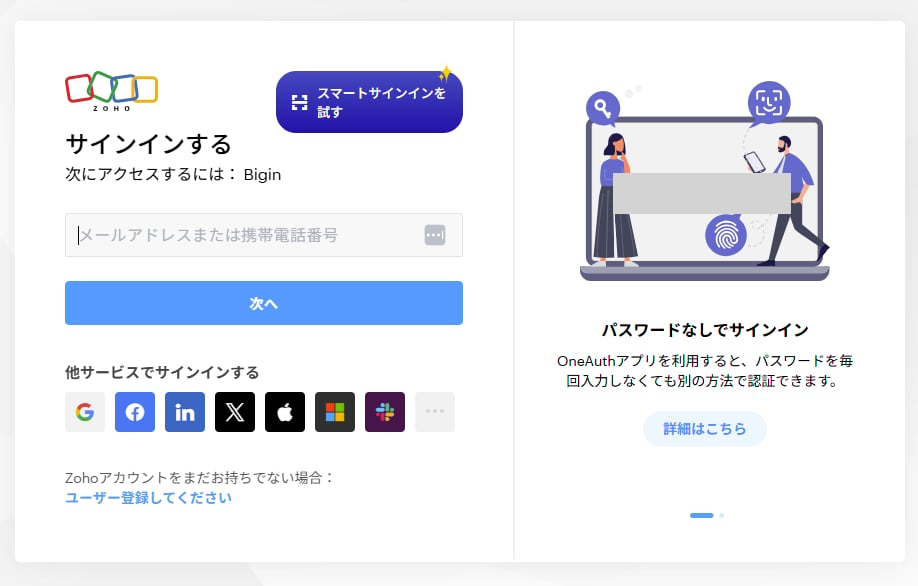
<img src="https://mintcdn.com/moneyforwardi/sBonQ3jiLBZfmNUI/images/integrations/0i60v7qc0v/2025-12-26-111525.png?fit=max&auto=format&n=sBonQ3jiLBZfmNUI&q=85&s=1b091e0abe8032e2a9921f4d568555bf" alt="Bigin by Zoho CRMログイン画面" width="918" height="586" data-path="images/integrations/0i60v7qc0v/2025-12-26-111525.png" />

### 組織IDの確認方法

Bigin by Zoho CRMログイン後、URLを確認します。**orgの後ろの数字**が**組織ID**です。

<img src="https://mintcdn.com/moneyforwardi/sBonQ3jiLBZfmNUI/images/integrations/0i60v7qc0v/image-2025-12-26-t-111719-167.png?fit=max&auto=format&n=sBonQ3jiLBZfmNUI&q=85&s=42bcb16012fd1f1c23d58c257f71b098" alt="組織IDの確認方法" width="1810" height="166" data-path="images/integrations/0i60v7qc0v/image-2025-12-26-t-111719-167.png" />

### OAuthアプリを登録する

[https://api-console.zoho.com/](https://api-console.zoho.com/) にログインします。
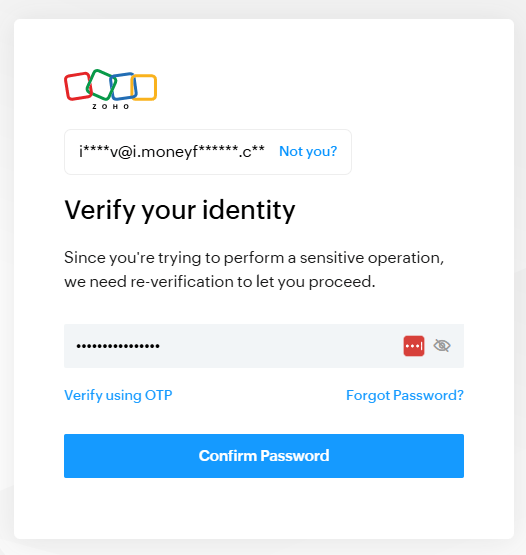
<img src="https://mintcdn.com/moneyforwardi/sBonQ3jiLBZfmNUI/images/integrations/0i60v7qc0v/2025-12-15-190445.png?fit=max&auto=format&n=sBonQ3jiLBZfmNUI&q=85&s=280c44c660acb8d4a6218d1b6b12b079" alt="Zoho API Console" width="526" height="555" data-path="images/integrations/0i60v7qc0v/2025-12-15-190445.png" />

**ADD CLIENT** > **Server-Based Applications** をクリックします。
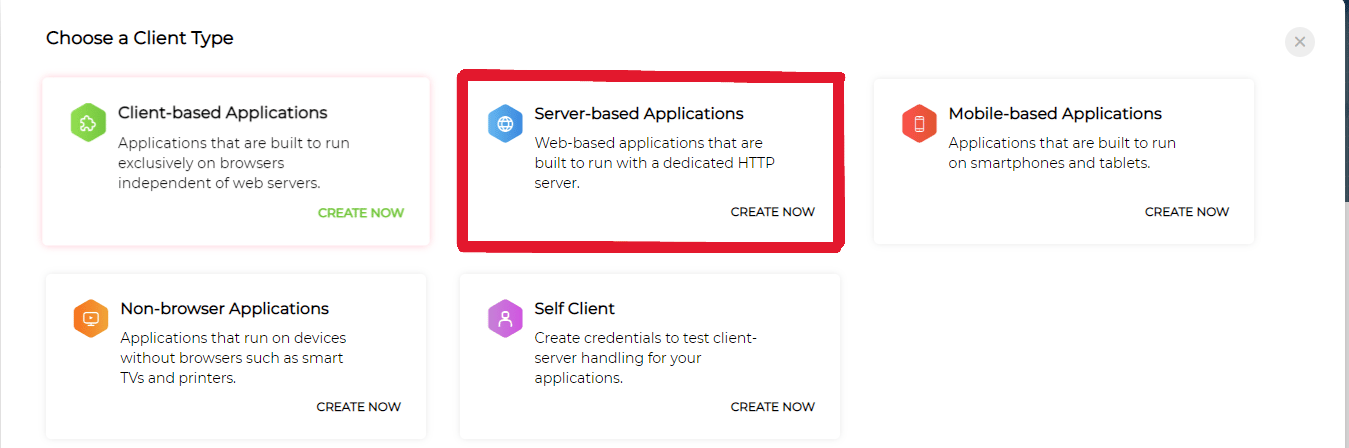
<img src="https://mintcdn.com/moneyforwardi/sBonQ3jiLBZfmNUI/images/integrations/0i60v7qc0v/untitled.png?fit=max&auto=format&n=sBonQ3jiLBZfmNUI&q=85&s=cb9705126784b91a6624bb805cdc51b6" alt="Server-Based Applicationsを選択" width="1349" height="448" data-path="images/integrations/0i60v7qc0v/untitled.png" />

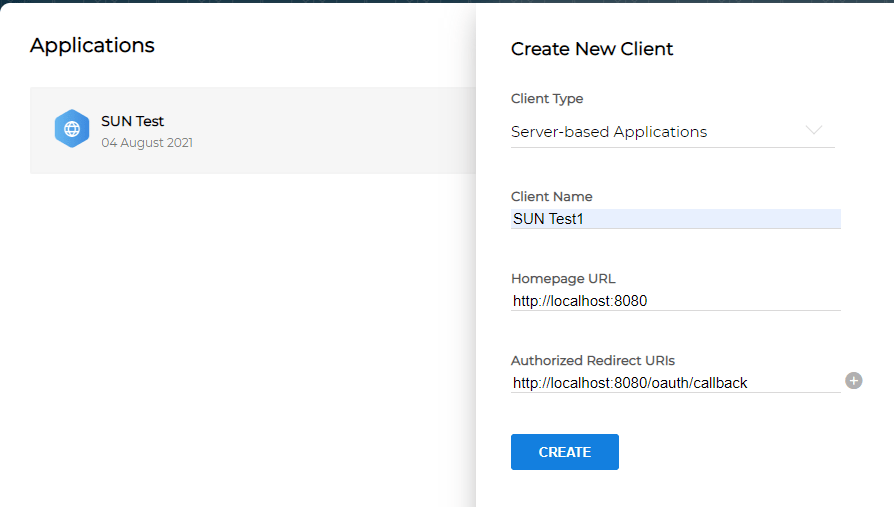
必要な情報を入力し、**CREATE** をクリックします。

<img src="https://mintcdn.com/moneyforwardi/sBonQ3jiLBZfmNUI/images/integrations/0i60v7qc0v/untitled-1.png?fit=max&auto=format&n=sBonQ3jiLBZfmNUI&q=85&s=2c59b232c050f1767887bbf4b8621333" alt="クライアント作成" width="894" height="507" data-path="images/integrations/0i60v7qc0v/untitled-1.png" />

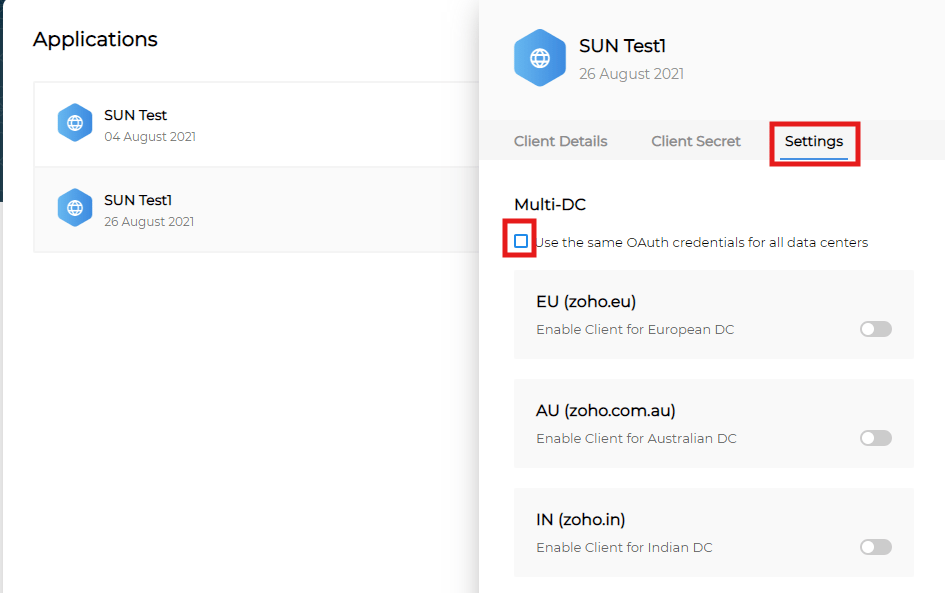
**Settings** > **Use the same Oauth credentials for all data centers** にチェックを入れます。
<img src="https://mintcdn.com/moneyforwardi/sBonQ3jiLBZfmNUI/images/integrations/0i60v7qc0v/untitled-3.png?fit=max&auto=format&n=sBonQ3jiLBZfmNUI&q=85&s=67f644520bad2ec50bb87abf79329c9d" alt="OAuth設定" width="945" height="593" data-path="images/integrations/0i60v7qc0v/untitled-3.png" />

## インテグレーションのセットアップ

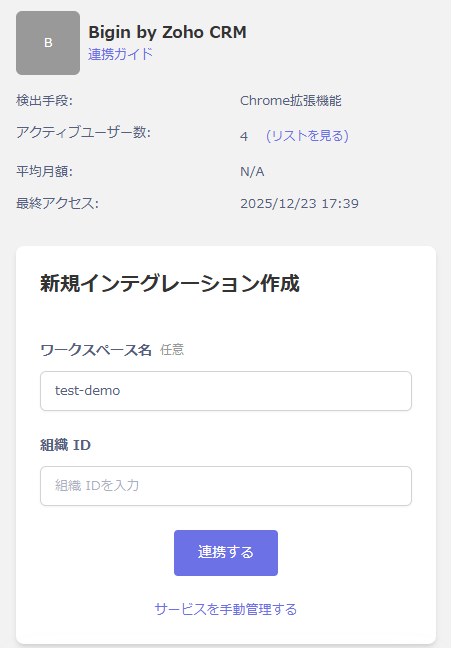
インテグレーション画面にて、**Bigin by Zoho CRM**で検索します。

任意の**ワークスペース名**、前の手順で確認した**組織ID**を入力し、**連携する**をクリックします。
<img src="https://mintcdn.com/moneyforwardi/sBonQ3jiLBZfmNUI/images/integrations/0i60v7qc0v/2025-12-26-112230.png?fit=max&auto=format&n=sBonQ3jiLBZfmNUI&q=85&s=022afd5df5482acf0afce6feffcc06eb" alt="インテグレーション設定画面" width="451" height="648" data-path="images/integrations/0i60v7qc0v/2025-12-26-112230.png" />

連携に成功すると、アカウント一覧に登録済みのユーザー情報が表示されます。

正常に完了しない場合は、インテグレーション画面のステータスタブから**編集**し、再度連携をお試しください。

解決しない場合はチャットにてお問い合わせください。