> ## Documentation Index
> Fetch the complete documentation index at: https://support.i.moneyforward.com/llms.txt
> Use this file to discover all available pages before exploring further.

# Dynatrace

> Dynatrace連携は管理者権限必須。ワークスペースキー、クライアントID・シークレットを取得後、Admina統合画面で設定して連携完了。

## サポートする機能

<Badge color="blue">アカウント作成</Badge> <Badge color="blue">アカウント削除</Badge>

<Info>
  連携には管理者権限のアカウントが必要です。
</Info>

## 事前準備

### ログイン方法

[Dynatraceログインページ](https://myaccount.dynatrace.com/account/home?account-uuid=5d9b6bb7-3149-48bd-998b-3b97817db01b)にて、メールアドレス・パスワードを入力し、ログインします。
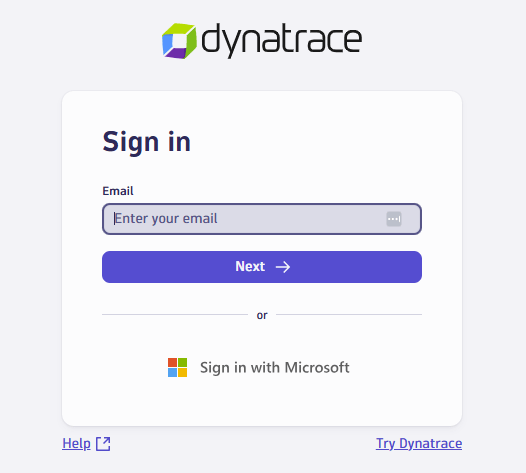
<img src="https://mintcdn.com/moneyforwardi/AFMlQ41Uc_D7oAe6/images/integrations/9h96eh0joi/2026-04-17-115958.png?fit=max&auto=format&n=AFMlQ41Uc_D7oAe6&q=85&s=e6dfee510d7254016c636f08899143e1" alt="Dynatraceログインページ" width="526" height="473" data-path="images/integrations/9h96eh0joi/2026-04-17-115958.png" />

### ワークスペースキーの確認方法

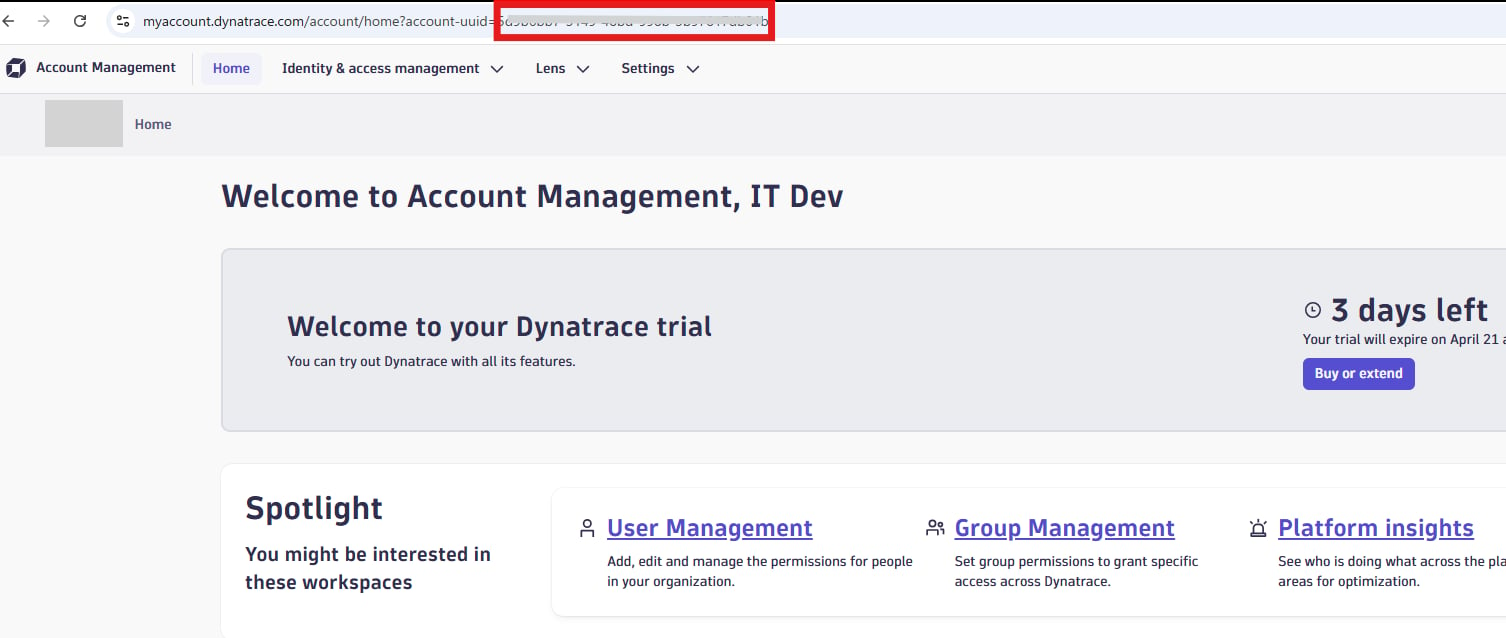
Dynatraceログイン後、URLを確認します。

赤枠部分が**ワークスペースキー**です。
<img src="https://mintcdn.com/moneyforwardi/AFMlQ41Uc_D7oAe6/images/integrations/9h96eh0joi/2026-04-17-120420.png?fit=max&auto=format&n=AFMlQ41Uc_D7oAe6&q=85&s=357adad4ddbecd4d36e967403599533d" alt="ワークスペースキーの確認" width="1506" height="638" data-path="images/integrations/9h96eh0joi/2026-04-17-120420.png" />

### クライアントID・クライアントシークレットの取得方法

**Identity & access management** > **OAuth clients** をクリックします。
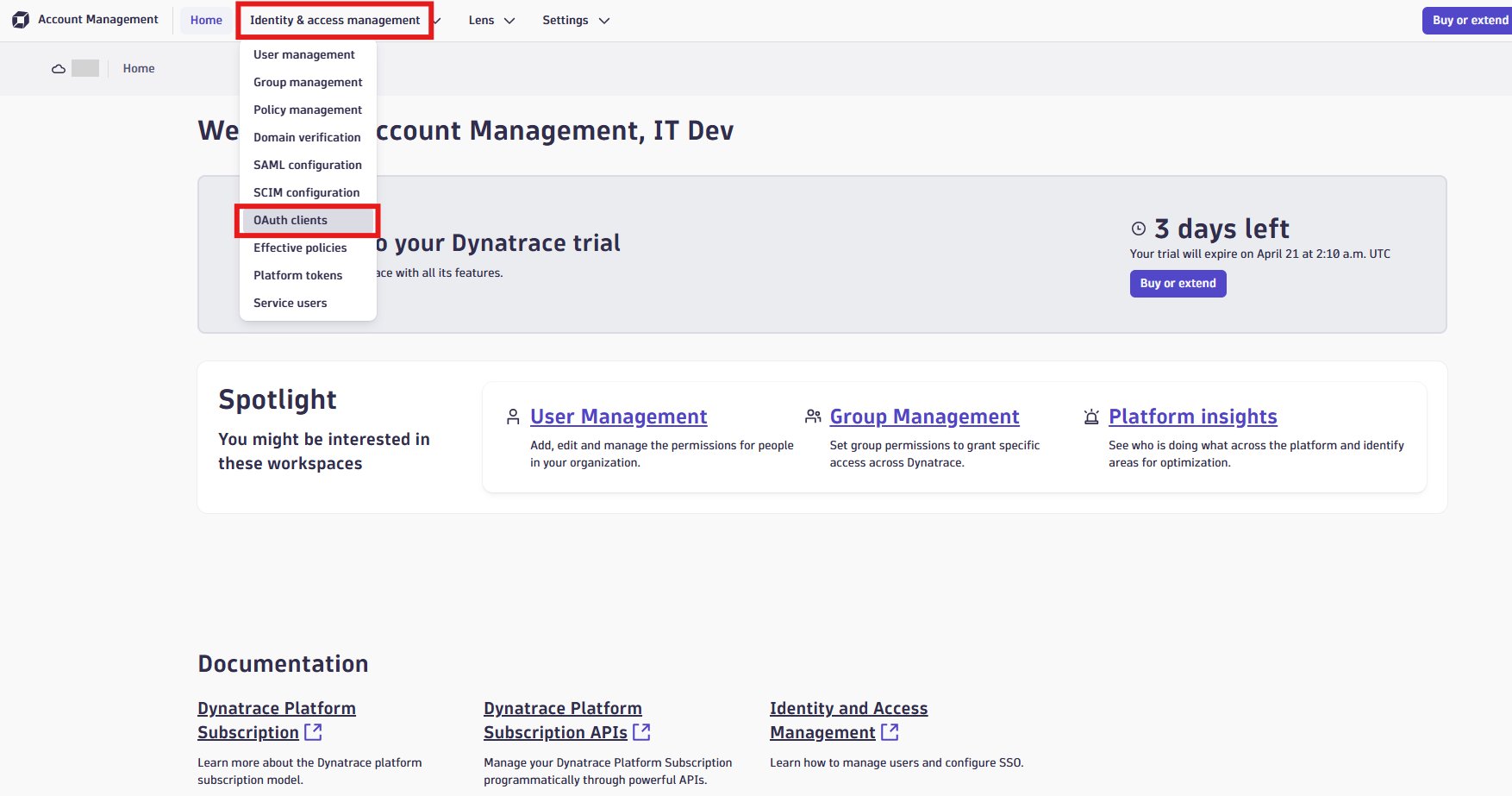
<img src="https://mintcdn.com/moneyforwardi/AFMlQ41Uc_D7oAe6/images/integrations/9h96eh0joi/2026-04-17-132440.png?fit=max&auto=format&n=AFMlQ41Uc_D7oAe6&q=85&s=d9831d2f126130c0201eaab3f6703acd" alt="OAuth clients画面へ移動" width="1754" height="923" data-path="images/integrations/9h96eh0joi/2026-04-17-132440.png" />

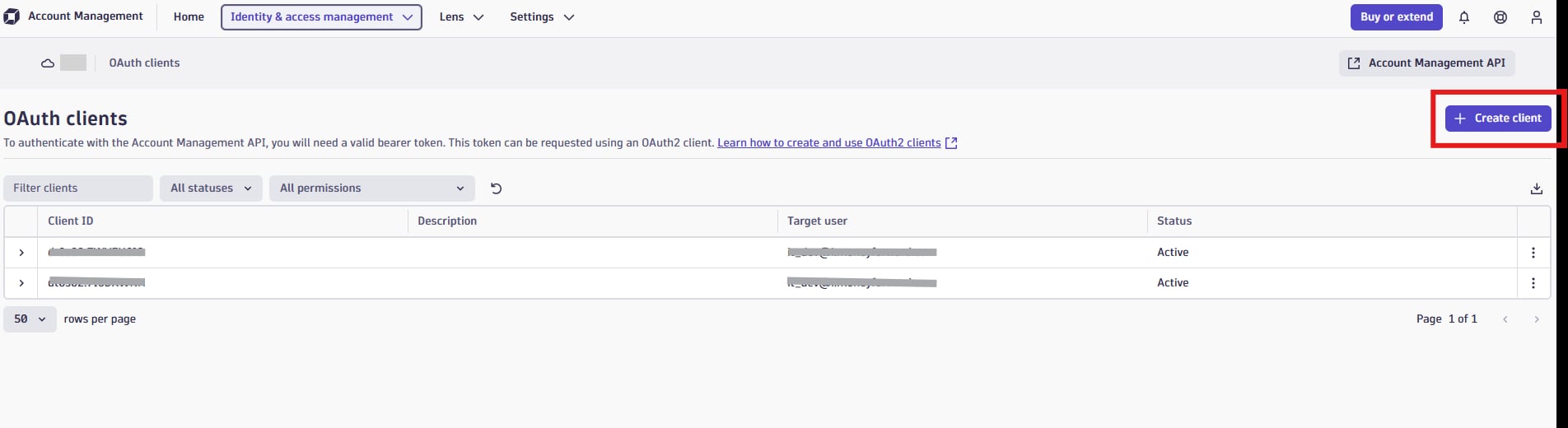
**Create client** をクリックします。

<img src="https://mintcdn.com/moneyforwardi/AFMlQ41Uc_D7oAe6/images/integrations/9h96eh0joi/2026-04-17-132635.png?fit=max&auto=format&n=AFMlQ41Uc_D7oAe6&q=85&s=1bd014b569ad2dfe9a50165120f7fa08" alt="Create clientをクリック" width="1904" height="520" data-path="images/integrations/9h96eh0joi/2026-04-17-132635.png" />

メールアドレスを入力、必要なスコープを選択し、**Create client** をクリックします。
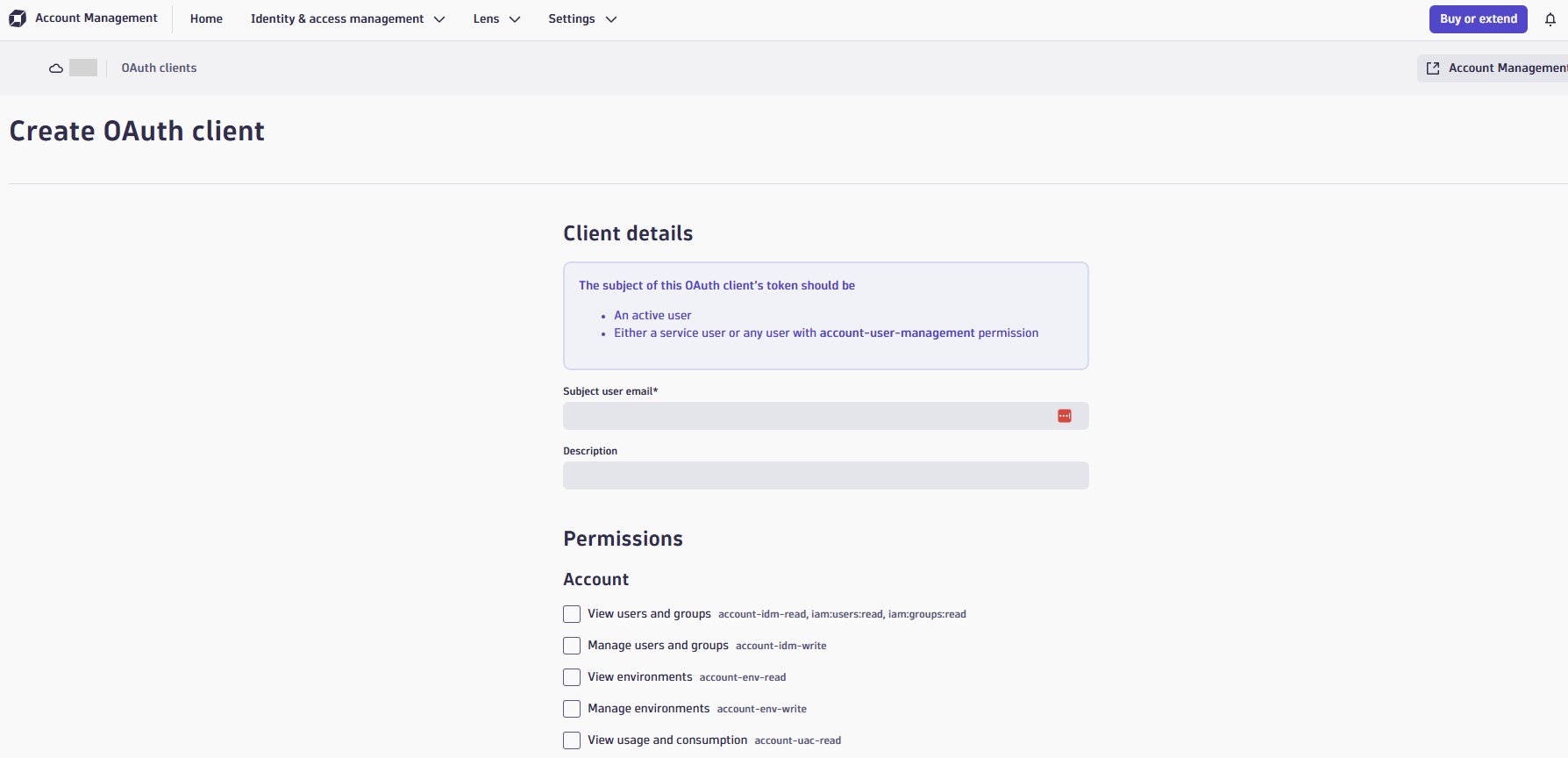
<img src="https://mintcdn.com/moneyforwardi/AFMlQ41Uc_D7oAe6/images/integrations/9h96eh0joi/2026-04-17-140722.png?fit=max&auto=format&n=AFMlQ41Uc_D7oAe6&q=85&s=982d86ab73fd6d8de60f6bed9a07c890" alt="クライアント作成画面" width="1788" height="864" data-path="images/integrations/9h96eh0joi/2026-04-17-140722.png" />

表示された**クライアントID・クライアントシークレット**をコピーして、**Finish** をクリックします。
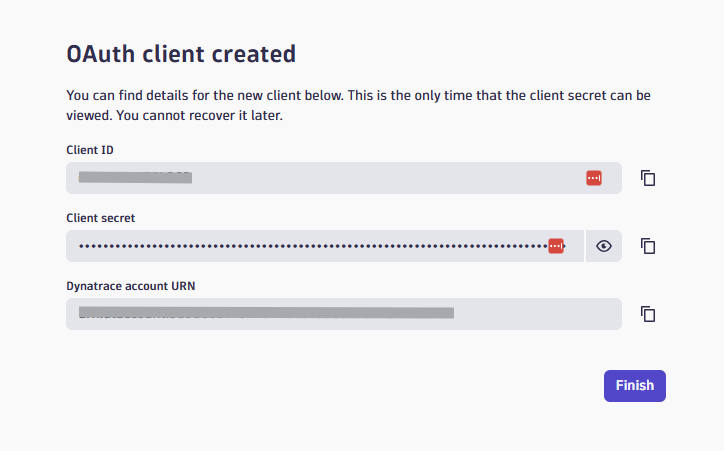
<img src="https://mintcdn.com/moneyforwardi/AFMlQ41Uc_D7oAe6/images/integrations/9h96eh0joi/2026-04-17-141107.png?fit=max&auto=format&n=AFMlQ41Uc_D7oAe6&q=85&s=ed0e5cae0f524d2fd4db67eda7d6f9cc" alt="クライアント情報の取得" width="724" height="451" data-path="images/integrations/9h96eh0joi/2026-04-17-141107.png" />

## インテグレーションのセットアップ

インテグレーション画面にて、**Dynatrace**で検索します。

任意の**ワークスペース名**、前の手順で取得した**ワークスペースキー**、**クライアントID**、**クライアントシークレット**を入力し、**連携する**をクリックします。
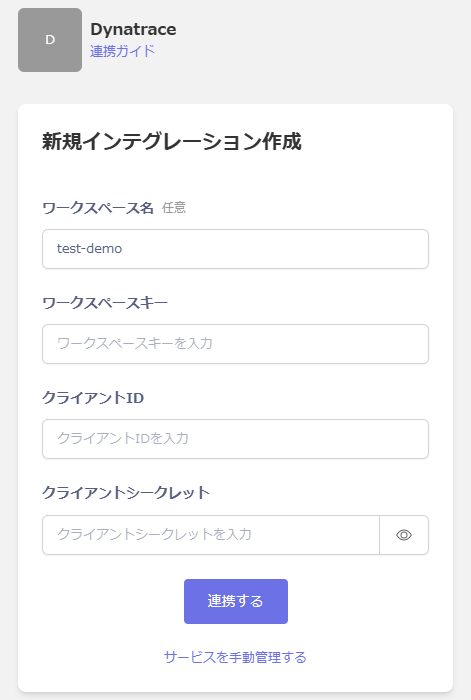
<img src="https://mintcdn.com/moneyforwardi/AFMlQ41Uc_D7oAe6/images/integrations/9h96eh0joi/2026-04-17-142254.png?fit=max&auto=format&n=AFMlQ41Uc_D7oAe6&q=85&s=5633089234aea4080701e7595e183211" alt="Admina連携画面" width="471" height="700" data-path="images/integrations/9h96eh0joi/2026-04-17-142254.png" />

連携に成功すると、アカウント一覧に登録済みのユーザー情報が表示されます。

正常に完了しない場合は、インテグレーション画面のステータスタブから**編集**し、再度連携をお試しください。

解決しない場合はチャットにてお問い合わせください。