> ## Documentation Index
> Fetch the complete documentation index at: https://support.i.moneyforward.com/llms.txt
> Use this file to discover all available pages before exploring further.
# HRBrainタレントマネジメント
> HRBrainタレントマネジメントとの連携の手順です。
## サポートする機能
アカウント削除 アカウント作成 従業員マスター連携
こちらの記事はHRBrainのタレントマネジメントに関する連携ガイドとなります。
他のHRBrainシリーズとの連携は、現在非対応となっております。
## 事前準備
### HRBrain タレントマネジメントへのログイン方法
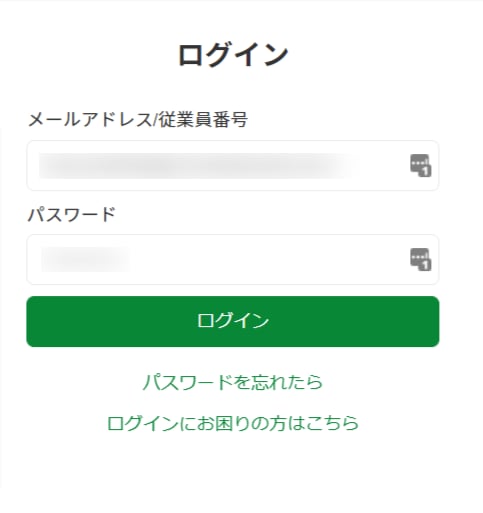
HRBrain のアカウント作成時に発行されたメールアドレスへ案内メールが届くので、記載されているURLよりログインします。
HRBrainタレントマネジメントへのログインについて、ご不明な点は[HRBrainログイン](https://www.hrbrain.jp/login)をご参照ください。
 ### ワークスペースキーの取得方法
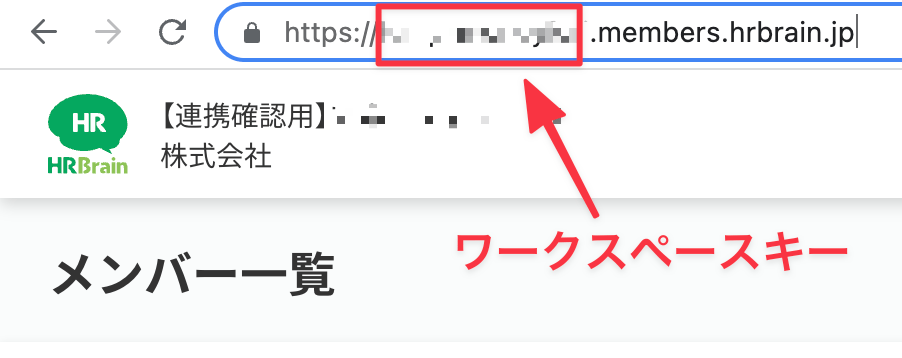
HRBrainタレントへログイン後に表示されるページのURLの一部がワークスペースキーとなるので、保存しておきます。
https\://`{ワークスペースキー}`.members.hrbrain.jp
### ワークスペースキーの取得方法
HRBrainタレントへログイン後に表示されるページのURLの一部がワークスペースキーとなるので、保存しておきます。
https\://`{ワークスペースキー}`.members.hrbrain.jp
 ### 公開API/Tokenの設定
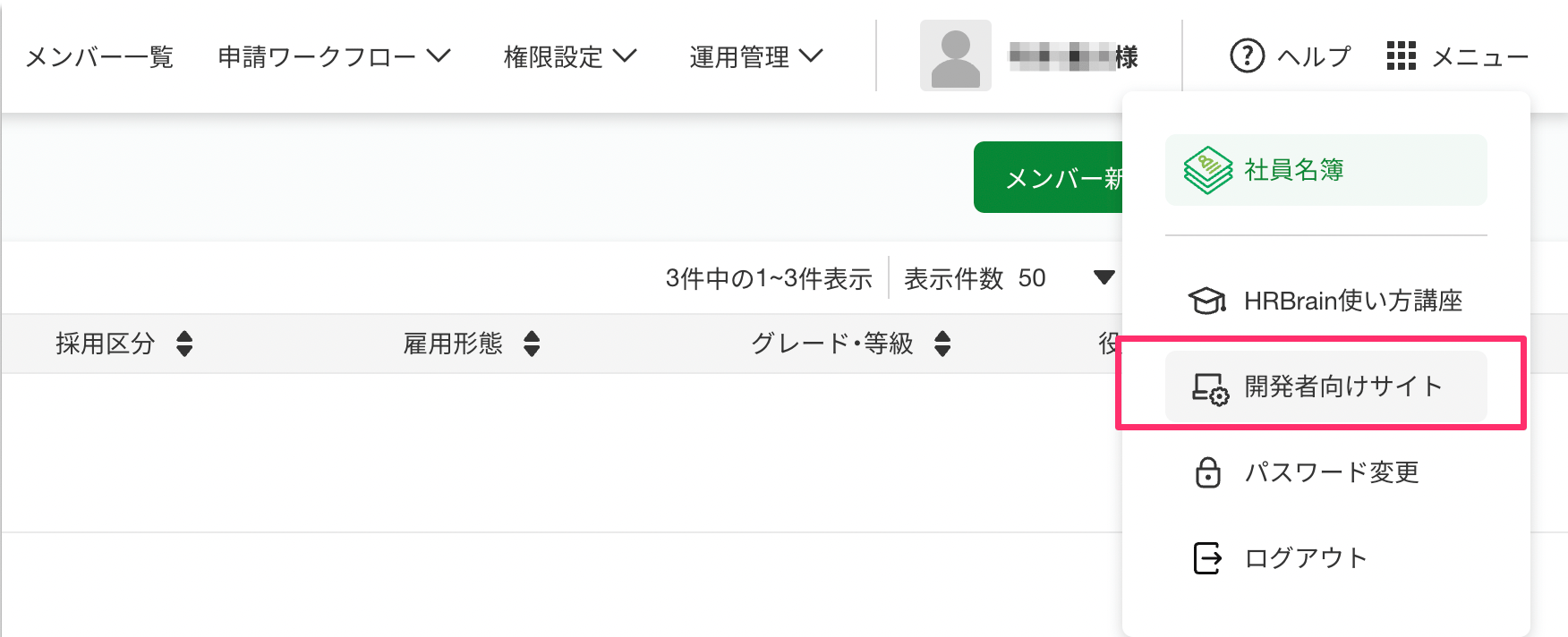
**メニュー > 開発者向けサイト**に移動します。
### 公開API/Tokenの設定
**メニュー > 開発者向けサイト**に移動します。
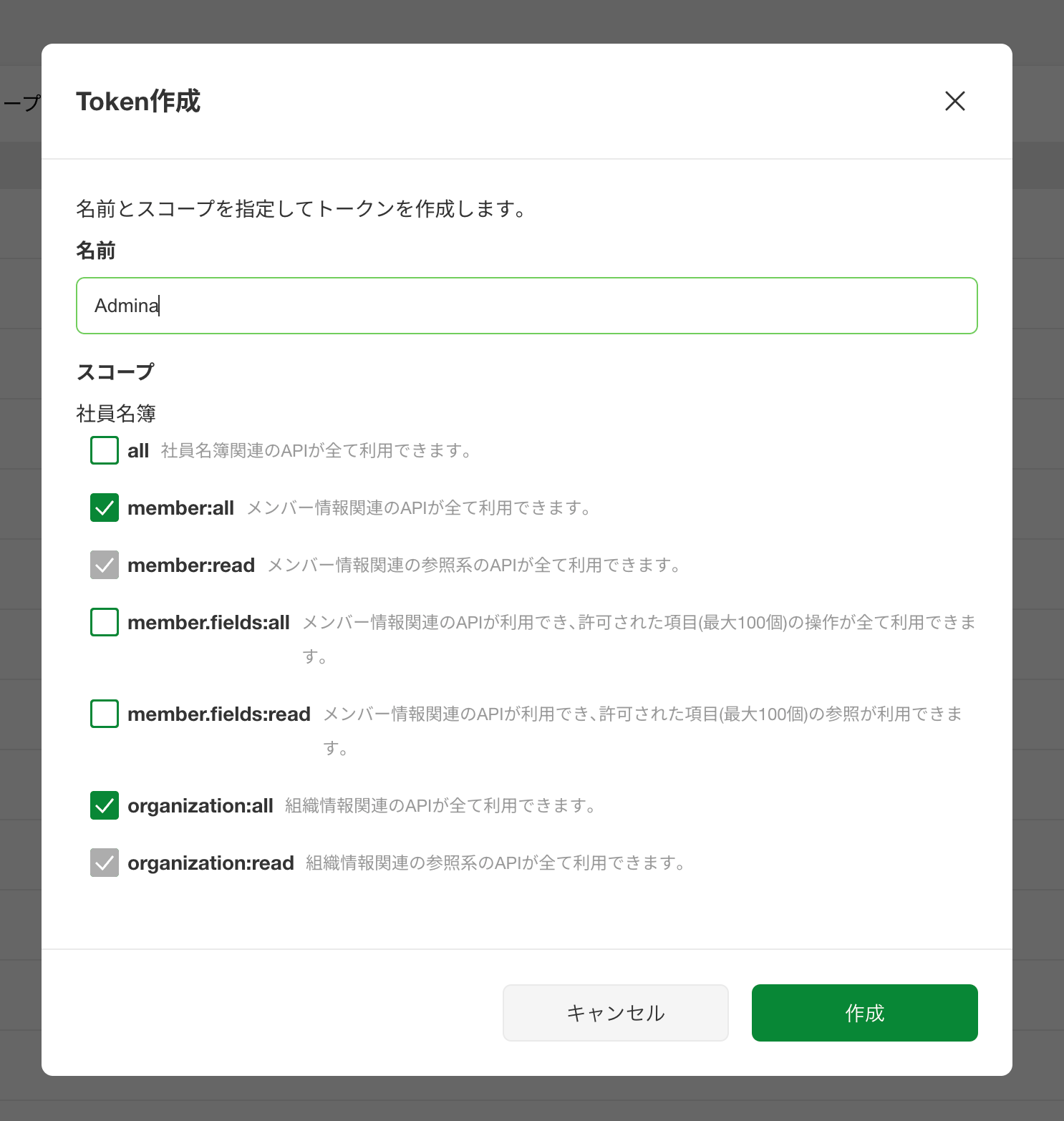
 右上の\[**トークン作成**]をクリックします。
 * 名前:**任意の名前**を入力します
* スコープ:`member:all`, `organizatin:all`を選択し、作成をクリックします。
* 名前:**任意の名前**を入力します
* スコープ:`member:all`, `organizatin:all`を選択し、作成をクリックします。
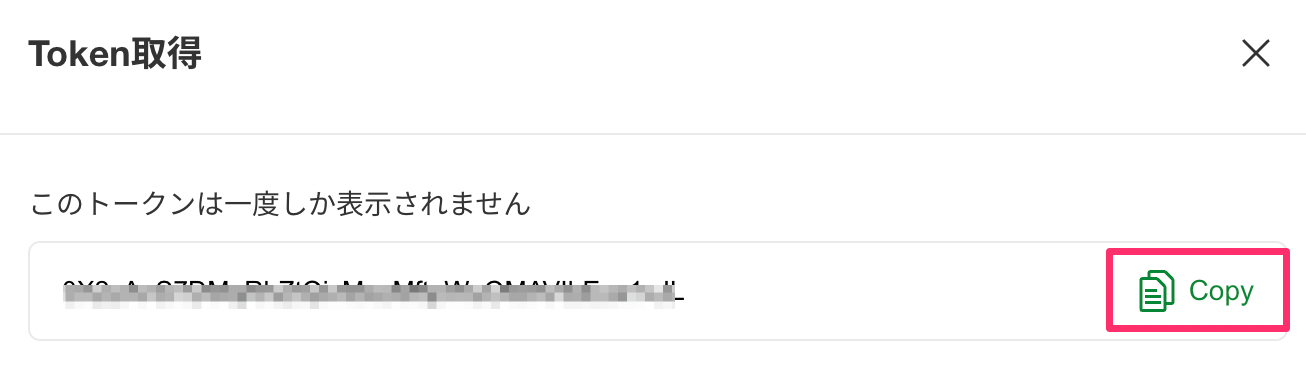
 表示されたトークンをコピーして保存しておきます。(一度しか表示されないため、必ず保存しておいてください)
 ## インテグレーションのセットアップ
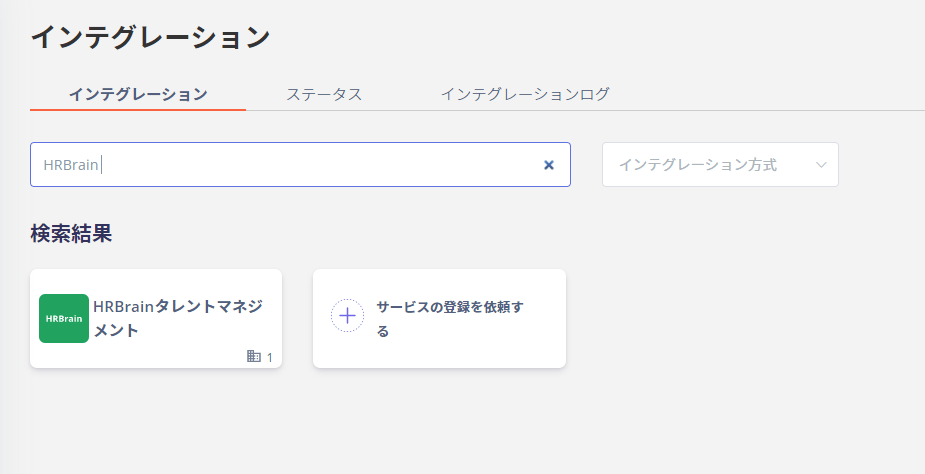
インテグレーション画面にて、**HRBrainタレントマネジメント**で検索します。
## インテグレーションのセットアップ
インテグレーション画面にて、**HRBrainタレントマネジメント**で検索します。
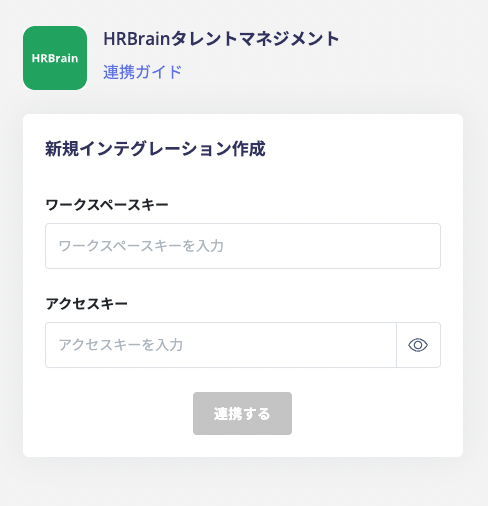
 前の手順で取得した**ワークスペースキー**、**API Tokenをアクセスキー**に入力し、**連携する**をクリックします。
 HRBrainタレントマネジメントとの連携に成功すると、アカウント一覧に登録済みのユーザー情報が表示されます。
正常に完了しない場合は、インテグレーション画面のステータスタブから**編集**し、再度連携をお試しください。
解決しない場合はチャットにてお問い合わせください。
HRBrainタレントマネジメントの連携概要については[連携ページ](http://admina.moneyforward.com/jp/integrations/hrbrain)をご覧ください。
HRBrainタレントマネジメントとの連携に成功すると、アカウント一覧に登録済みのユーザー情報が表示されます。
正常に完了しない場合は、インテグレーション画面のステータスタブから**編集**し、再度連携をお試しください。
解決しない場合はチャットにてお問い合わせください。
HRBrainタレントマネジメントの連携概要については[連携ページ](http://admina.moneyforward.com/jp/integrations/hrbrain)をご覧ください。