> ## Documentation Index
> Fetch the complete documentation index at: https://support.i.moneyforward.com/llms.txt
> Use this file to discover all available pages before exploring further.

# Favro

> 管理者権限で行うFavro連携。APIキー取得、組織ID確認し、Adminaで簡単設定

## サポートする機能

<Badge color="blue">アカウント作成</Badge>

<Info>
  連携には管理者権限のアカウントが必要です。
</Info>

## 事前準備

### ログイン方法

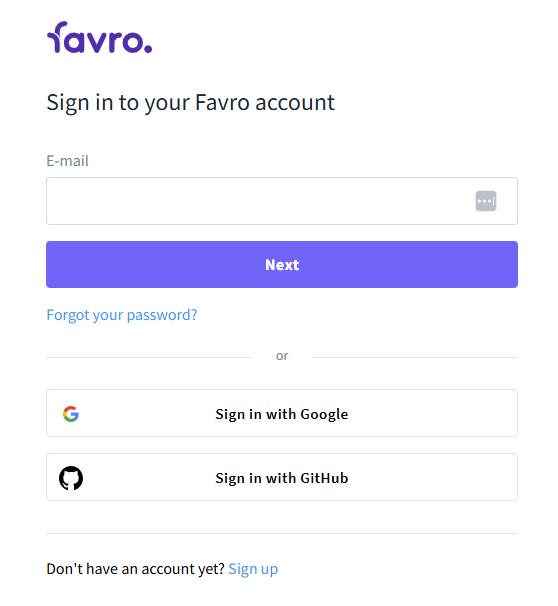
Favroログインページにて、メールアドレス・パスワードを入力し、ログインします。
<img src="https://mintcdn.com/moneyforwardi/8rNSDZnPhsTE7YvM/images/integrations/b6rfkcj0nd/2026-02-12-171818.png?fit=max&auto=format&n=8rNSDZnPhsTE7YvM&q=85&s=ec5fac7a360b266d7bfb806ac18826f1" alt="Favroログイン画面" width="558" height="606" data-path="images/integrations/b6rfkcj0nd/2026-02-12-171818.png" />

### APIキーの取得方法

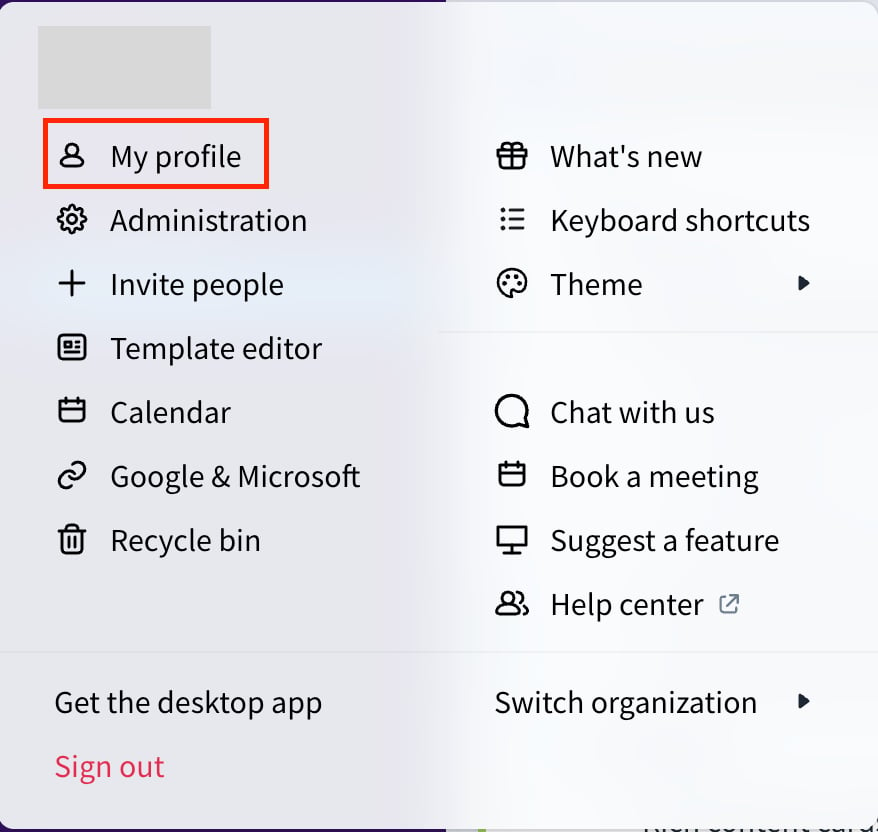
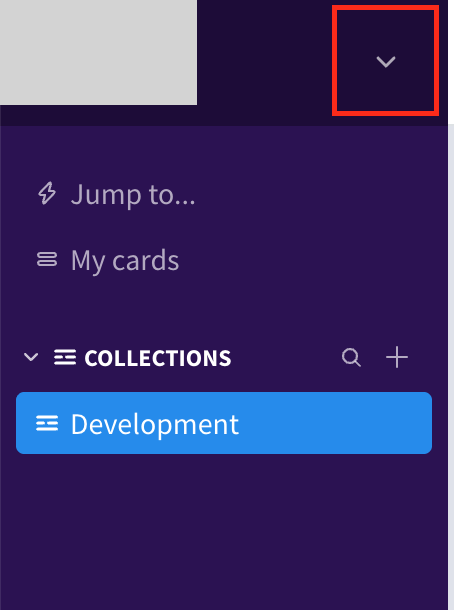
メニューから **My profile** をクリックします。
<img src="https://mintcdn.com/moneyforwardi/8rNSDZnPhsTE7YvM/images/integrations/b6rfkcj0nd/screenshot-2026-02-02-at-14-12-51.png?fit=max&auto=format&n=8rNSDZnPhsTE7YvM&q=85&s=ac9bf2c82d546e0e8b8c33f347ddf3b3" alt="My profileメニュー" width="454" height="610" data-path="images/integrations/b6rfkcj0nd/screenshot-2026-02-02-at-14-12-51.png" />

<img src="https://mintcdn.com/moneyforwardi/8rNSDZnPhsTE7YvM/images/integrations/b6rfkcj0nd/screenshot-2026-02-02-at-14-13-21.png?fit=max&auto=format&n=8rNSDZnPhsTE7YvM&q=85&s=9a04492f134ef890f38a55101feaed6c" alt="My profileページ" width="878" height="832" data-path="images/integrations/b6rfkcj0nd/screenshot-2026-02-02-at-14-13-21.png" />

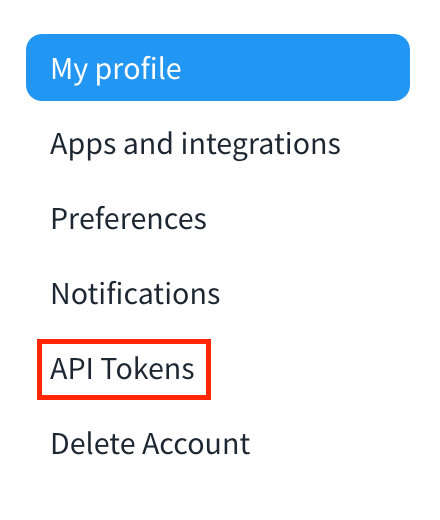
**API Tokens** をクリックします。

<img src="https://mintcdn.com/moneyforwardi/8rNSDZnPhsTE7YvM/images/integrations/b6rfkcj0nd/screenshot-2026-02-02-at-14-13-46.png?fit=max&auto=format&n=8rNSDZnPhsTE7YvM&q=85&s=367cec53da03f1db5d9acd1bad4868c9" alt="API Tokensページ" width="440" height="520" data-path="images/integrations/b6rfkcj0nd/screenshot-2026-02-02-at-14-13-46.png" />

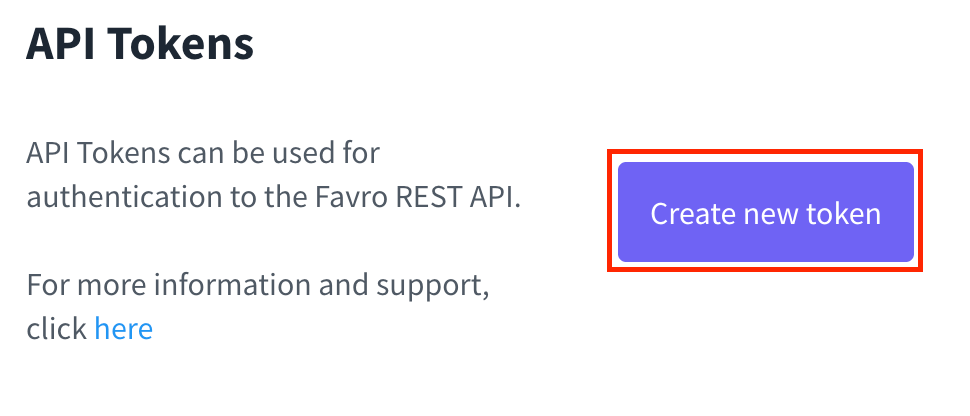
**Create new token** をクリックします。

<img src="https://mintcdn.com/moneyforwardi/8rNSDZnPhsTE7YvM/images/integrations/b6rfkcj0nd/screenshot-2026-02-02-at-14-14-05.png?fit=max&auto=format&n=8rNSDZnPhsTE7YvM&q=85&s=dff77ecab8be43de1116cb0d25605b99" alt="Create new tokenボタン" width="970" height="416" data-path="images/integrations/b6rfkcj0nd/screenshot-2026-02-02-at-14-14-05.png" />

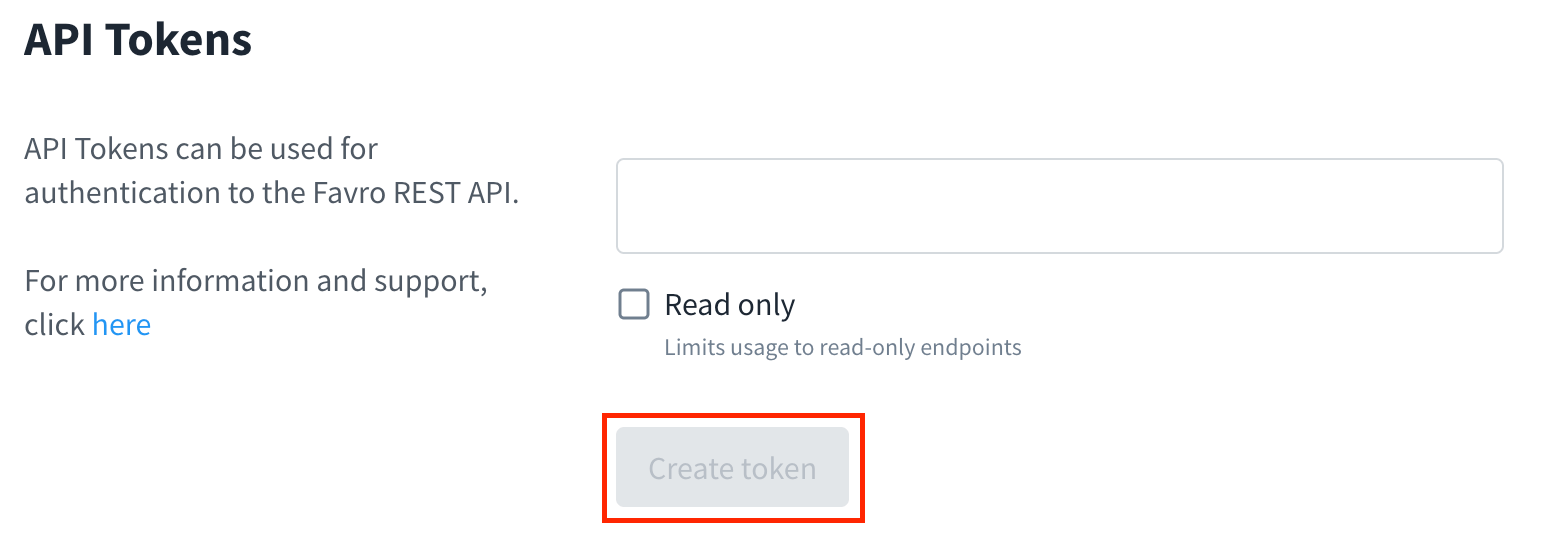
**APIトークン**の名前を入力し、**Create token** をクリックします。
<img src="https://mintcdn.com/moneyforwardi/8rNSDZnPhsTE7YvM/images/integrations/b6rfkcj0nd/screenshot-2026-02-02-at-14-14-26.png?fit=max&auto=format&n=8rNSDZnPhsTE7YvM&q=85&s=9fb4f03f22927cbf3e3f5df999377720" alt="APIトークン名入力" width="1542" height="544" data-path="images/integrations/b6rfkcj0nd/screenshot-2026-02-02-at-14-14-26.png" />

表示された**APIキー**をコピーします。

### 組織IDの確認方法

URLを確認します。画像の赤枠部分が**組織 ID**です。

<img src="https://mintcdn.com/moneyforwardi/8rNSDZnPhsTE7YvM/images/integrations/b6rfkcj0nd/screenshot-2026-02-02-at-14-08-48.png?fit=max&auto=format&n=8rNSDZnPhsTE7YvM&q=85&s=576dd70230886ed03618b7bf0f7bceee" alt="組織IDの確認" width="1214" height="76" data-path="images/integrations/b6rfkcj0nd/screenshot-2026-02-02-at-14-08-48.png" />

## インテグレーションのセットアップ

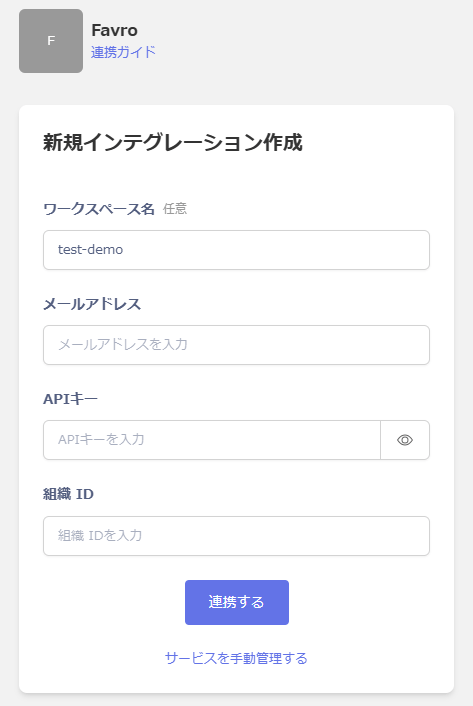
インテグレーション画面にて、**Favro**で検索します。

任意の**ワークスペース名**、ログイン用の**メールアドレス**、前の手順で取得した**APIキー**、**組織ID**を入力し、**連携する**をクリックします。
<img src="https://mintcdn.com/moneyforwardi/8rNSDZnPhsTE7YvM/images/integrations/b6rfkcj0nd/2026-02-12-175533.png?fit=max&auto=format&n=8rNSDZnPhsTE7YvM&q=85&s=6e3d537040a01304807728a8d6e9913a" alt="Admina連携設定画面" width="473" height="706" data-path="images/integrations/b6rfkcj0nd/2026-02-12-175533.png" />

連携に成功すると、アカウント一覧に登録済みのユーザー情報が表示されます。

正常に完了しない場合は、インテグレーション画面のステータスタブから**編集**し、再度連携をお試しください。

解決しない場合はチャットにてお問い合わせください。